> For the complete documentation index, see [llms.txt](https://docs.geopard.tech/geopard-tutorials/llms.txt). Markdown versions of documentation pages are available by appending `.md` to page URLs; this page is available as [Markdown](https://docs.geopard.tech/geopard-tutorials/jpn/tsu-mobairuapuri/working-offline.md).
# オフラインで作業
GeoPardモバイルアプリをオフラインで使い、通信がなくても圃場作業を進められます。
オフラインでの作業
GeoPardモバイルアプリで作業を始める前に、ネットワークに接続できない状況でも問題なくアプリにアクセスできるよう、ログイン情報を保存しておくことをおすすめします。
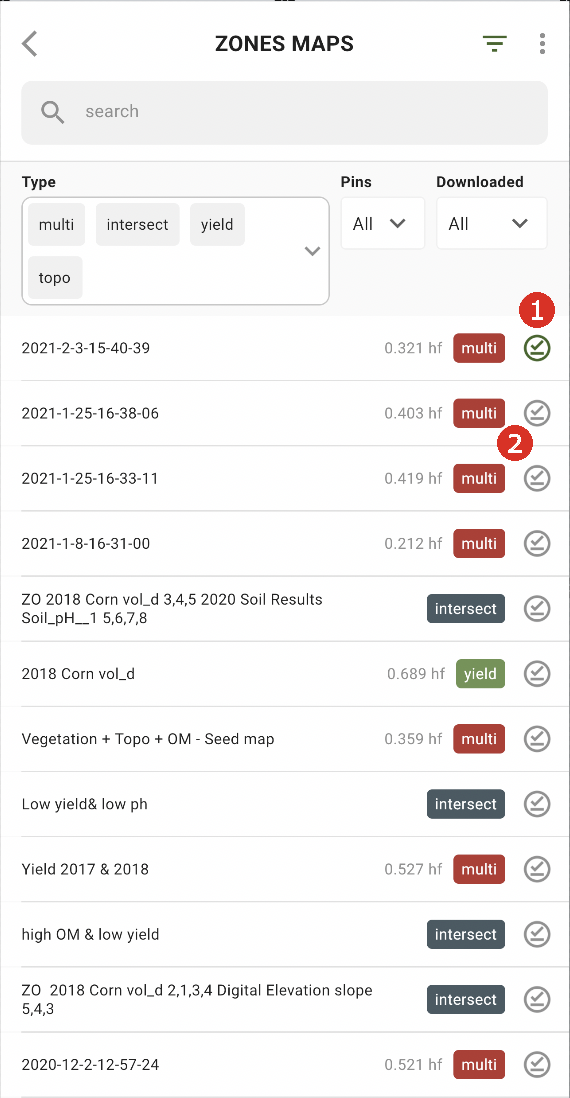
オフラインで作業するには、ゾーンマップをスマートフォンにダウンロードする必要があります。ダウンロードしたいゾーンマップの横にあるダウンロードボタンをタップします(2)。
マップが端末にダウンロードされると、横に緑色のチェックマークが表示されます(1)。
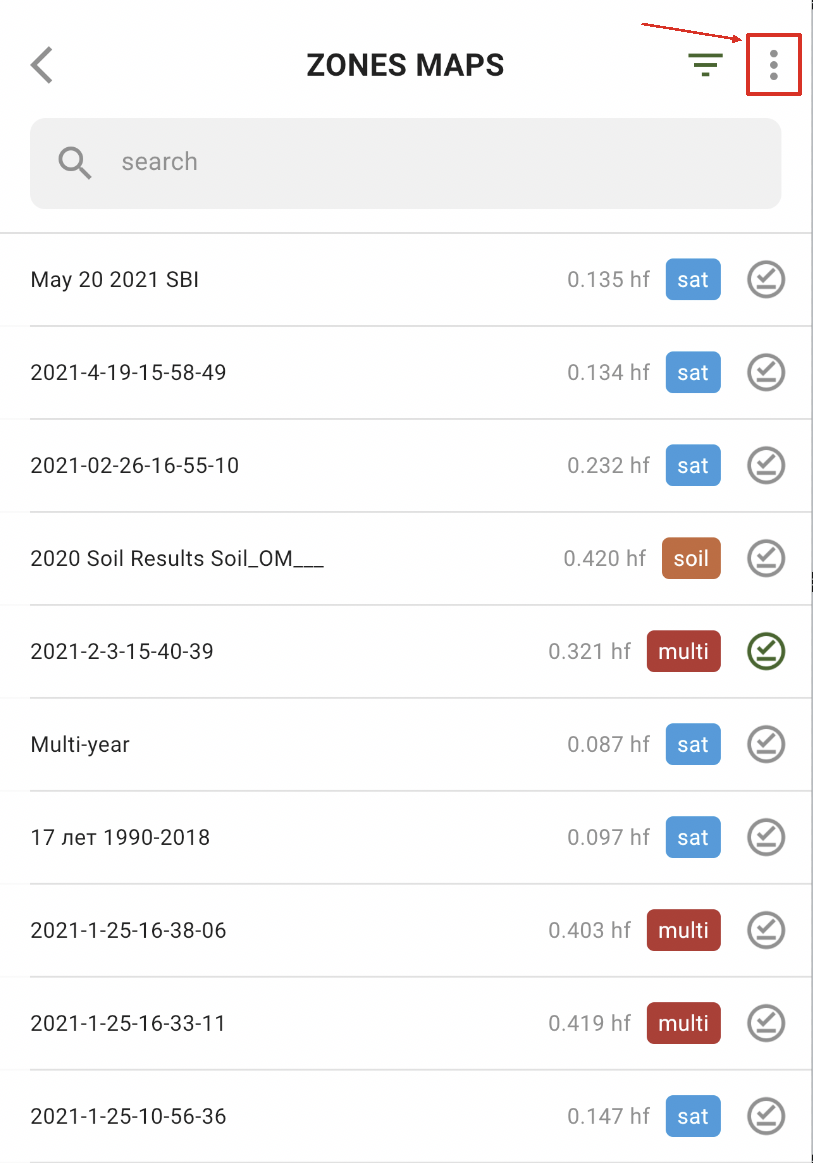
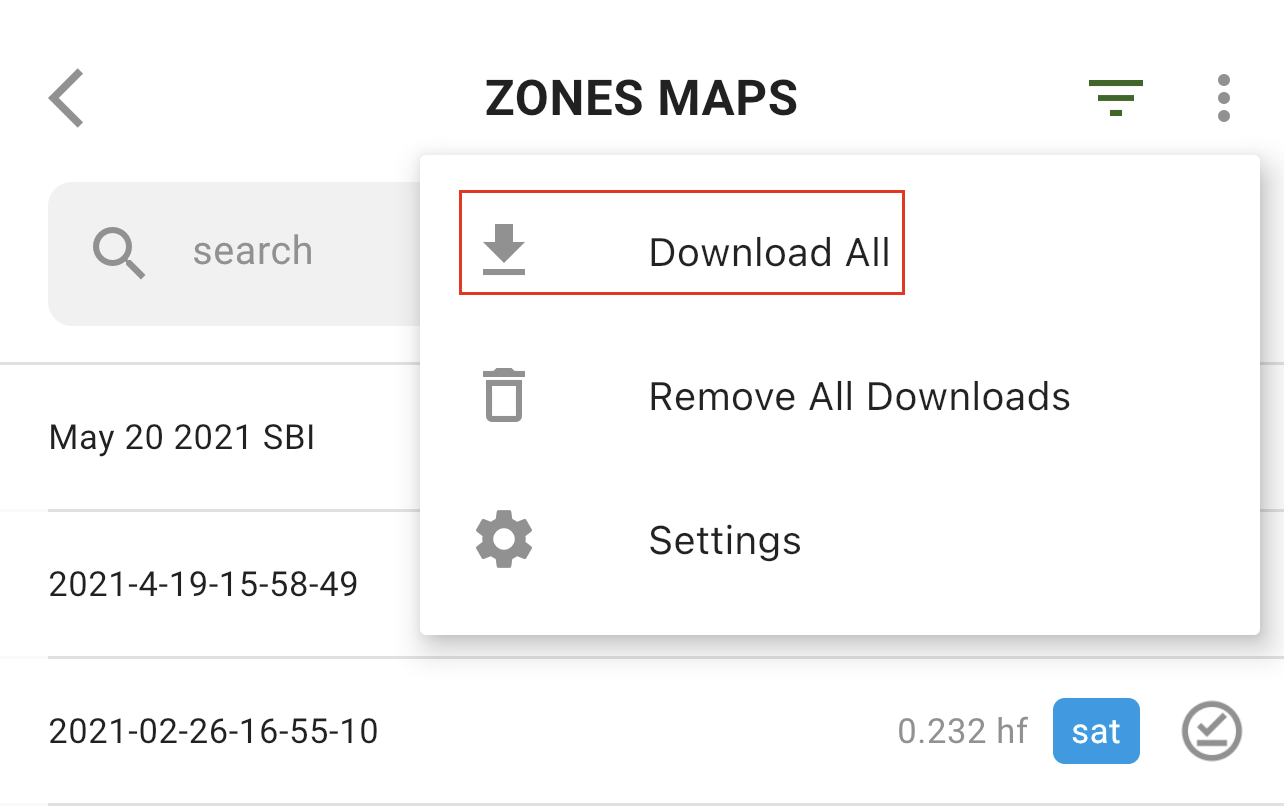
すべてのゾーンマップを一度にダウンロードするには、「その他」をタップします。
次に、「すべてダウンロード」を選択します。
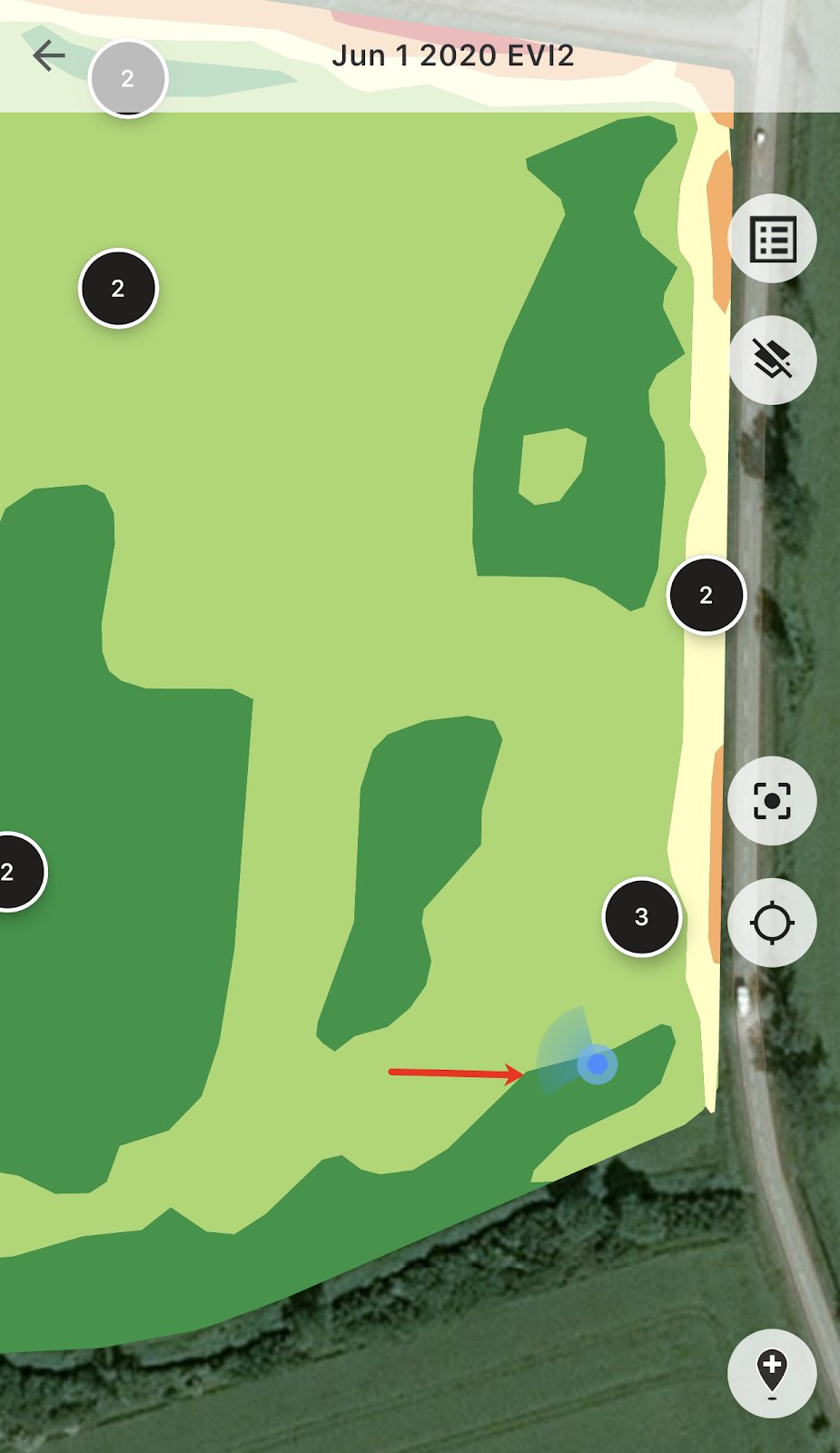
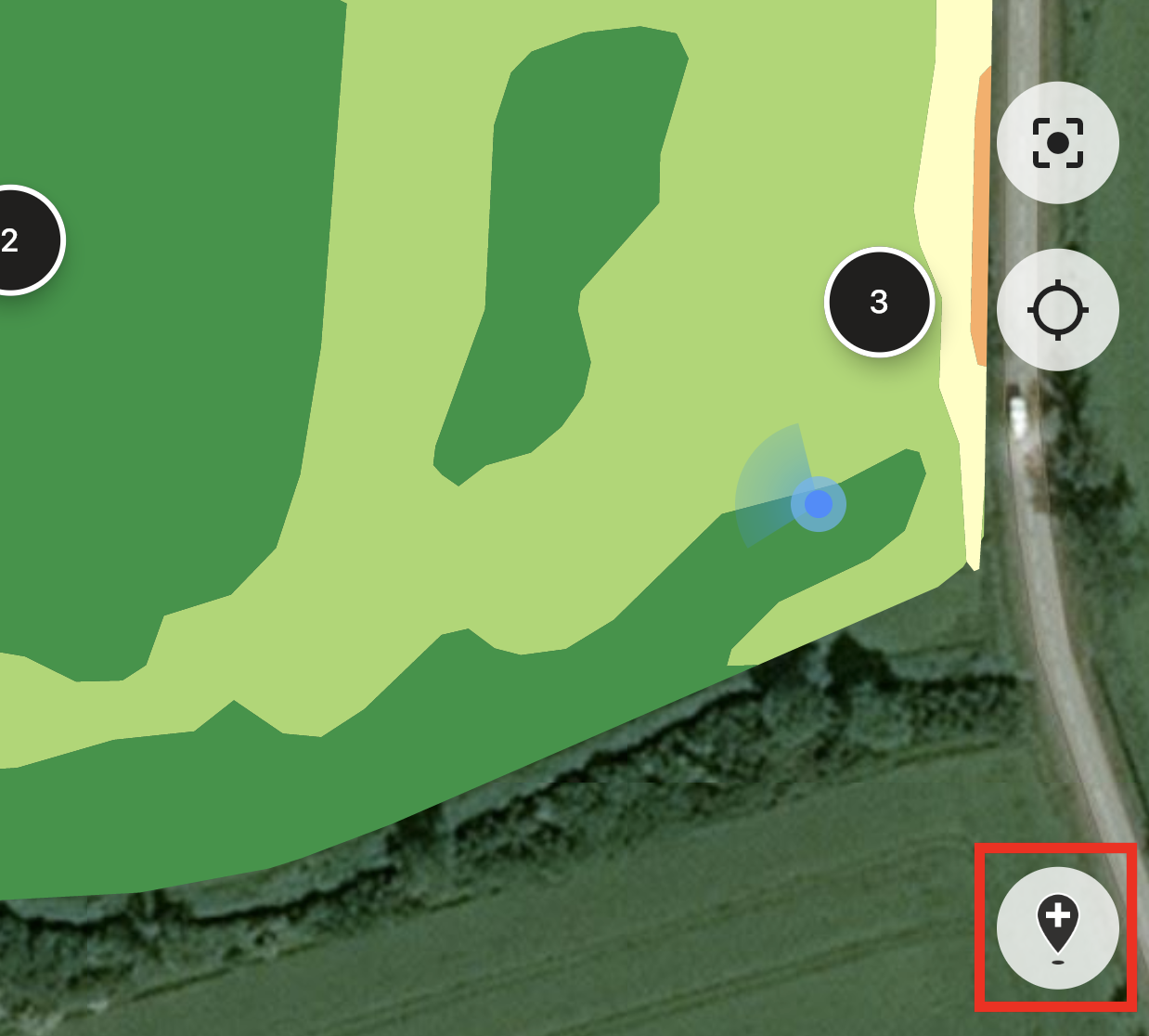
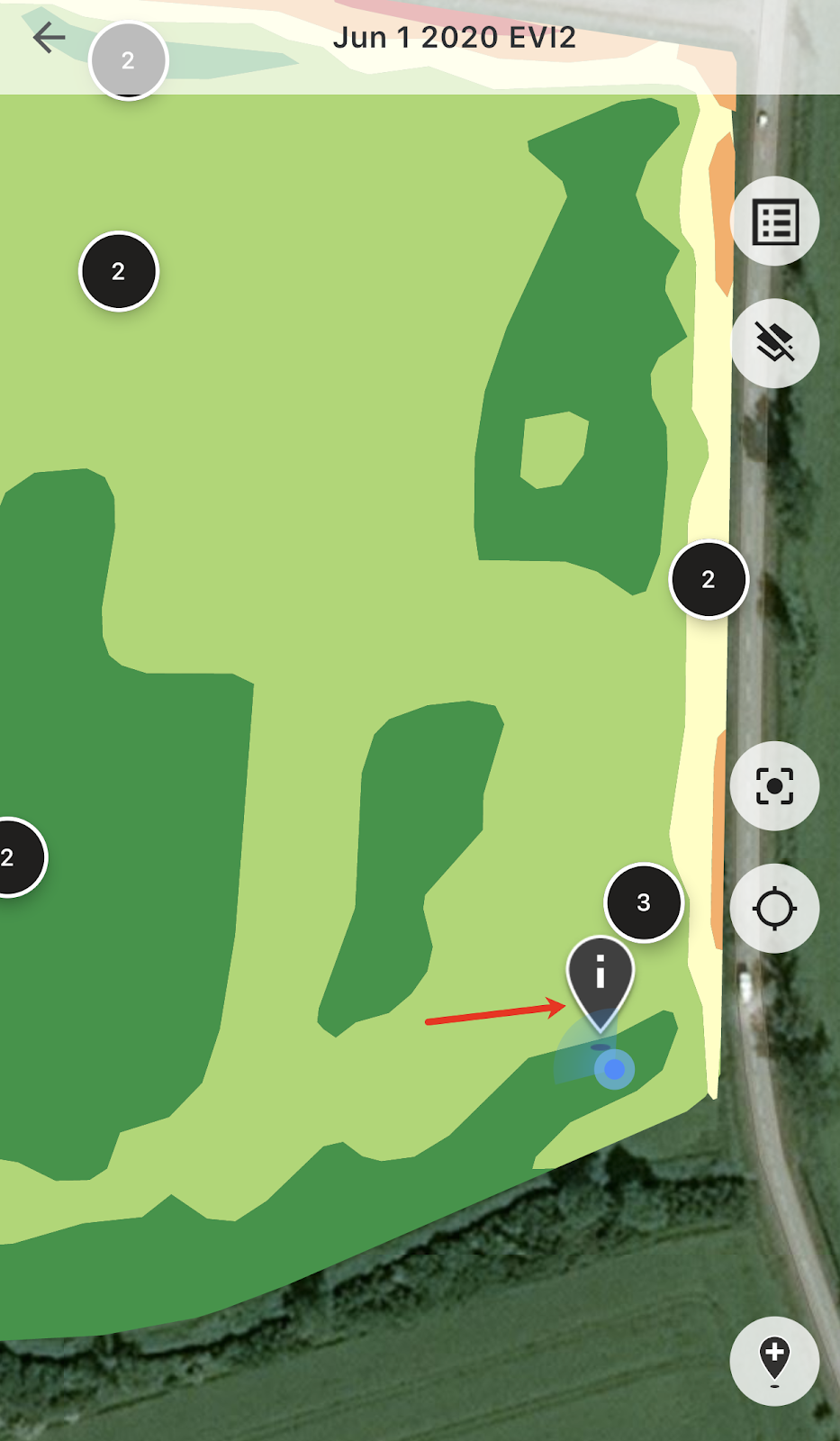
圃場にいるときは、自分の位置を追跡し、移動方向を確認できます。
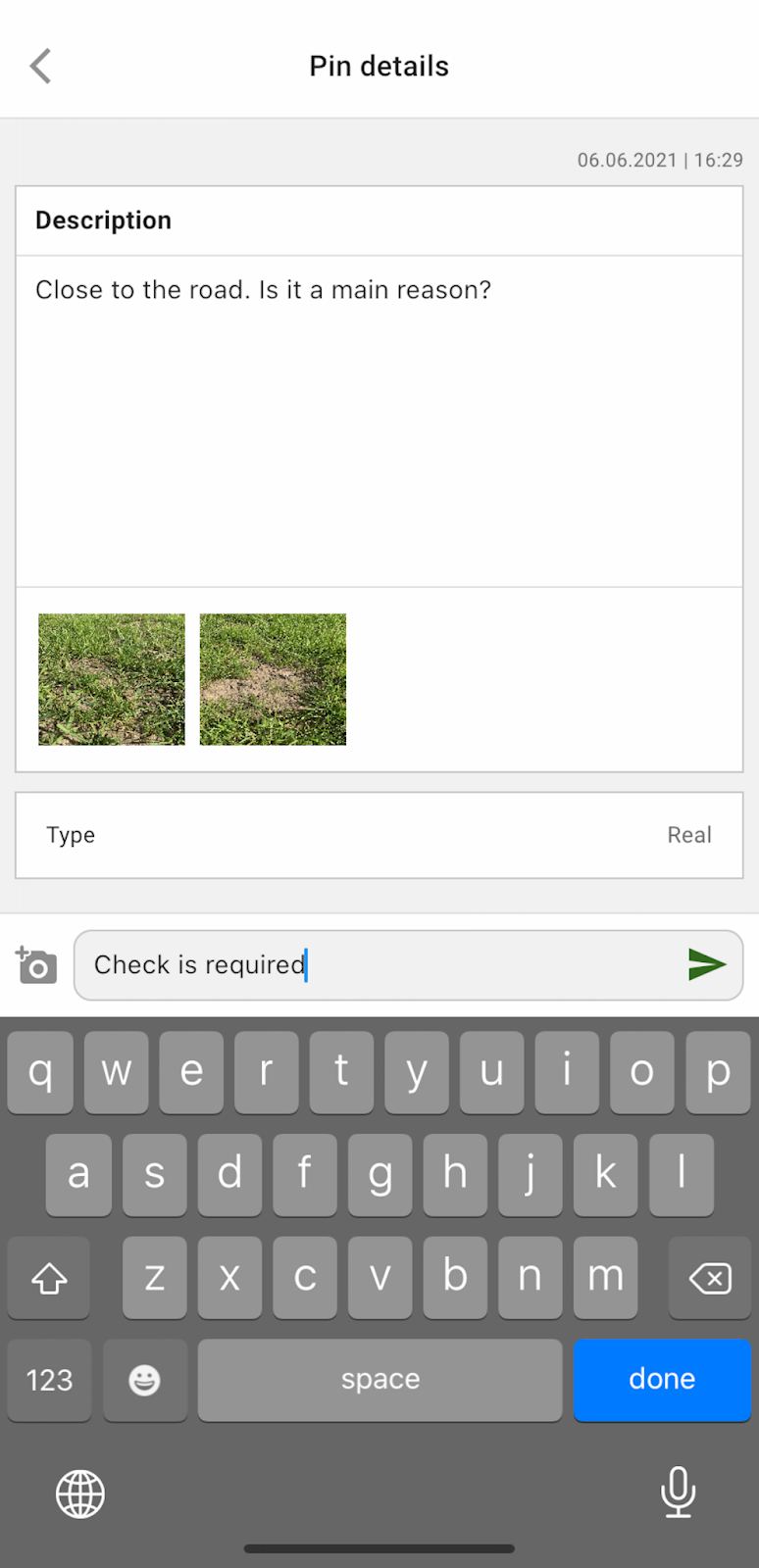
計画済みのピンをタップして、コメントを追加または編集できます。
注意が必要なもの(異常や誤った圃場境界など)を見つけた場合は、「新しいピンを追加」ボタンをタップします。
コメントを入力し、「保存」をタップすると、ゾーンマップに新しいピンが追加されます。
モバイル端末から追加したピンは、ウェブアプリケーションで追加した計画済みのピンとは異なるアイコンで表示されます。
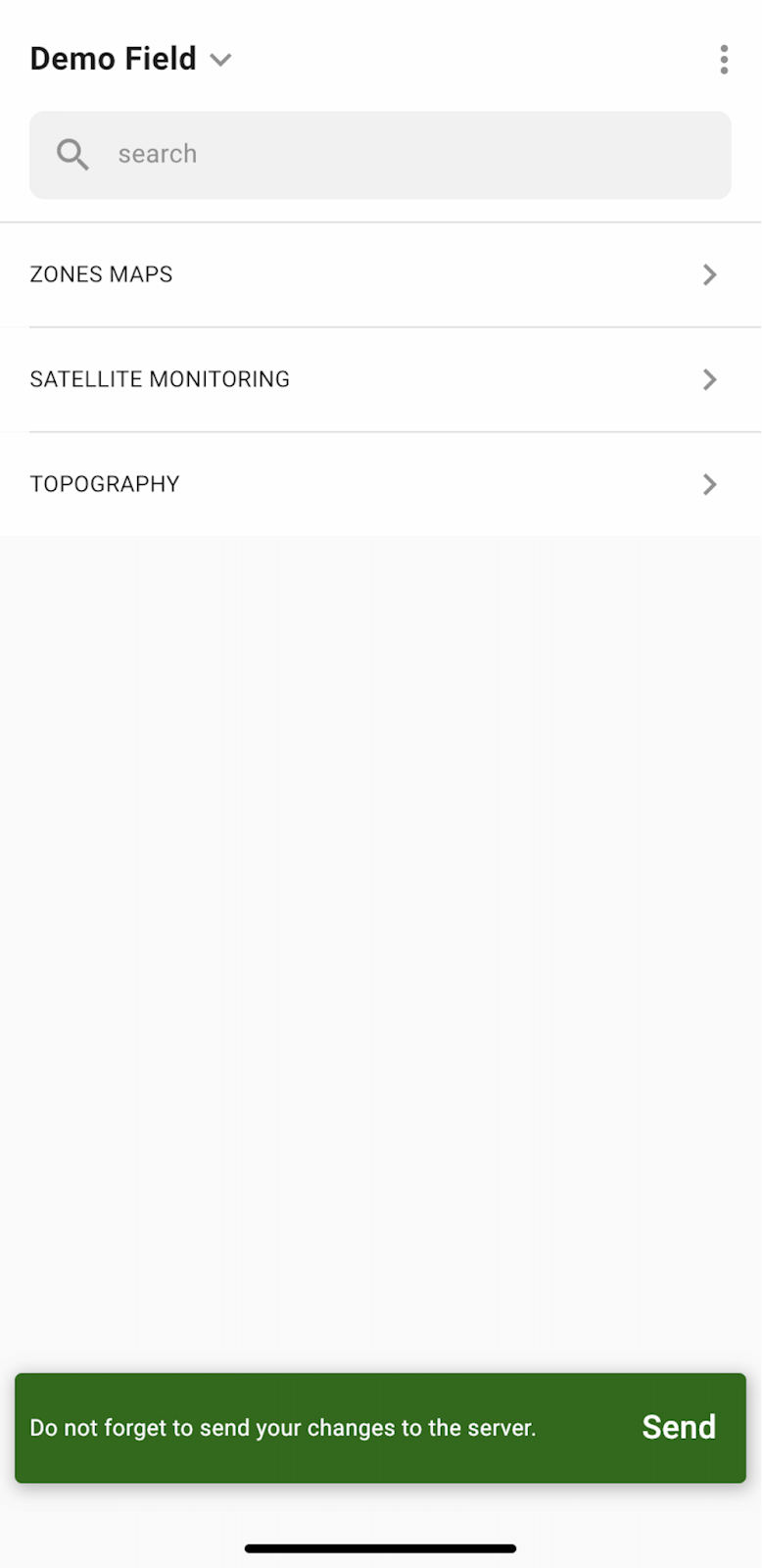
圃場での作業を終え、ピンを追加または編集すると、変更をサーバーにアップロードするよう通知が表示されます。オフラインで作業している場合は、ネットワークに接続すると、変更をアップロードするよう求められます。
「送信」をタップして、変更をサーバーと同期します。
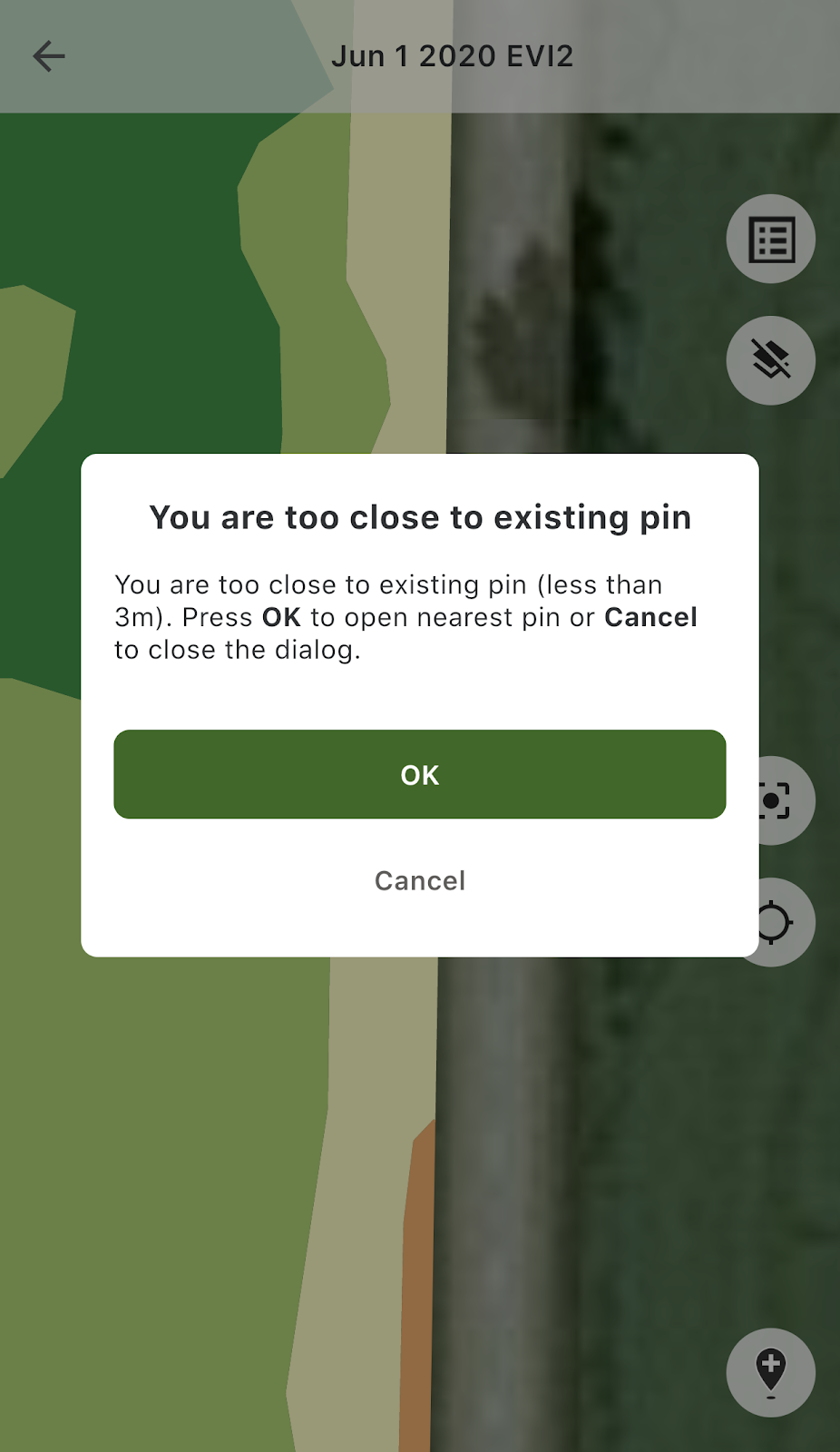
既存のピンの近くで新しいピンを追加しようとすると、次のメッセージが表示されます。
この場合、「OK」をタップして最寄りのピンを開くか、「キャンセル」をタップしてポップアップメッセージを閉じます。
---
# Agent Instructions
This documentation is published with GitBook. GitBook is the documentation platform designed so that both humans and AI agents can read, navigate, and reason over technical content effectively. Learn more at gitbook.com.
## Querying This Documentation
If you need additional information that is not directly available in this page, you can query the documentation by asking a question.
Perform an HTTP GET request on the following URL with the `ask` and `goal` query parameters:
```
GET https://docs.geopard.tech/geopard-tutorials/jpn/tsu-mobairuapuri/working-offline.md?ask=&goal=
```
`ask` is the immediate question: it should be specific, self-contained, and written in natural language.
`goal` is what the user is ultimately trying to achieve, the reason they need the answer. Sharing it helps GitBook give you a better, more relevant answer. A goal is most helpful when it describes the outcome the user wants rather than restating the question. For example, with `ask=how do I create an API token`, a goal like `automate deployments from our CI pipeline` lets GitBook tailor the answer to that use case.
The response will contain a direct answer to the question and relevant excerpts and sources from the documentation.
Use this mechanism when the answer is not explicitly present in the current page, you need clarification or additional context, or you want to retrieve related documentation sections.