> For the complete documentation index, see [llms.txt](https://docs.geopard.tech/geopard-tutorials/llms.txt). Markdown versions of documentation pages are available by appending `.md` to page URLs; this page is available as [Markdown](https://docs.geopard.tech/geopard-tutorials/jpn/giskuikkuhinto/qgis-dtano.md).
# QGIS: 収量データの加工
GeoPardにインポートまたは分析する前に、QGISで収量データを準備・クリーンアップします。
概要
収量モニターデータに関する以下の問題を解決するための、手順を追った説明付きマニュアル:
1. シェープファイル内の投影ファイル(.prj)が欠落している
2. シェープファイル内の各属性に変換ルールを適用する(kb/ha から bu/ac へのサンプルに基づく)
使用するソフトウェアは QGIS([リンク](https://qgis.org/en/site/forusers/download.html)).
ダウンロードとインストールは必須です。
### 投影ファイルの欠落
1. 収量データを含むシェープファイルを開きます。ファイルを QGIS ウィンドウ内に移動します。
2. そのシェープファイルは、レイヤーブロック内で以後の操作に使用できるようになります。
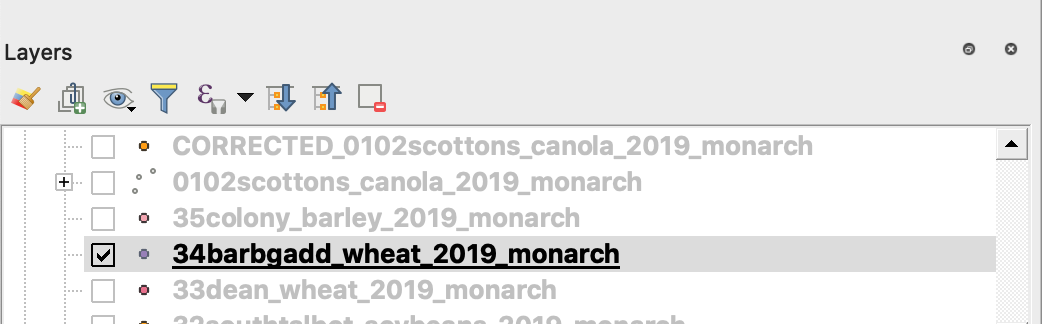
3. 保存処理を開始
4. 1. シェープファイル上で右クリックします
2. エクスポート -> 地物を別名で保存... を選択します
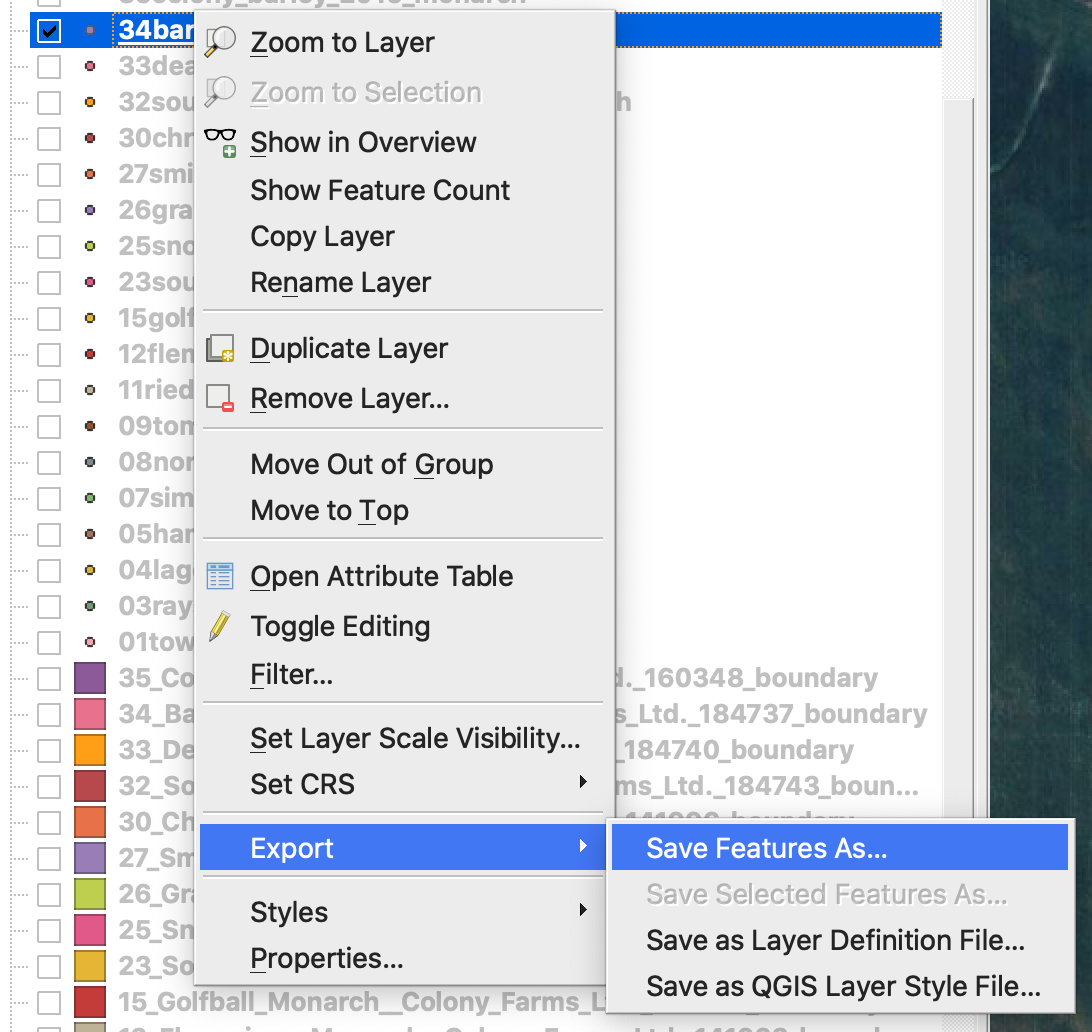
4. 選択
5. 1. 形式 -> ESRI Shapefile,
2. ファイル名 -> 「...」をクリックして、希望する保存先フォルダとファイル名を選択します,
3. CRS -> EPSG:4326
4. エンコーディング -> UTF8
5. 保存したファイルを地図に追加(QGIS 上で直接表示したい場合は任意)
6. ジオメトリタイプ -> 点
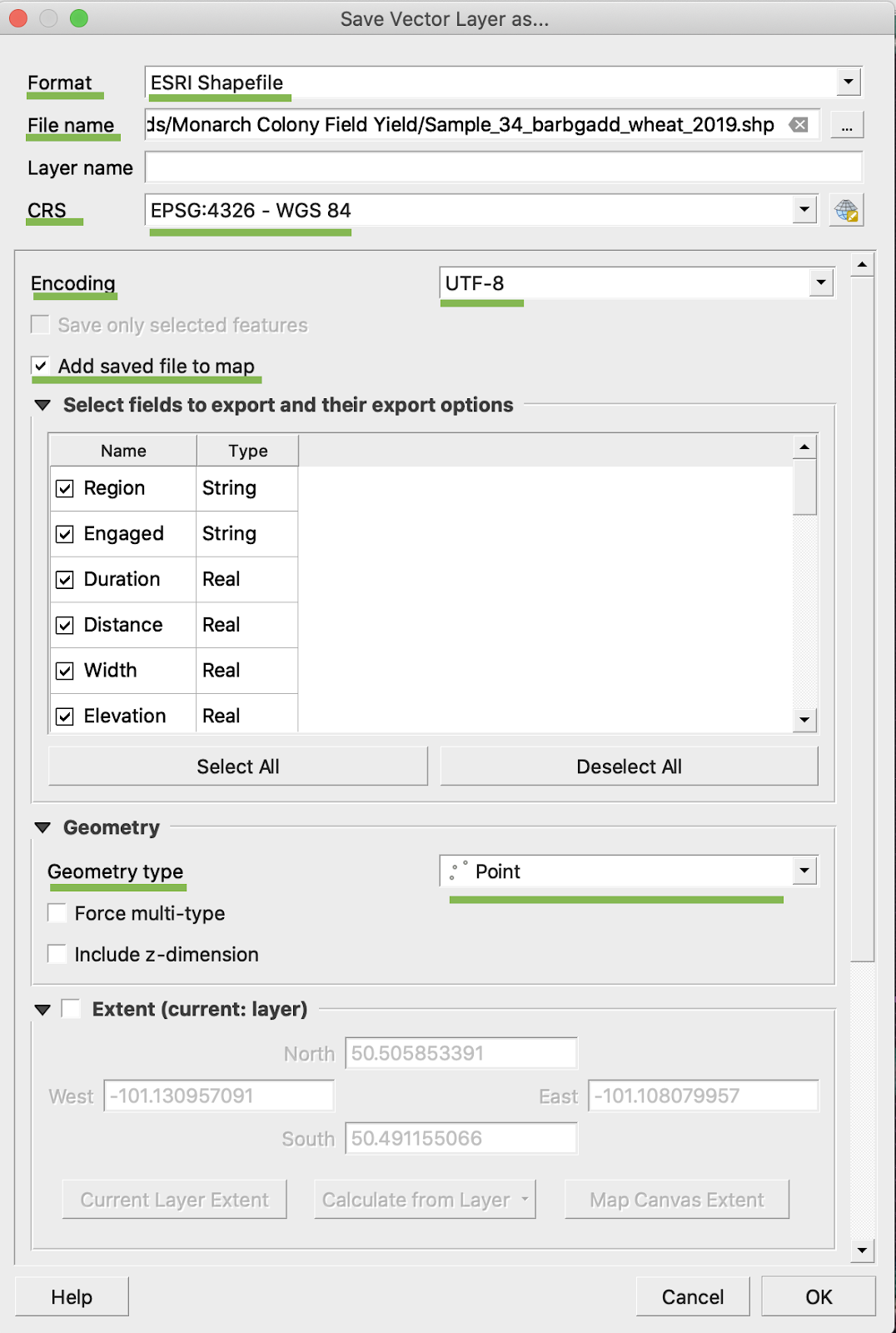
5. OK をクリック
6. 同じ収量データを持つ追加のシェープファイルが作成されます。投影ファイル(.prj)が追加されました。
\
### BU/AC 変換
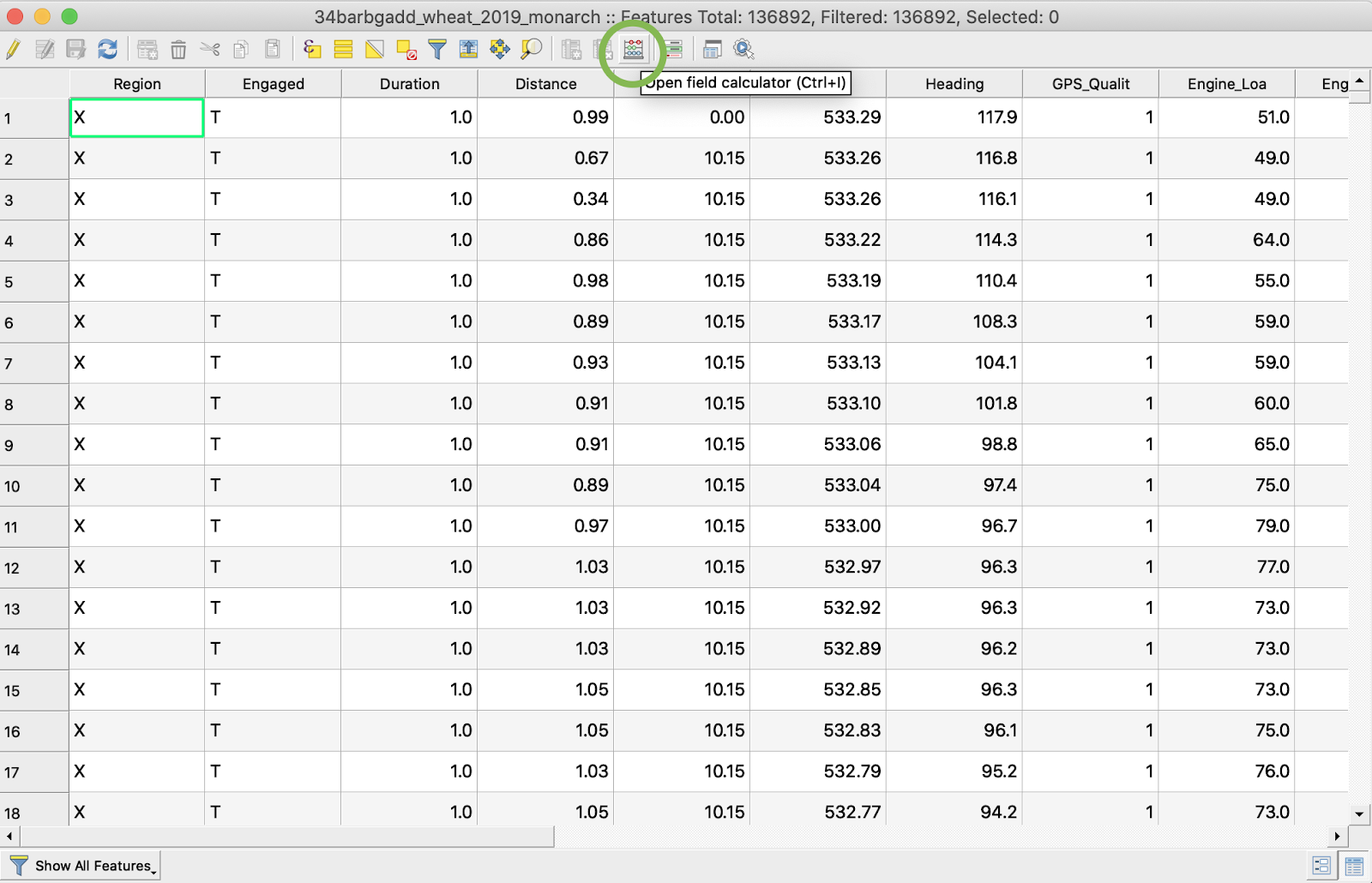
1. 対象のシェープファイルを右クリックして、属性テーブルを開くを選択します
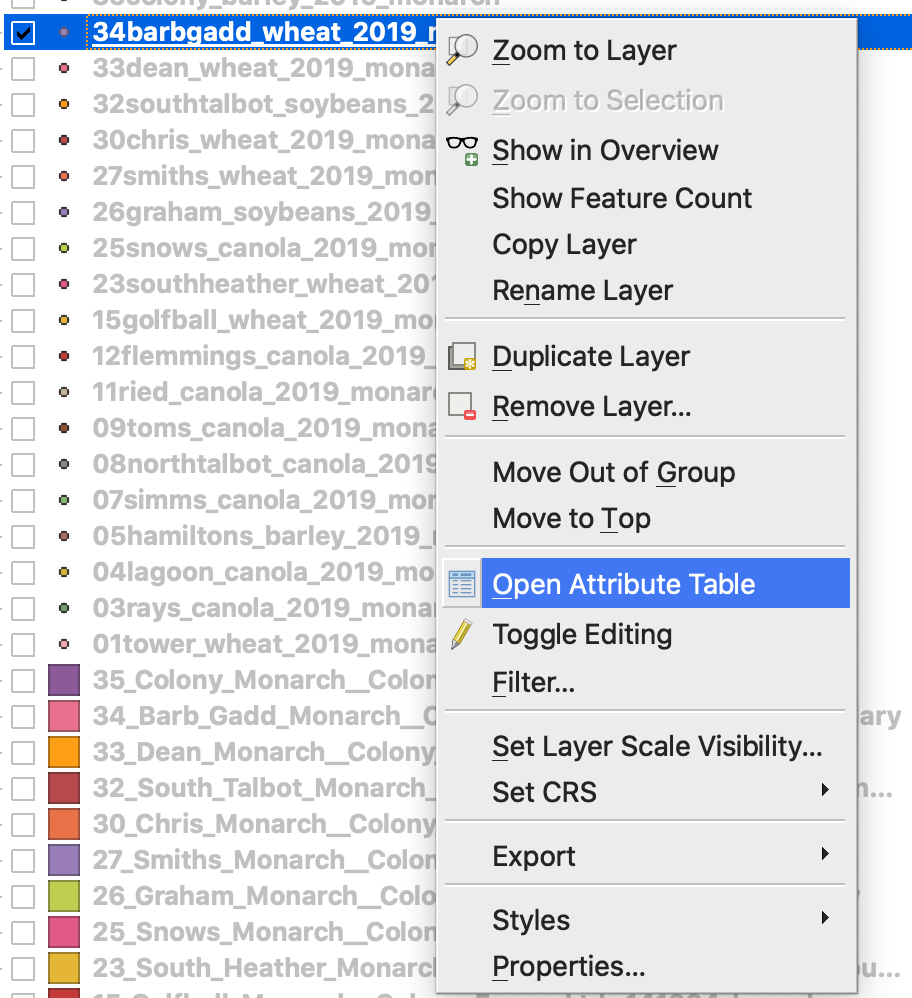
2. フィールド計算機を開く をクリック
3. 新しいフィールドを作成
4. 1. 新しいフィールドを作成 にチェック
2. 出力フィールド名を入力 -> DryYieldBu
3. 出力フィールドタイプを選択 -> 小数(実数)
4. 精度を変更 -> 4
5. kg/ha を bu/ac に変換する式を入力 -> "Dry\_Yield" \* 0.0149
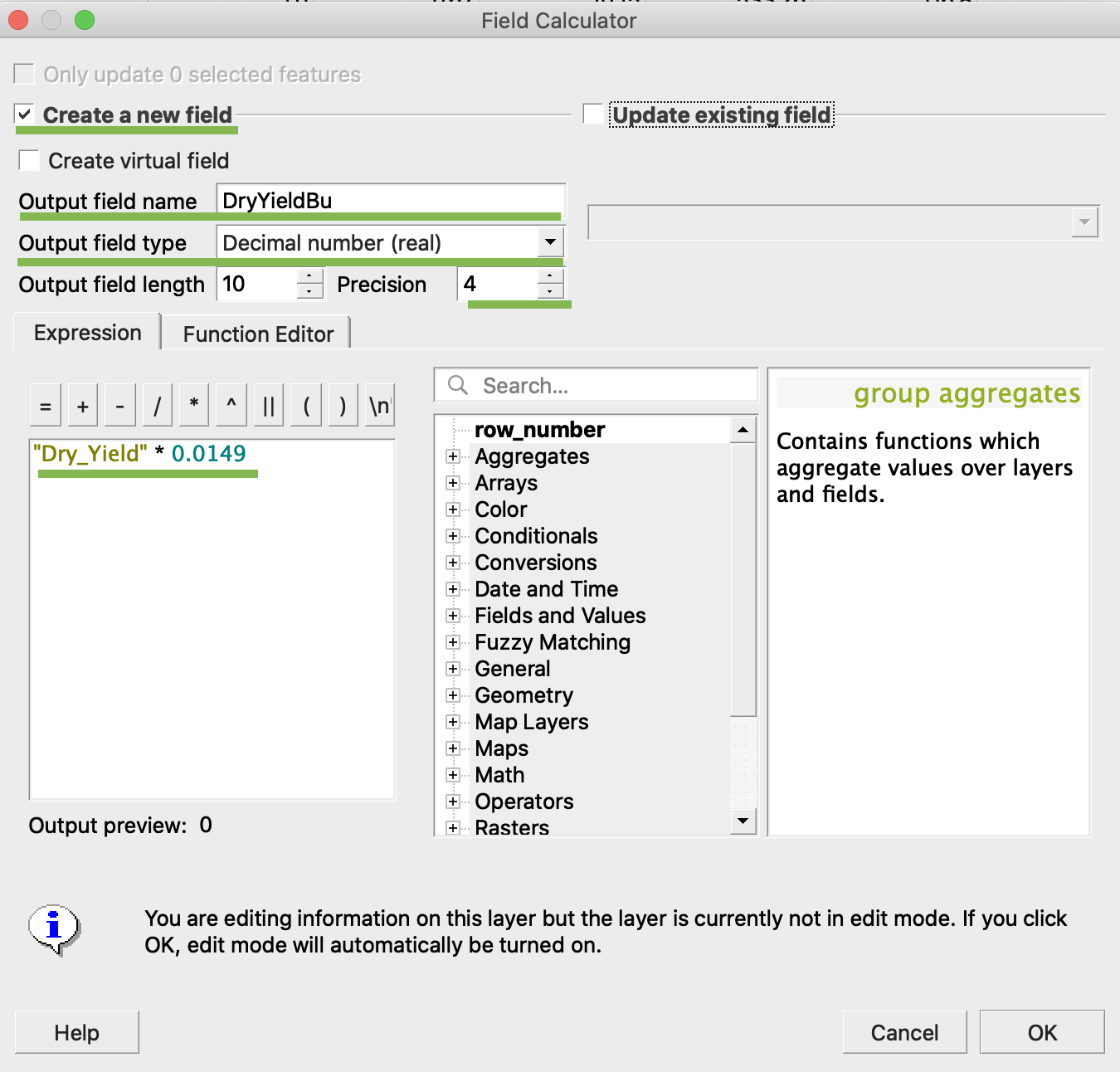
4. OK をクリック
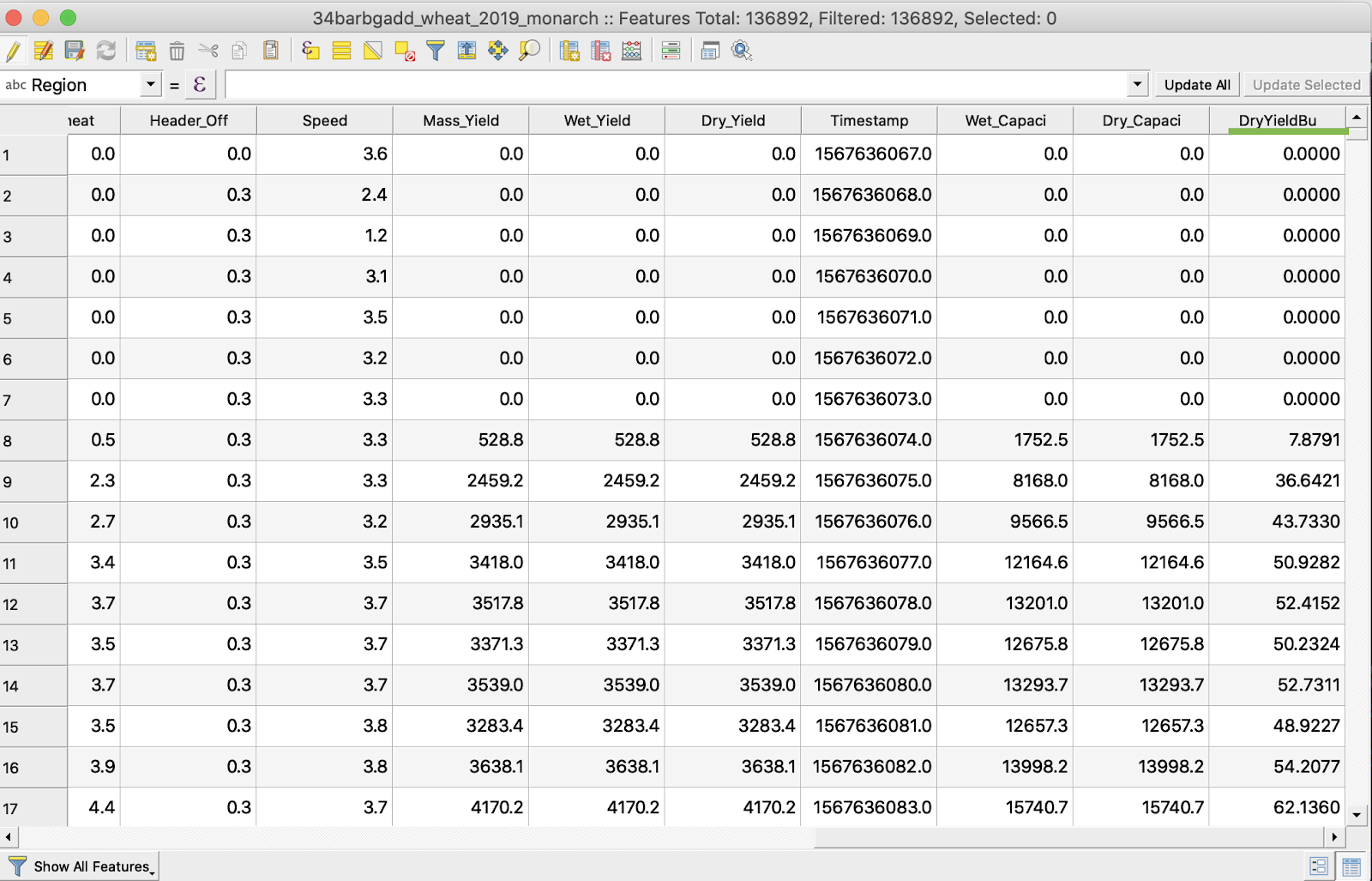
5. テーブルに DryYieldBu という追加属性が表示されました
6. 変更を保存
7. 1. 対象のシェープファイルを右クリックします
2. 編集モードの切り替え を選択
\
\
\
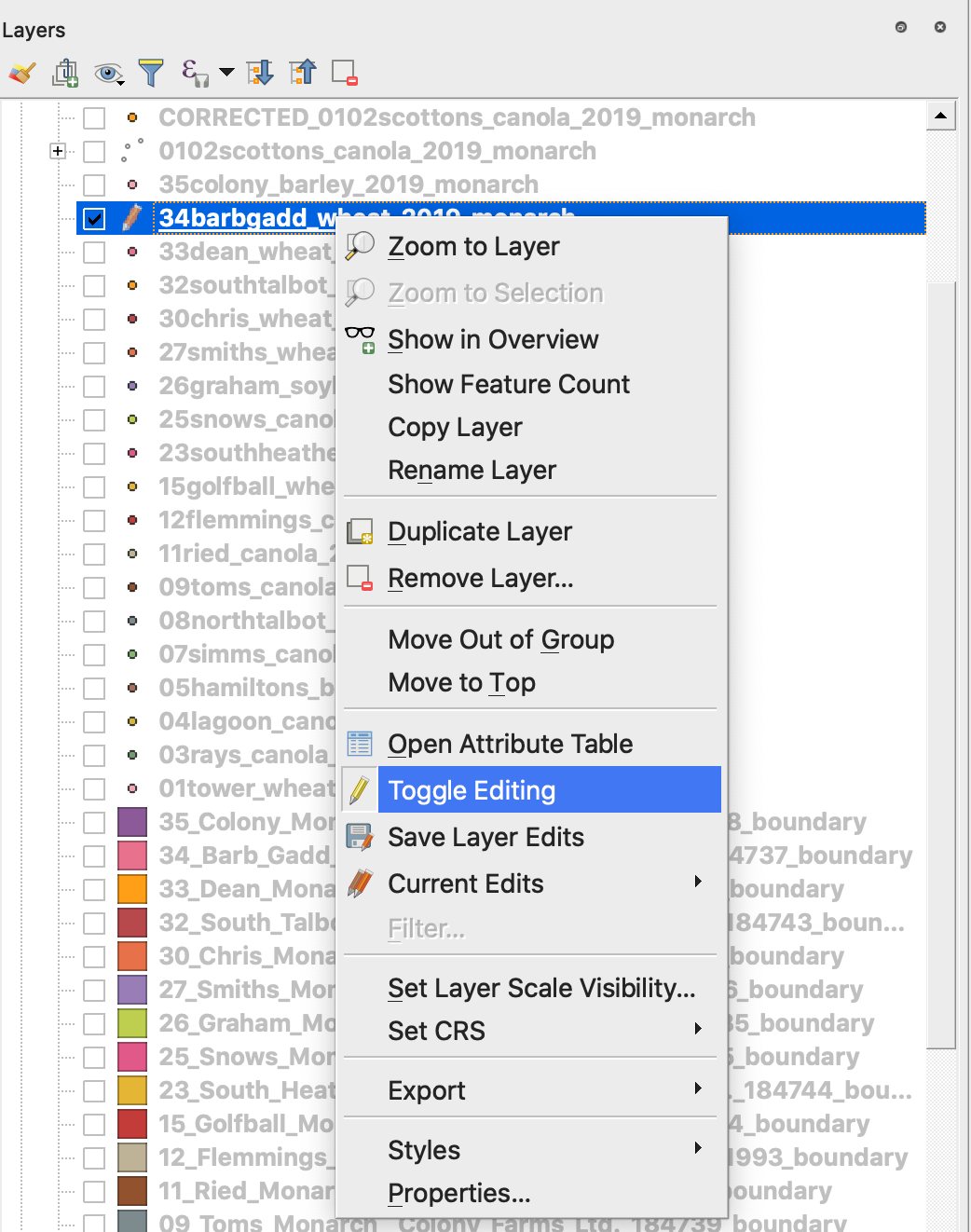
7. 変更の保存を確認
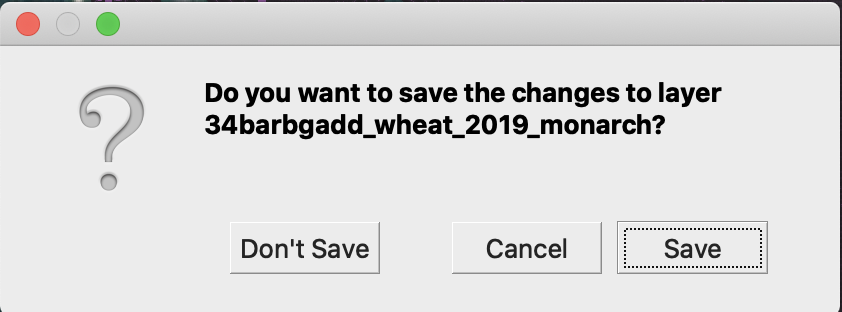
対象のシェープファイルに鉛筆マークが表示されなくなります。シェープファイル内のデータが更新されました。
---
# Agent Instructions
This documentation is published with GitBook. GitBook is the documentation platform designed so that both humans and AI agents can read, navigate, and reason over technical content effectively. Learn more at gitbook.com.
## Querying This Documentation
If you need additional information that is not directly available in this page, you can query the documentation by asking a question.
Perform an HTTP GET request on the following URL with the `ask` and `goal` query parameters:
```
GET https://docs.geopard.tech/geopard-tutorials/jpn/giskuikkuhinto/qgis-dtano.md?ask=&goal=
```
`ask` is the immediate question: it should be specific, self-contained, and written in natural language.
`goal` is what the user is ultimately trying to achieve, the reason they need the answer. Sharing it helps GitBook give you a better, more relevant answer. A goal is most helpful when it describes the outcome the user wants rather than restating the question. For example, with `ask=how do I create an API token`, a goal like `automate deployments from our CI pipeline` lets GitBook tailor the answer to that use case.
The response will contain a direct answer to the question and relevant excerpts and sources from the documentation.
Use this mechanism when the answer is not explicitly present in the current page, you need clarification or additional context, or you want to retrieve related documentation sections.