> For the complete documentation index, see [llms.txt](https://docs.geopard.tech/geopard-tutorials/llms.txt). Markdown versions of documentation pages are available by appending `.md` to page URLs; this page is available as [Markdown](https://docs.geopard.tech/geopard-tutorials/jpn/giskuikkuhinto/qgis-dorngeotifffairunondviwo.md).
# QGIS: ドローンGeoTIFFファイルのNDVIを計算
圃場内の一部のポリゴンについて平均NDVIを計算する必要がある場合があります。QGISで次の操作を行えます。
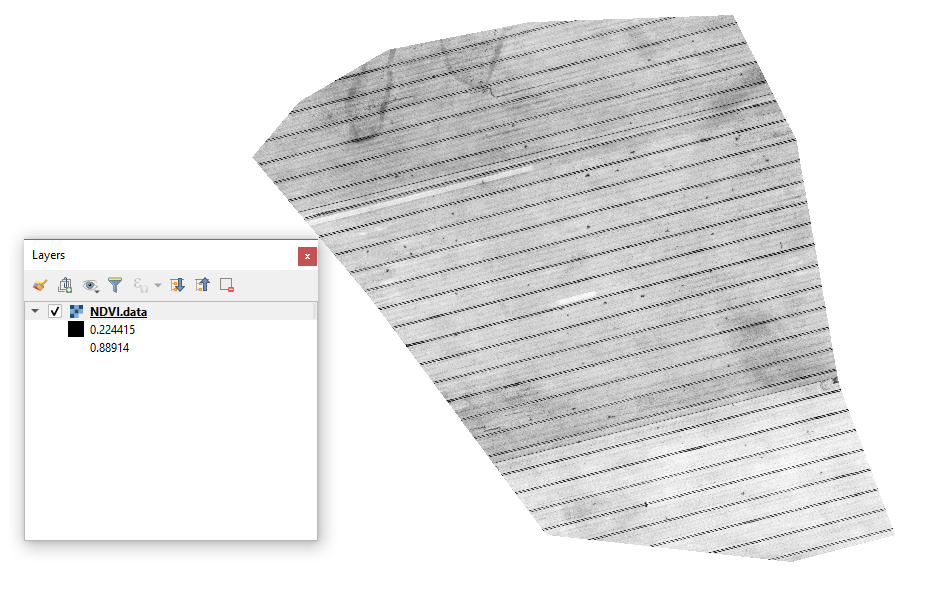
#### 1 - 初期ドローンNDVIのGeoTIFFを表示する
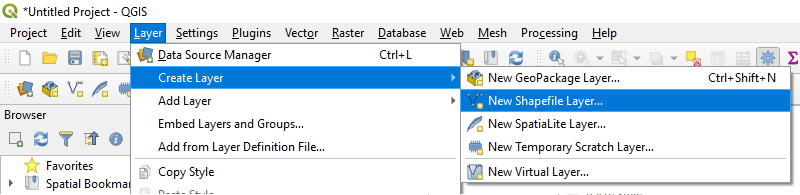
#### 2 - 新しいレイヤーを作成する
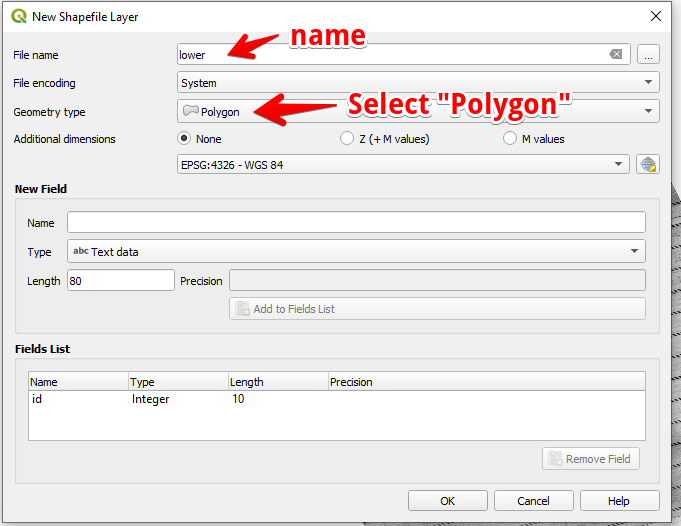
#### 3 - レイヤー名とジオメトリタイプを設定し、OKを押します
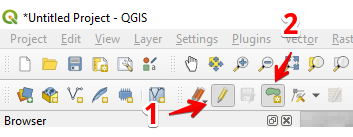
#### 4 - レイヤーパネルでレイヤーを選択する
1. 「編集の切り替え」を選択する (1)
2. 「ポリゴンフィーチャの追加」を選択する (2)
#### 5 - ポリゴンを描画します。描画を終えるにはマウスの右ボタンを押し、ポップアップで「id」を設定します。
「編集の切り替え」をもう一度押してレイヤーを終了し、「保存」を押します。
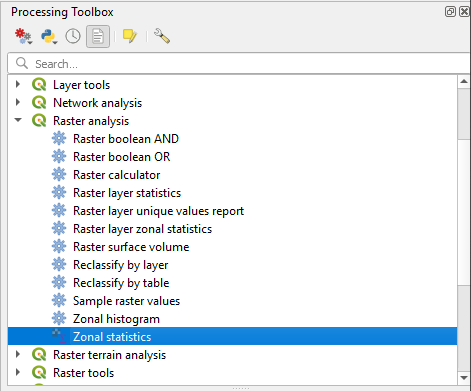
#### 6 - 「プロセシングツールボックス」パネルでゾーン統計を選択する。
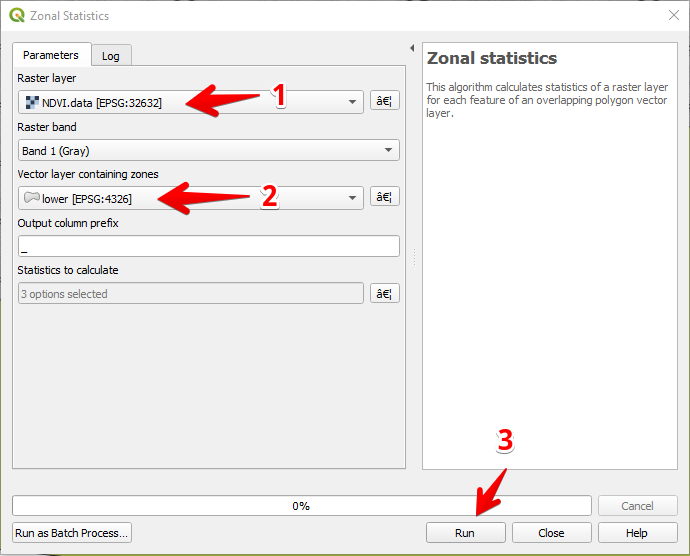
#### 7 - ラスターレイヤーを選択する (1)、
ポリゴンレイヤーを選択する (2)、
「実行」を押します (3)。
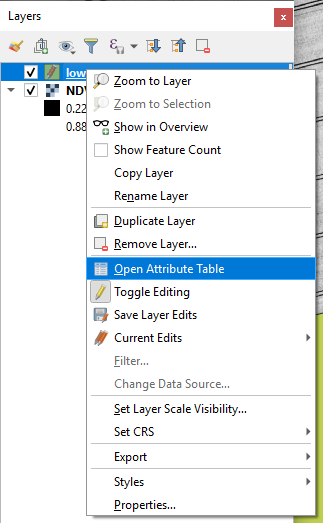
#### 8 - レイヤーパネルでレイヤーを選択してマウスの右ボタンを押し、コンテキストメニューで「属性テーブルを開く」を選択します。
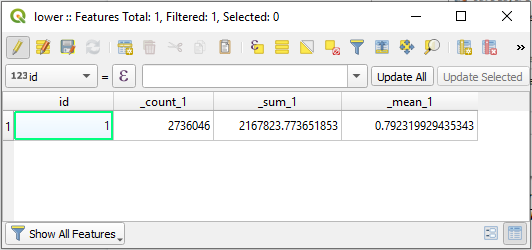
#### 9 - 計算された統計値がテーブルに表示されます。
---
# Agent Instructions
This documentation is published with GitBook. GitBook is the documentation platform designed so that both humans and AI agents can read, navigate, and reason over technical content effectively. Learn more at gitbook.com.
## Querying This Documentation
If you need additional information that is not directly available in this page, you can query the documentation by asking a question.
Perform an HTTP GET request on the following URL with the `ask` and `goal` query parameters:
```
GET https://docs.geopard.tech/geopard-tutorials/jpn/giskuikkuhinto/qgis-dorngeotifffairunondviwo.md?ask=&goal=
```
`ask` is the immediate question: it should be specific, self-contained, and written in natural language.
`goal` is what the user is ultimately trying to achieve, the reason they need the answer. Sharing it helps GitBook give you a better, more relevant answer. A goal is most helpful when it describes the outcome the user wants rather than restating the question. For example, with `ask=how do I create an API token`, a goal like `automate deployments from our CI pipeline` lets GitBook tailor the answer to that use case.
The response will contain a direct answer to the question and relevant excerpts and sources from the documentation.
Use this mechanism when the answer is not explicitly present in the current page, you need clarification or additional context, or you want to retrieve related documentation sections.