> For the complete documentation index, see [llms.txt](https://docs.geopard.tech/geopard-tutorials/llms.txt). Markdown versions of documentation pages are available by appending `.md` to page URLs; this page is available as [Markdown](https://docs.geopard.tech/geopard-tutorials/jpn/giskuikkuhinto/qgis-csvwoshpni.md).
# QGIS: CSVをSHPに変換
GeoPardへのインポートやGIS利用のために、QGISでCSVのポイントデータをシェープファイルに変換します。
このチュートリアルでは、CSVをSHP(シェープファイル)に変換します。以下に、これを行う手順を [QGIS](https://www.qgis.org/en/site/) デスクトップソフトウェアを使って説明します。
**重要**: CSV形式のデータには `経度` および `緯度` 列が含まれている必要があり、適切な地理参照マッピングを行えます。
**手順1**: 「レイヤー」>>「レイヤーを追加」>>「区切りテキストレイヤーを追加」を使用してインポートを開始します。
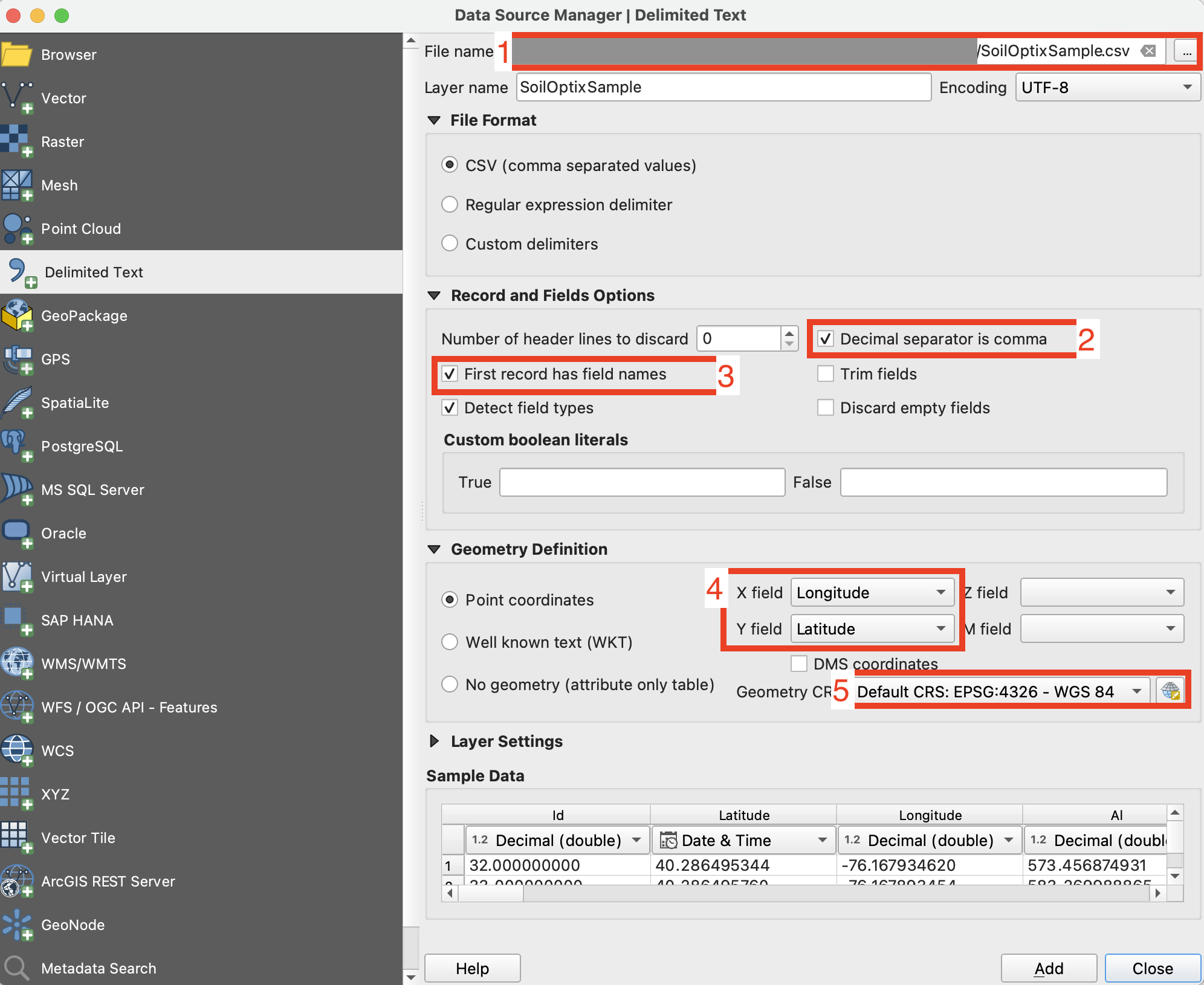
**手順2**: インポートパラメータを設定し、「追加」ボタンをクリックします。
1. CSVファイルのパスを指定します
2. 列の区切り文字を確認します。カンマである必要があります。
3. 最初の行を確認します。通常、属性名が含まれています。解析から除外する必要があります。
4. 緯度(X)と経度(Y)のデータを含むデータセットの列を選択します。
5. 座標参照系を設定します。通常はESPG:4326が使用されます。
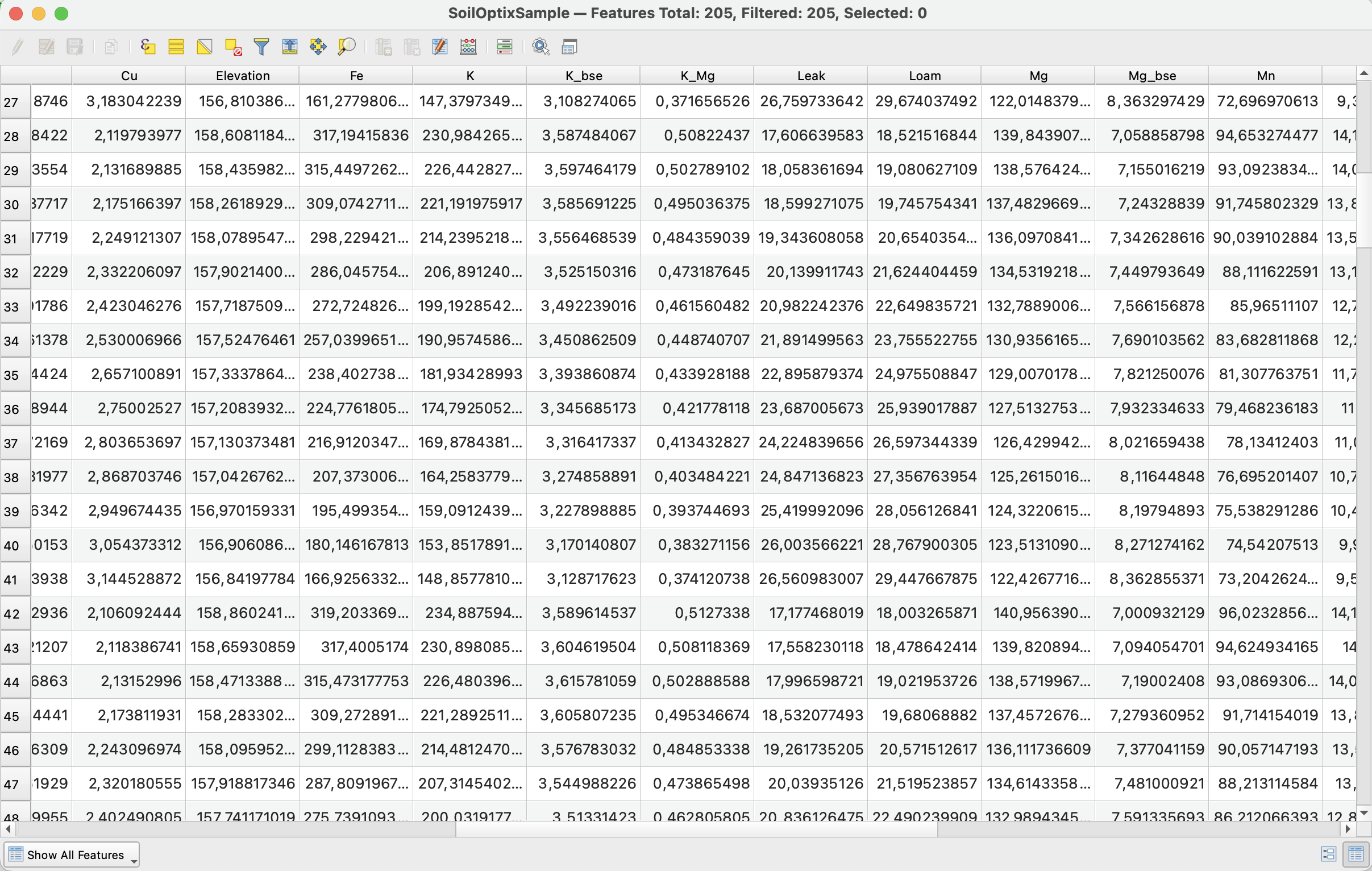
後の期待される結果は **手順2** 次のようになります
**手順3**: 「マウス右ボタン」クリック >> 「エクスポート」 >> 「地物を別名で保存...」でエクスポート処理を開始します
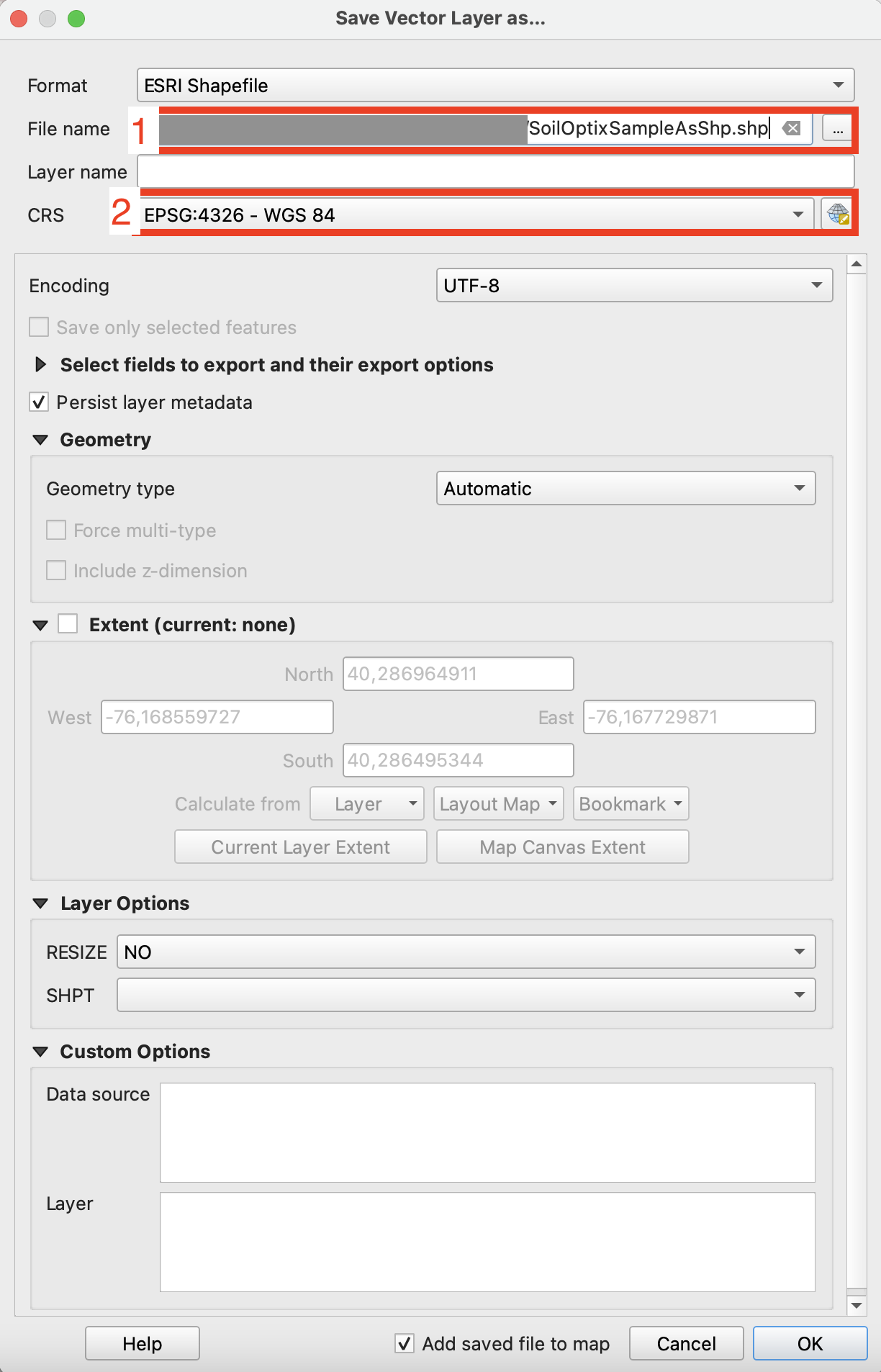
**手順4**: 適切なエクスポートオプションを設定し、「OK」をクリックします。
1. エクスポートするシェープファイルのパスを設定します。
2. 座標参照系(CRS)をESPG:4326に設定します。これはGeoPardで使用可能です。
---
# Agent Instructions
This documentation is published with GitBook. GitBook is the documentation platform designed so that both humans and AI agents can read, navigate, and reason over technical content effectively. Learn more at gitbook.com.
## Querying This Documentation
If you need additional information that is not directly available in this page, you can query the documentation by asking a question.
Perform an HTTP GET request on the following URL with the `ask` and `goal` query parameters:
```
GET https://docs.geopard.tech/geopard-tutorials/jpn/giskuikkuhinto/qgis-csvwoshpni.md?ask=&goal=
```
`ask` is the immediate question: it should be specific, self-contained, and written in natural language.
`goal` is what the user is ultimately trying to achieve, the reason they need the answer. Sharing it helps GitBook give you a better, more relevant answer. A goal is most helpful when it describes the outcome the user wants rather than restating the question. For example, with `ask=how do I create an API token`, a goal like `automate deployments from our CI pipeline` lets GitBook tailor the answer to that use case.
The response will contain a direct answer to the question and relevant excerpts and sources from the documentation.
Use this mechanism when the answer is not explicitly present in the current page, you need clarification or additional context, or you want to retrieve related documentation sections.