> For the complete documentation index, see [llms.txt](https://docs.geopard.tech/geopard-tutorials/llms.txt). Markdown versions of documentation pages are available by appending `.md` to page URLs; this page is available as [Markdown](https://docs.geopard.tech/geopard-tutorials/jpn/apidokyumento/getting-started-with-the-geopard-api.md).
# GeoPard APIの始め方
GeoPardチームは、GeoPard APIの機能を詳しく調べるには、まずAltairを利用することを強くおすすめします。Altairは、利用可能なエンティティ、クエリ、ミューテーション、サブスクリプションの最新バージョンを常に取得します。以下のクイックスタートガイドを参照してください。
1. Altair GraphQL Chrome拡張機能をこちらからインストールします [リンク](https://chrome.google.com/webstore/detail/altair-graphql-client/flnheeellpciglgpaodhkhmapeljopja) または、Altair GraphQL Clientを直接使用します。 [ブラウザーで](https://altairgraphql.dev/).
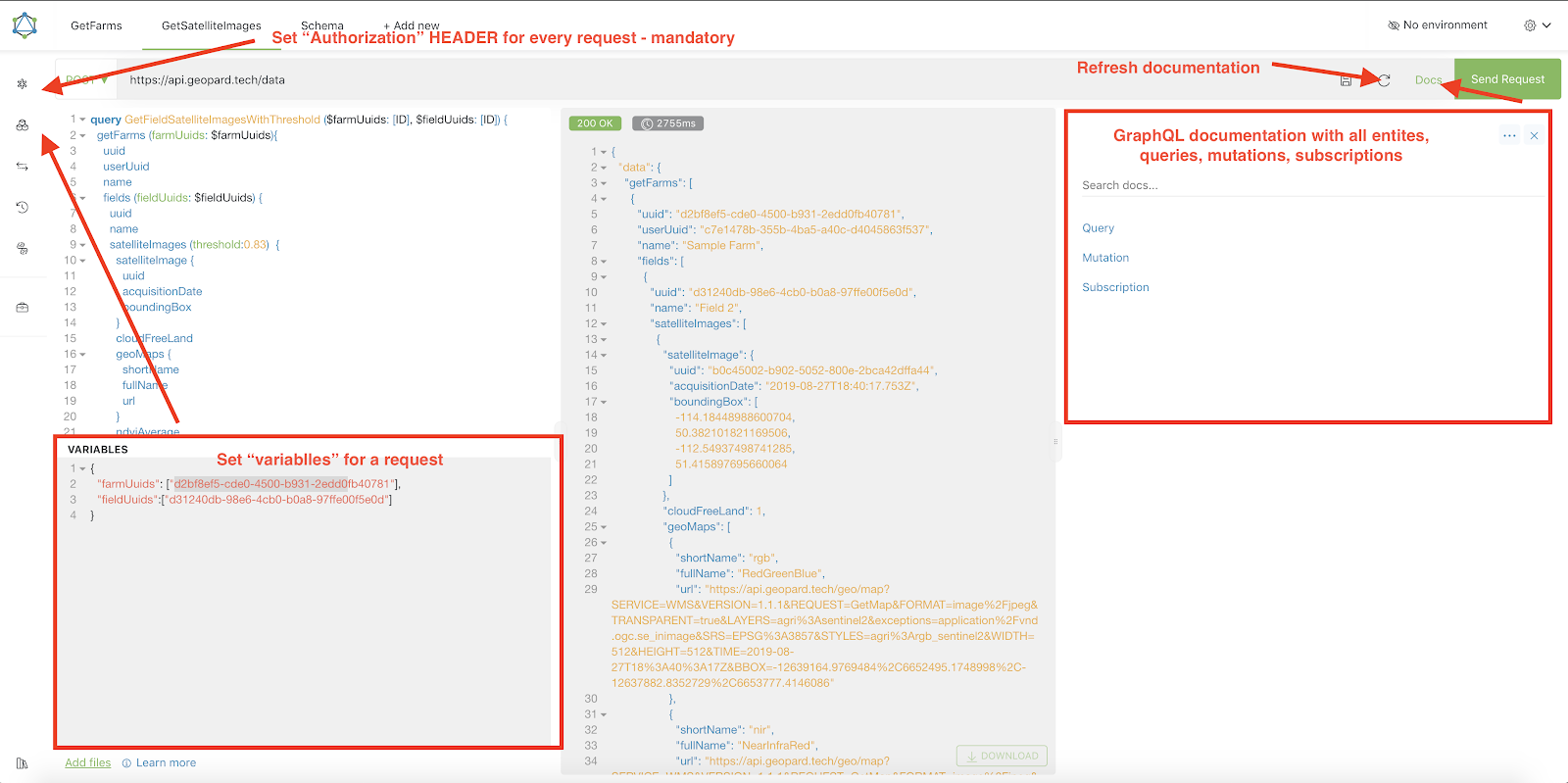
2. 各リクエストは、次の `Authorization` ヘッダーで認証する必要があります。必要なトークンをここに含めてください。簡単なテストでは、GeoPard Agricultureへのログイン後に送信されるリクエストから `Authorization` ヘッダーの値を取得できます。\
\&#xNAN;*以下のスクリーンショットで簡単に説明します。*
3. ルートGraphQLエンドポイントは次の場所にあります。 [`https://api.geopard.tech/data`](https://api.geopard.tech/data)。\
\&#xNAN;*以下のスクリーンショットで簡単に説明します。*
4. GraphQLスキーマには、Altairインターフェース内の「Docs」ボタンからアクセスできます。このセクションでは、利用可能なすべてのクエリ、ミューテーション、サブスクリプションを確認できます。また、さまざまなエンティティとその構造についても把握でき、システムのGraphQL設定を包括的に理解できます。\
\&#xNAN;*以下のスクリーンショットで簡単に説明します。*
5. ブラウザーの開発者コンソールを使って、送信リクエストが正しく機能していることを確認します。次のようなリクエストフィルターを適用できます。 `/data`.
6. スキーマにはこちらからアクセスできます。 [こちら](https://docs.geopard.tech/geopard-tutorials/jpn/apidokyumento/geopard-api-data-schema.md).
7. ファイルのアップロードには、 [これらのエンドポイント](https://docs.geopard.tech/geopard-tutorials/jpn/apidokyumento/geopard-api-requests-overview/55.-upload-zip-files-over-6-mb.md).
8. ラスターおよびベクターデータへのアクセスには、OGC WMS(迅速な描画用のラスター画像)とWFS形式(`shp`, `geojson`)を使用します。詳しくは、 [Geo Endpoint](https://docs.geopard.tech/geopard-tutorials/jpn/apidokyumento/geo-endpoints-for-spatial-data-access.md)のセクションをご覧ください。
{% hint style="info" %}
以下のスクリーンショットでは、Altairの操作方法に関するヒントを短く紹介しています。
{% endhint %}
Altair:簡単なガイド
---
# Agent Instructions
This documentation is published with GitBook. GitBook is the documentation platform designed so that both humans and AI agents can read, navigate, and reason over technical content effectively. Learn more at gitbook.com.
## Querying This Documentation
If you need additional information that is not directly available in this page, you can query the documentation by asking a question.
Perform an HTTP GET request on the following URL with the `ask` and `goal` query parameters:
```
GET https://docs.geopard.tech/geopard-tutorials/jpn/apidokyumento/getting-started-with-the-geopard-api.md?ask=&goal=
```
`ask` is the immediate question: it should be specific, self-contained, and written in natural language.
`goal` is what the user is ultimately trying to achieve, the reason they need the answer. Sharing it helps GitBook give you a better, more relevant answer. A goal is most helpful when it describes the outcome the user wants rather than restating the question. For example, with `ask=how do I create an API token`, a goal like `automate deployments from our CI pipeline` lets GitBook tailor the answer to that use case.
The response will contain a direct answer to the question and relevant excerpts and sources from the documentation.
Use this mechanism when the answer is not explicitly present in the current page, you need clarification or additional context, or you want to retrieve related documentation sections.