> For the complete documentation index, see [llms.txt](https://docs.geopard.tech/geopard-tutorials/llms.txt). Markdown versions of documentation pages are available by appending `.md` to page URLs; this page is available as [Markdown](https://docs.geopard.tech/geopard-tutorials/it/suggerimenti-rapidi-gis/qgis-change-string-to-number-values-in-the-shapefile.md).
# QGIS: convertire un campo di testo in numero in uno shapefile
Usa to\_real() o to\_int() nel Calcolatore di campi di QGIS per convertire i valori testuali in numeri, mantenere i decimali e correggere le colonne di dose o resa che non vengono importate.
Apri la tabella degli attributi, avvia il Calcolatore di campi, crea un nuovo campo decimale e inserisci `to_real("your_field")`. Usa `to_int()` per i numeri interi. Se i decimali scompaiono dopo il salvataggio, imposta la lunghezza del campo di output su 0 oppure una precisione maggiore di zero. I numeri memorizzati come testo sono il motivo più comune per cui una colonna di resa o di dose non viene visualizzata con i colori sulla mappa o importata come dose.
{% hint style="success" %}
Carica il file corretto e visualizzalo come mappa: [Inizia gratis](https://app.geopard.tech/auth/sign-up?utm_source=docs\&utm_medium=cta\&utm_campaign=qgis-change-string-to-number-values-in-the-shapefile)
{% endhint %}
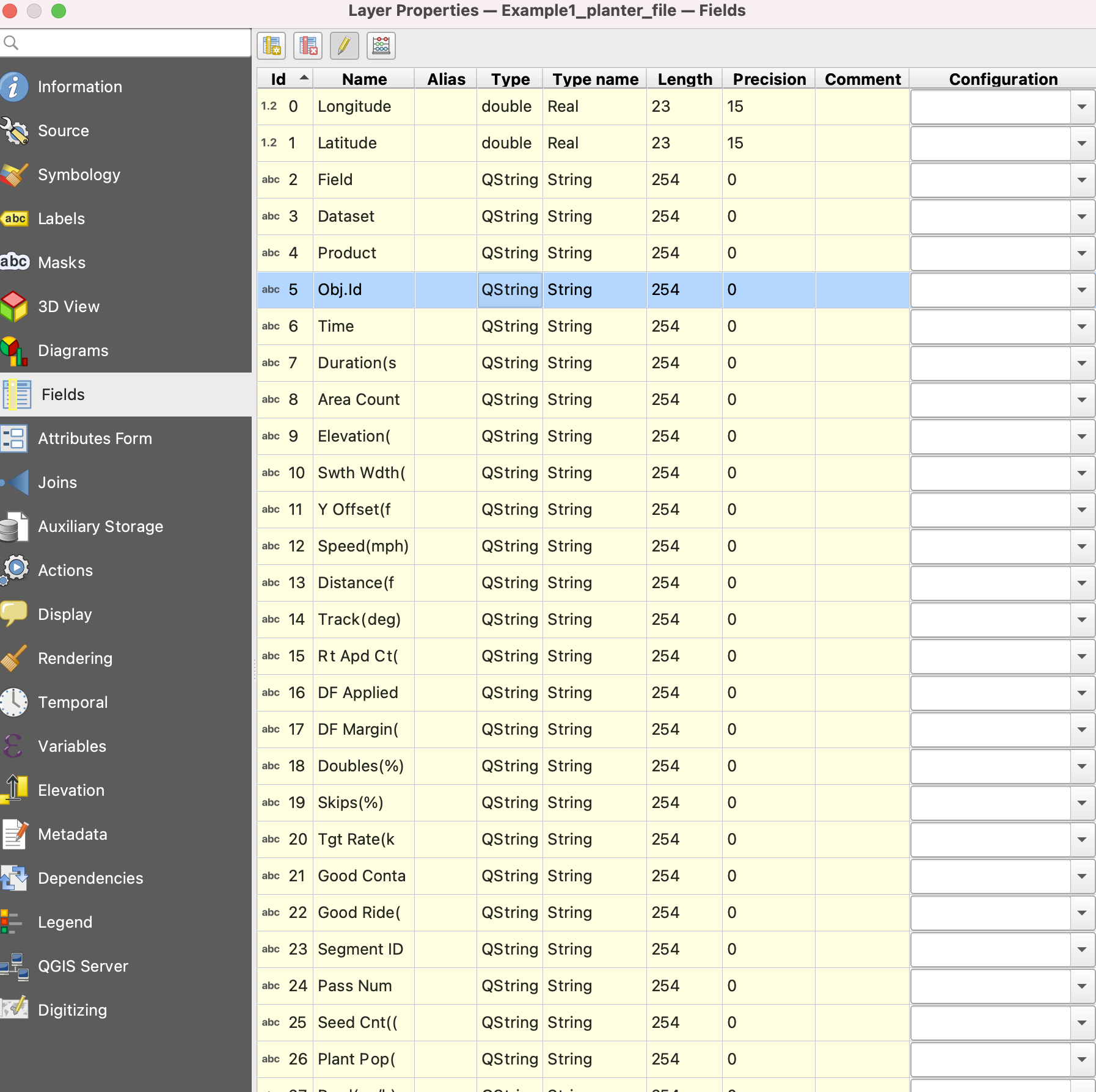
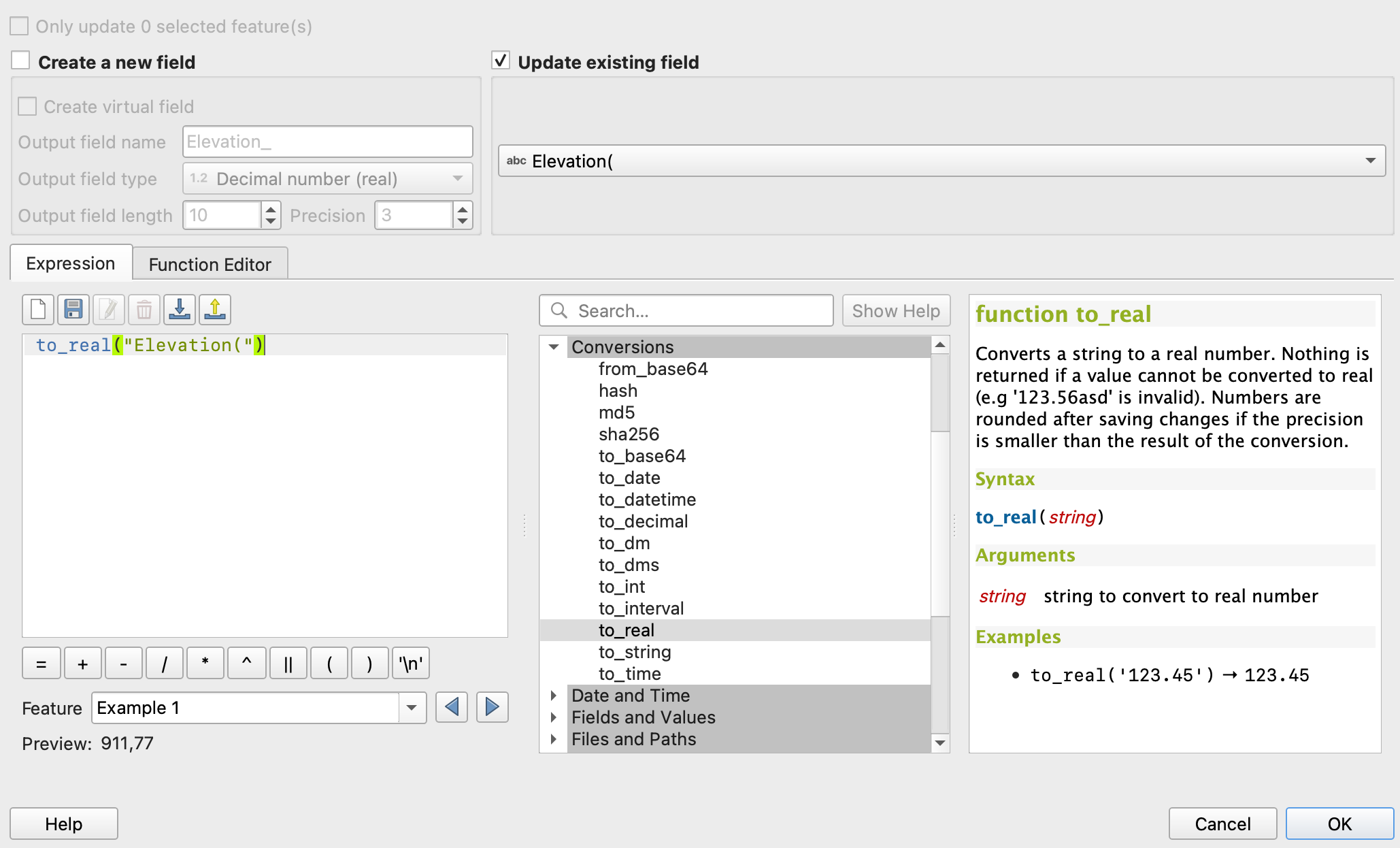
In QGIS puoi convertire una stringa in un numero usando lo strumento «Calcolatore di campi». Per prima cosa, apri la tabella degli attributi del layer che vuoi modificare. Poi fai clic sul pulsante «Apri il Calcolatore di campi». Nella casella «Espressione», digita «to\_real(», seguito dal nome del campo contenente la stringa da convertire e dalla parentesi di chiusura. Per esempio, per convertire un campo stringa chiamato «string\_field» in un campo numerico, inserisci «to\_real("string\_field")» nella casella Espressione. Puoi anche modificare il nome e il tipo di dati del campo di output selezionando le opzioni appropriate. Infine, fai clic su «OK» per completare la conversione. Il campo stringa originale rimarrà nella tabella degli attributi, mentre il nuovo campo numerico verrà aggiunto alla tabella.
1. Apri «Proprietà»
2. Vai a «Calcolatore di campi»
3. Seleziona «Aggiorna campo esistente»
4. to\_real("attributeName")
5. Salva le modifiche
6. Ripeti la procedura per ogni attributo
{% hint style="success" %}
Carica il file corretto e visualizzalo come mappa: [Inizia gratis](https://app.geopard.tech/auth/sign-up?utm_source=docs\&utm_medium=cta\&utm_campaign=qgis-change-string-to-number-values-in-the-shapefile)
{% endhint %}
---
# Agent Instructions
This documentation is published with GitBook. GitBook is the documentation platform designed so that both humans and AI agents can read, navigate, and reason over technical content effectively. Learn more at gitbook.com.
## Querying This Documentation
If you need additional information that is not directly available in this page, you can query the documentation by asking a question.
Perform an HTTP GET request on the following URL with the `ask` and `goal` query parameters:
```
GET https://docs.geopard.tech/geopard-tutorials/it/suggerimenti-rapidi-gis/qgis-change-string-to-number-values-in-the-shapefile.md?ask=&goal=
```
`ask` is the immediate question: it should be specific, self-contained, and written in natural language.
`goal` is what the user is ultimately trying to achieve, the reason they need the answer. Sharing it helps GitBook give you a better, more relevant answer. A goal is most helpful when it describes the outcome the user wants rather than restating the question. For example, with `ask=how do I create an API token`, a goal like `automate deployments from our CI pipeline` lets GitBook tailor the answer to that use case.
The response will contain a direct answer to the question and relevant excerpts and sources from the documentation.
Use this mechanism when the answer is not explicitly present in the current page, you need clarification or additional context, or you want to retrieve related documentation sections.