> For the complete documentation index, see [llms.txt](https://docs.geopard.tech/geopard-tutorials/llms.txt). Markdown versions of documentation pages are available by appending `.md` to page URLs; this page is available as [Markdown](https://docs.geopard.tech/geopard-tutorials/it/documentazione-api/introduzione-allapi-geopard.md).
# Introduzione all'API GeoPard
Il team di GeoPard consiglia vivamente di iniziare con Altair per esaminare a fondo le funzionalità della GeoPard API. Recupera sempre la versione più recente delle entità, delle query, delle mutation e delle subscription disponibili. Fate riferimento alla guida rapida riportata di seguito:
1. Installa l’estensione Chrome Altair GraphQL da questo [LINK](https://chrome.google.com/webstore/detail/altair-graphql-client/flnheeellpciglgpaodhkhmapeljopja) oppure, in alternativa, usa direttamente Altair GraphQL Client in [il tuo browser](https://altairgraphql.dev/).
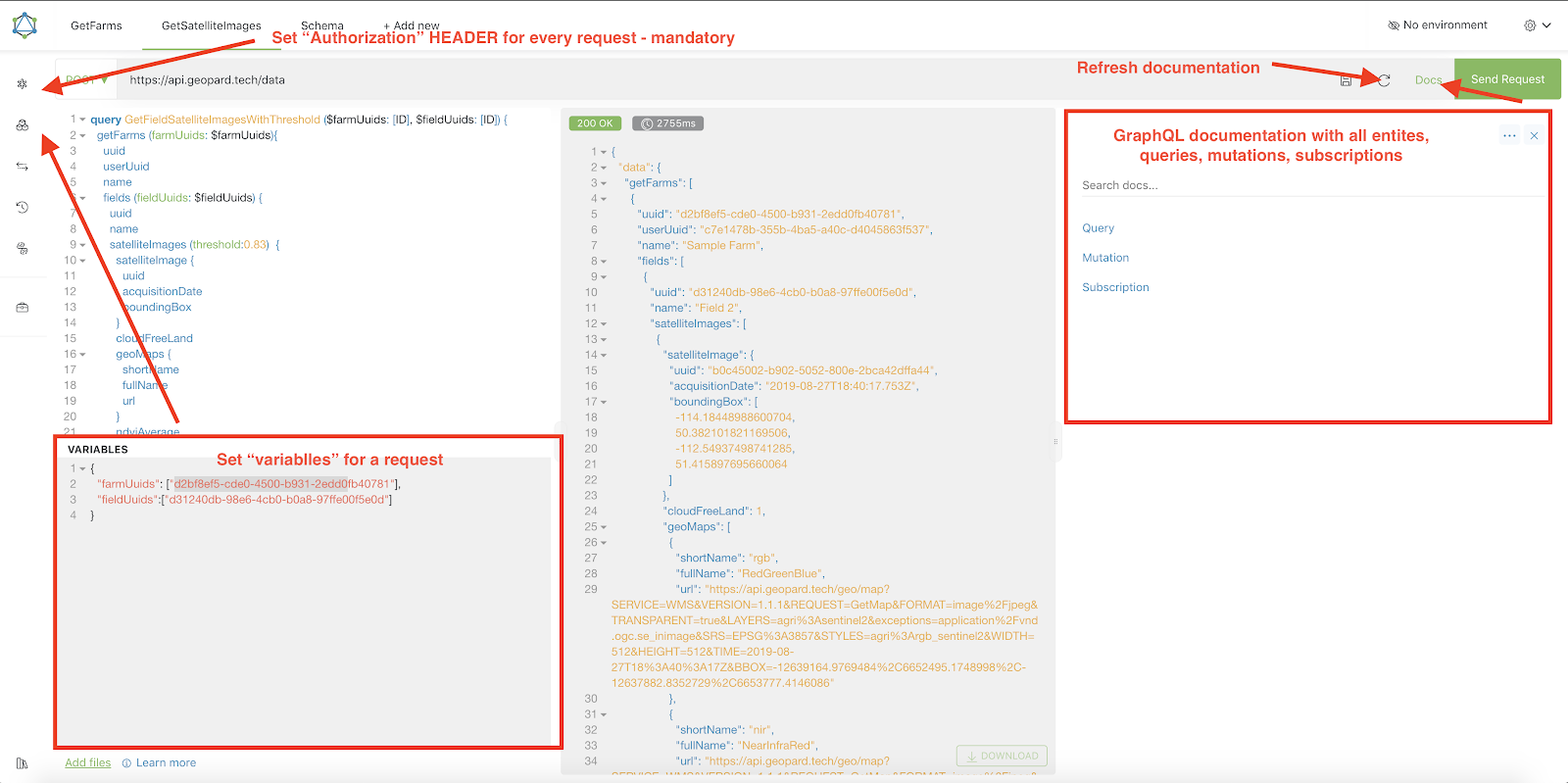
2. Ogni richiesta deve essere autenticata con un `Autorizzazione` HEADER, in cui deve essere incluso il token richiesto. Per un rapido test, il `Autorizzazione` valore HEADER può essere ottenuto dalle richieste successive all’accesso a GeoPard Agriculture.\
\&#xNAN;*Una breve spiegazione è mostrata nella schermata qui sotto.*
3. L’endpoint GraphQL root si trova all’indirizzo [`https://api.geopard.tech/data`](https://api.geopard.tech/data).\
\&#xNAN;*Una breve spiegazione è mostrata nella schermata qui sotto.*
4. L’accesso allo schema GraphQL si trova sotto il pulsante "Docs" nell’interfaccia di Altair. Questa sezione consente di navigare tra tutte le Query, Mutation e Subscription disponibili. Inoltre, offre una panoramica delle varie entità e delle rispettive strutture, fornendo una comprensione completa della configurazione GraphQL del sistema.\
\&#xNAN;*Una breve spiegazione è mostrata nella schermata qui sotto.*
5. Verifica che le richieste in uscita funzionino correttamente usando la console di sviluppo del browser. Puoi applicare filtri alle richieste come `/data`.
6. Lo schema può essere accessibile da questo [QUI](/geopard-tutorials/it/documentazione-api/schema-dati-dellapi-geopard.md).
7. Per il caricamento dei file, utilizziamo [questi endpoint](/geopard-tutorials/it/documentazione-api/panoramica-delle-richieste-dellapi-geopard/55.-carica-file-zip-oltre-6-mb.md).
8. Per accedere ai dati raster e vettoriali, utilizziamo i formati OGC WMS (immagini raster per una visualizzazione rapida) e WFS (`shp`, `geojson`). Per ulteriori informazioni, consulta la nostra [Endpoint Geo](/geopard-tutorials/it/documentazione-api/endpoint-geospaziali-per-laccesso-ai-dati-spaziali.md)s section.
{% hint style="info" %}
Una breve guida con suggerimenti su come utilizzare Altair è evidenziata nella schermata qui sotto.
{% endhint %}
Altrair: Breve guida
---
# Agent Instructions
This documentation is published with GitBook. GitBook is the documentation platform designed so that both humans and AI agents can read, navigate, and reason over technical content effectively. Learn more at gitbook.com.
## Querying This Documentation
If you need additional information that is not directly available in this page, you can query the documentation by asking a question.
Perform an HTTP GET request on the following URL with the `ask` and `goal` query parameters:
```
GET https://docs.geopard.tech/geopard-tutorials/it/documentazione-api/introduzione-allapi-geopard.md?ask=&goal=
```
`ask` is the immediate question: it should be specific, self-contained, and written in natural language.
`goal` is what the user is ultimately trying to achieve, the reason they need the answer. Sharing it helps GitBook give you a better, more relevant answer. A goal is most helpful when it describes the outcome the user wants rather than restating the question. For example, with `ask=how do I create an API token`, a goal like `automate deployments from our CI pipeline` lets GitBook tailor the answer to that use case.
The response will contain a direct answer to the question and relevant excerpts and sources from the documentation.
Use this mechanism when the answer is not explicitly present in the current page, you need clarification or additional context, or you want to retrieve related documentation sections.