> For the complete documentation index, see [llms.txt](https://docs.geopard.tech/geopard-tutorials/llms.txt). Markdown versions of documentation pages are available by appending `.md` to page URLs; this page is available as [Markdown](https://docs.geopard.tech/geopard-tutorials/hu/termektura-webalkalmazas/zonaterkepek-es-elemzesek/zonaterkep-szerkesztese-osszevonas-es-szetvalasztas.md).
# Zónatérkép szerkesztése: összevonás és szétválasztás
Vonj össze és válassz szét zónapoligonokat, hogy letisztítsd a térképet és illeszkedjen az üzemeltetési igényekhez.
A zónák egyesítése és szétválasztása funkciókkal egy vagy több poligont, illetve gazdálkodási zónát (vagy bármely más adatréteget) egyesíthetsz és szétválaszthatsz, valamint egy poligont vagy egy teljes zónát másik osztályhoz rendelhetsz. Segít a zónatérképek finomhangolásában olyan precíziós műveletekhez, mint a vetés, a trágyázás vagy a permetezés.
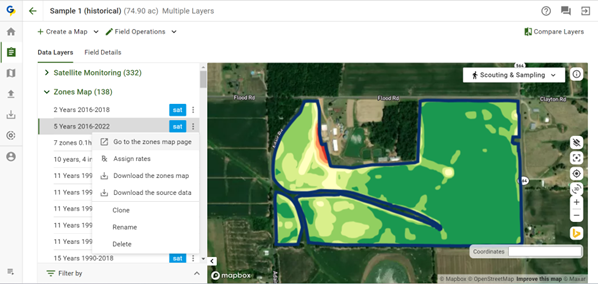
1. Nyisd meg a megfelelő táblát, menj a Zónatérkép részhez, majd válassz ki egy térképet, nyisd meg a műveleti menüt, és kattints a „Ugrás a zónatérkép oldalára” elemre:
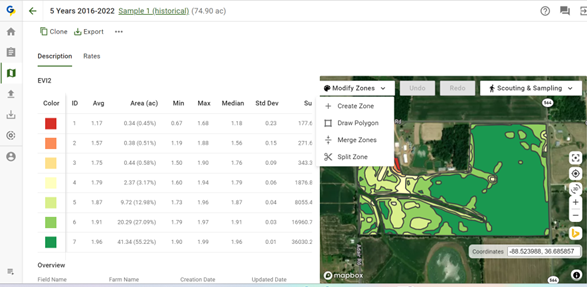
2. Kattints a „Zónák módosítása” gombra, majd válaszd a „Zónák egyesítése” lehetőséget
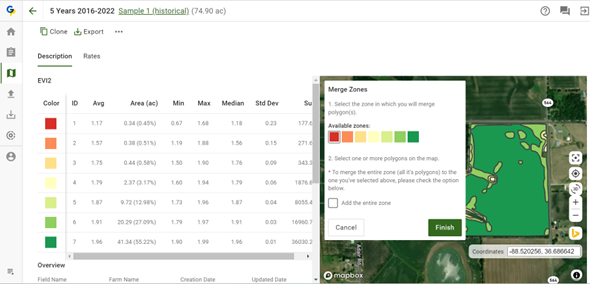
3. A zónák egyesítési folyamata 2 lépésből áll:
a. válaszd ki azt a zónát (színt), amelybe a poligonokat egyesíted,
b. válassz ki egy vagy több poligont a térképen
Az „Teljes zóna hozzáadása” jelölőnégyzet aktiválja egy zóna teljes egyesítését a kiválasztott zónába.
4. Kattints a „Befejezés” gombra
---
# Agent Instructions
This documentation is published with GitBook. GitBook is the documentation platform designed so that both humans and AI agents can read, navigate, and reason over technical content effectively. Learn more at gitbook.com.
## Querying This Documentation
If you need additional information that is not directly available in this page, you can query the documentation by asking a question.
Perform an HTTP GET request on the following URL with the `ask` and `goal` query parameters:
```
GET https://docs.geopard.tech/geopard-tutorials/hu/termektura-webalkalmazas/zonaterkepek-es-elemzesek/zonaterkep-szerkesztese-osszevonas-es-szetvalasztas.md?ask=&goal=
```
`ask` is the immediate question: it should be specific, self-contained, and written in natural language.
`goal` is what the user is ultimately trying to achieve, the reason they need the answer. Sharing it helps GitBook give you a better, more relevant answer. A goal is most helpful when it describes the outcome the user wants rather than restating the question. For example, with `ask=how do I create an API token`, a goal like `automate deployments from our CI pipeline` lets GitBook tailor the answer to that use case.
The response will contain a direct answer to the question and relevant excerpts and sources from the documentation.
Use this mechanism when the answer is not explicitly present in the current page, you need clarification or additional context, or you want to retrieve related documentation sections.