> For the complete documentation index, see [llms.txt](https://docs.geopard.tech/geopard-tutorials/llms.txt). Markdown versions of documentation pages are available by appending `.md` to page URLs; this page is available as [Markdown](https://docs.geopard.tech/geopard-tutorials/hu/termektura-webalkalmazas/john-deere-operations-center-integracio/adatmegosztasi-lehetosegek/3.-partner-szervezet-megosztas.md).

# 3. „Partner szervezet” megosztás

Ossza meg a John Deere adatokat partner szervezeteken keresztül viszonteladói és tanácsadói munkafolyamatokhoz.

1. Az szervezet adatait a partner szervezettel megosztani úgy kell, hogy a szervezet tulajdonosa a „Setup” >> „Team” oldalra megy (vagy <https://team.deere.com/>), kiválasztja a szervezetet (például VY Org 02), és rákattint a „Partner Organization” gombra.<br>

   <figure><img src="https://4197117614-files.gitbook.io/~/files/v0/b/gitbook-x-prod.appspot.com/o/spaces%2FYICBELdyAXXebKAzfLOR%2Fuploads%2FPGflTce14xRJV67ime38%2Fimage.png?alt=media&amp;token=2f0b9006-a01c-4827-a1d6-f746c9023606" alt=""><figcaption></figcaption></figure>
2. Válassza a „Grant Access” opciót, adja meg a partner szervezet e-mail-címét, majd kattintson a „Next” gombra.<br>

   <figure><img src="https://4197117614-files.gitbook.io/~/files/v0/b/gitbook-x-prod.appspot.com/o/spaces%2FYICBELdyAXXebKAzfLOR%2Fuploads%2FROu1FRkkIygszCkSykyv%2Fimage.png?alt=media&amp;token=60bbd7cf-b6f0-4978-8a7a-054de57a9773" alt=""><figcaption></figcaption></figure>
3. Adja meg <mark style="background-color:green;">az „Organization Management” hozzáférési szintet 1-re</mark> a<mark style="background-color:green;">„Share Organization Data with Connected Software Companies” jelölőnégyzettel</mark> és az <mark style="background-color:green;">a „Locations” hozzáférési szintet 3-ra</mark> majd kattintson a „Next” gombra.<br>

   <figure><img src="https://4197117614-files.gitbook.io/~/files/v0/b/gitbook-x-prod.appspot.com/o/spaces%2FYICBELdyAXXebKAzfLOR%2Fuploads%2FoHhJlLK1pjLCmeNWLuqz%2Fimage.png?alt=media&amp;token=f49237b0-f431-4934-8581-4050c76375d0" alt=""><figcaption></figcaption></figure>
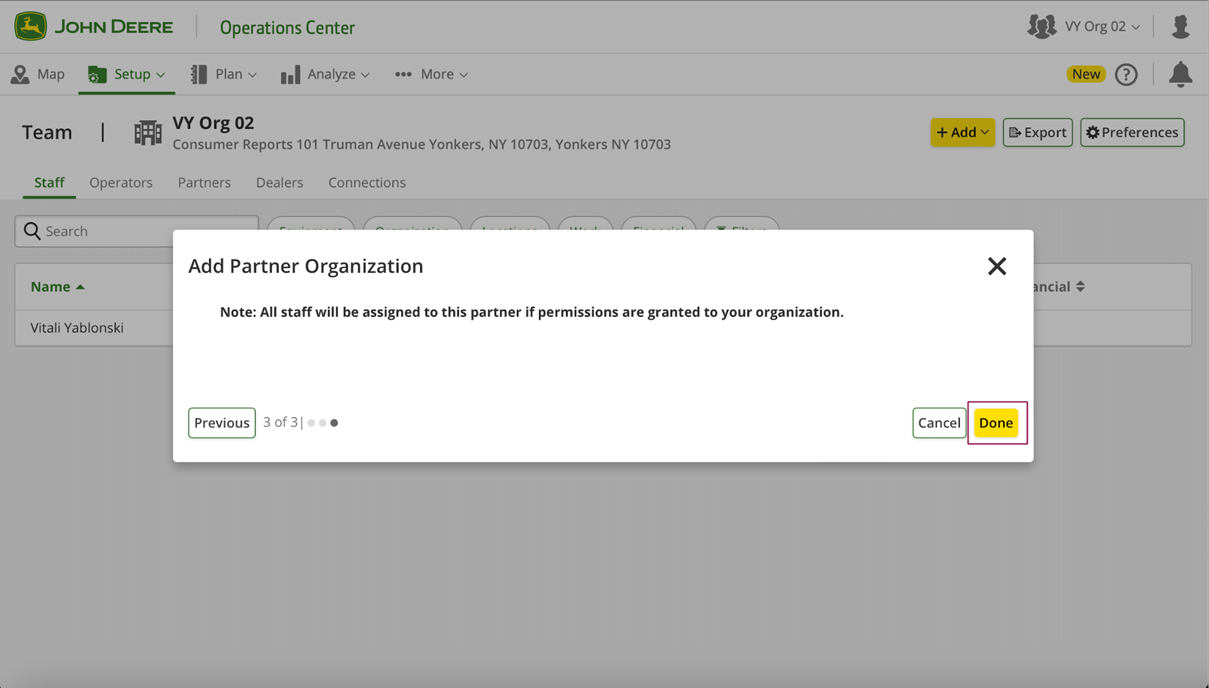
4. Kattintson a „Done” gombra.<br>

   <figure><img src="https://4197117614-files.gitbook.io/~/files/v0/b/gitbook-x-prod.appspot.com/o/spaces%2FYICBELdyAXXebKAzfLOR%2Fuploads%2F9XPehE24NVrrJcrZso6l%2Fimage.png?alt=media&amp;token=fb45dd72-4136-4c79-a0c2-4b75b60efac2" alt=""><figcaption></figcaption></figure>
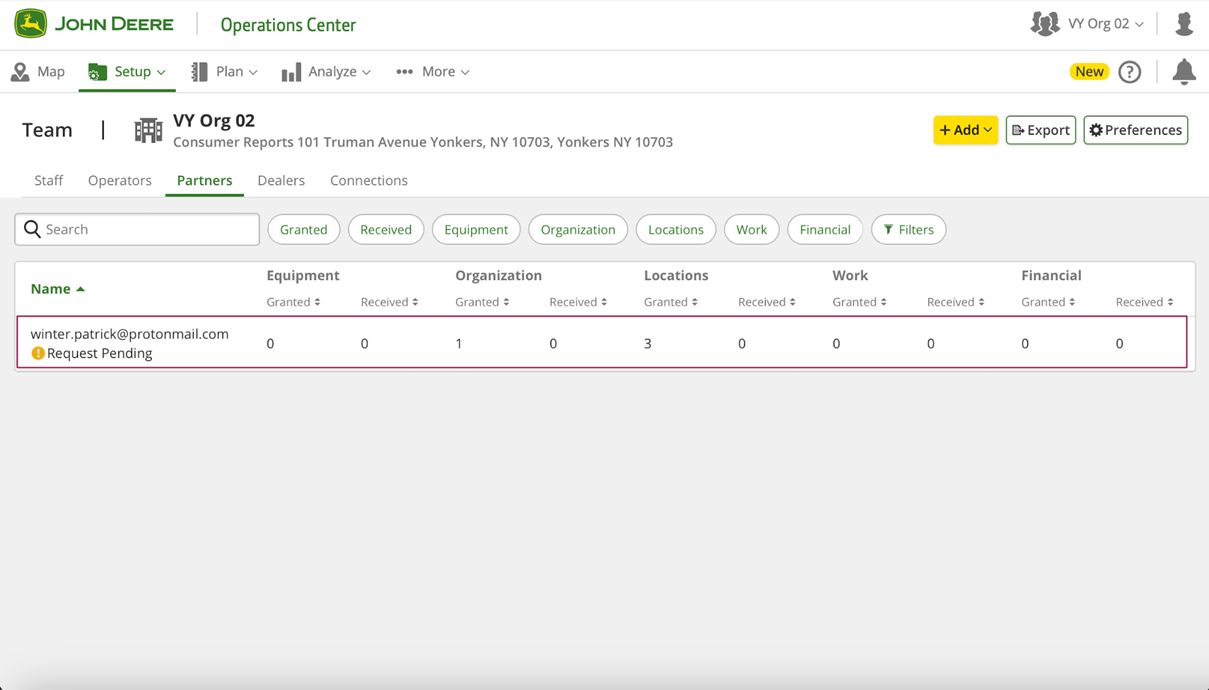
5. A táblázat mutatja a kérelem eredményét: jóváhagyva/elutasítva/függőben.\ <br>

   <figure><img src="https://4197117614-files.gitbook.io/~/files/v0/b/gitbook-x-prod.appspot.com/o/spaces%2FYICBELdyAXXebKAzfLOR%2Fuploads%2FYjlliAnz8ZluQvYNsBa9%2Fimage.png?alt=media&amp;token=857c0ffd-ca98-4c7e-a026-08be73bf8362" alt=""><figcaption></figcaption></figure>
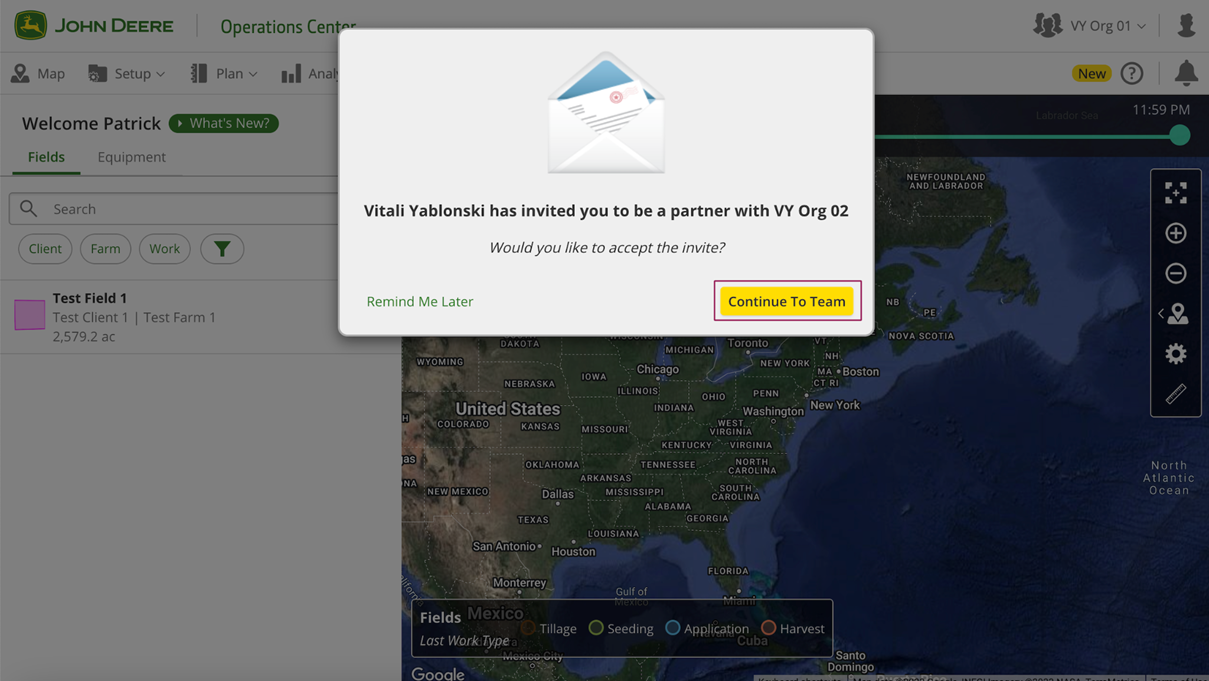
6. Ezután a partner fiók erről e-mail értesítést kap, és megjelenik a megerősítő felugró ablak az első John Deere Ops Center-be történő bejelentkezéshez. A partnernek a „Continue To Team” gombra kell kattintania.<br>

   <figure><img src="https://4197117614-files.gitbook.io/~/files/v0/b/gitbook-x-prod.appspot.com/o/spaces%2FYICBELdyAXXebKAzfLOR%2Fuploads%2FM8iAFaFtJFoNWbe7rx4K%2Fimage.png?alt=media&amp;token=5603f4da-0530-48bd-a6c0-2bfbeefbf2a7" alt=""><figcaption></figcaption></figure>
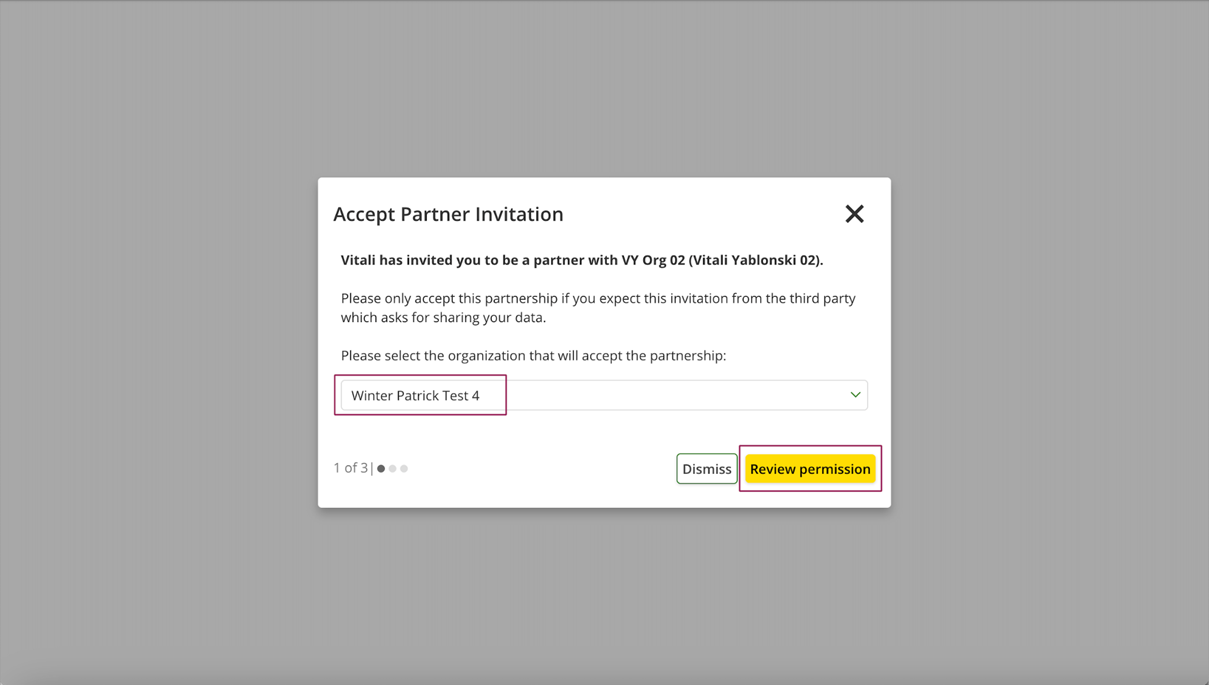
7. A partnernek ki kell választania a megosztáshoz használandó partner szervezetet, és rá kell kattintania a „Review permissions” gombra.<br>

   <figure><img src="https://4197117614-files.gitbook.io/~/files/v0/b/gitbook-x-prod.appspot.com/o/spaces%2FYICBELdyAXXebKAzfLOR%2Fuploads%2FrqDu55aHjsARtMV1OAs9%2Fimage.png?alt=media&amp;token=4cb88957-6027-46ba-a322-d7a18199a34a" alt=""><figcaption></figcaption></figure>
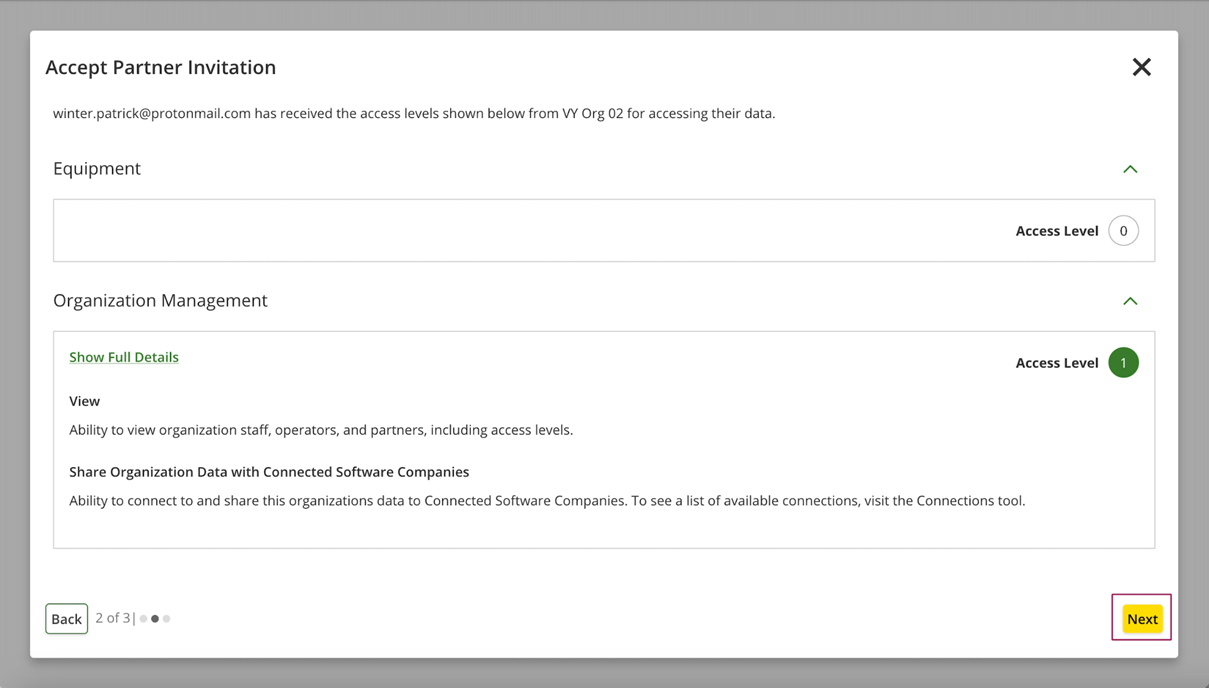
8. Nézze át, majd kattintson a „Next” gombra.<br>

   <figure><img src="https://4197117614-files.gitbook.io/~/files/v0/b/gitbook-x-prod.appspot.com/o/spaces%2FYICBELdyAXXebKAzfLOR%2Fuploads%2FshulzJCox7yU4OCjfkpS%2Fimage.png?alt=media&amp;token=cf5ee0e9-32e4-42c0-9666-c14747e523d1" alt=""><figcaption></figcaption></figure>
9. Válassza ki a saját profilnevét, majd kattintson a „Done” gombra.<br>

   <figure><img src="https://4197117614-files.gitbook.io/~/files/v0/b/gitbook-x-prod.appspot.com/o/spaces%2FYICBELdyAXXebKAzfLOR%2Fuploads%2FmMzmi5ezMeDKf6YnlZN7%2Fimage.png?alt=media&amp;token=3d262170-faa3-4d90-82ea-96baddb69eb5" alt=""><figcaption></figcaption></figure>
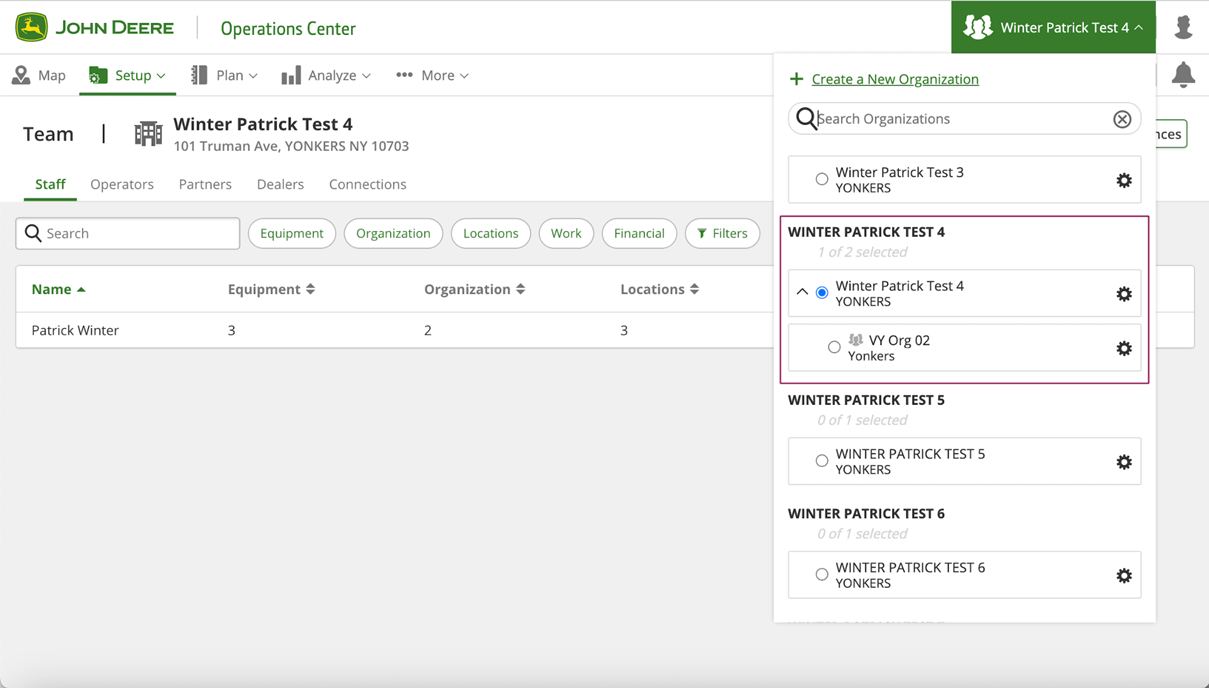
10. Jóváhagyás után a partnernek egy új szervezetet kell látnia (például VY Org 02) a megosztott szervezet alatt (például Winter Patrick Test 4).<br>

    <figure><img src="https://4197117614-files.gitbook.io/~/files/v0/b/gitbook-x-prod.appspot.com/o/spaces%2FYICBELdyAXXebKAzfLOR%2Fuploads%2FmTsmtds0BLRHwSPljx3l%2Fimage.png?alt=media&amp;token=6a3a488e-4d64-49fc-8abe-e6b4d3114265" alt=""><figcaption></figcaption></figure>
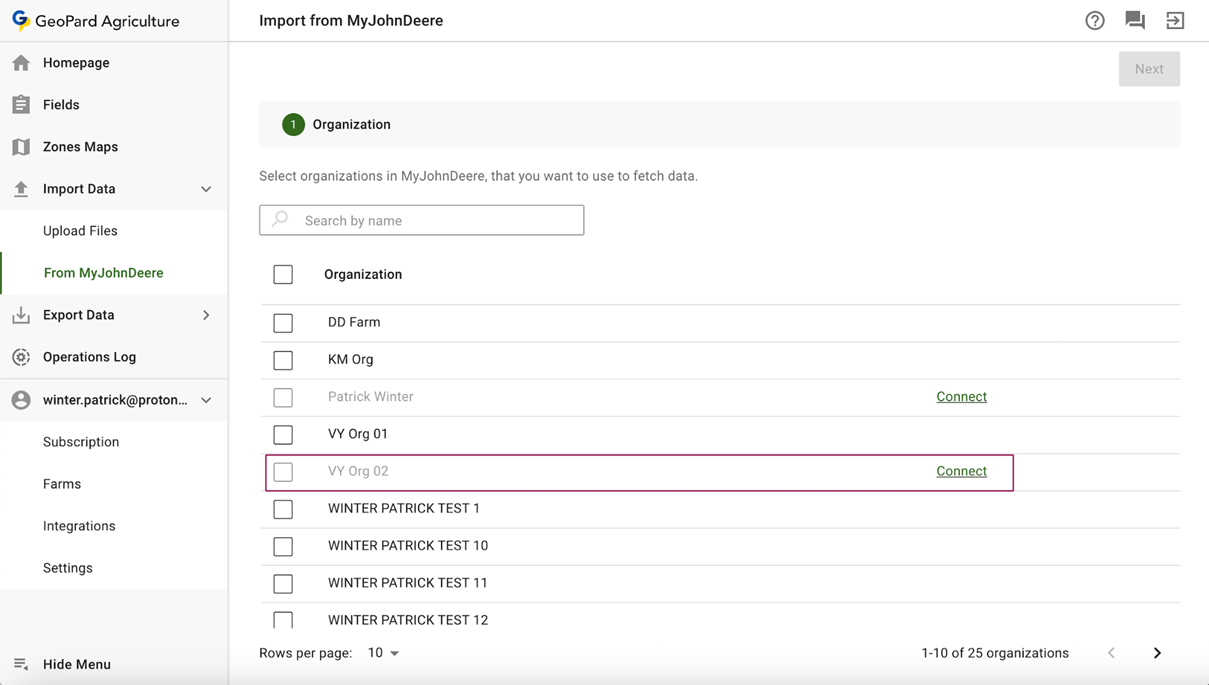
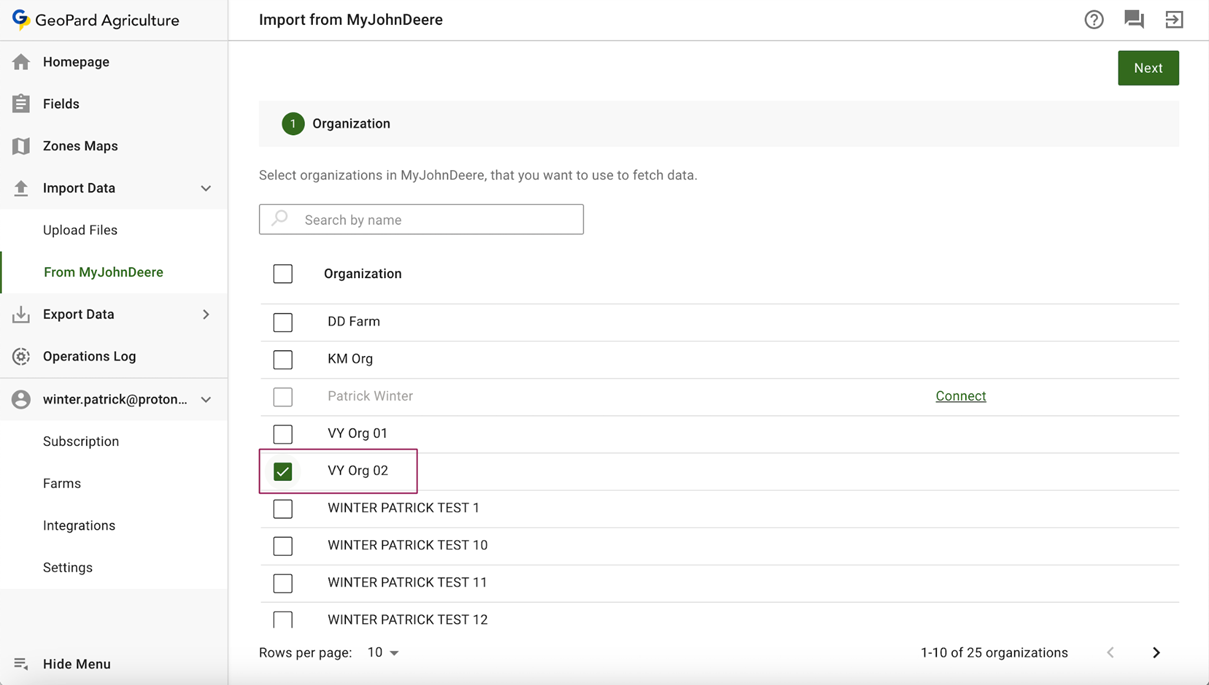
11. A GeoPard alkalmazásnak meg kell jelenítenie az új szervezetet, majd a partnernek a „Connect” hivatkozásra kell kattintania (például VY Org 02).<br>

    <figure><img src="https://4197117614-files.gitbook.io/~/files/v0/b/gitbook-x-prod.appspot.com/o/spaces%2FYICBELdyAXXebKAzfLOR%2Fuploads%2Fw9ArcXxSHwbz33RgOqPk%2Fimage.png?alt=media&amp;token=bd3d6027-50b0-4f65-a714-5891ce2f876f" alt=""><figcaption></figcaption></figure>
12. A partnernek ki kell választania az új szervezetet a listából (például VY Org 02).<br>

    <figure><img src="https://4197117614-files.gitbook.io/~/files/v0/b/gitbook-x-prod.appspot.com/o/spaces%2FYICBELdyAXXebKAzfLOR%2Fuploads%2FORvfuZbo8TpcnhDEei5j%2Fimage.png?alt=media&amp;token=c0b5d60c-f491-4588-8465-9d0bd776eaf0" alt=""><figcaption></figcaption></figure>
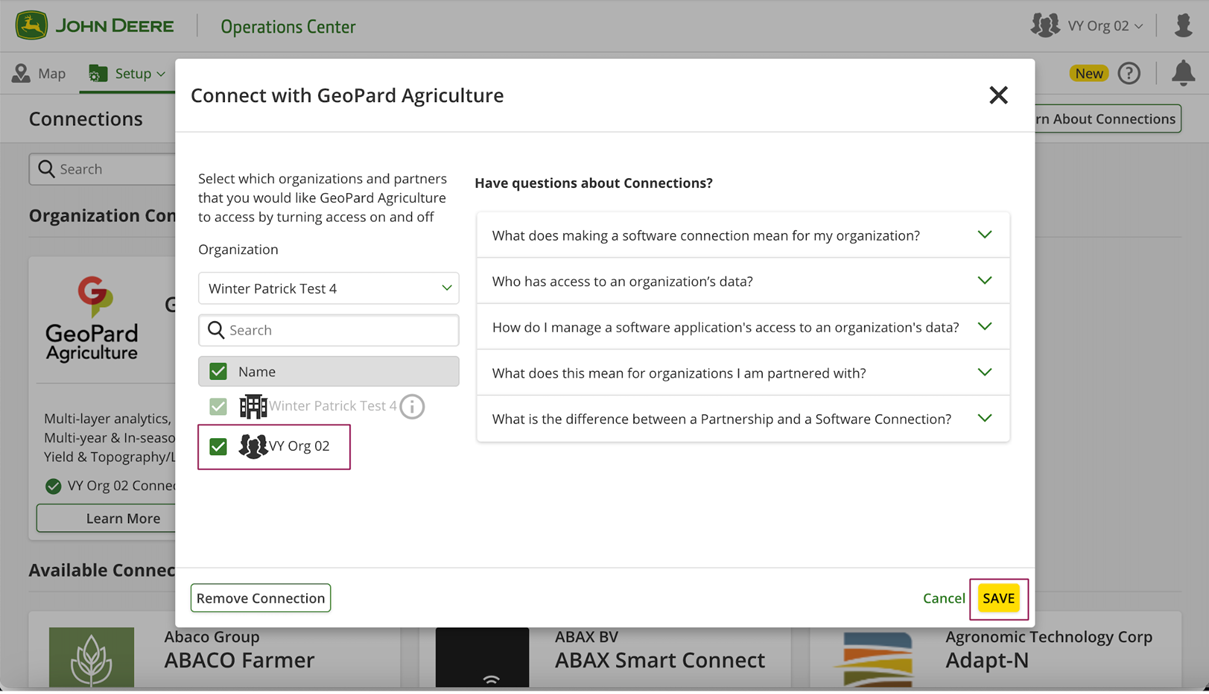
13. Válassza ki az új szervezetet, és kattintson a „Save” gombra.<br>

    <figure><img src="https://4197117614-files.gitbook.io/~/files/v0/b/gitbook-x-prod.appspot.com/o/spaces%2FYICBELdyAXXebKAzfLOR%2Fuploads%2FZaIqFMicVruKa0No0rfi%2Fimage.png?alt=media&amp;token=5028cf7a-04f9-4033-97d8-9776b67ccf79" alt=""><figcaption></figcaption></figure>
14. Ezután a GeoPard alkalmazás készen áll az új szervezettel való munkára.<br>

    <figure><img src="https://4197117614-files.gitbook.io/~/files/v0/b/gitbook-x-prod.appspot.com/o/spaces%2FYICBELdyAXXebKAzfLOR%2Fuploads%2FtPXFe6ikFmYoGorhUvqB%2Fimage.png?alt=media&amp;token=e0c04b1c-573c-4bfb-968e-4a9ea230d394" alt=""><figcaption></figcaption></figure>


---

# Agent Instructions
This documentation is published with GitBook. GitBook is the documentation platform designed so that both humans and AI agents can read, navigate, and reason over technical content effectively. Learn more at gitbook.com.

## Querying This Documentation
If you need additional information that is not directly available in this page, you can query the documentation dynamically by asking a question.

Perform an HTTP GET request on the current page URL with the `ask` query parameter, and the optional `goal` query parameter:

```
GET https://docs.geopard.tech/geopard-tutorials/hu/termektura-webalkalmazas/john-deere-operations-center-integracio/adatmegosztasi-lehetosegek/3.-partner-szervezet-megosztas.md?ask=<question>&goal=<endgoal>
```

`ask` is the immediate question: it should be specific, self-contained, and written in natural language.
`goal` is optional and describes the broader end goal you are ultimately trying to accomplish on behalf of the user. GitBook uses it to tailor the answer towards what is most useful for that goal.

The response will contain a direct answer to the question and relevant excerpts and sources from the documentation.

Use this mechanism when the answer is not explicitly present in the current page, you need clarification or additional context, or you want to retrieve related documentation sections.