> For the complete documentation index, see [llms.txt](https://docs.geopard.tech/geopard-tutorials/llms.txt). Markdown versions of documentation pages are available by appending `.md` to page URLs; this page is available as [Markdown](https://docs.geopard.tech/geopard-tutorials/fr/visite-guidee-du-produit-application-web/importer-des-donnees-dagriculture-de-precision/importer-des-limites-de-parcelles.md).
# Importer des limites de parcelles
Formats de fichiers pris en charge et étapes pour importer des limites de parcelles dans GeoPard.
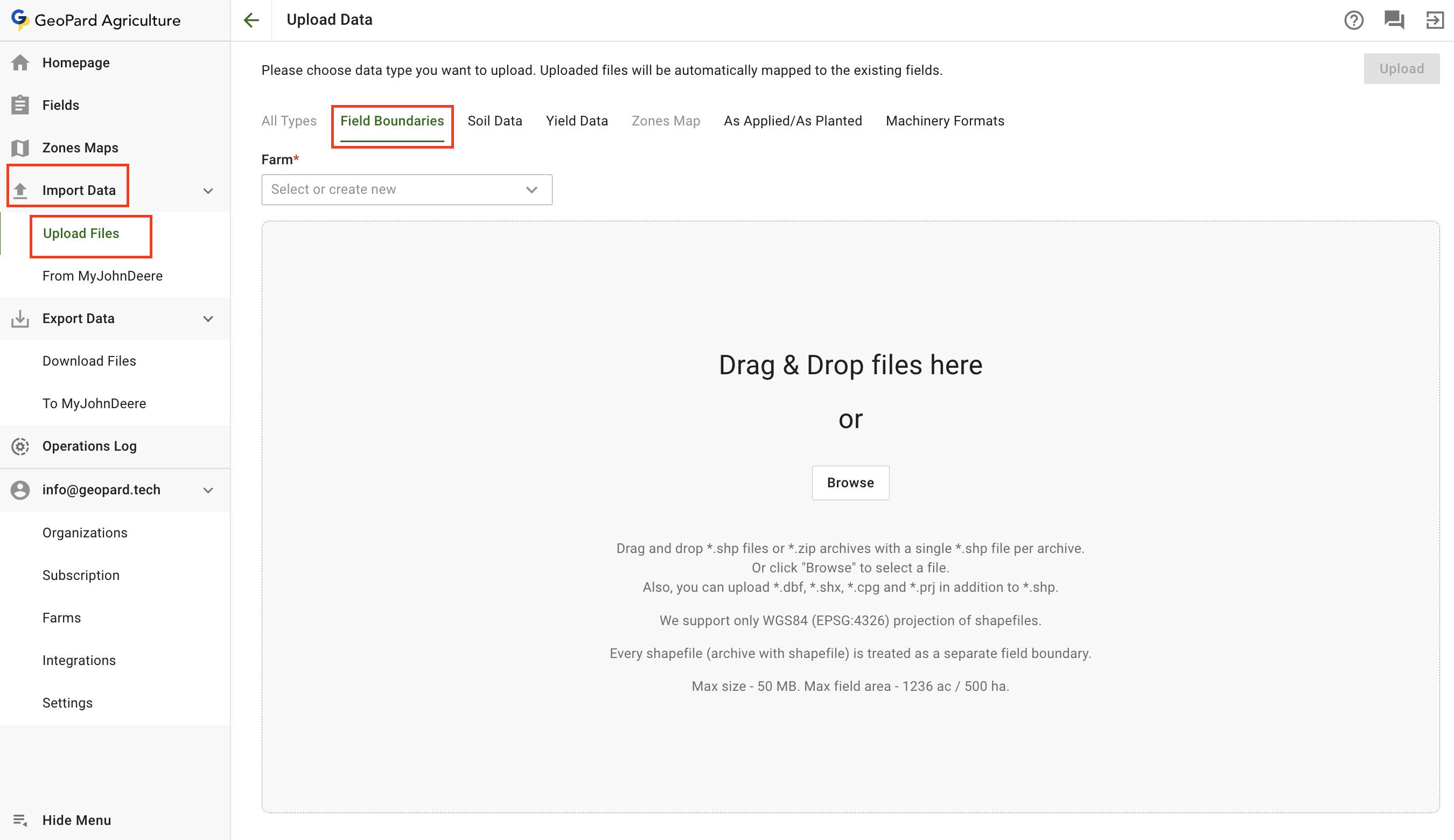
Si vous disposez d’un fichier de forme de votre ou de vos parcelles, vous pouvez les importer en utilisant l’élément de menu **Importer des données** . Allez à l’onglet **Téléverser des fichiers** .
Gardez à l’esprit qu’il existe certaines restrictions :
* Seuls les fichiers de forme WGS84 (EPSG:4326) sont pris en charge
* 5 Mo est la taille maximale du fichier
* 1236ac/500ha est la superficie maximale de la parcelle
* Chaque shapefile est traité comme une seule parcelle
* Les étiquettes seront créées à partir du fichier .dbf
Téléverser la limite de parcelle au format Shapefile
1. Sélectionnez l’exploitation vers laquelle téléverser
2. Cliquez sur le bouton **Parcourir** et sélectionnez un fichier sur votre ordinateur.
3. Cliquez sur le bouton **Téléverser** bouton. L’application vérifiera alors que le fichier répond aux exigences et enregistrera la parcelle.
\
Attendez la boîte de dialogue de confirmation pour vérifier que la limite a été téléversée avec succès :
---
# Agent Instructions
This documentation is published with GitBook. GitBook is the documentation platform designed so that both humans and AI agents can read, navigate, and reason over technical content effectively. Learn more at gitbook.com.
## Querying This Documentation
If you need additional information that is not directly available in this page, you can query the documentation by asking a question.
Perform an HTTP GET request on the following URL with the `ask` and `goal` query parameters:
```
GET https://docs.geopard.tech/geopard-tutorials/fr/visite-guidee-du-produit-application-web/importer-des-donnees-dagriculture-de-precision/importer-des-limites-de-parcelles.md?ask=&goal=
```
`ask` is the immediate question: it should be specific, self-contained, and written in natural language.
`goal` is what the user is ultimately trying to achieve, the reason they need the answer. Sharing it helps GitBook give you a better, more relevant answer. A goal is most helpful when it describes the outcome the user wants rather than restating the question. For example, with `ask=how do I create an API token`, a goal like `automate deployments from our CI pipeline` lets GitBook tailor the answer to that use case.
The response will contain a direct answer to the question and relevant excerpts and sources from the documentation.
Use this mechanism when the answer is not explicitly present in the current page, you need clarification or additional context, or you want to retrieve related documentation sections.