> For the complete documentation index, see [llms.txt](https://docs.geopard.tech/geopard-tutorials/llms.txt). Markdown versions of documentation pages are available by appending `.md` to page URLs; this page is available as [Markdown](https://docs.geopard.tech/geopard-tutorials/fr/astuces-rapides-sig/qgis-decouper-les-shapefiles-multi-parcelles.md).

# QGIS : découper les shapefiles multi-parcelles

Découpez un shapefile multi-parcelles en shapefiles de limites de parcelles séparés dans QGIS pour l’importation dans GeoPard.

Si un shapefile contient plusieurs polygones de parcelles, scindez-le avant l’import. GeoPard importe une seule limite de champ par shapefile. Ce flux de travail QGIS vous aide à préparer plus rapidement des fichiers propres et à éviter les problèmes d’importation.

### Avant de commencer

* Assurez-vous que la couche possède un nom de parcelle ou un identifiant unique.
* Créez à l’avance un dossier de sortie vide.
* Supprimez `/`, `\`, ainsi que les caractères spéciaux similaires des noms de parcelles.

### Scinder un shapefile multi-parcelles dans QGIS

#### 1. Ouvrez le shapefile dans QGIS

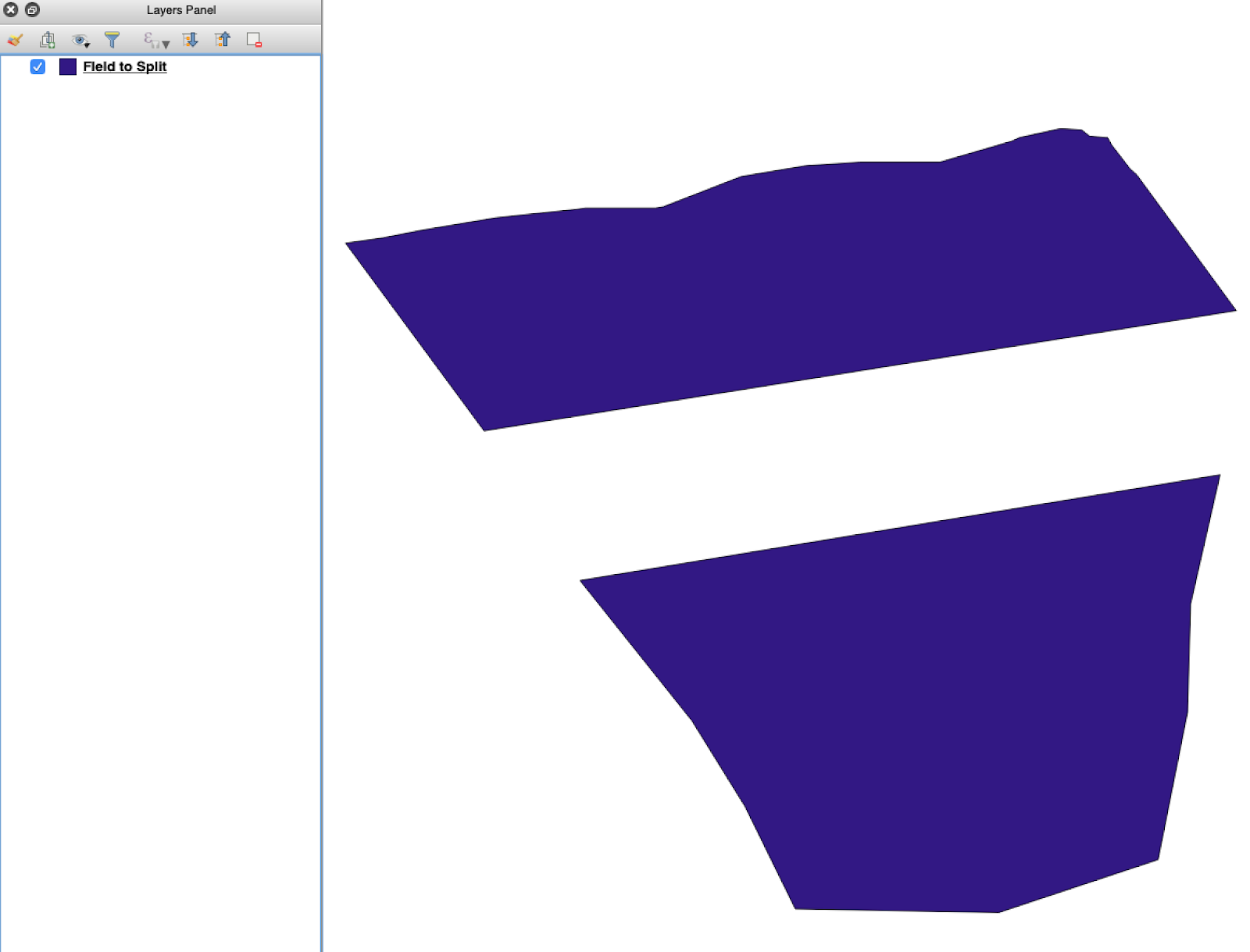
Ouvrez le shapefile source dans QGIS. Vérifiez qu’il contient plusieurs polygones de parcelles.

<figure><img src="https://lh5.googleusercontent.com/G8ooE_FarMCXvt6CjpvfwgRIiIwLVcSki84FFUiBelII7dZVLJHPN2K_Dj4As-VZNXYsut1q2JGtYEir3GCVfWqwKe4UAI9r9OcIM87jOkDRfiGes_wmD6zTmUyZpUZXgkQBUaW8RCsdaUKY18kaVQ" alt=""><figcaption><p>Couche initiale des limites de parcelles avec plusieurs polygones.</p></figcaption></figure>

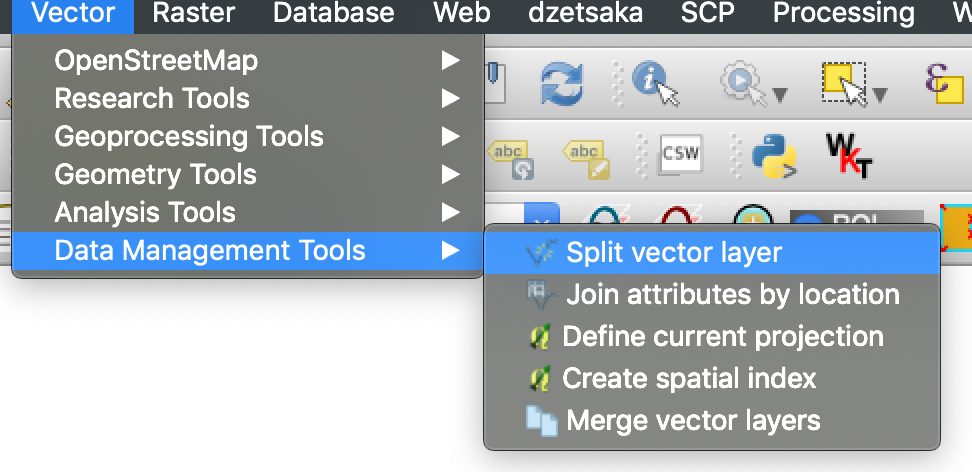
#### 2. Ouvrez l’outil de découpage

Ouvrez les options de la couche et choisissez **Scinder la couche vectorielle**.

<figure><img src="https://lh4.googleusercontent.com/g5B3A43gGlRbUBv2hkAt8xVT7UXzLvj06KB99R471uQQAIZLdoHFPmopQfz9ntwflEEN70DDUuMp7LQGqPocfzkBWbVc27Fm3pPCu2kWhbfnaG54TKGKmj4gKJw7sA10NKJf6ezJ62JVLtMlpSAl1Q" alt=""><figcaption><p>Ouvrez le flux de travail de découpage.</p></figcaption></figure>

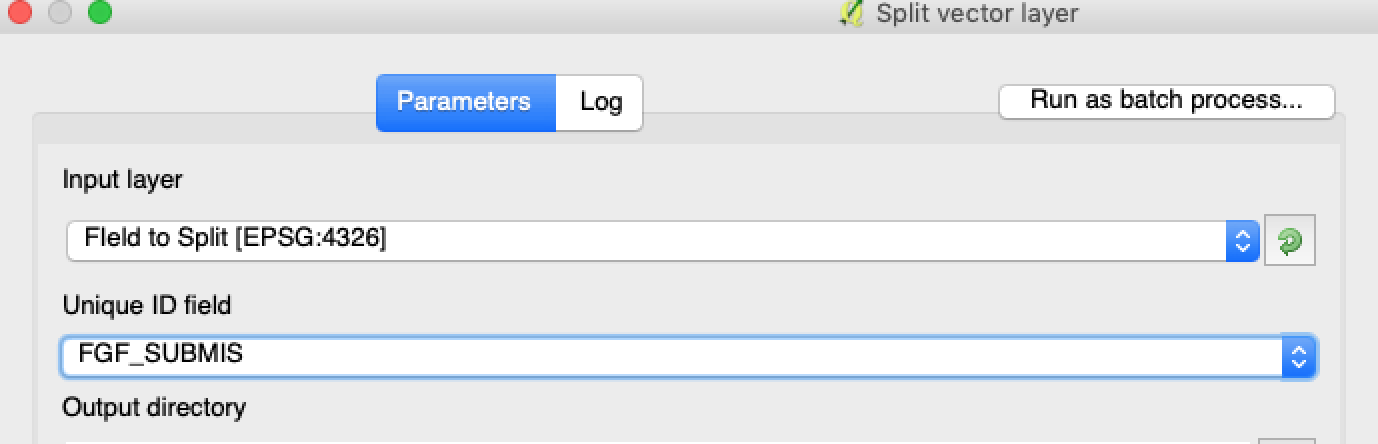
#### 3. Choisissez la couche, l’attribut et le dossier de sortie

Définissez :

1. La couche à scinder.
2. Un attribut unique pour chaque parcelle.
3. Le répertoire de sortie.

<figure><img src="https://lh3.googleusercontent.com/oWwaxwcCPhOp6kIlpDM4z0CK_J_Q6QGCoIdXhr-vMrpQrf_HOLT5ZfHYExEk7J0QIYdPKunOdhe14S9Ay_-FtwGnTnq19GdtnWC4cUcEhEOXIGj7vZdZPsCovszX0sVdz1bF-yraci-5g09ZNJRocw" alt=""><figcaption><p>Sélectionnez la couche source et l’attribut de découpage.</p></figcaption></figure>

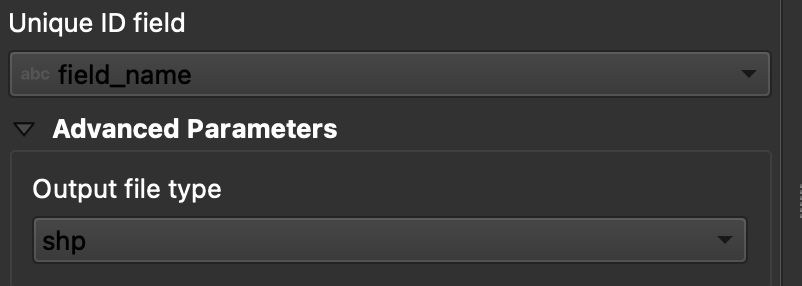
#### 4. Définissez le format de sortie

Choisissez **ESRI Shapefile** comme format de sortie.

<figure><img src="https://lh6.googleusercontent.com/tDOJ7vPBHqCy8peu5Xb97FkYz43HZXnniWwYj6-UXcaMyJaEvuWqx6ew40n9OvXM9OGrPGof0rWasEcgQFjh9SEakNXKW4K4n3Ei56B6jwttr_NW30naaD4OYNJERbQeqeX7bE4JJNd_HwYlgdKIqg" alt=""><figcaption><p>Définissez le dossier de sortie et le format shapefile.</p></figcaption></figure>

#### 5. Lancez le découpage

Cliquez sur **Exécuter**. QGIS crée un fichier par polygone. Chaque polygone devient un shapefile distinct de limite de parcelle.

#### 6. Convertissez les fichiers `.gpkg` en `.shp` si nécessaire

Certaines installations de QGIS créent d’abord des fichiers `.gpkg` . Si cela se produit, ouvrez chaque fichier et enregistrez-le à nouveau en tant que **ESRI Shapefile**.

1. Faites un clic droit sur la couche.
2. Sélectionnez **Exporter** → **Enregistrer les entités sous**.
3. Choisissez **ESRI Shapefile**.
4. Définissez le nom du fichier et l’emplacement.
5. Supprimez les attributs inutiles si nécessaire.

### Résultat

Vous disposez maintenant d’un shapefile par parcelle. Chaque fichier est prêt pour le téléversement des limites de parcelles dans GeoPard. Cela permet de gagner du temps de configuration et de réduire les reprises d’importation évitables.

### Guides QGIS associés

* [QGIS : Convertir CSV en SHP](/geopard-tutorials/fr/astuces-rapides-sig/qgis-convertir-un-csv-en-shp.md)
* [QGIS : Reprojeter un shapefile](/geopard-tutorials/fr/astuces-rapides-sig/qgis-reprojeter-un-shapefile.md)


---

# Agent Instructions
This documentation is published with GitBook. GitBook is the documentation platform designed so that both humans and AI agents can read, navigate, and reason over technical content effectively. Learn more at gitbook.com.

## Querying This Documentation
If you need additional information that is not directly available in this page, you can query the documentation by asking a question.

Perform an HTTP GET request on the following URL with the `ask` and `goal` query parameters:

```
GET https://docs.geopard.tech/geopard-tutorials/fr/astuces-rapides-sig/qgis-decouper-les-shapefiles-multi-parcelles.md?ask=<question>&goal=<user_goal>
```

`ask` is the immediate question: it should be specific, self-contained, and written in natural language.
`goal` is what the user is ultimately trying to achieve, the reason they need the answer. Sharing it helps GitBook give you a better, more relevant answer. A goal is most helpful when it describes the outcome the user wants rather than restating the question. For example, with `ask=how do I create an API token`, a goal like `automate deployments from our CI pipeline` lets GitBook tailor the answer to that use case.

The response will contain a direct answer to the question and relevant excerpts and sources from the documentation.

Use this mechanism when the answer is not explicitly present in the current page, you need clarification or additional context, or you want to retrieve related documentation sections.