> For the complete documentation index, see [llms.txt](https://docs.geopard.tech/geopard-tutorials/llms.txt). Markdown versions of documentation pages are available by appending `.md` to page URLs; this page is available as [Markdown](https://docs.geopard.tech/geopard-tutorials/fin/tuote-esittely-verkkosovellus/john-deere-operations-center-integration/6.-export-rx-maps-to-john-deere-operations-center-as-files.md).
# Lähetä lannoituskarttatiedostoja John Deere Operations Centeriin
Lataa GeoPardin vyöhykkeet ja laskentakaavoihin perustuvat lannoituskartat oikean Operations Center -organisaation Files-osioon ja lähetä ne sitten näytölle tai kopioi USB-muistitikulle.
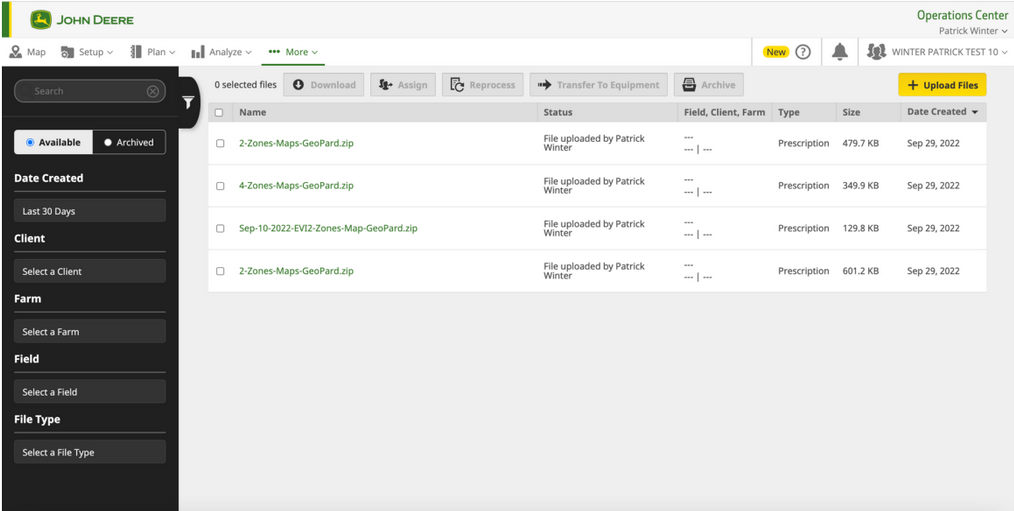
GeoPard lataa vyöhykekartan tai yhtälökartan valitsemasi John Deere -organisaation Tiedostot-alueelle. Tiedostot-alueelta voit lähettää lannoitus- tai kylvömääräyksen näyttöön langattomalla tiedonsiirrolla tai kopioida sen USB-muistitikulle, jos koneella ei ole yhteyttä. Käytä tiedostoja, kun kuljettaja määrittää työn ohjaamossa; käytä työsuunnitelmaa, kun työ määritetään toimistolla. Harmaalla näkyvä organisaation nimi tarkoittaa, ettei GeoPardilla ole vielä siihen käyttöoikeutta.
{% hint style="success" %}
Lähetä ensimmäinen lannoitus- tai kylvömääräyksesi Operations Centeriin: [Aloita maksutta](https://app.geopard.tech/auth/sign-up?utm_source=docs\&utm_medium=cta\&utm_campaign=6.-export-rx-maps-to-john-deere-operations-center-as-files)
{% endhint %}
4\. Vie John Deere Operations Centeriin
4.1 GeoPardin asiakkaat voivat viedä tietoja (VRA-määräyksiä tai muita tietotasoja) GeoPardista John Deere Operations Centeriin. Ensimmäiseksi sinun on [kirjauduttava sisään](https://app.geopard.tech/auth/sign-in) ja siirryttävä välilehdelle **Vie MyJohnDeereen** .
4.2 Käyttäjän on valittava kohdeorganisaatio, johon GeoPard lataa tiedostot. Organisaatioita voi hakea tekstillä. Jos John Deere -organisaatio ei ole valittavissa (sen **nimi näkyy harmaana**), käyttäjän on annettava GeoPardille käyttöoikeus John Deere Operations Centeriin. Katso ohjeet kohdasta [GeoPard-profiilin yhdistäminen John Deere -organisaatioon](https://docs.geopard.tech/geopard-tutorials/fin/tuote-esittely-verkkosovellus/john-deere-operations-center-integration/3.-connect-to-john-deere-organizations.md).
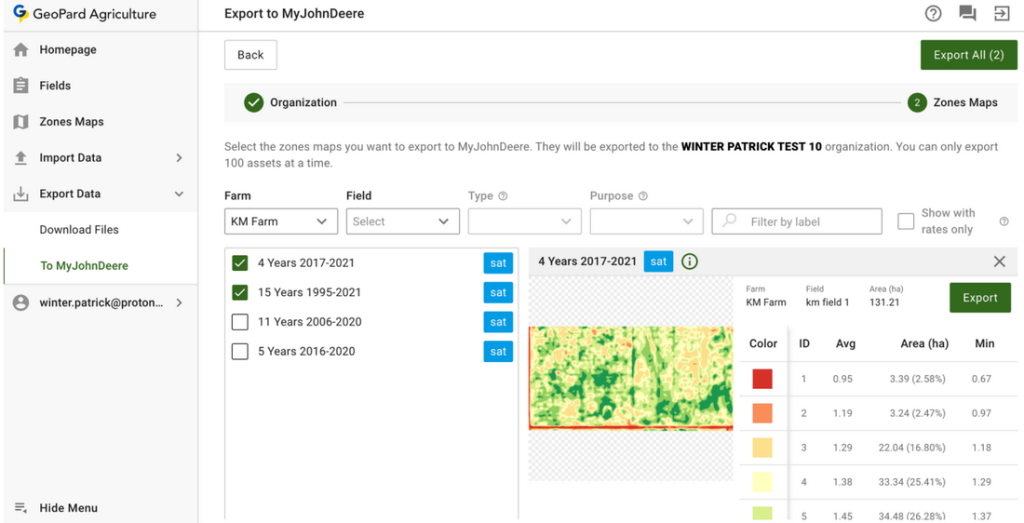
4.3 Valitse sitten aineistot, jotka GeoPard lataa John Deere Operations Centeriin.
4.4 Aineistoja voi suodattaa.
4.5 Kun kaikki aineistot on valittu, ne voi ladata napsauttamalla painiketta **Vie kaikki** tai yksittäisiä aineistoja voi ladata napsauttamalla painiketta **Vie** .
4.6 Napsautuksen jälkeen näet viestin toiminnon tuloksesta.
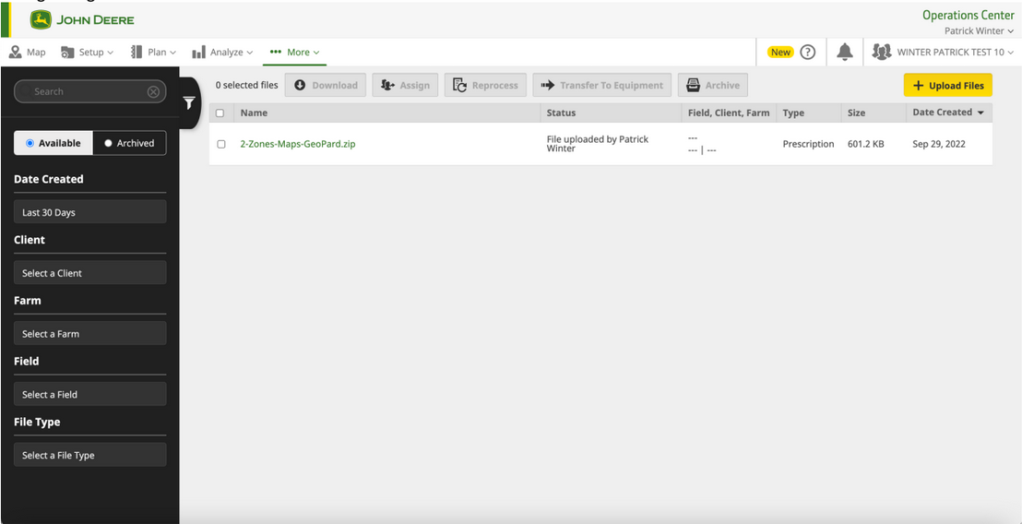
4.7 Tämän jälkeen näet tuloksen John Deere Operations Centerissä ([https://files.deere.com](https://files.deere.com/)). *Varmista, että GeoPard Agriculturessa valittu organisaatio on sama kuin John Deere Operations Centerissä valittu organisaatio.*
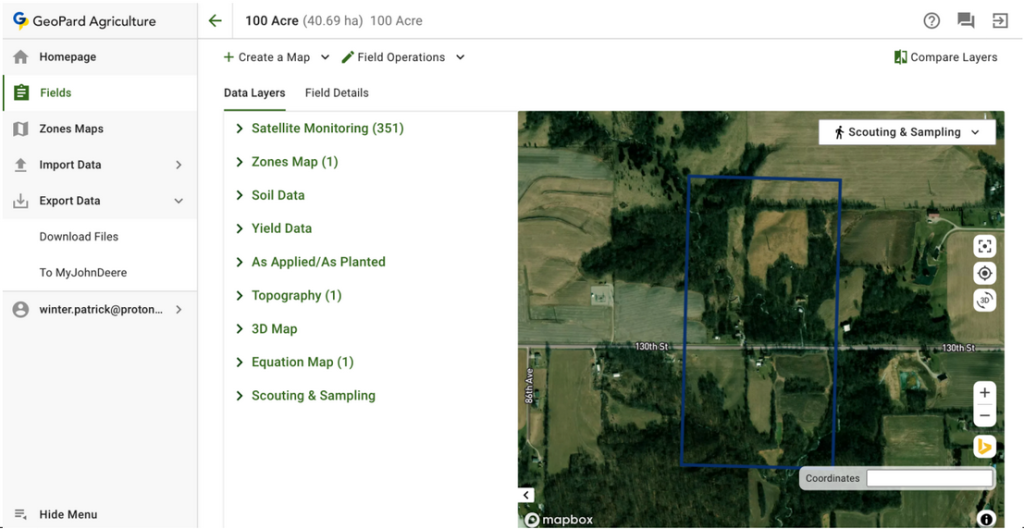
4.8 GeoPardin asiakkaat voivat viedä vyöhykekarttoja (VRA-määräyksiä) ja yhtälökarttoja John Deere Operations Centeriin Pelto-välilehdeltä.
4.8.1 Kun olet valinnut vyöhykekartan, napsauta **Vie MyJohnDeereen** vastaavasta valikosta.
4.8.2 Kun olet valinnut yhtälökartan, napsauta **Vie MyJohnDeereen** vastaavasta valikosta.
4.8.3 Valitse sitten kohteeksi John Deere -organisaatio, johon GeoPard lataa tiedoston. Organisaatioita voi hakea tekstillä. Jos John Deere -organisaatio ei ole valittavissa (sen **nimi näkyy harmaana**), anna GeoPardille käyttöoikeus John Deere Operations Centeriin. Katso ohjeet kohdasta [GeoPard-profiilin yhdistäminen John Deere -organisaatioon](https://docs.geopard.tech/geopard-tutorials/fin/tuote-esittely-verkkosovellus/john-deere-operations-center-integration/3.-connect-to-john-deere-organizations.md).
4.8.4 Kun napsautat painiketta **Valmis** , näet viestin toiminnon tuloksesta.
4.8.5 Tämän jälkeen näet tuloksen John Deere Operations Centerissä ([https://files.deere.com](https://files.deere.com/)).\
\&#xNAN;*Varmista, että GeoPard Agriculturessa ja John Deere Operations Centerissä valittu organisaatio on sama.*
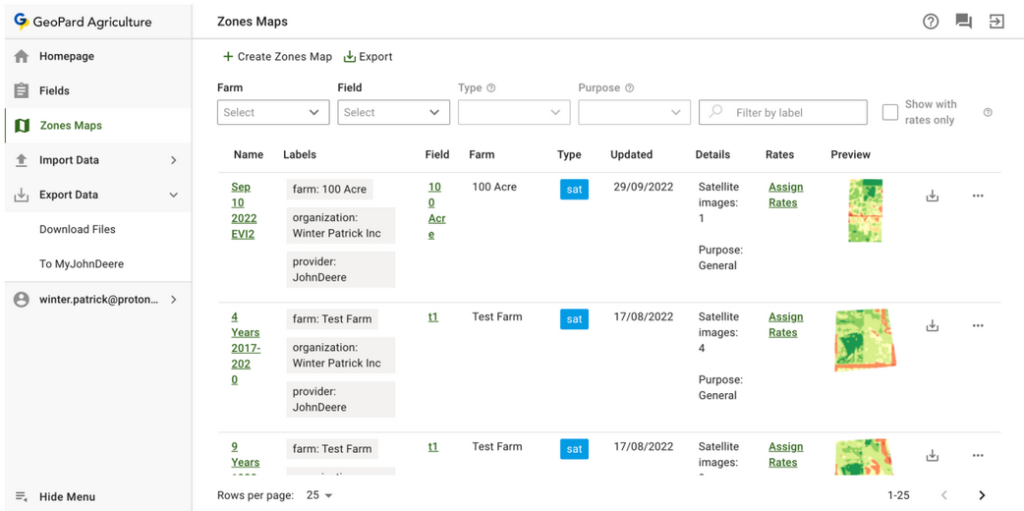
4.9 GeoPardin asiakkaat voivat viedä vyöhykekarttoja (VRA-määräyksiä) John Deere Operations Centeriin välilehdeltä **Vyöhykekartat** .
4.9.1 Yksittäisen vyöhykekartan voi viedä napsauttamalla sitä vastaavaa vientipainiketta.
4.9.2 Useita vyöhykekarttoja voi viedä napsauttamalla vientipainiketta ja valitsemalla kartat.
4.9.3 Kun napsautat painiketta **Vie** , näet **Vie aluetason kartat** ponnahdusikkuna, jossa käyttäjän tulee valita **Vie vyöhykkeet MyJohnDeere Ops Centeriin** vaihtoehto ja napsauttaa **Vie** -painiketta.
4.9.4 Seuraavaksi käyttäjä valitsee kohteeksi John Deere -organisaation, johon GeoPard lataa tiedoston. Käyttäjä voi etsiä organisaatiota tekstin perusteella. Jos John Deere -organisaatio ei ole käytettävissä (sen **nimi näkyy harmaana**), käyttäjän tulee antaa käyttöoikeus John Deere Operations Centeriin. Katso ohjeesta [GeoPard-profiilin yhdistäminen John Deere -organisaatioon](https://docs.geopard.tech/geopard-tutorials/fin/tuote-esittely-verkkosovellus/john-deere-operations-center-integration/3.-connect-to-john-deere-organizations.md).
4.9.5 Kun käyttäjä napsauttaa **Valmis** -painiketta, hän näkee ilmoituksen toiminnon tuloksesta.
4.9.6 Tämän jälkeen käyttäjän tulee nähdä tulos John Deere Operations Centerissä ([https://files.deere.com](https://files.deere.com/)). Varmista, että käyttäjä valitsee saman organisaation GeoPard Agriculturessa ja John Deere Operations Centerissä.
{% hint style="success" %}
Lähetä ensimmäinen lannoitus- tai kylvömääräyksesi Operations Centeriin: [Aloita maksutta](https://app.geopard.tech/auth/sign-up?utm_source=docs\&utm_medium=cta\&utm_campaign=6.-export-rx-maps-to-john-deere-operations-center-as-files)
{% endhint %}
---
# Agent Instructions
This documentation is published with GitBook. GitBook is the documentation platform designed so that both humans and AI agents can read, navigate, and reason over technical content effectively. Learn more at gitbook.com.
## Querying This Documentation
If you need additional information that is not directly available in this page, you can query the documentation by asking a question.
Perform an HTTP GET request on the following URL with the `ask` and `goal` query parameters:
```
GET https://docs.geopard.tech/geopard-tutorials/fin/tuote-esittely-verkkosovellus/john-deere-operations-center-integration/6.-export-rx-maps-to-john-deere-operations-center-as-files.md?ask=&goal=
```
`ask` is the immediate question: it should be specific, self-contained, and written in natural language.
`goal` is what the user is ultimately trying to achieve, the reason they need the answer. Sharing it helps GitBook give you a better, more relevant answer. A goal is most helpful when it describes the outcome the user wants rather than restating the question. For example, with `ask=how do I create an API token`, a goal like `automate deployments from our CI pipeline` lets GitBook tailor the answer to that use case.
The response will contain a direct answer to the question and relevant excerpts and sources from the documentation.
Use this mechanism when the answer is not explicitly present in the current page, you need clarification or additional context, or you want to retrieve related documentation sections.