> For the complete documentation index, see [llms.txt](https://docs.geopard.tech/geopard-tutorials/llms.txt). Markdown versions of documentation pages are available by appending `.md` to page URLs; this page is available as [Markdown](https://docs.geopard.tech/geopard-tutorials/fin/tuote-esittely-verkkosovellus/john-deere-operations-center-integration/4.-import-into-geopard-from-john-deere-operations-center.md).
# 4. Tuo GeoPardiin John Deere Operations Centeristä
Tuo rajat, lohkot ja agronomiset aineistot John Deerestä GeoPardiin.
3\. Tuo GeoPardiin
3.1 GeoPardin asiakkaat voivat tuoda tietoja (lohkorajat, satotiedot sekä kylvö- ja levityskartat) John Deere Operations Centeristä GeoPardiin. Ensimmäiseksi [kirjaudu sisään](https://app.geopard.tech/auth/sign-in) ja siirry **Import from MyJohnDeere** -välilehdelle. Tuonnin jälkeen GeoPard-lohko linkittyy John Deere -lohkoon, ja uudet GeoPard-lohkon aineistot (vyöhykekartat, topografiakartat ja yhtälökartat) lähetetään automaattisesti John Deere Operations Centeriin niiden luomisen jälkeen. Katso kohta 4.14. Tarkista, että tiedot ovat synkronoituneet GeoPard-lohkosta John Deere -lohkoon.
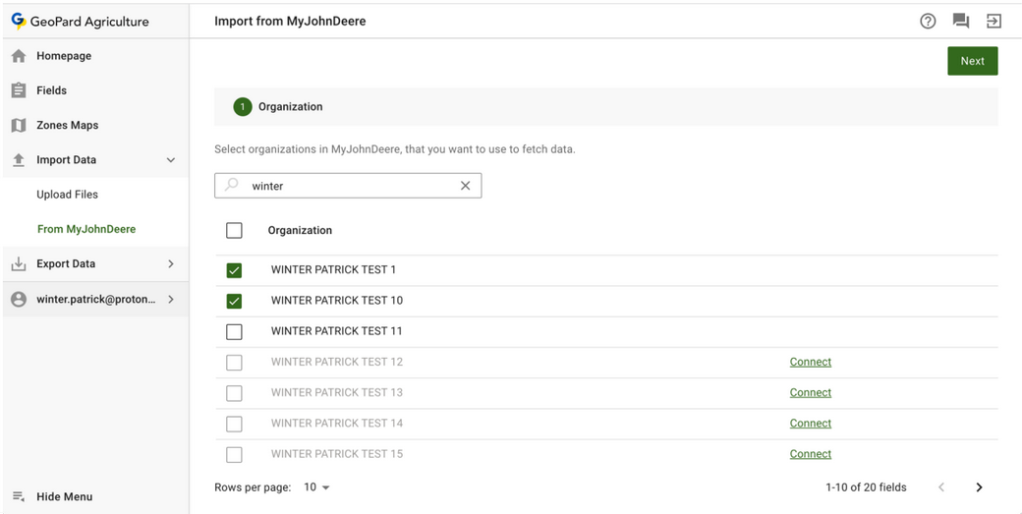
3.2 Käyttäjän tulee valita John Deere -organisaatio, josta GeoPard noutaa tiedot, ja napsauttaa **Next** -painiketta. Organisaatioita voi hakea tekstillä. Jos John Deere -organisaatio ei ole käytettävissä (sen **nimi näkyy harmaana**), käyttäjän tulee myöntää GeoPardille käyttöoikeus John Deere Operations Centerissä. Katso kohta [**2. GeoPard-profiilin yhdistäminen John Deere -organisaatioon**](https://docs.geopard.tech/geopard-tutorials/fin/tuote-esittely-verkkosovellus/john-deere-operations-center-integration/3.-connect-to-john-deere-organizations.md).
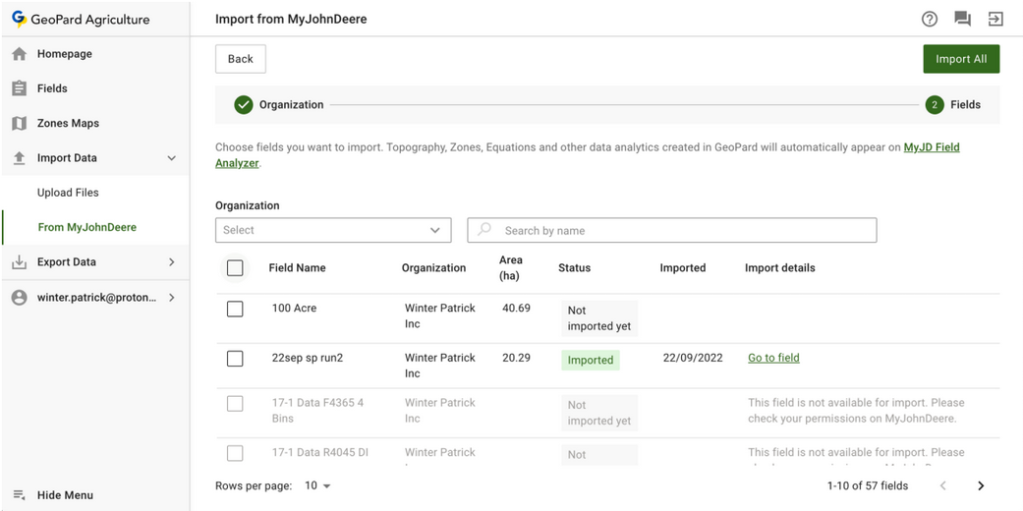
3.3 Tuo kaikki käytettävissä olevat tiedot napsauttamalla **Import All** -painiketta tai käyttämällä valintatoimintoa (kohta 4.4).
3.4 Jos haluat tuoda tiettyjä tietoja, valitse ensin aineistot. Voit suodattaa aineistoja.
3.5 Kun olet valinnut aineistot, napsauta **Import Selected** -painiketta.
3.6 Valitse tuonnin tyyppi ja napsauta **Next**.
3.7 Valitse pudotusvalikosta **ajanjakson** aineistot.
3.8 **Ajanjakso** -pudotusvalikosta voi valita useita ajanjaksoja.
3.9 Kun olet valinnut **tyypin** ja **ajanjakson**, käynnistä tuonti napsauttamalla **Done** -painiketta.
3.10 Tuonti kestää jonkin aikaa tietomäärän mukaan. Käynnissä olevan välilehden pyörivä latauskuvake tai toisessa välilehdessä näkyvä **edistymispalkki** ilmaisee tuonnin etenemisen.
3.11 Tuonnin jälkeen näet viestin toiminnon tuloksesta.
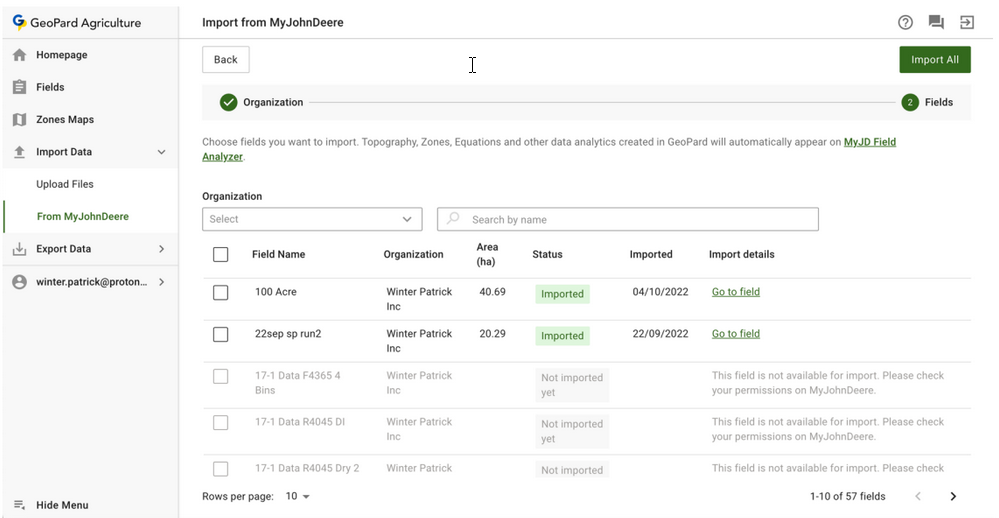
3.12 Kun tiedot on siirretty, voit tarkastella niitä **Lohkot** -moduulissa tai napsauttaa **Go to field** -linkkiä.
3.13 Siirretyt tiedot näkyvät **Lohkot** -moduulissa.
3.14 Tarkista, että tiedot ovat synkronoituneet GeoPard-lohkosta John Deere -lohkoon. Vain tuotu GeoPard-lohko linkittyy John Deere -lohkoon. Uudet GeoPard-lohkon aineistot (vyöhykekartat, topografiakartat ja yhtälökartat) lähetetään automaattisesti John Deere Operations Centeriin niiden luomisen jälkeen. Tarkastele niitä John Deere Operations Centerin Field Analyzerissa ([https://field-analyzer.deere.com](https://field-analyzer.deere.com/)).
---
# Agent Instructions
This documentation is published with GitBook. GitBook is the documentation platform designed so that both humans and AI agents can read, navigate, and reason over technical content effectively. Learn more at gitbook.com.
## Querying This Documentation
If you need additional information that is not directly available in this page, you can query the documentation by asking a question.
Perform an HTTP GET request on the following URL with the `ask` and `goal` query parameters:
```
GET https://docs.geopard.tech/geopard-tutorials/fin/tuote-esittely-verkkosovellus/john-deere-operations-center-integration/4.-import-into-geopard-from-john-deere-operations-center.md?ask=&goal=
```
`ask` is the immediate question: it should be specific, self-contained, and written in natural language.
`goal` is what the user is ultimately trying to achieve, the reason they need the answer. Sharing it helps GitBook give you a better, more relevant answer. A goal is most helpful when it describes the outcome the user wants rather than restating the question. For example, with `ask=how do I create an API token`, a goal like `automate deployments from our CI pipeline` lets GitBook tailor the answer to that use case.
The response will contain a direct answer to the question and relevant excerpts and sources from the documentation.
Use this mechanism when the answer is not explicitly present in the current page, you need clarification or additional context, or you want to retrieve related documentation sections.