> For the complete documentation index, see [llms.txt](https://docs.geopard.tech/geopard-tutorials/llms.txt). Markdown versions of documentation pages are available by appending `.md` to page URLs; this page is available as [Markdown](https://docs.geopard.tech/geopard-tutorials/fin/tuote-esittely-mobiilisovellus/tyoskentely-offline-tilassa.md).
# Työskentely offline-tilassa
Käytä GeoPard-mobiilisovellusta offline-tilassa ja pidä lohkotyöt käynnissä ilman signaalia.
Työskentely offline-tilassa
Ennen kuin ryhdyt käyttämään GeoPard-mobiilisovellusta, suosittelemme tallentamaan tunnistetietosi, jotta sinulla ei ole ongelmia sovellukseen pääsyssä silloin, kun verkkoyhteyttä ei ole.
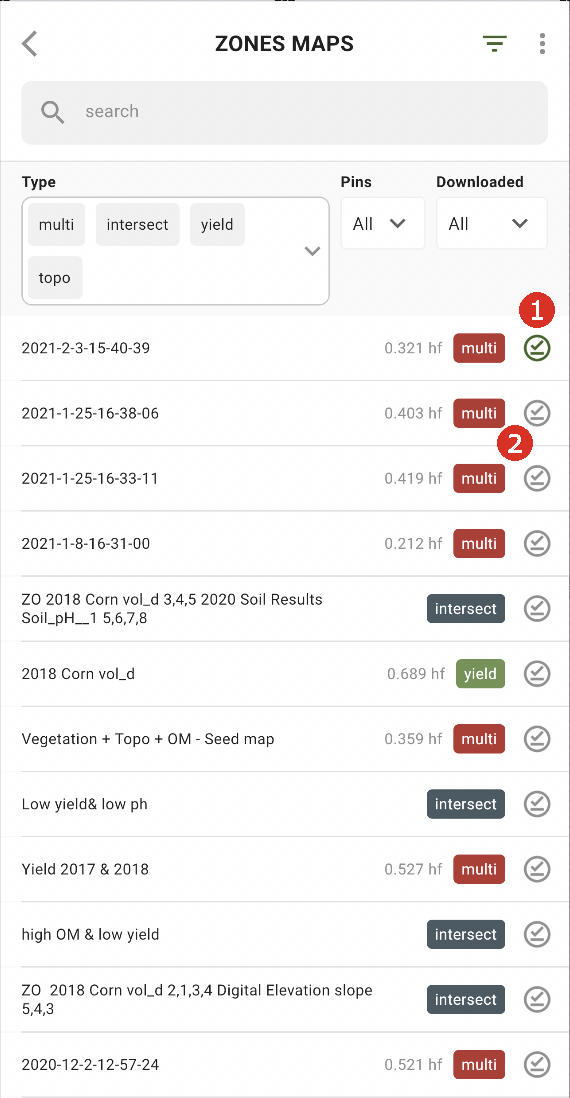
Jotta voit työskennellä offline-tilassa, sinun on ladattava Vyöhykekartta älypuhelimeesi. Napauta ladattavan Vyöhykekartan vieressä olevaa latauspainiketta (2).
Kun kartta on ladattu laitteeseesi, sen vieressä näkyy vihreä valintamerkki (1).
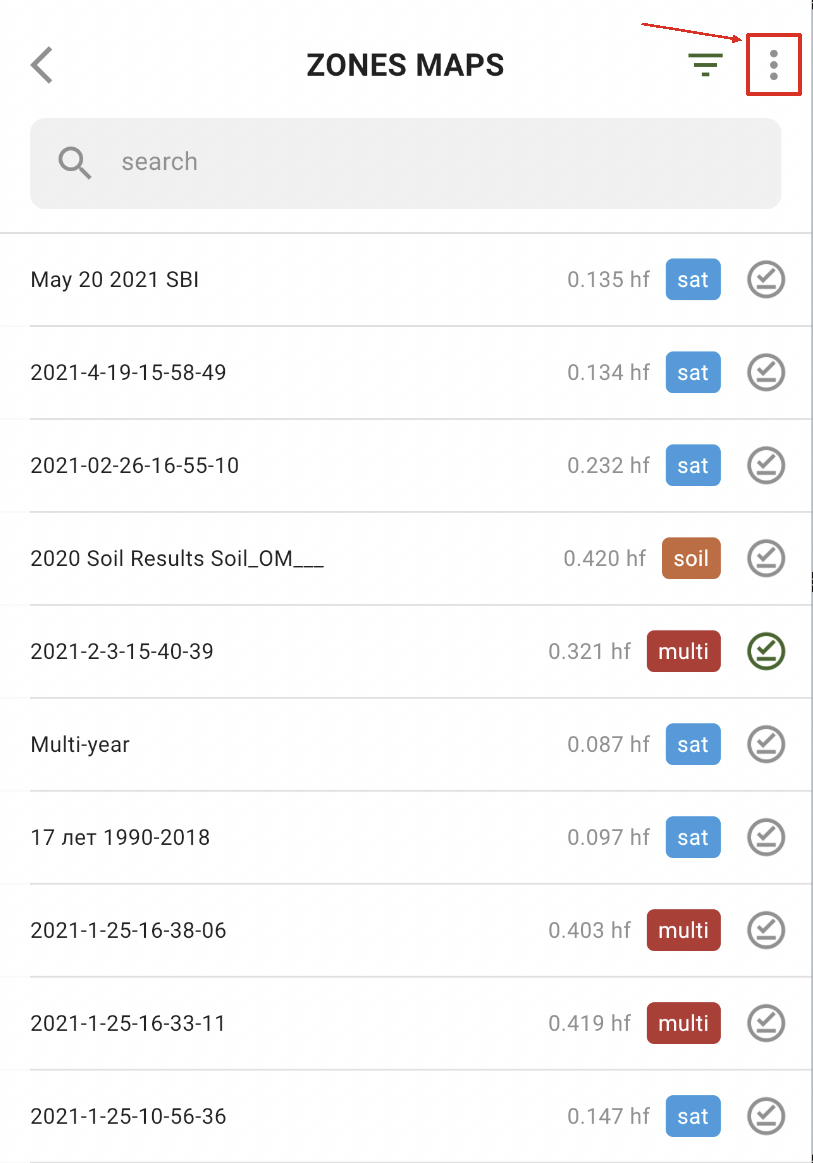
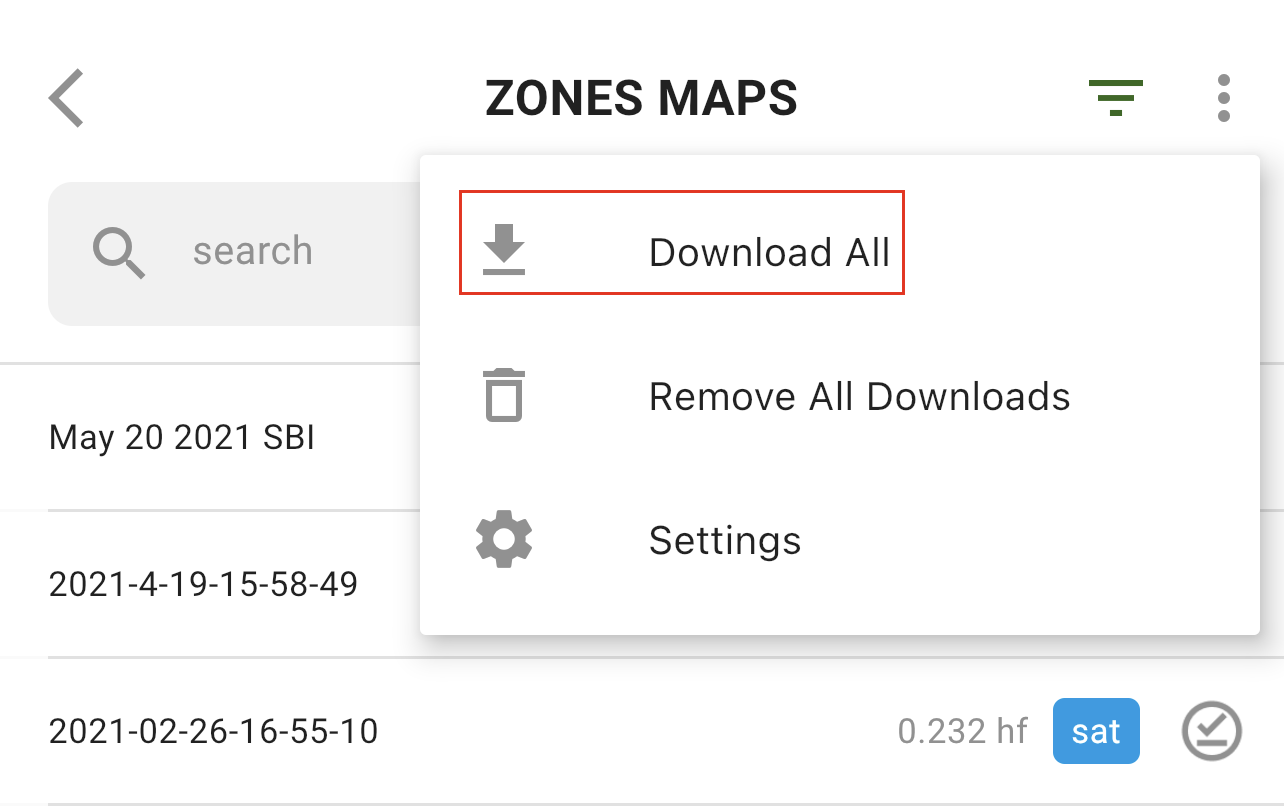
Voit ladata kaikki Vyöhykekartat kerralla napauttamalla Lisää-vaihtoehtoa:
ja valitsemalla “Lataa kaikki” -vaihtoehdon:
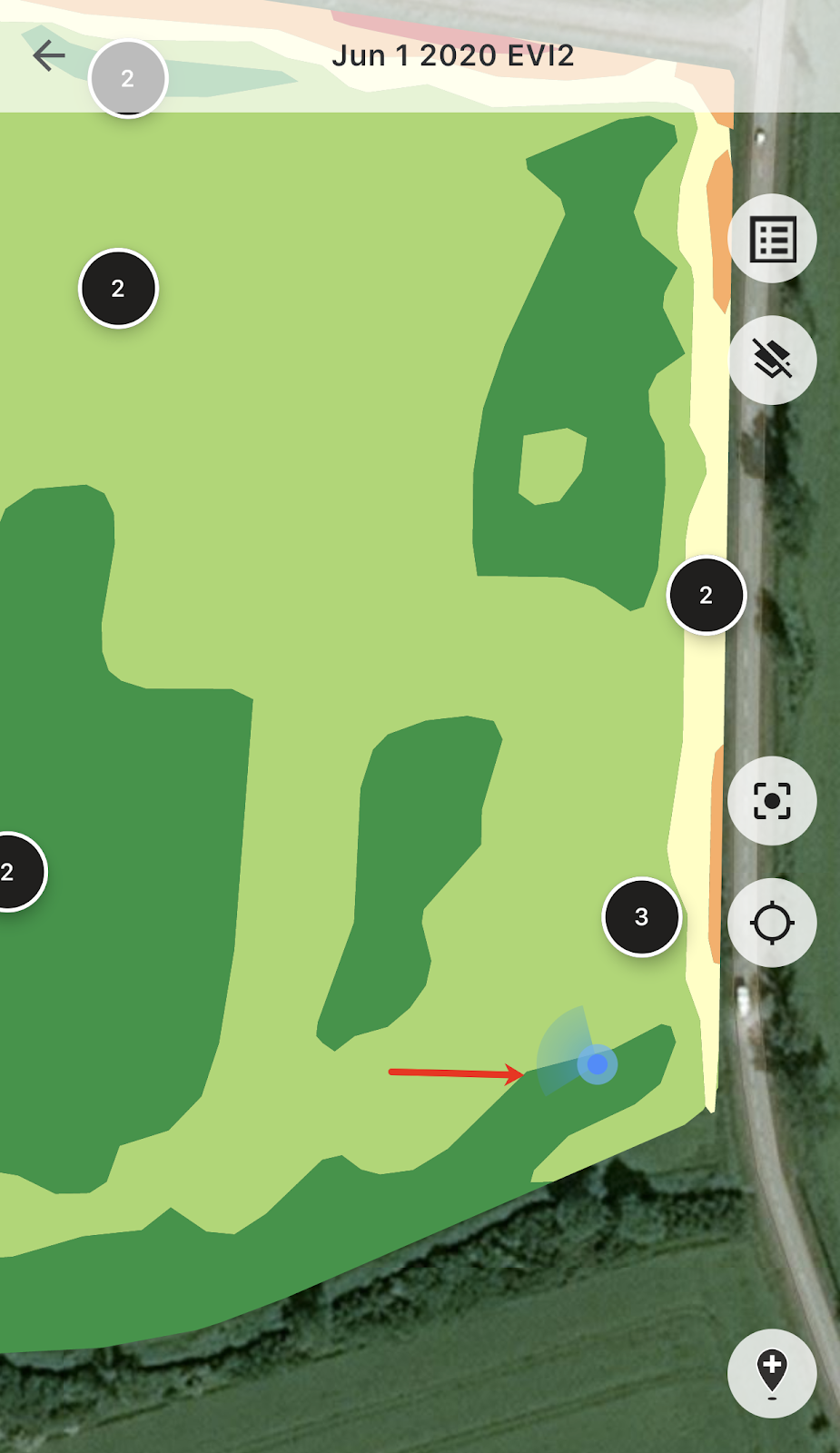
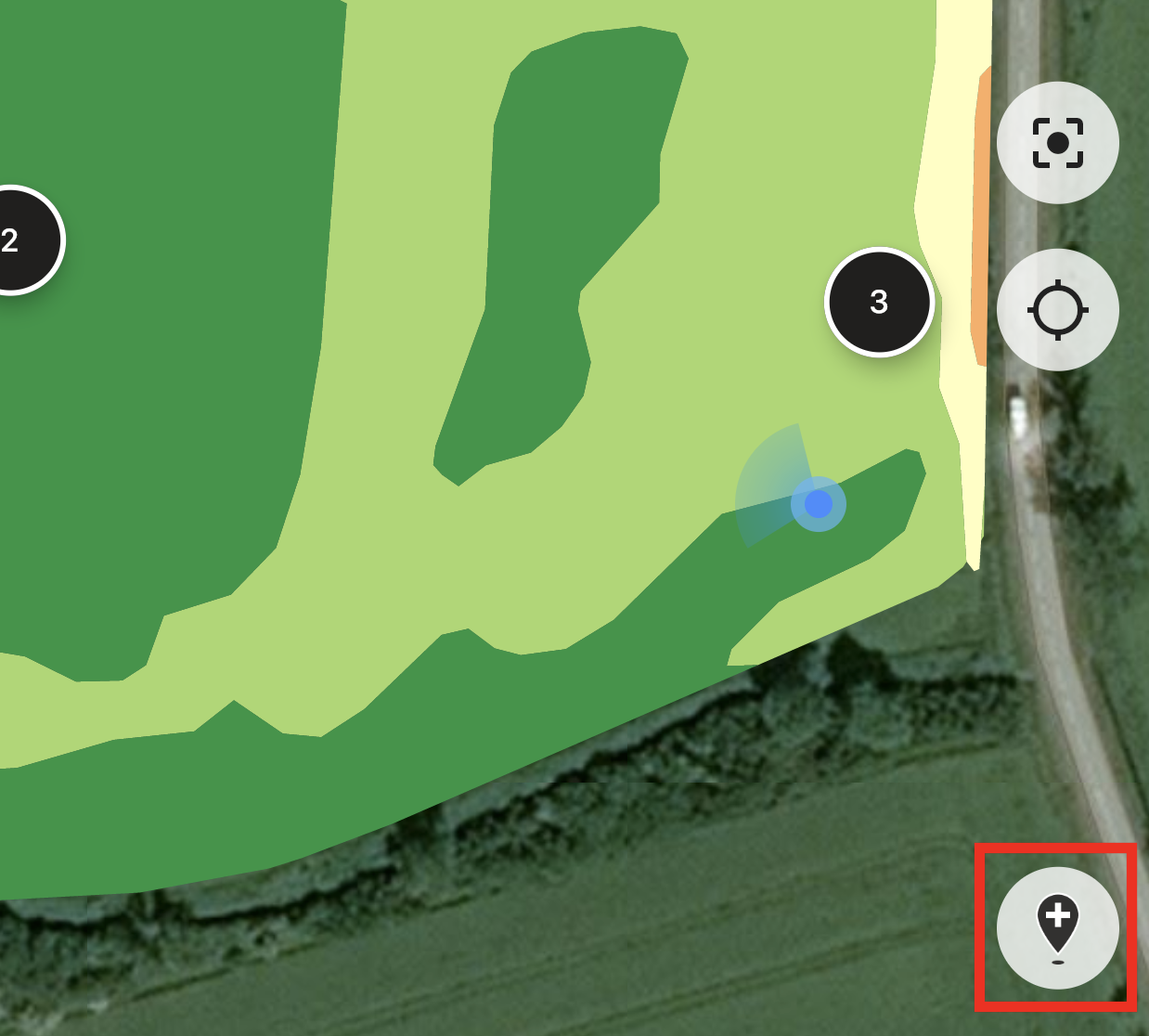
Kun olet pellolla, voit seurata sijaintiasi ja nähdä liikkumissuuntasi.
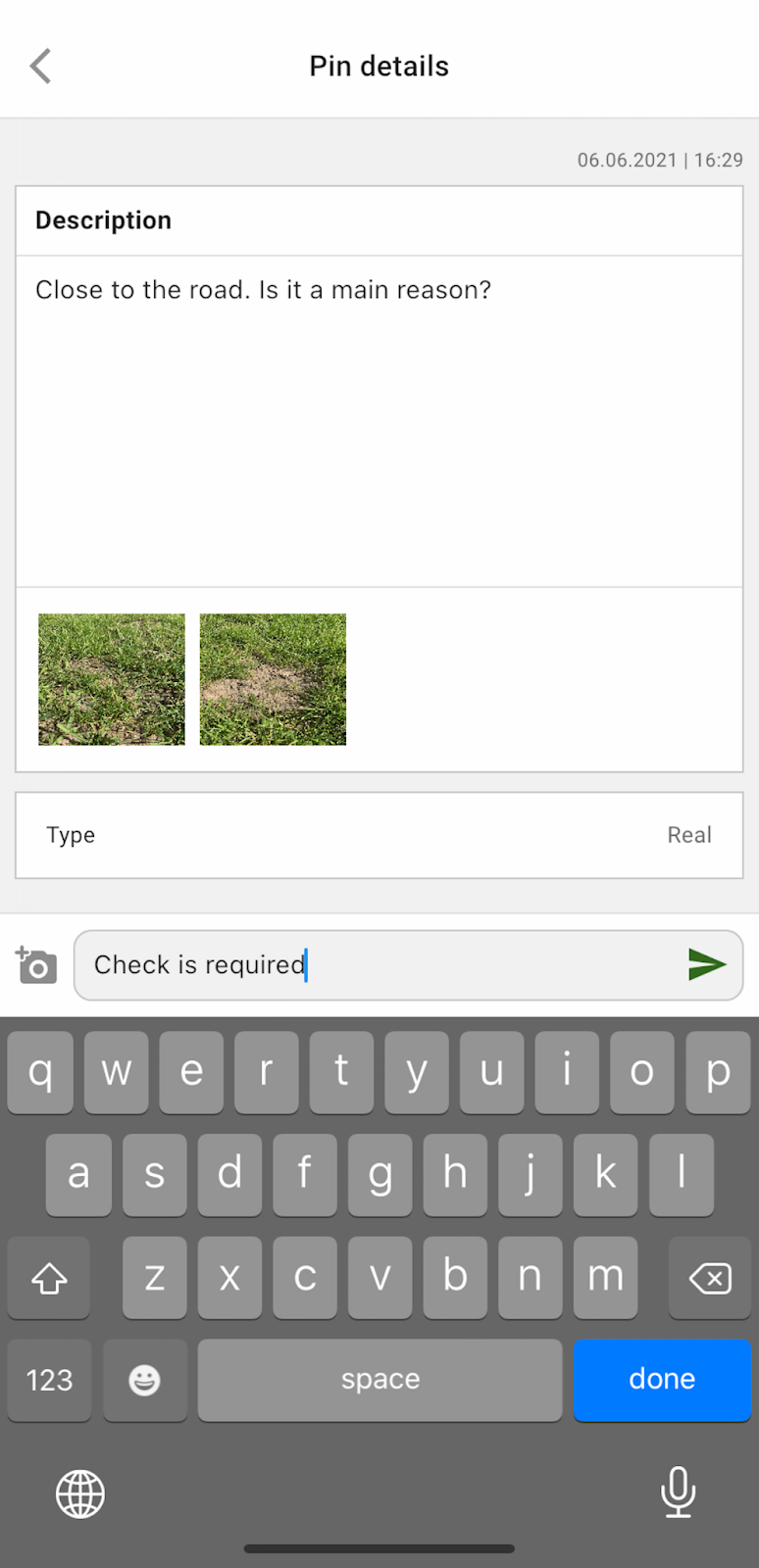
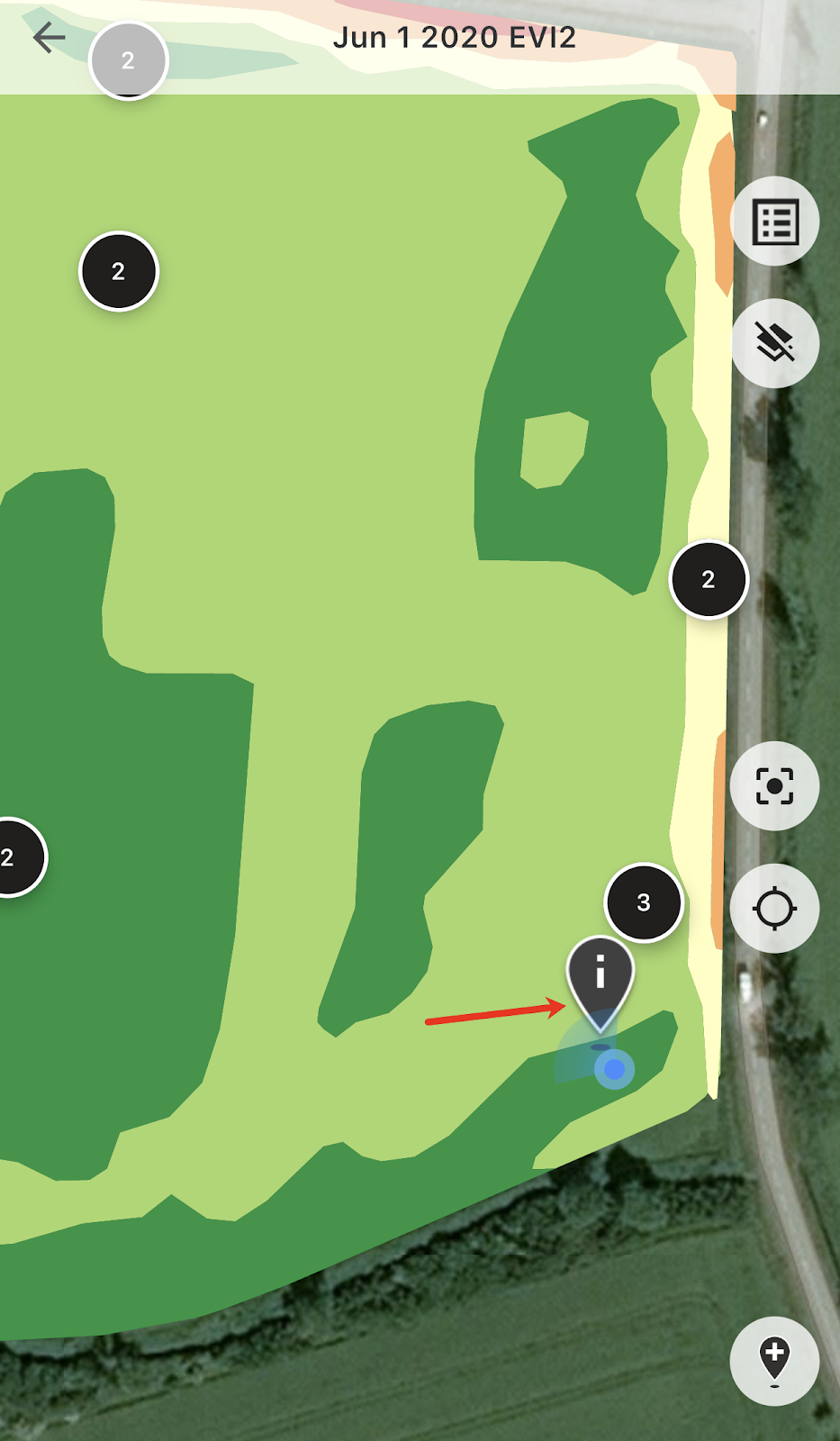
Voit napauttaa mitä tahansa suunnitelluista pisteistä ja lisätä/muokata kommentteja.
Tai jos havaitset jotain, joka vaatii huomiota (poikkeama tai peltoraja on virheellinen), napauta Lisää uusi piste -painiketta.
Kirjoita kommenttisi ja napauta “Tallenna”-painiketta lisätäksesi uuden pisteen Vyöhykekarttaan.
Mobiililaitteella lisäämilläsi pisteillä on eri kuvake kuin verkkosovelluksella lisäämilläsi suunnitelluilla pisteillä.
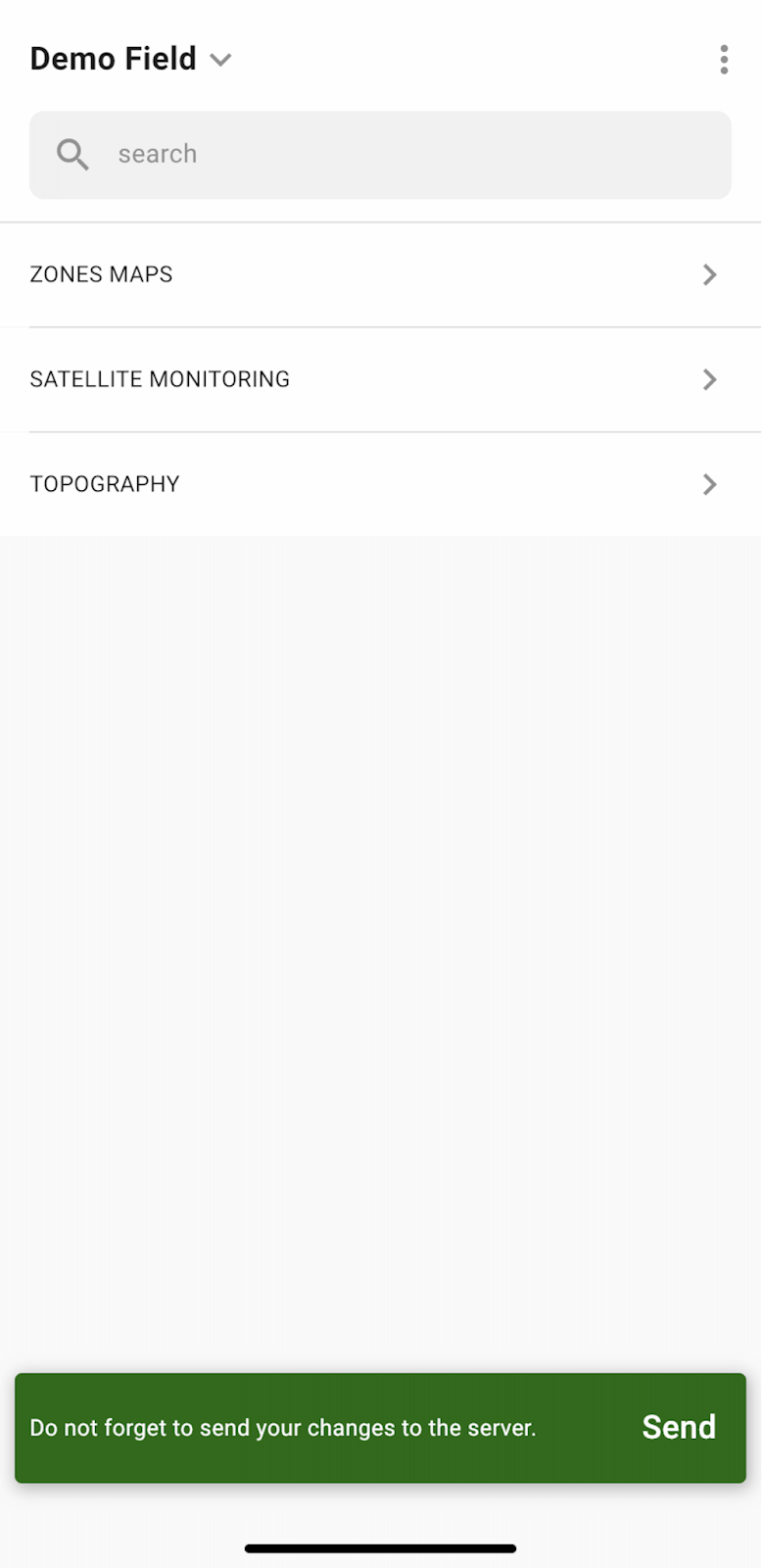
Kun olet saanut työt pellolla valmiiksi ja lisännyt/muokannut pisteitä, näet ilmoituksen, jossa sinua pyydetään lähettämään muutoksesi palvelimelle. Tai jos työskentelet offline-tilassa, sinua pyydetään lähettämään muutoksesi, kun olet taas yhteydessä verkkoon.
Napauta “Lähetä” synkronoidaksesi muutoksesi palvelimen kanssa.
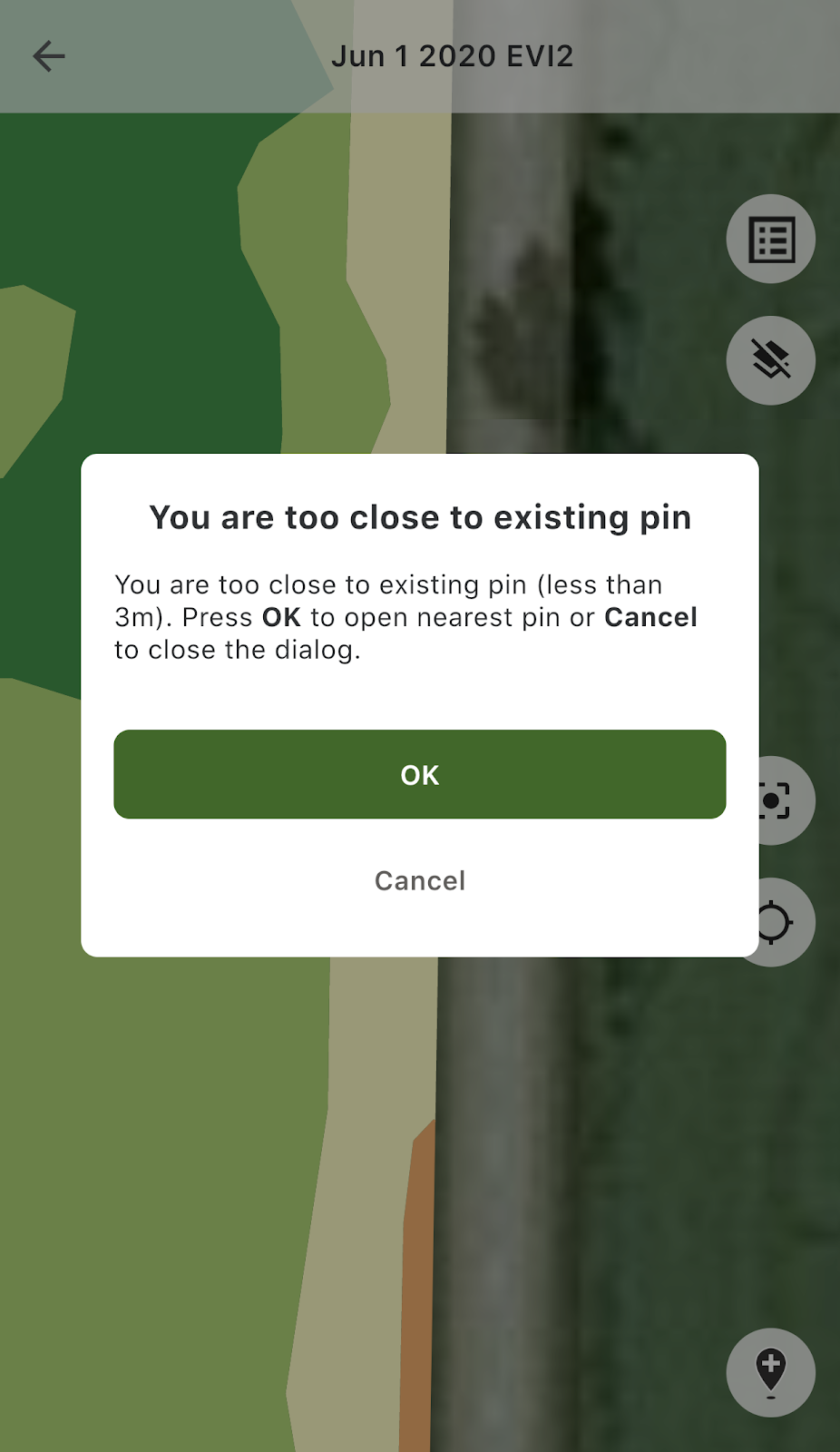
Jos olet lähellä olemassa olevaa pistettä ja yrität lisätä uutta pistettä, näet seuraavan viestin:
Siinä tapauksessa voit napauttaa joko “OK” avataksesi lähimmän pisteen tai “Peruuta” sulkeaksesi ponnahdusviestin.
---
# Agent Instructions
This documentation is published with GitBook. GitBook is the documentation platform designed so that both humans and AI agents can read, navigate, and reason over technical content effectively. Learn more at gitbook.com.
## Querying This Documentation
If you need additional information that is not directly available in this page, you can query the documentation by asking a question.
Perform an HTTP GET request on the following URL with the `ask` and `goal` query parameters:
```
GET https://docs.geopard.tech/geopard-tutorials/fin/tuote-esittely-mobiilisovellus/tyoskentely-offline-tilassa.md?ask=&goal=
```
`ask` is the immediate question: it should be specific, self-contained, and written in natural language.
`goal` is what the user is ultimately trying to achieve, the reason they need the answer. Sharing it helps GitBook give you a better, more relevant answer. A goal is most helpful when it describes the outcome the user wants rather than restating the question. For example, with `ask=how do I create an API token`, a goal like `automate deployments from our CI pipeline` lets GitBook tailor the answer to that use case.
The response will contain a direct answer to the question and relevant excerpts and sources from the documentation.
Use this mechanism when the answer is not explicitly present in the current page, you need clarification or additional context, or you want to retrieve related documentation sections.