> For the complete documentation index, see [llms.txt](https://docs.geopard.tech/geopard-tutorials/llms.txt). Markdown versions of documentation pages are available by appending `.md` to page URLs; this page is available as [Markdown](https://docs.geopard.tech/geopard-tutorials/fin/gis-pikavinkit/qgis-satodatan-kasittely.md).
# QGIS: Satodatan käsittely
Valmistele ja puhdista satodata QGIS:ssä ennen sen tuontia tai analysointia GeoPardissa.
YLEISKATSAUS
Käsikirja vaihe vaiheelta seuraavien ongelmien ratkaisemiseksi satomonitorin tiedoissa:
1. Puuttuva projektiotiedosto (.prj) shapefilessä
2. Sovella muunnossääntöjä shapefilen jokaiseen attribuuttiin (kb/ha:sta bu/ac:iin -esimerkin perusteella)
Käytettävä ohjelmisto on QGIS ([LINKKI](https://qgis.org/en/site/forusers/download.html)).
Lataaminen ja asentaminen ovat pakollisia.
### PUUTTUVA PROJEKTIOTIEDOSTO
1. Avaa sadontiedot sisältävä shapefile. Siirrä tiedosto QGIS-ikkunan sisään.
2. Shapefile tulee käytettäväksi jatkokäsittelyä varten Tasot-osiossa.
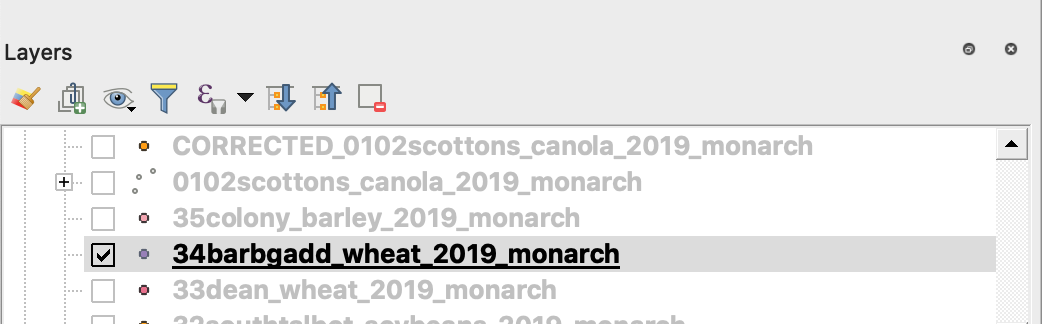
3. Aloita tallennusprosessi
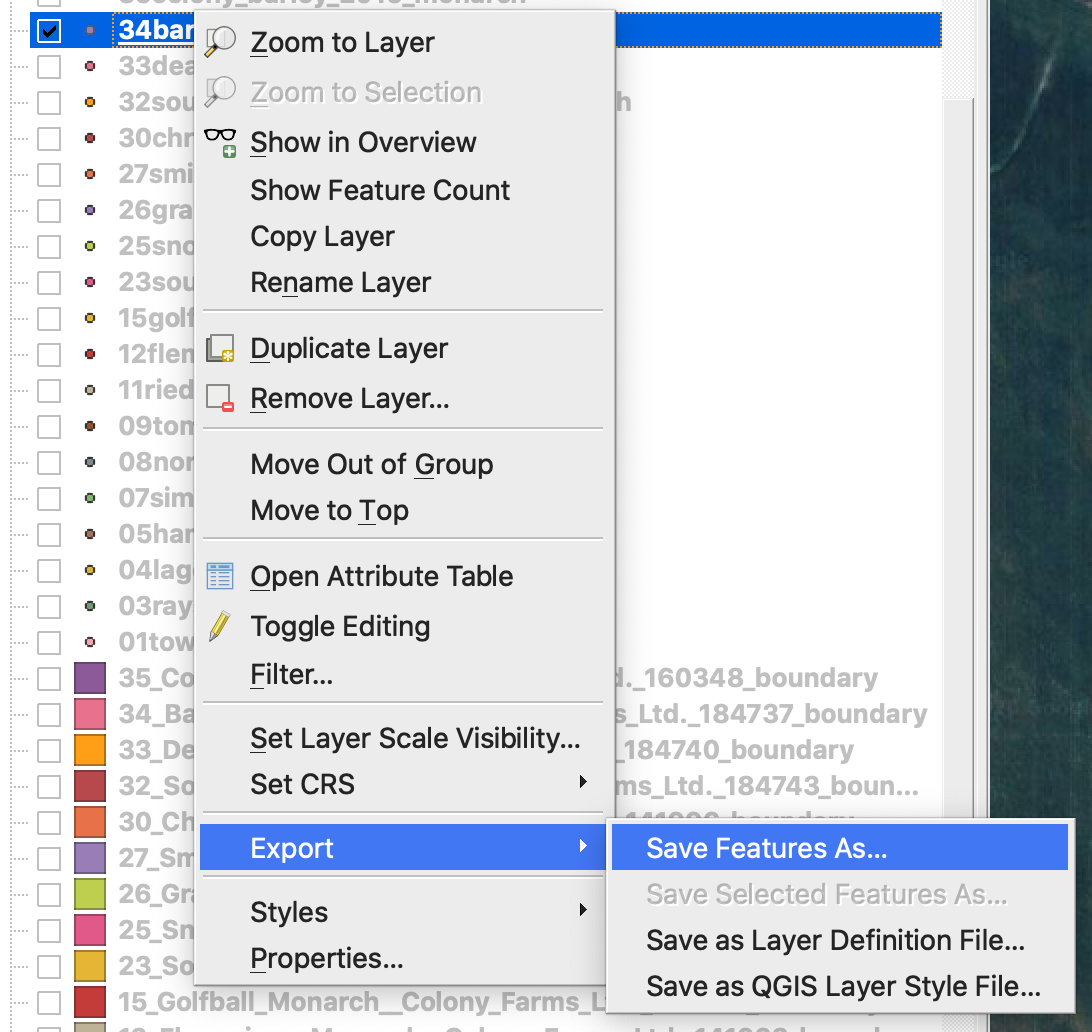
4. 1. Napsauta hiiren oikealla painikkeella shapefileä
2. Valitse Vie -> Tallenna kohteet nimellä ...
4. Valitse
5. 1. Muoto -> ESRI Shapefile,
2. Tiedostonimi -> napsauta … ja valitse haluamasi kansio ja tiedostonimi,
3. CRS -> EPSG:4326
4. Merkistö -> UTF8
5. Lisää tallennettu tiedosto karttaan (valinnainen, jos haluat nähdä sen suoraan QGISissä)
6. Geometrian tyyppi -> Piste
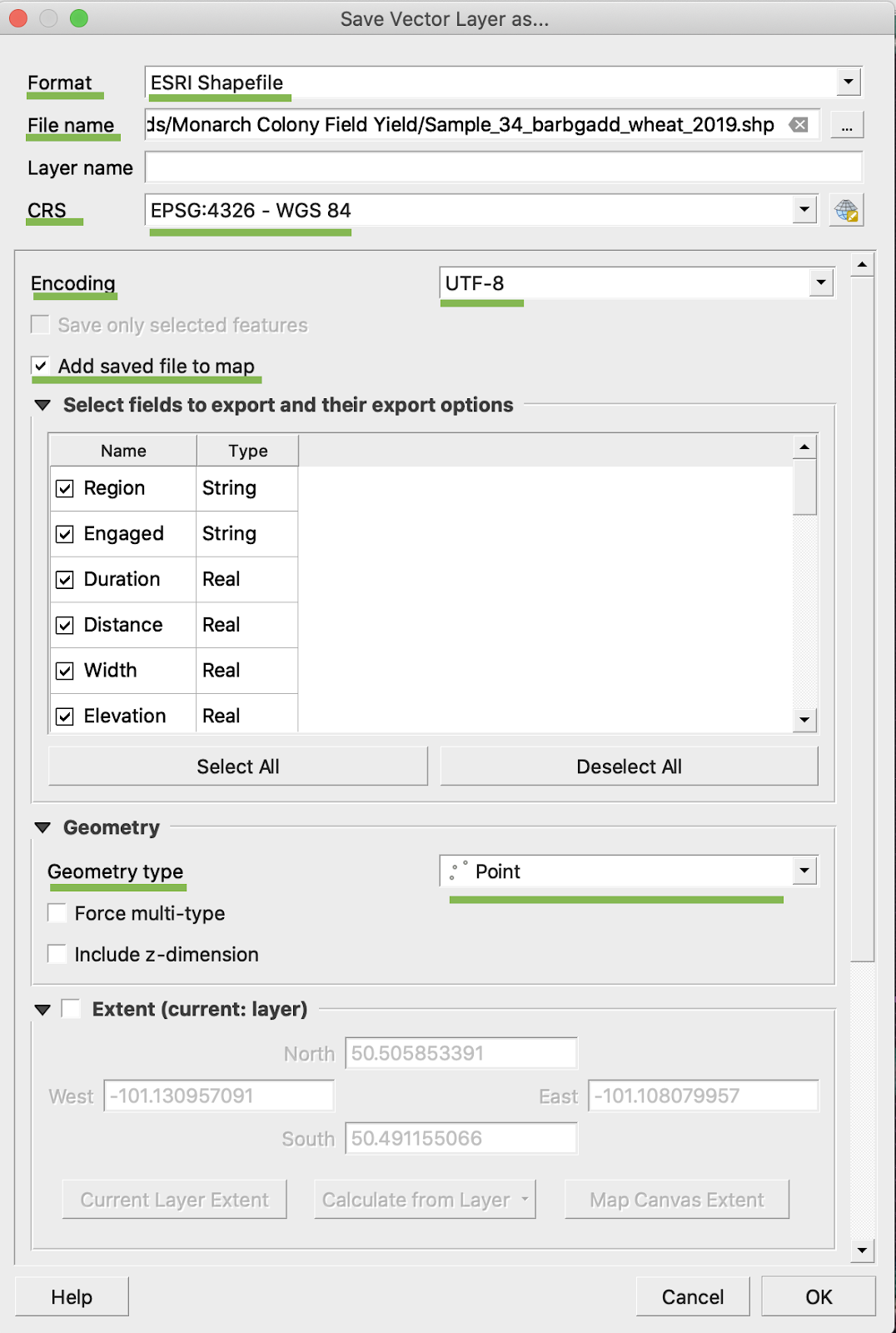
5. Napsauta OK
6. Luodaan lisäshapefile samoilla sadontiedoilla. Projektiotiedosto (.prj) lisättiin.
\
### BU/AC-MUUNNOS
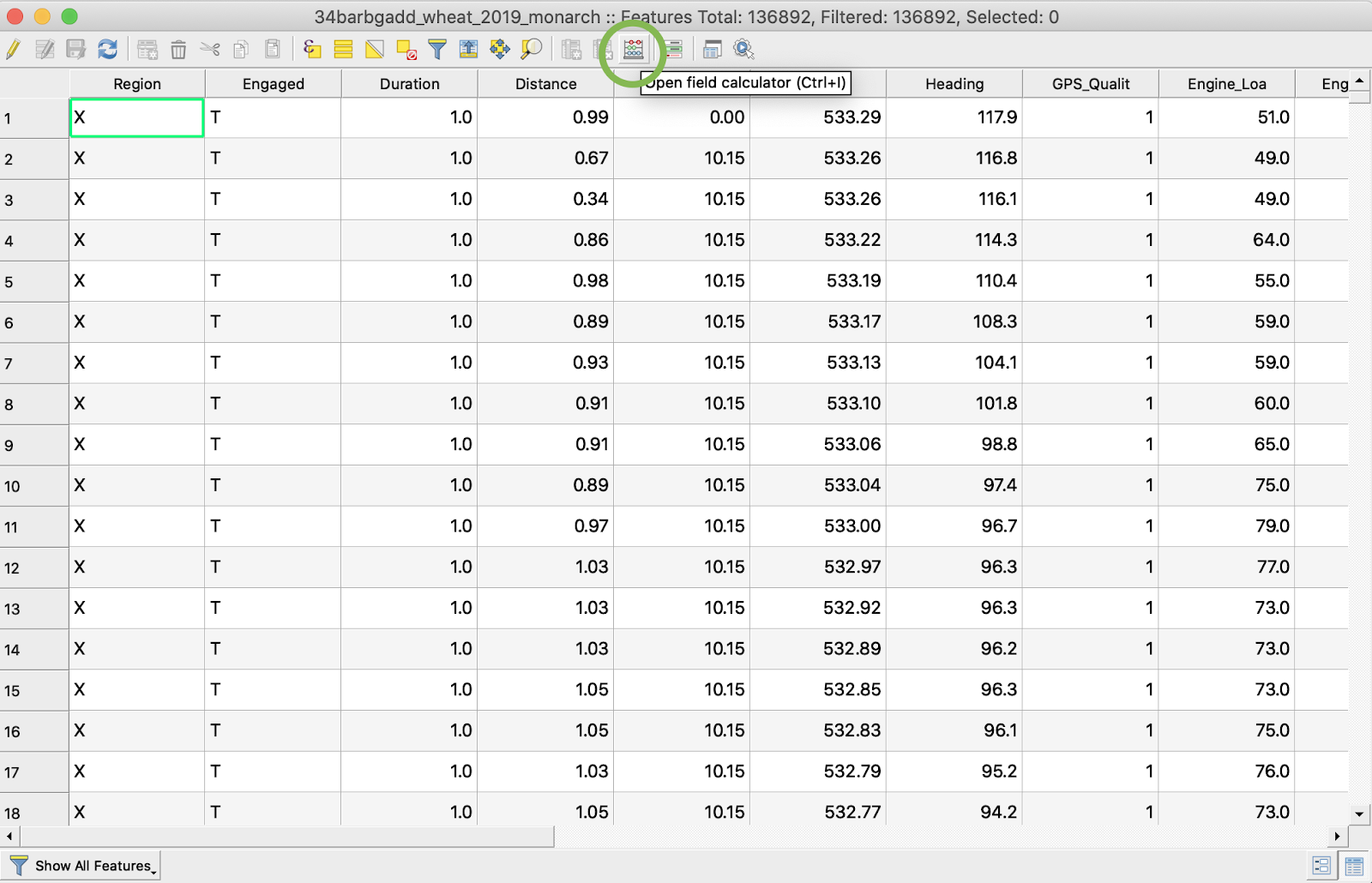
1. Napsauta hiiren oikealla painikkeella shapefileä ja valitse Avaa attribuuttitaulu
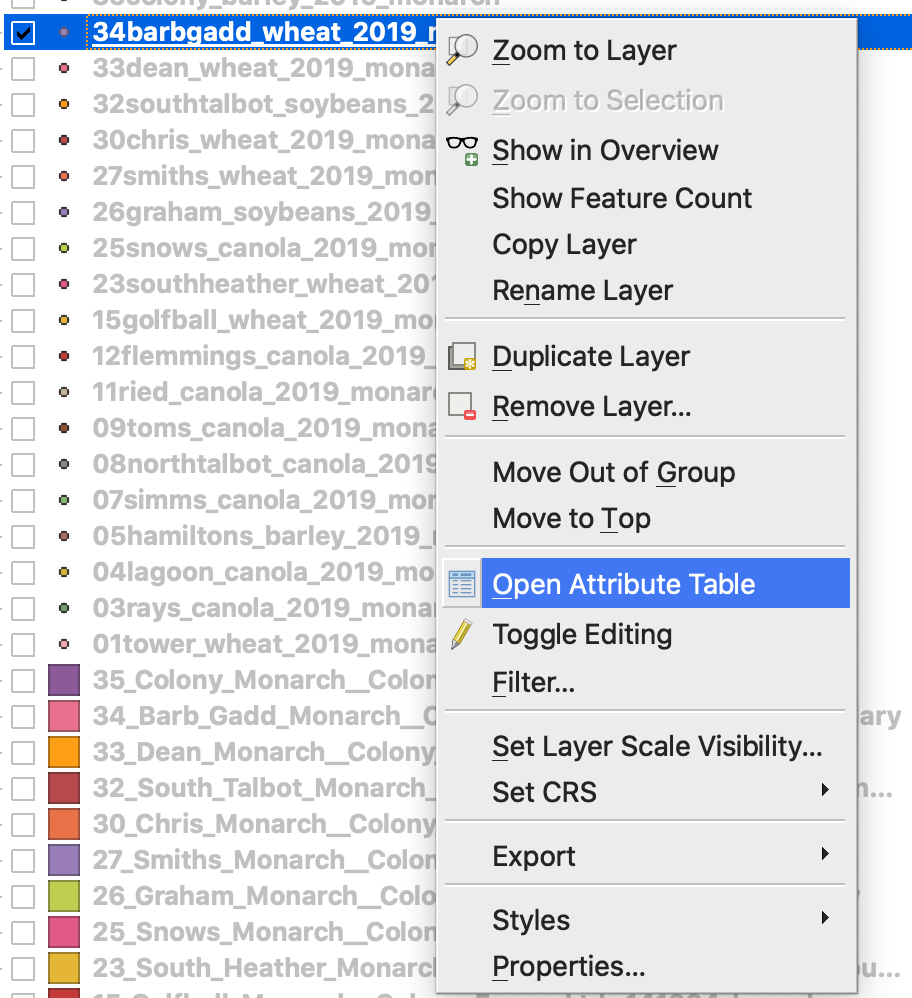
2. Napsauta Avaa kenttälaskin
3. Luo uusi kenttä
4. 1. Valitse Luo uusi kenttä
2. Anna tuloskentän nimeksi -> DryYieldBu
3. Valitse tuloskentän tyypiksi -> Liukuluku (reaaliluku)
4. Muuta tarkkuudeksi -> 4
5. Aseta muuntosääntö kg/ha:sta bu/ac:iin -> "Dry\_Yield" \* 0.0149
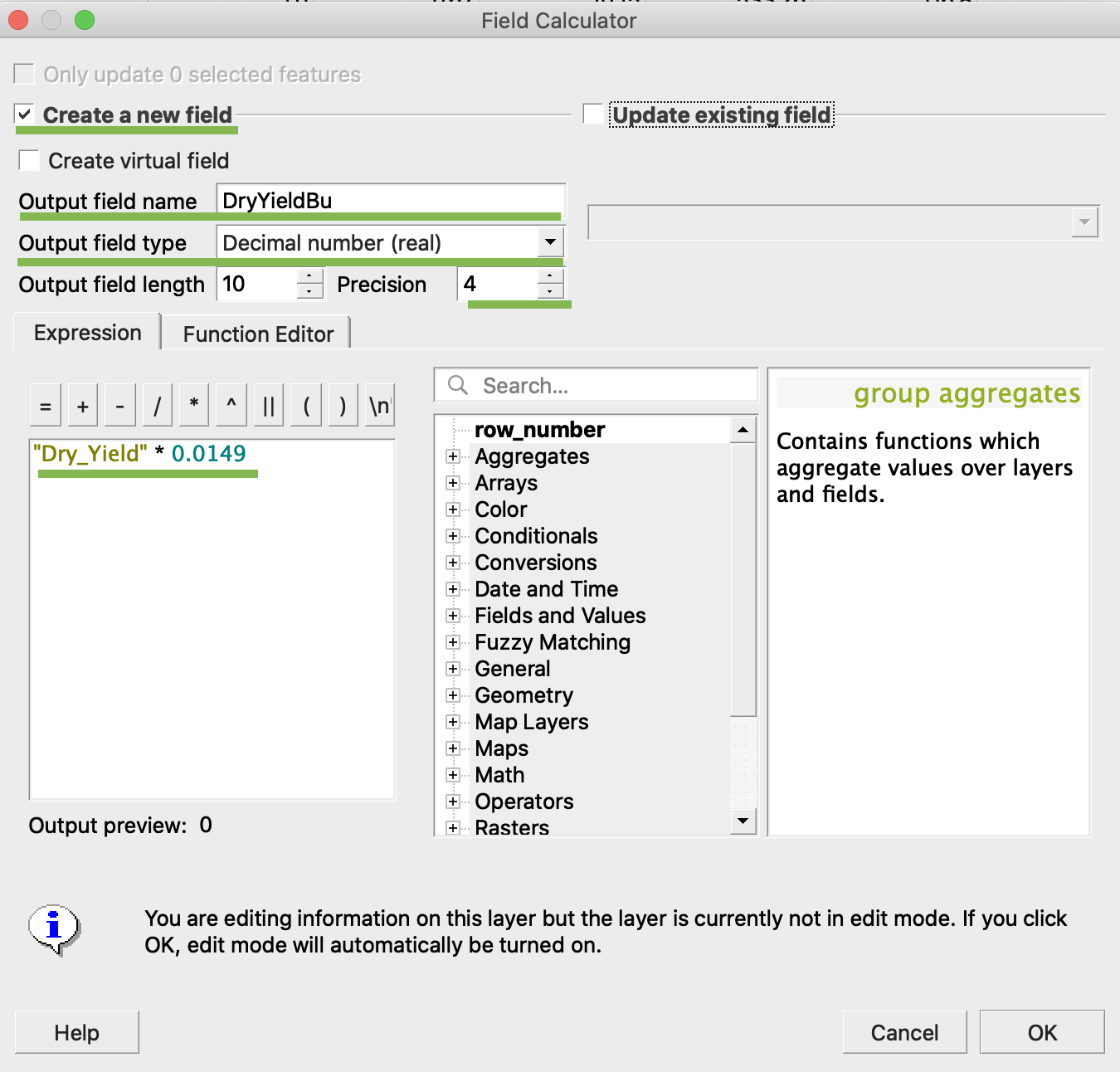
4. Napsauta OK
5. Taulukkoon on ilmestynyt lisäattribuutti DryYieldBu
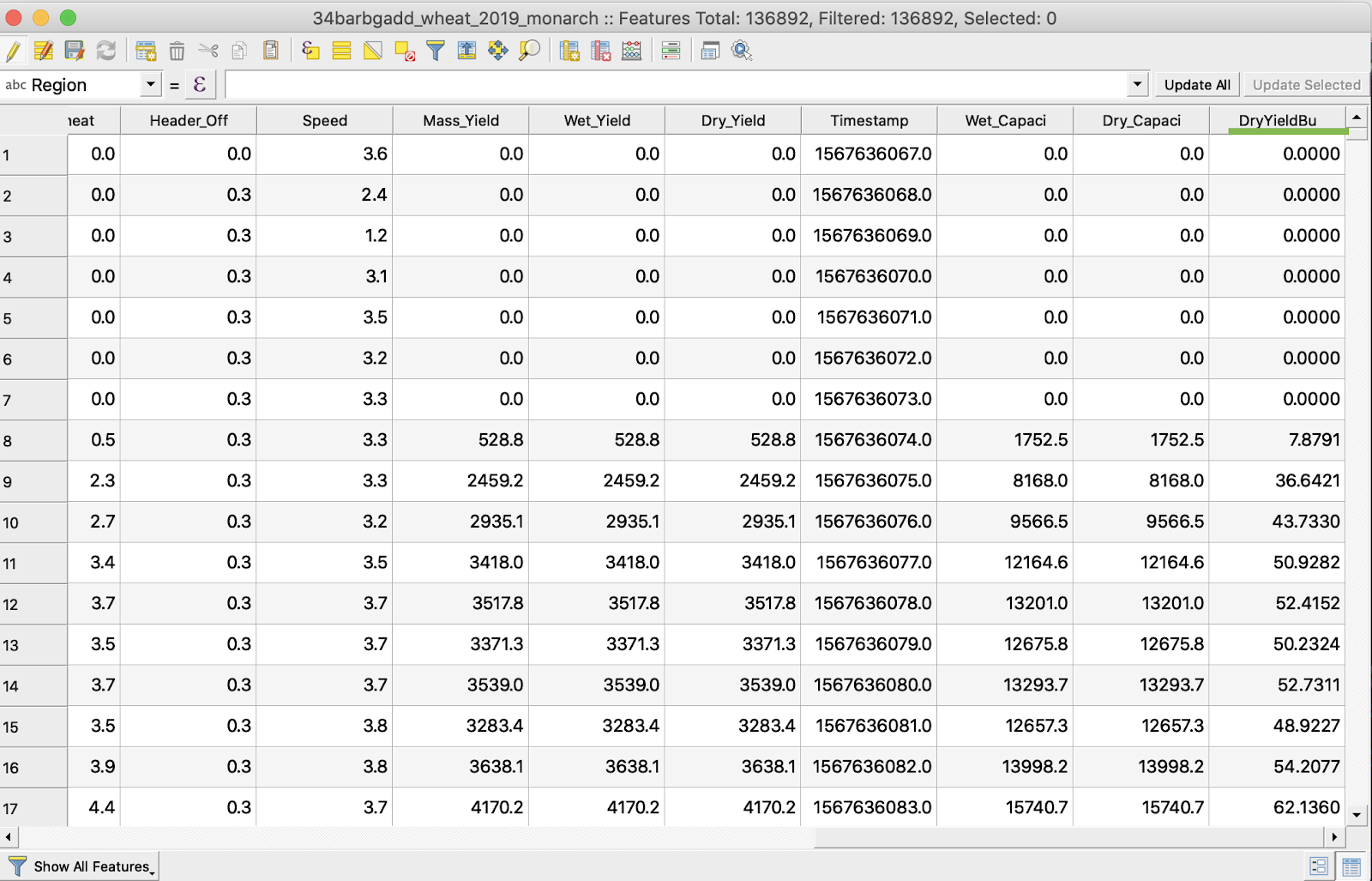
6. Tallenna muutokset
7. 1. Napsauta hiiren oikealla painikkeella kiinnostavaa shapefileä
2. Valitse Vaihda muokkaustilaa
\
\
\
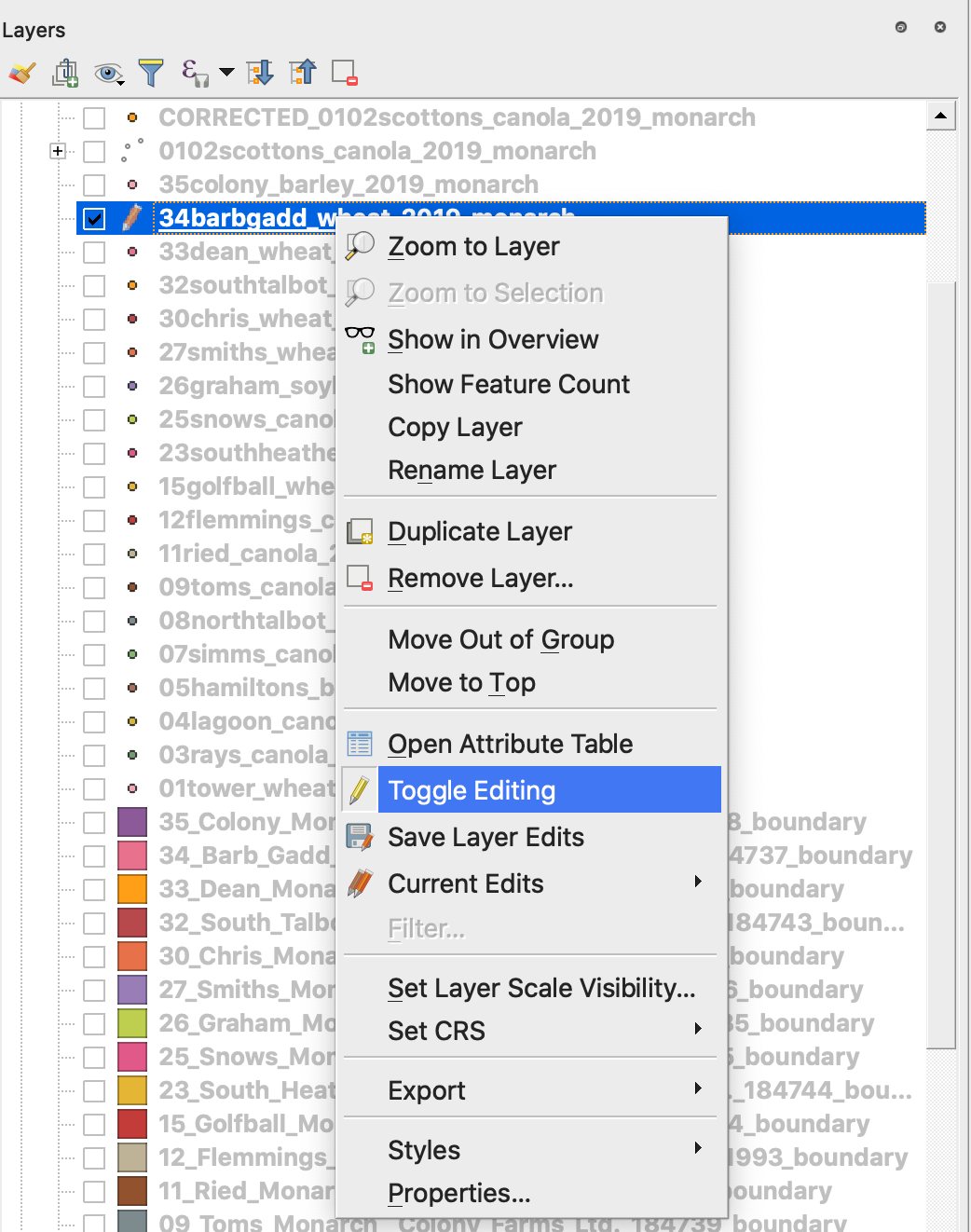
7. Vahvista muutosten tallennus
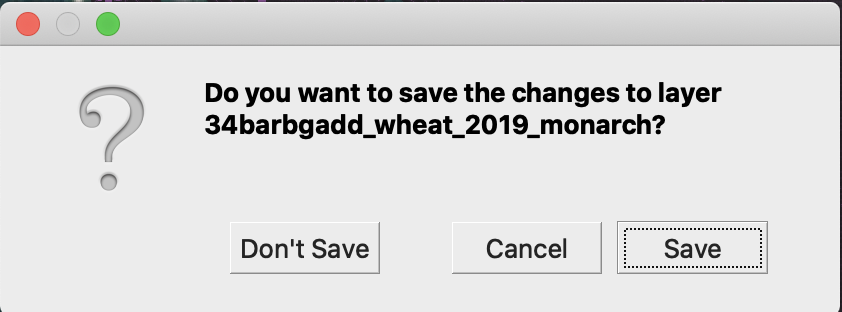
Kiinnostava shapefile ei ole enää kynämerkitty. Shapefilen tiedot päivitettiin.
---
# Agent Instructions
This documentation is published with GitBook. GitBook is the documentation platform designed so that both humans and AI agents can read, navigate, and reason over technical content effectively. Learn more at gitbook.com.
## Querying This Documentation
If you need additional information that is not directly available in this page, you can query the documentation by asking a question.
Perform an HTTP GET request on the following URL with the `ask` and `goal` query parameters:
```
GET https://docs.geopard.tech/geopard-tutorials/fin/gis-pikavinkit/qgis-satodatan-kasittely.md?ask=&goal=
```
`ask` is the immediate question: it should be specific, self-contained, and written in natural language.
`goal` is what the user is ultimately trying to achieve, the reason they need the answer. Sharing it helps GitBook give you a better, more relevant answer. A goal is most helpful when it describes the outcome the user wants rather than restating the question. For example, with `ask=how do I create an API token`, a goal like `automate deployments from our CI pipeline` lets GitBook tailor the answer to that use case.
The response will contain a direct answer to the question and relevant excerpts and sources from the documentation.
Use this mechanism when the answer is not explicitly present in the current page, you need clarification or additional context, or you want to retrieve related documentation sections.