> For the complete documentation index, see [llms.txt](https://docs.geopard.tech/geopard-tutorials/llms.txt). Markdown versions of documentation pages are available by appending `.md` to page URLs; this page is available as [Markdown](https://docs.geopard.tech/geopard-tutorials/fin/gis-pikavinkit/qgis-jaa-monipeltoshapefilet.md).
# QGIS: Jaa monipeltoshapefilet
Jaa monipeltoshapefile erillisiksi pellonraja-shapefileiksi QGIS:ssä GeoPard-tuontia varten.
Jos yhdessä shapefile-tiedostossa on useita lohkopolygoneja, jaa se ennen tuontia. GeoPard tuo yhden lohkon rajauksen per shapefile. Tämä QGIS-työnkulku auttaa sinua valmistelemaan siistit tiedostot nopeammin ja välttämään tuontiongelmat.
### Ennen kuin aloitat
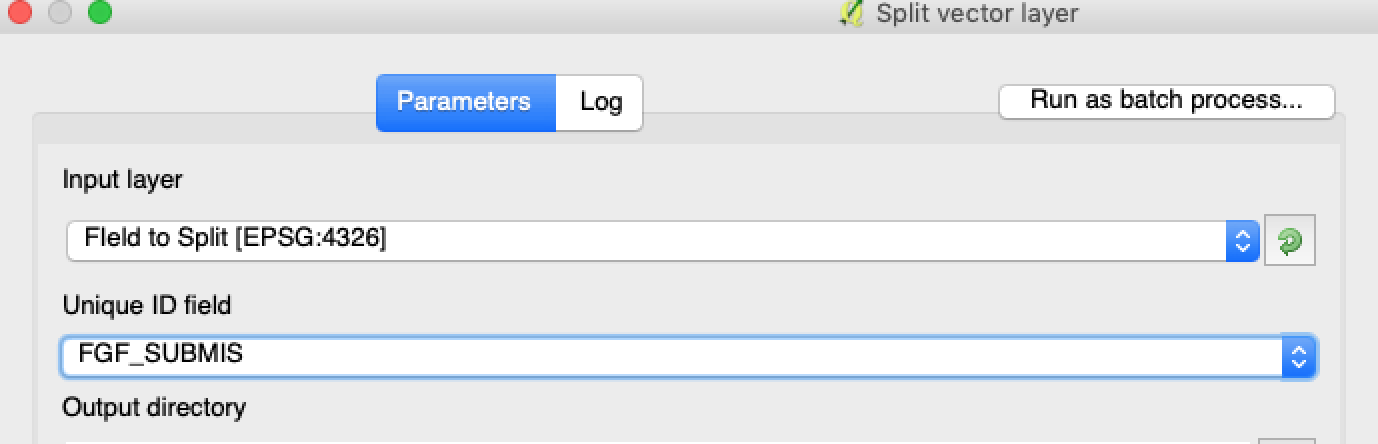
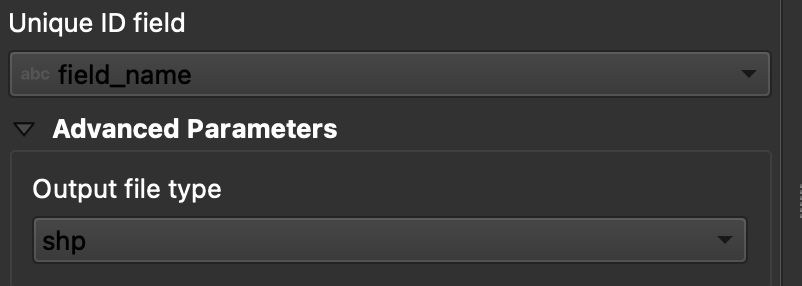
* Varmista, että tasolla on yksilöllinen lohkon nimi tai ID.
* Luo tyhjä tuloskansio etukäteen.
* Poista `/`, `\`, sekä vastaavat erikoismerkit lohkonimistä.
### Jaa monilohkoinen shapefile QGIS:ssä
#### 1. Avaa shapefile QGIS:ssä
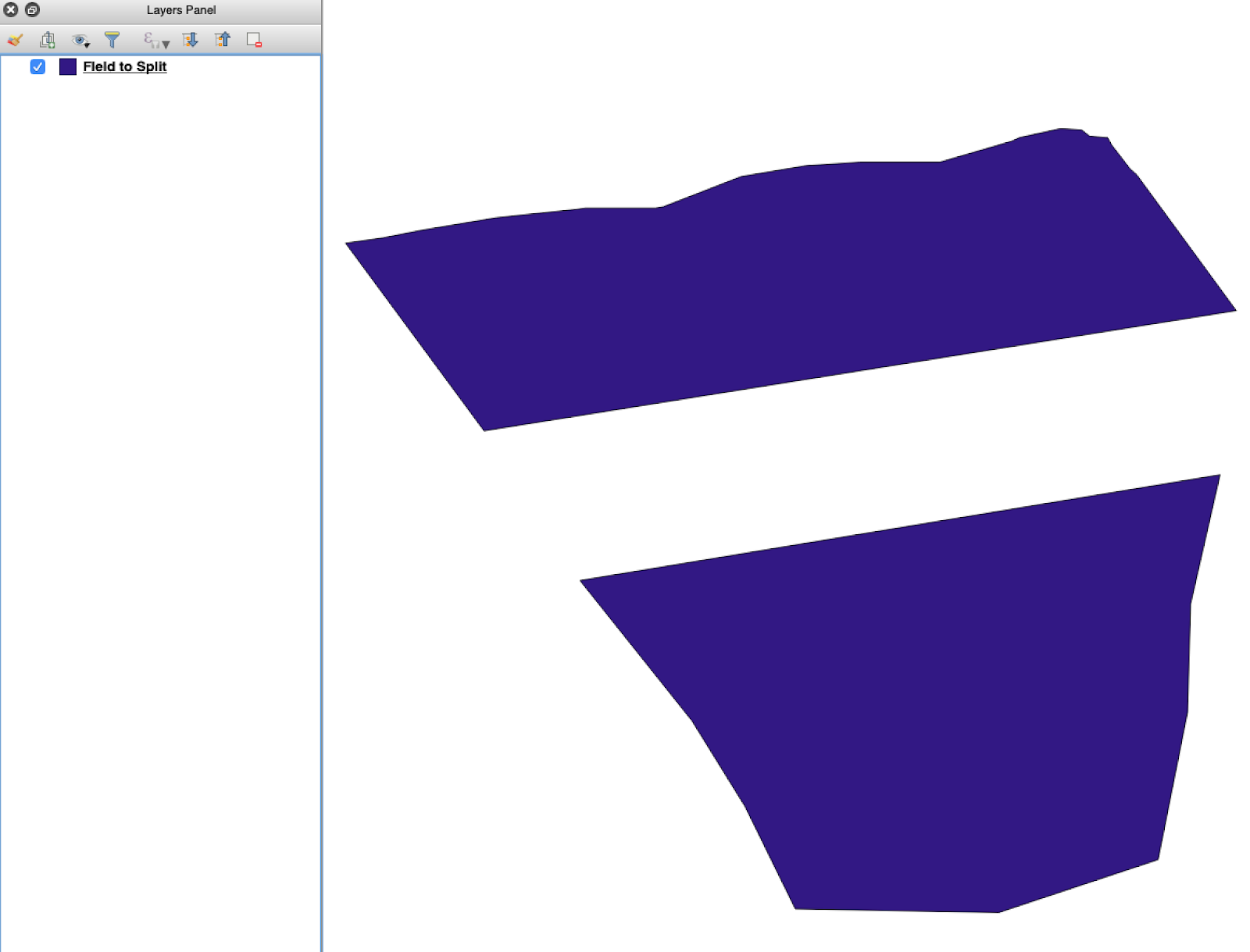
Avaa lähde-shapefile QGIS:ssä. Varmista, että se sisältää useita lohkopolygoneja.
Alkuperäinen lohkon rajaus -taso, jossa on useita polygoneja.
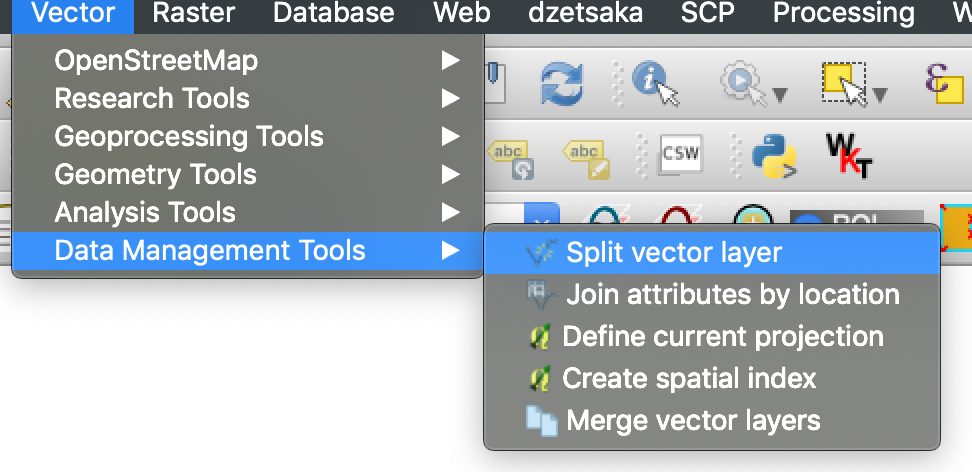
#### 2. Avaa jakotyökalu
Avaa tason asetukset ja valitse **Jaa vektoritaso**.
#### 5. Suorita jako
Napsauta **Suorita**. QGIS luo yhden tiedoston per polygoni. Jokaisesta polygonista tulee erillinen lohkon rajaus -shapefile.
#### 6. Muunna `.gpkg` -tiedostot muotoon `.shp` tarvittaessa
Joissakin QGIS-asennuksissa luodaan ensin `.gpkg` -tiedostoja. Jos näin käy, avaa kukin tiedosto ja tallenna se uudelleen muodossa **ESRI Shapefile**.
1. Napsauta tasoa hiiren kakkospainikkeella.
2. Valitse **Vie** → **Tallenna kohteet nimellä**.
3. Valitse **ESRI Shapefile**.
4. Aseta tiedoston nimi ja sijainti.
5. Poista tarpeettomat attribuutit tarvittaessa.
### Tulos
Nyt sinulla on yksi shapefile kutakin lohkoa kohti. Jokainen tiedosto on valmis lohkon rajauksen lataamiseen GeoPardiin. Tämä säästää valmisteluaikaa ja vähentää vältettävää tuonnin uudelleentyötä.
### Aiheeseen liittyvät QGIS-oppaat
* [QGIS: Muunna CSV SHP:ksi](/geopard-tutorials/fin/gis-pikavinkit/qgis-muunna-csv-shp-muotoon.md)
* [QGIS: Uudelleenprojektoi shapefile](/geopard-tutorials/fin/gis-pikavinkit/qgis-projektoi-shapefile-uudelleen.md)
---
# Agent Instructions
This documentation is published with GitBook. GitBook is the documentation platform designed so that both humans and AI agents can read, navigate, and reason over technical content effectively. Learn more at gitbook.com.
## Querying This Documentation
If you need additional information that is not directly available in this page, you can query the documentation by asking a question.
Perform an HTTP GET request on the following URL with the `ask` and `goal` query parameters:
```
GET https://docs.geopard.tech/geopard-tutorials/fin/gis-pikavinkit/qgis-jaa-monipeltoshapefilet.md?ask=&goal=
```
`ask` is the immediate question: it should be specific, self-contained, and written in natural language.
`goal` is what the user is ultimately trying to achieve, the reason they need the answer. Sharing it helps GitBook give you a better, more relevant answer. A goal is most helpful when it describes the outcome the user wants rather than restating the question. For example, with `ask=how do I create an API token`, a goal like `automate deployments from our CI pipeline` lets GitBook tailor the answer to that use case.
The response will contain a direct answer to the question and relevant excerpts and sources from the documentation.
Use this mechanism when the answer is not explicitly present in the current page, you need clarification or additional context, or you want to retrieve related documentation sections.