> For the complete documentation index, see [llms.txt](https://docs.geopard.tech/geopard-tutorials/llms.txt). Markdown versions of documentation pages are available by appending `.md` to page URLs; this page is available as [Markdown](https://docs.geopard.tech/geopard-tutorials/esp/tour-del-producto-aplicacion-web/integracion-con-john-deere-operations-center/11.-sincronizar-una-parcela-con-john-deere-operations-center.md).
# 11. Sincronizar una parcela con John Deere Operations Center
Envía una parcela a John Deere Operations Center bajo demanda y mantén actualizados su límite y jerarquía.
GeoPard te permite sincronizar un lote individual con John Deere Operations Center bajo demanda.
Úsalo justo después de añadir un lote. Vuelve a usarlo después de cambiar el límite o de actualizar la jerarquía de cliente y explotación.
GeoPard decide automáticamente si crear el lote en John Deere Operations Center o volver a sincronizar uno existente. No necesitas comprobar primero su estado actual.
{% hint style="info" %}
La **Sincronizar lote con John Deere Operations Center** acción solo es visible cuando tu cuenta de GeoPard está conectada a John Deere. Si no la ves, completa [Conectar con John Deere Operations Center](https://docs.geopard.tech/geopard-tutorials/product-tour-web-app/john-deere-operations-center-integration/2.-connect-to-john-deere-operations-center).
{% endhint %}
### Antes de empezar
La sincronización depende de dos pasos de configuración. Si falta cualquiera de ellos, la sincronización fallará.
#### 1. Asigna las etiquetas de GeoPard a la jerarquía de John Deere
GeoPard organiza los lotes con etiquetas. John Deere utiliza una **Organización → Cliente → Finca** jerarquía.
En la página de integración de John Deere, asigna tus etiquetas de GeoPard a estos niveles de John Deere:
* `organización` → Organización
* `cliente` → Cliente
* `finca` → Finca
Si aún no existe una etiqueta coincidente, créala primero. Consulta [Añadir una etiqueta](https://docs.geopard.tech/geopard-tutorials/product-tour-web-app/farm-and-field-setup/add-a-label).
#### 2. Añade etiquetas coincidentes al lote
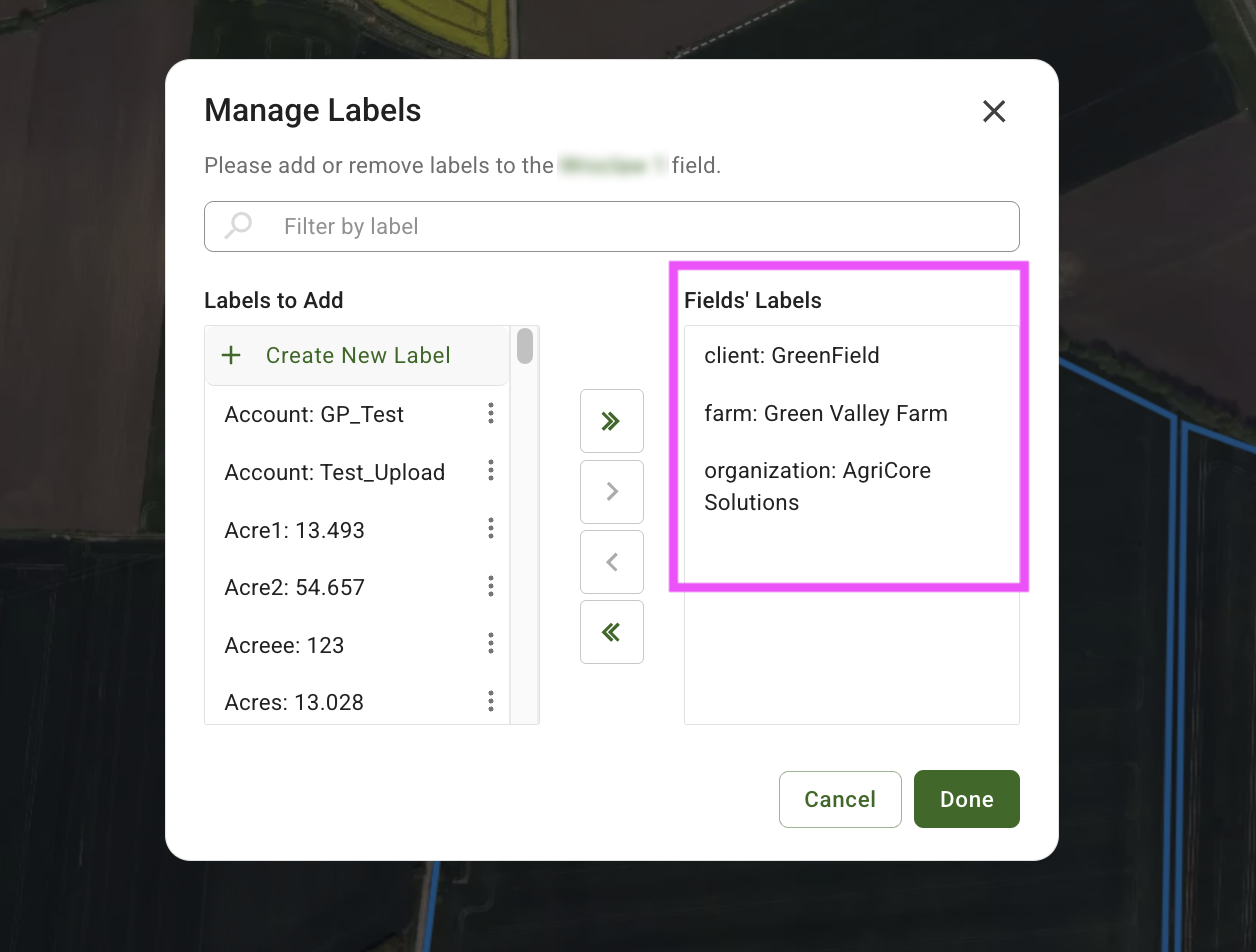
Abre el lote y revisa **Detalles del lote** → **Etiquetas**.
El lote debe contener los valores que coincidan con tu asignación. Por ejemplo:
* `organización: AgriCore Solutions`
* `cliente: GreenField`
* `finca: Green Valley Farm`
Estos valores colocan el lote en la **Organización → Cliente → Finca** ruta correcta en John Deere Operations Center.
### Sincronizar un lote
1. Abre el lote que quieres enviar a John Deere Operations Center.
2. Haz clic en **Exportar** → **Sincronizar lote con John Deere Operations Center**.
3. Espera la notificación del resultado.
### Qué ocurre cuando haces clic en
GeoPard comprueba si el lote ya está vinculado a John Deere Operations Center.
* Si el lote aún no existe en John Deere Operations Center, GeoPard lo crea automáticamente según las etiquetas de finca y cliente del lote.
* Si el lote ya existe en John Deere Operations Center, GeoPard actualiza automáticamente su límite, finca e información del cliente durante la sincronización.
### Resultados que verás
Después de ejecutarse la acción, GeoPard muestra una de estas notificaciones:
* **Lote creado en John Deere Operations Center** — el lote no tenía vínculo con John Deere y se creó correctamente.
* **Lote vuelto a sincronizar con John Deere Operations Center** — el lote ya estaba vinculado y se actualizaron su límite y su jerarquía.
* **La sincronización falló** — no se pudo sincronizar el lote.
### Solución de problemas
Si la sincronización falla, comprueba primero estos elementos:
* Tu cuenta de GeoPard está conectada a John Deere. Consulta [2. Conectar con John Deere Operations Center](https://docs.geopard.tech/geopard-tutorials/product-tour-web-app/john-deere-operations-center-integration/2.-connect-to-john-deere-operations-center).
* Tu organización de John Deere está habilitada en GeoPard. Consulta [3. Conectar organizaciones de John Deere](https://docs.geopard.tech/geopard-tutorials/product-tour-web-app/john-deere-operations-center-integration/3.-connect-to-john-deere-organizations).
* El lote tiene todas las etiquetas asignadas, con los valores correctos.
* La asignación de etiquetas coincide con la **Organización → Cliente → Finca** ruta prevista.
La causa de fallo más común es la falta de etiquetas del lote o que no coincidan.
---
# Agent Instructions
This documentation is published with GitBook. GitBook is the documentation platform designed so that both humans and AI agents can read, navigate, and reason over technical content effectively. Learn more at gitbook.com.
## Querying This Documentation
If you need additional information that is not directly available in this page, you can query the documentation by asking a question.
Perform an HTTP GET request on the following URL with the `ask` and `goal` query parameters:
```
GET https://docs.geopard.tech/geopard-tutorials/esp/tour-del-producto-aplicacion-web/integracion-con-john-deere-operations-center/11.-sincronizar-una-parcela-con-john-deere-operations-center.md?ask=&goal=
```
`ask` is the immediate question: it should be specific, self-contained, and written in natural language.
`goal` is what the user is ultimately trying to achieve, the reason they need the answer. Sharing it helps GitBook give you a better, more relevant answer. A goal is most helpful when it describes the outcome the user wants rather than restating the question. For example, with `ask=how do I create an API token`, a goal like `automate deployments from our CI pipeline` lets GitBook tailor the answer to that use case.
The response will contain a direct answer to the question and relevant excerpts and sources from the documentation.
Use this mechanism when the answer is not explicitly present in the current page, you need clarification or additional context, or you want to retrieve related documentation sections.