> For the complete documentation index, see [llms.txt](https://docs.geopard.tech/geopard-tutorials/llms.txt). Markdown versions of documentation pages are available by appending `.md` to page URLs; this page is available as [Markdown](https://docs.geopard.tech/geopard-tutorials/esp/tour-del-producto-aplicacion-movil/trabajar-sin-conexion.md).
# Trabajar sin conexión
Usa la aplicación móvil GeoPard sin conexión y mantén el trabajo en campo en marcha sin señal.
Trabajando sin conexión
Antes de continuar para trabajar con la aplicación móvil de GeoPard, le recomendamos guardar sus credenciales, para que no tenga problemas al acceder a la aplicación sin conectividad de red.
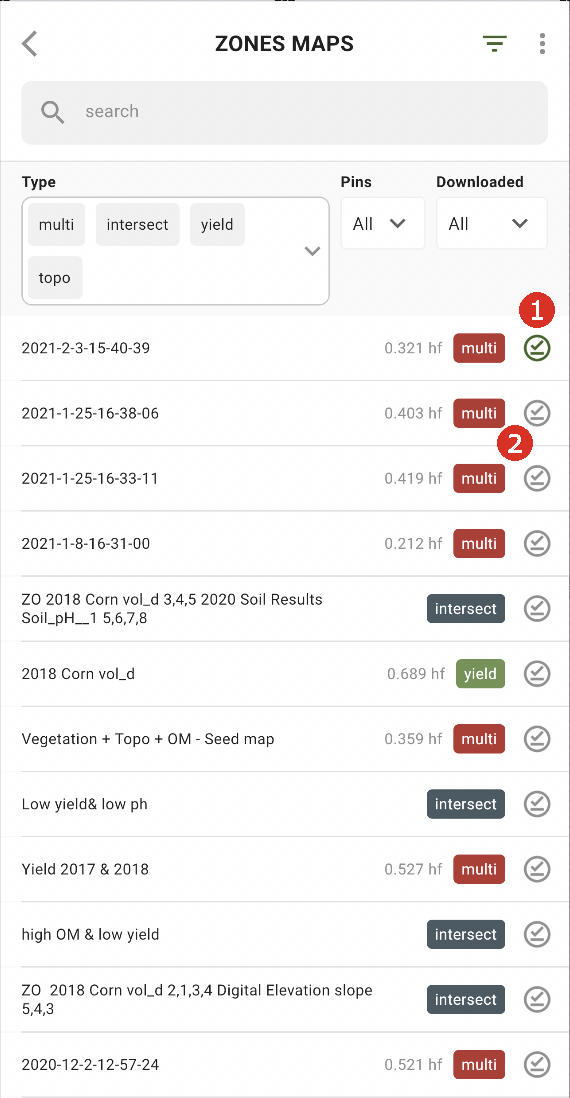
Para poder trabajar sin conexión, debe descargar el Mapa de Zonas en su smartphone. Toque el botón de descarga junto al Mapa de Zonas que desea descargar (2).
Una vez que el mapa se descargue en su dispositivo, aparecerá una marca de verificación verde junto a él (1).
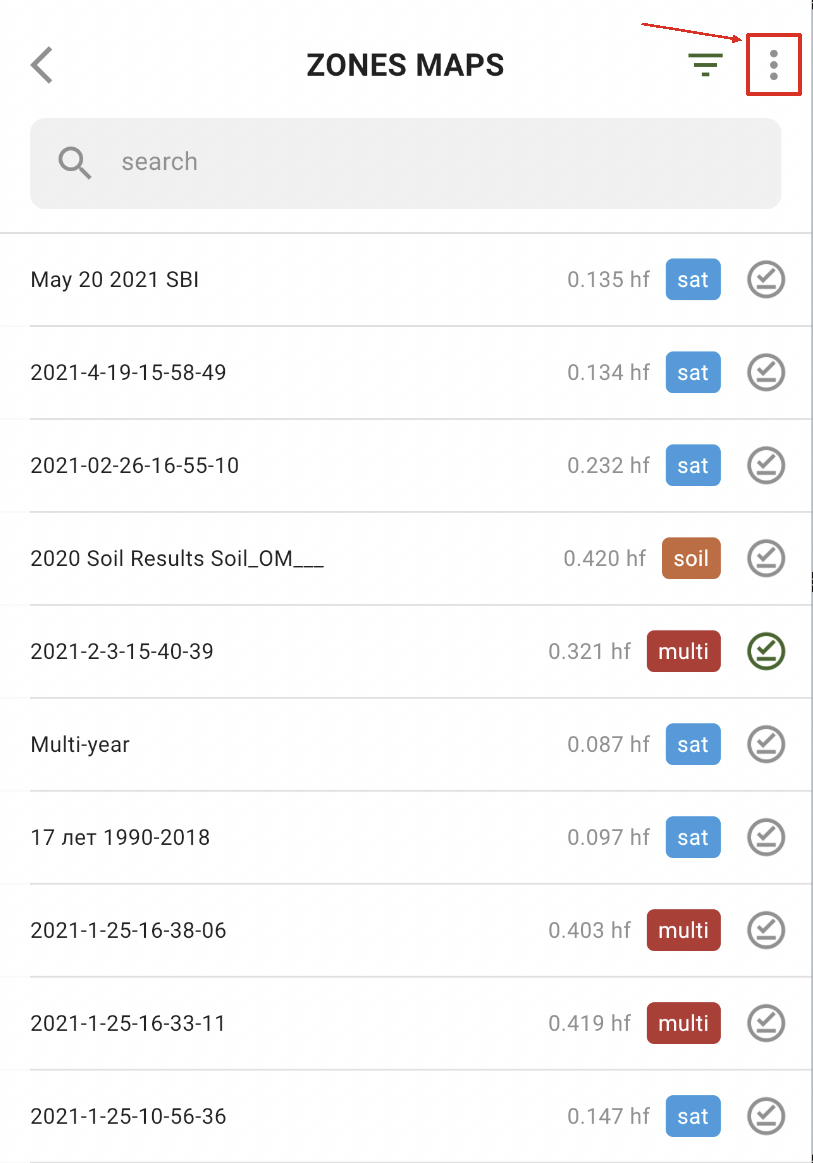
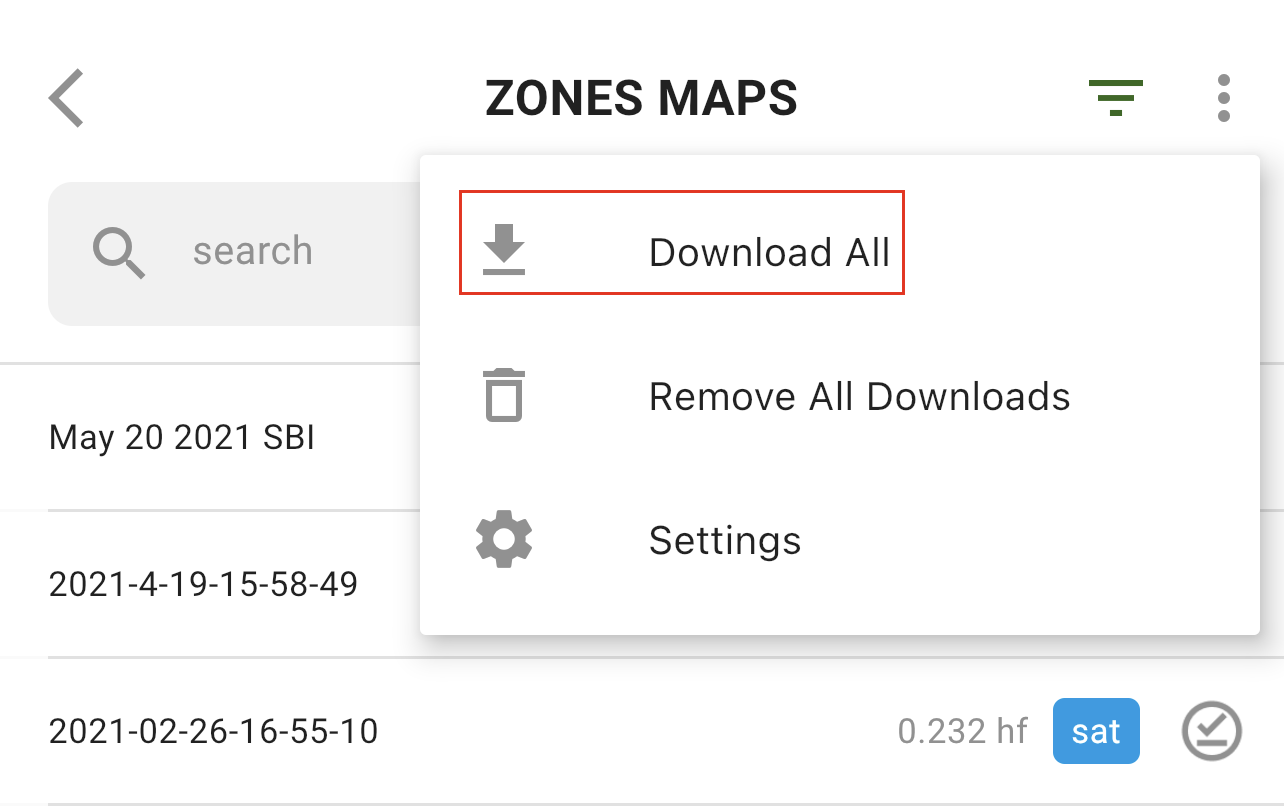
Para descargar todos los mapas de Zonas a la vez, toque la opción Más:
y seleccione la opción “Descargar todo”:
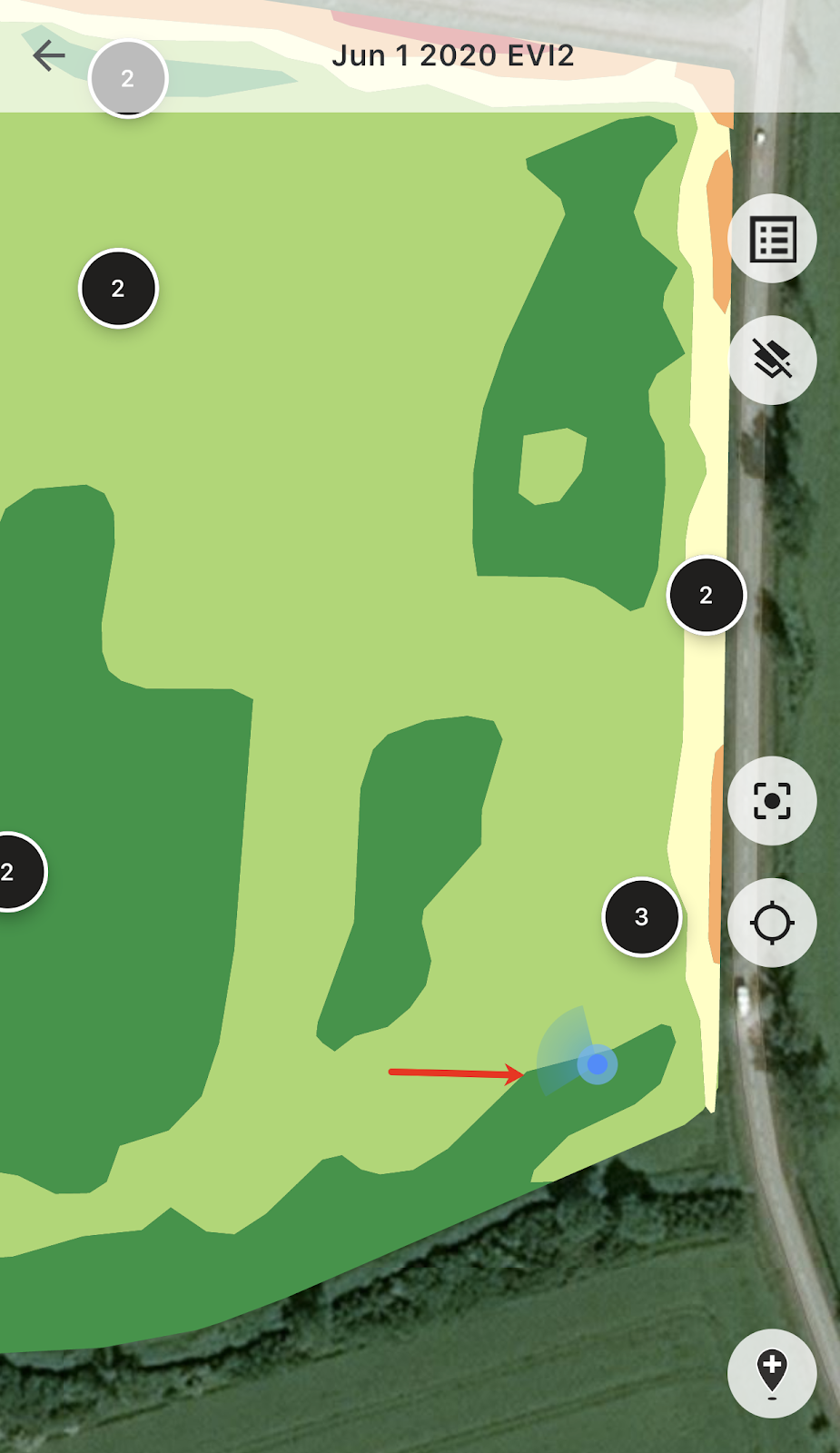
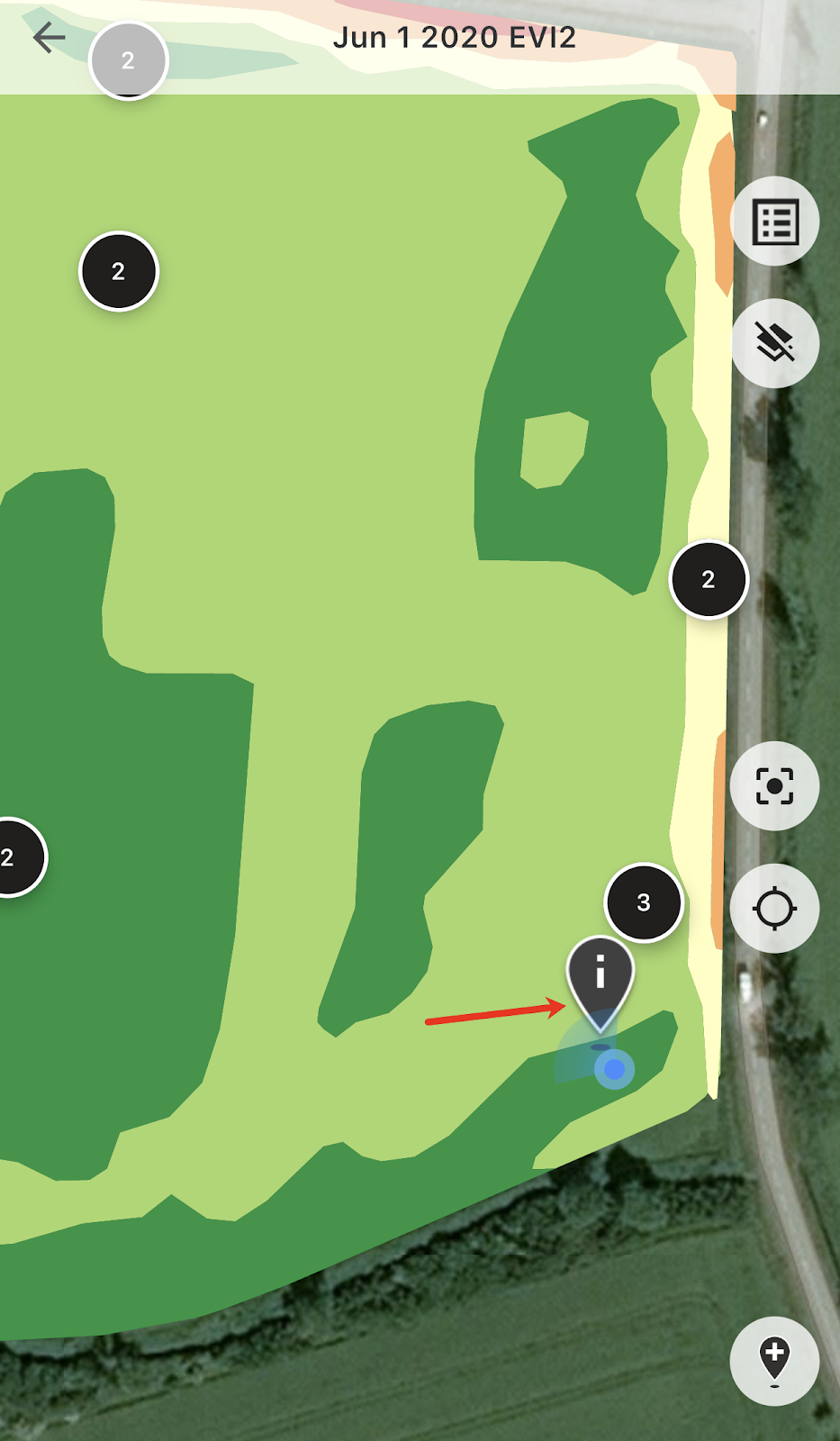
Una vez que esté en el campo, podrá seguir su ubicación y ver la dirección de su movimiento.
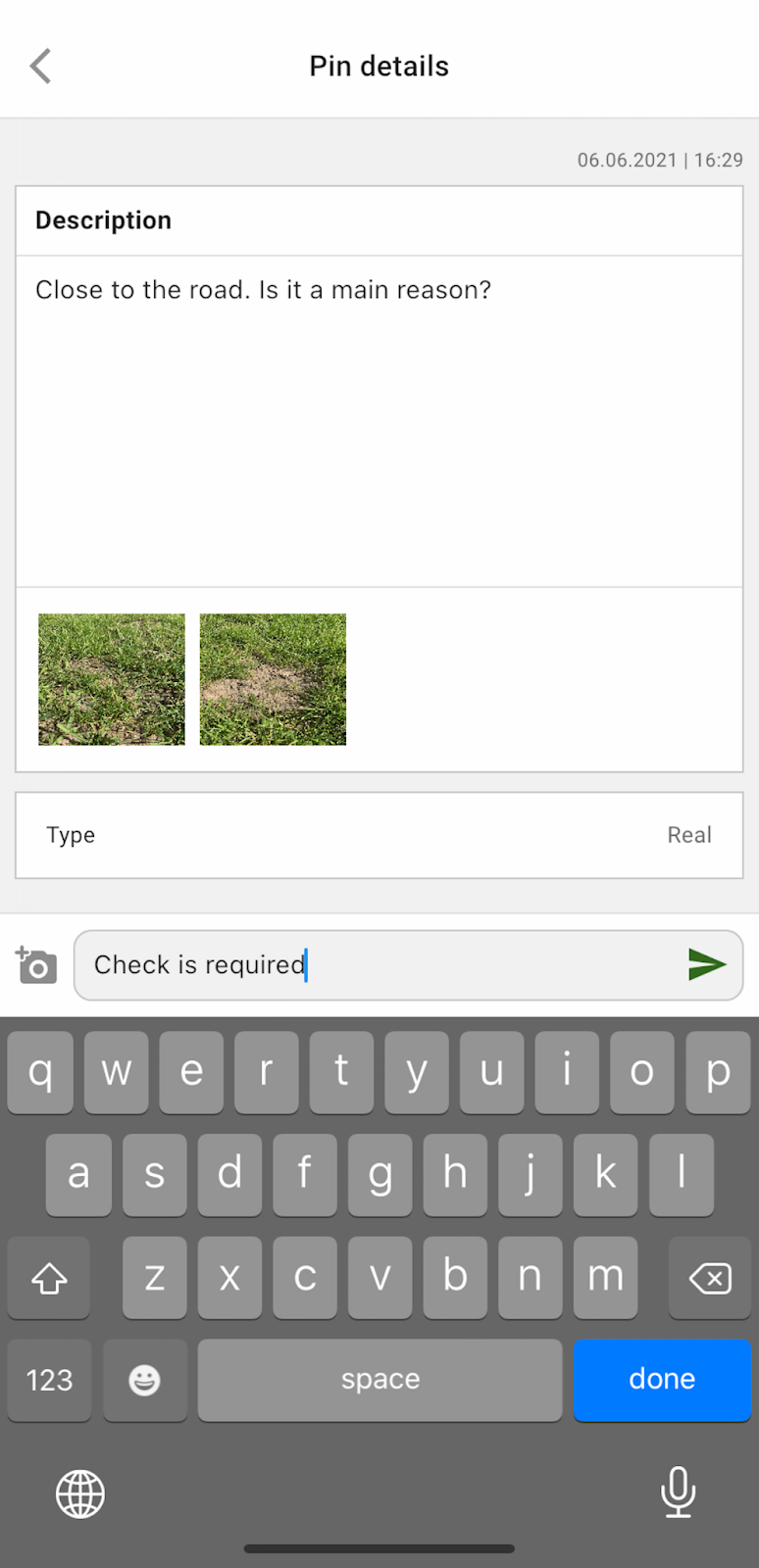
Puede tocar cualquiera de los pines planificados y agregar/editar comentarios.
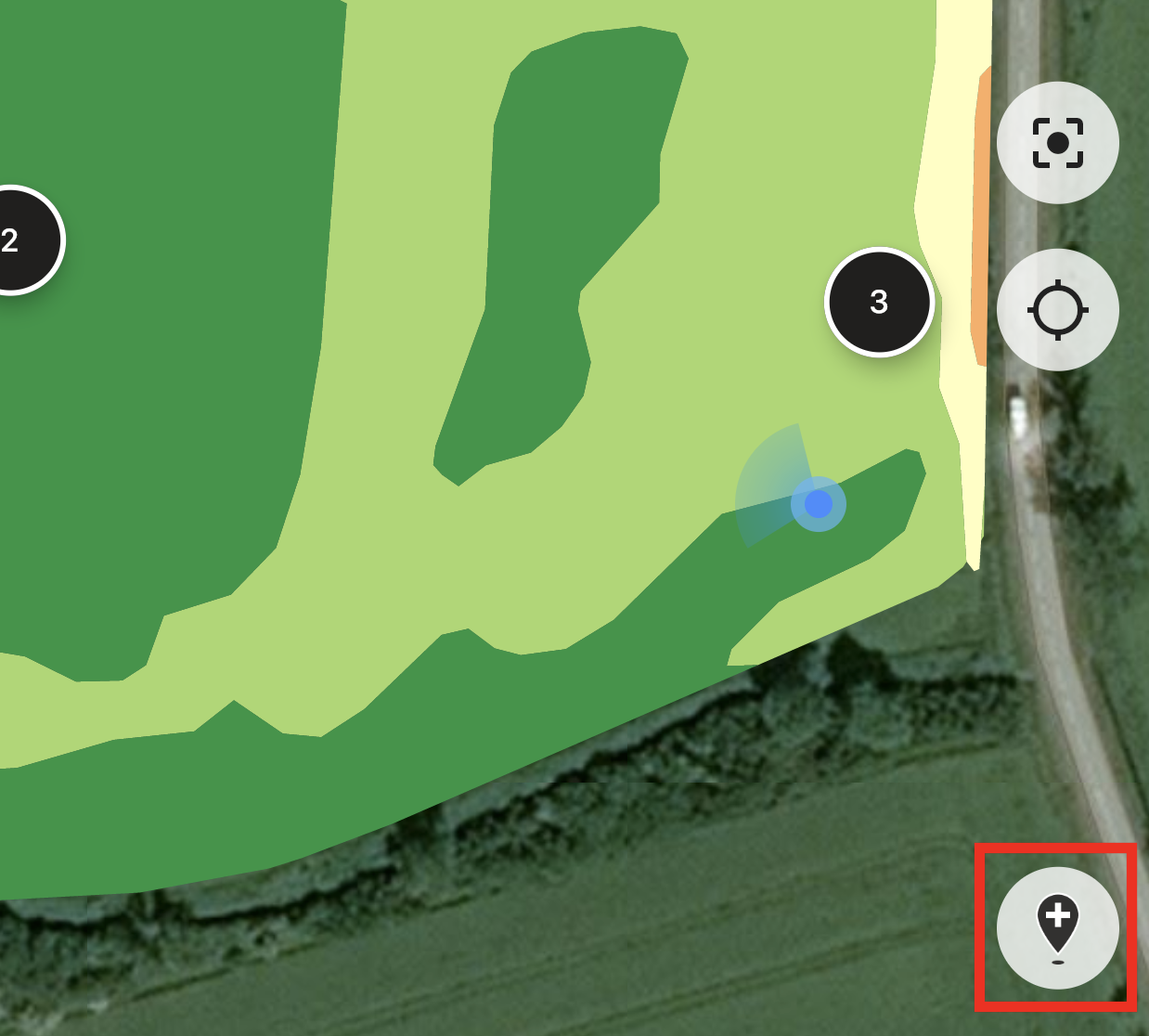
O, si detectó algo que requiere atención (una anomalía o el límite del lote es incorrecto), toque el botón Agregar nuevo pin.
Escriba sus comentarios y toque el botón “Guardar” para añadir un nuevo pin al Mapa de Zonas.
Los pines que añade usando su dispositivo móvil tienen un icono diferente en comparación con los pines planificados que añade usando la aplicación web.
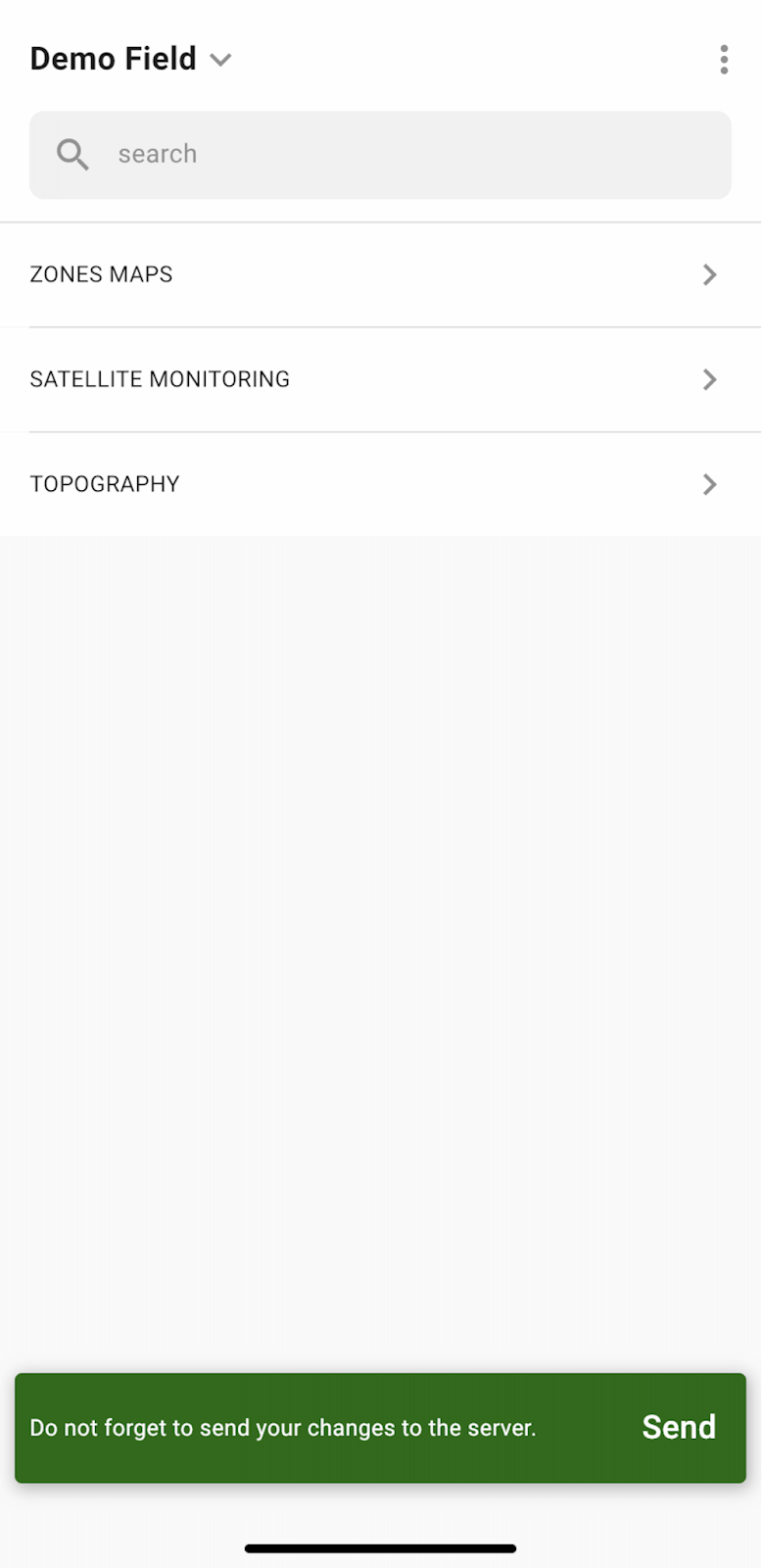
Una vez que haya terminado su trabajo en el campo y haya agregado/editado pines, verá una notificación que le pedirá cargar sus cambios al servidor. O, en caso de que trabaje sin conexión, se le solicitará cargar sus cambios una vez que esté conectado a la red.
Toque “Enviar” para sincronizar sus cambios con el servidor.
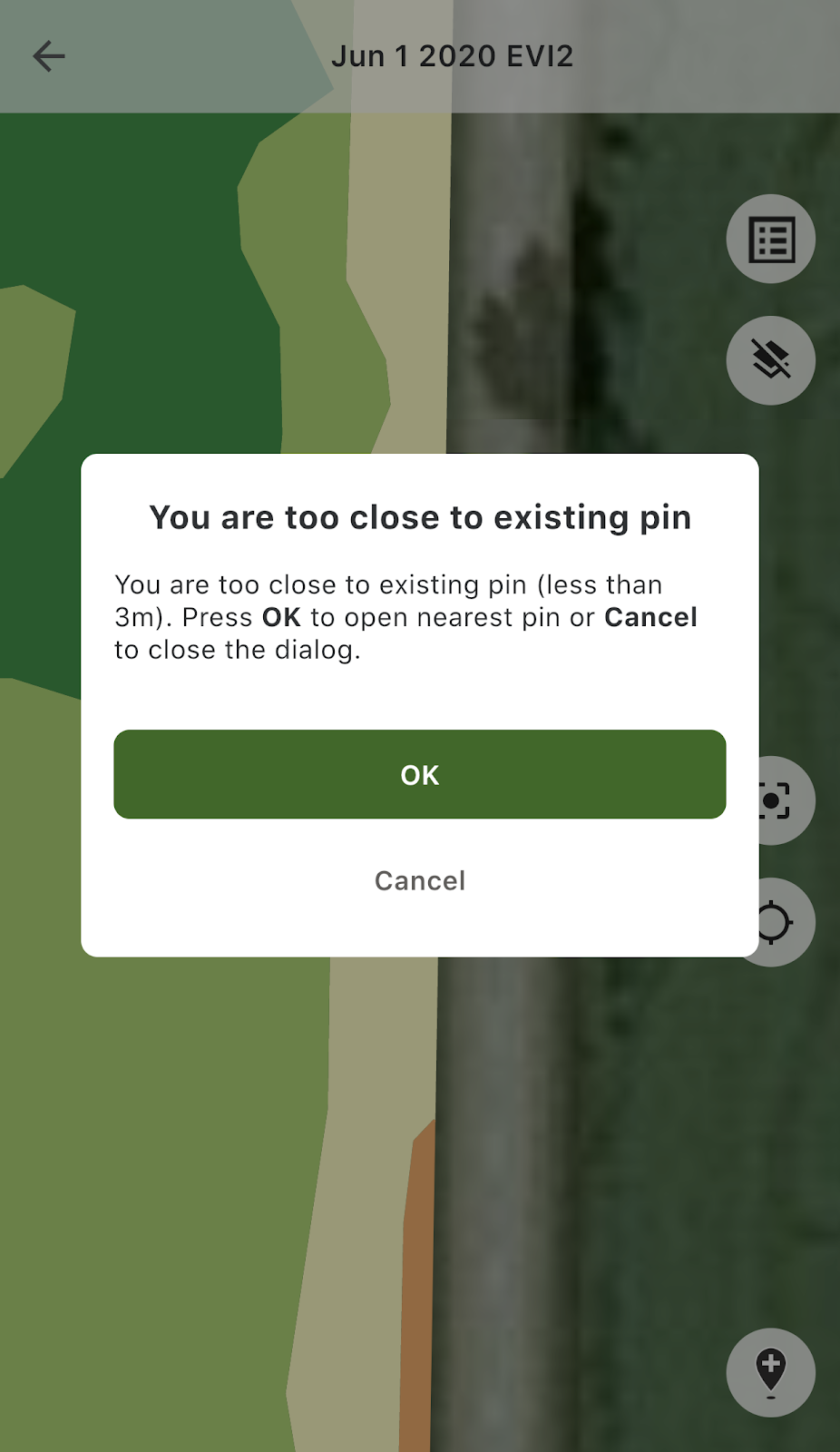
Si está cerca de un pin existente e intenta agregar un nuevo pin, verá el siguiente mensaje:
En ese caso, puede tocar “OK” para abrir el pin más cercano, o “Cancelar” para cerrar el mensaje emergente.
---
# Agent Instructions
This documentation is published with GitBook. GitBook is the documentation platform designed so that both humans and AI agents can read, navigate, and reason over technical content effectively. Learn more at gitbook.com.
## Querying This Documentation
If you need additional information that is not directly available in this page, you can query the documentation by asking a question.
Perform an HTTP GET request on the following URL with the `ask` and `goal` query parameters:
```
GET https://docs.geopard.tech/geopard-tutorials/esp/tour-del-producto-aplicacion-movil/trabajar-sin-conexion.md?ask=&goal=
```
`ask` is the immediate question: it should be specific, self-contained, and written in natural language.
`goal` is what the user is ultimately trying to achieve, the reason they need the answer. Sharing it helps GitBook give you a better, more relevant answer. A goal is most helpful when it describes the outcome the user wants rather than restating the question. For example, with `ask=how do I create an API token`, a goal like `automate deployments from our CI pipeline` lets GitBook tailor the answer to that use case.
The response will contain a direct answer to the question and relevant excerpts and sources from the documentation.
Use this mechanism when the answer is not explicitly present in the current page, you need clarification or additional context, or you want to retrieve related documentation sections.