> For the complete documentation index, see [llms.txt](https://docs.geopard.tech/geopard-tutorials/llms.txt). Markdown versions of documentation pages are available by appending `.md` to page URLs; this page is available as [Markdown](https://docs.geopard.tech/geopard-tutorials/esp/tour-del-producto-aplicacion-web/mapas-y-analisis-de-zonas/crear-un-mapa-de-zonas-usando-imagenes-satelitales.md).
# Crear un mapa de zonas usando imágenes satelitales
Construye zonas de manejo a partir de imágenes satelitales para identificar la variabilidad y orientar decisiones de dosis variable.
1. Seleccione el lote en la lista y haga clic en el **Crear mapa de zonas** botón, seleccione **Capa única**, y luego haga clic en **Siguiente**.
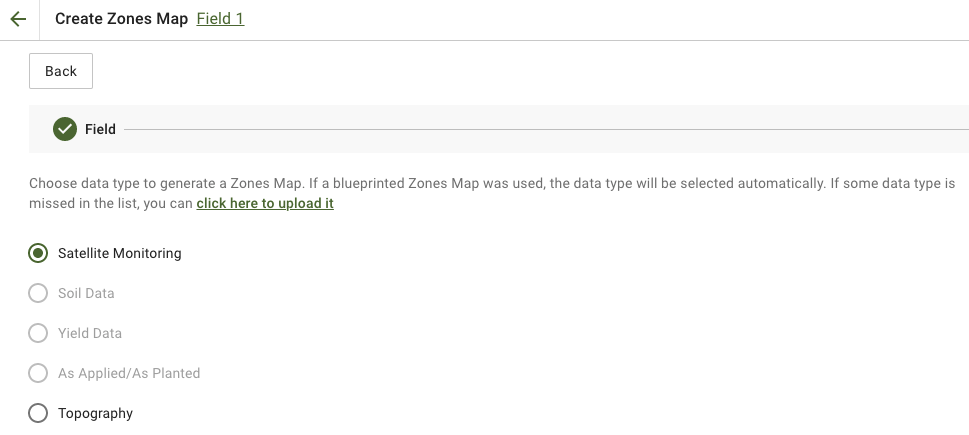
2. Seleccionar **Monitoreo por satélite** tipo de datos para continuar.
3. En el siguiente paso, puede seleccionar una imagen de satélite. Puede filtrar por mes, año, proveedor o NDVI, y alternar entre vistas de imagen como NIR y EVI2. La **Aquí hay una breve descripción de los tipos de índices** enlace explica los índices disponibles. Si necesita cambiar el índice, haga clic en la flecha junto a **EVI2**. Luego haga clic **Siguiente**.
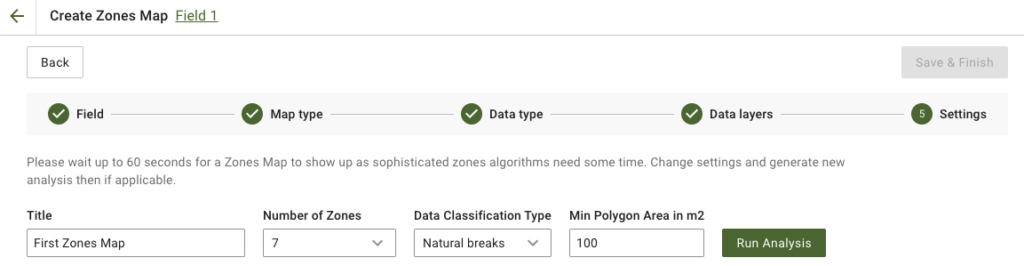
4. En el siguiente paso, puede editar el título, cambiar el número de zonas, [seleccionar un tipo de clasificación de datos](/geopard-tutorials/esp/tour-del-producto-aplicacion-web/mapas-y-analisis-de-zonas/uso-de-clasificacion-de-datos.md), y definir el área mínima del polígono en metros cuadrados. Haga clic en **Ejecutar análisis** para continuar.
El análisis puede ejecutarse durante hasta 60 segundos, dependiendo de los parámetros que haya especificado.
5. Una vez finalizado, haga clic en **Guardar y finalizar**.
Después de guardarlo, verá el siguiente mensaje:
Puede crear otro mapa de zonas, asignar tasas o abrir el mapa de zonas que acaba de crear. Si lo abre, verá una vista similar.
---
# Agent Instructions
This documentation is published with GitBook. GitBook is the documentation platform designed so that both humans and AI agents can read, navigate, and reason over technical content effectively. Learn more at gitbook.com.
## Querying This Documentation
If you need additional information that is not directly available in this page, you can query the documentation by asking a question.
Perform an HTTP GET request on the following URL with the `ask` and `goal` query parameters:
```
GET https://docs.geopard.tech/geopard-tutorials/esp/tour-del-producto-aplicacion-web/mapas-y-analisis-de-zonas/crear-un-mapa-de-zonas-usando-imagenes-satelitales.md?ask=&goal=
```
`ask` is the immediate question: it should be specific, self-contained, and written in natural language.
`goal` is what the user is ultimately trying to achieve, the reason they need the answer. Sharing it helps GitBook give you a better, more relevant answer. A goal is most helpful when it describes the outcome the user wants rather than restating the question. For example, with `ask=how do I create an API token`, a goal like `automate deployments from our CI pipeline` lets GitBook tailor the answer to that use case.
The response will contain a direct answer to the question and relevant excerpts and sources from the documentation.
Use this mechanism when the answer is not explicitly present in the current page, you need clarification or additional context, or you want to retrieve related documentation sections.