> For the complete documentation index, see [llms.txt](https://docs.geopard.tech/geopard-tutorials/llms.txt). Markdown versions of documentation pages are available by appending `.md` to page URLs; this page is available as [Markdown](https://docs.geopard.tech/geopard-tutorials/dnk/produktguide-webapp/john-deere-operations-center-integration/6.-export-rx-maps-to-john-deere-operations-center-as-files.md).
# Send tildelingsfiler til John Deere Operations Center
Upload GeoPard-zoner og tildelingsfiler baseret på ligninger til Files i den rigtige Operations Center-organisation, og send dem derefter til terminalen, eller kopiér dem til et USB-drev.
GeoPard uploader et zoneskort eller ligningskort til området Filer i den John Deere-organisation, du vælger. Fra Filer kan du sende tildelingskortet til displayet via trådløs dataoverførsel eller kopiere det til en USB-nøgle, når maskinen ikke har forbindelse. Brug filer, når føreren klargør arbejdet i førerhuset; brug en Arbejdsplan, når det klargøres fra kontoret. Et organisationsnavn, der vises med grå skrift, betyder, at GeoPard endnu ikke har adgang til organisationen.
{% hint style="success" %}
Send dit første tildelingskort til Operations Center: [Kom gratis i gang](https://app.geopard.tech/auth/sign-up?utm_source=docs\&utm_medium=cta\&utm_campaign=6.-export-rx-maps-to-john-deere-operations-center-as-files)
{% endhint %}
4\. Eksportér til John Deere Operations Center
4.1 GeoPards kunder kan eksportere data (VRA-tildelingskort eller andre datalag) fra GeoPard til John Deere Operations Center. Først skal du [logge ind](https://app.geopard.tech/auth/sign-in) og gå til fanen **Eksportér til MyJohnDeere** .
4.2 Brugeren skal vælge en destinationsorganisation, som GeoPard skal bruge til at overføre filer til. Det er muligt at søge efter tekst. Hvis John Deere-organisationen er deaktiveret ( **navnet vises med grå skrift**), skal brugeren give adgang til John Deere Operations Center. Se [Sådan forbinder du din GeoPard-profil med John Deere-organisationen](https://docs.geopard.tech/geopard-tutorials/dnk/produktguide-webapp/john-deere-operations-center-integration/3.-connect-to-john-deere-organizations.md).
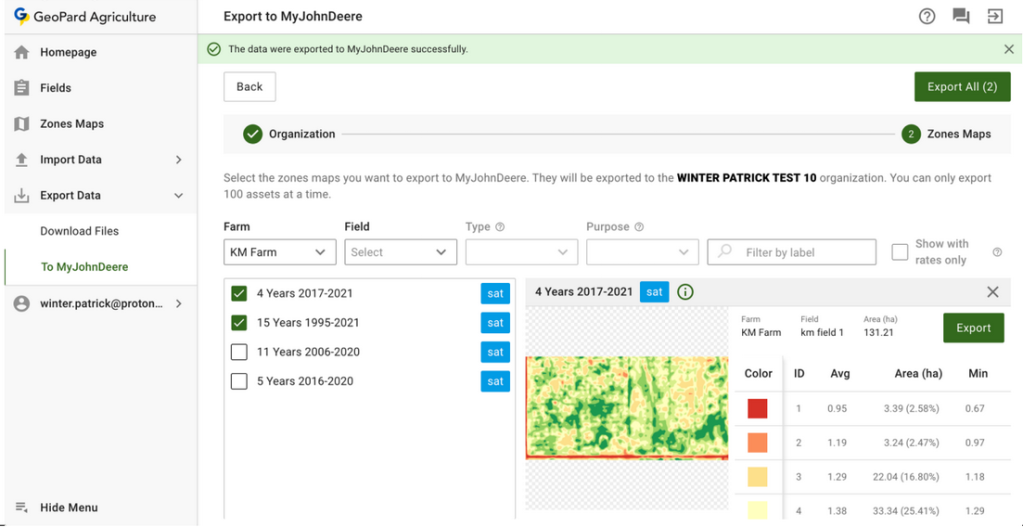
4.3 Derefter vælger brugeren de aktiver, som GeoPard skal overføre til John Deere Operations Center.
4.4 Brugeren kan filtrere aktiverne.
4.5 Når alle aktiver er valgt, kan brugeren overføre dem alle ved at klikke på knappen **Eksportér alle** eller overføre enkelte aktiver ved at klikke på knappen **Eksportér** .
4.6 Efter klikket vises en meddelelse om resultatet af handlingen.
4.7 Derefter bør brugeren kunne se resultatet i John Deere Operations Center ([https://files.deere.com](https://files.deere.com/)). *Vær opmærksom på, at du vælger den samme organisation i GeoPard Agriculture og John Deere Operations Center.*
4.8 GeoPards kunder kan eksportere zoneskort (VRA-tildelingskort) og ligningskort til John Deere Operations Center fra fanen Mark.
4.8.1 Når du har valgt et zoneskort, skal du klikke på **Eksportér til MyJohnDeere** i den tilhørende menu.
4.8.2 Når du har valgt et ligningskort, skal du klikke på **Eksportér til MyJohnDeere** i den tilhørende menu.
4.8.3 Derefter vælger brugeren en John Deere-destinationsorganisation, som GeoPard skal bruge til at overføre en fil til. Det er muligt at søge efter tekst. Hvis John Deere-organisationen er deaktiveret ( **navnet vises med grå skrift**), skal brugeren give adgang til John Deere Operations Center. Se [Sådan forbinder du din GeoPard-profil med John Deere-organisationen](https://docs.geopard.tech/geopard-tutorials/dnk/produktguide-webapp/john-deere-operations-center-integration/3.-connect-to-john-deere-organizations.md).
4.8.4 Når brugeren har klikket på knappen **Færdig** , vises en meddelelse om resultatet af handlingen.
4.8.5 Derefter bør brugeren kunne se resultatet i John Deere Operations Center ([https://files.deere.com](https://files.deere.com/)).\
\&#xNAN;*Vær opmærksom på, at du vælger den samme organisation i GeoPard Agriculture og John Deere Operations Center.*
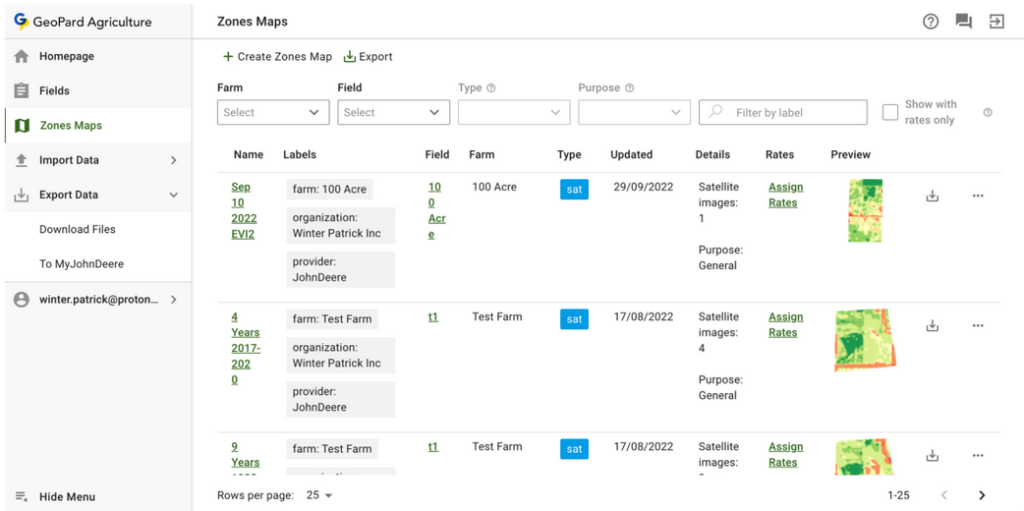
4.9 GeoPards kunder kan eksportere zoneskort (VRA-tildelingskort) til John Deere Operations Center fra fanen **Zoneskort** .
4.9.1 Brugeren kan eksportere et enkelt zoneskort ved at klikke på den tilhørende eksportknap.
4.9.2 Brugeren kan eksportere flere zoneskort ved at klikke på den tilhørende eksportknap og vælge kortene.
4.9.3 Når brugeren har klikket på knappen **Eksportér** , vil brugeren se **Eksportér zonernes kort** pop op-vinduet, hvorefter brugeren skal vælge **Eksportér zoner til MyJohnDeere Ops Center** indstillingen og klikke på **Eksportér** knappen.
4.9.4 Derefter vælger brugeren en John Deere-organisation som destination, hvortil GeoPard skal overføre en fil. Brugeren kan søge efter organisationer ved hjælp af tekst. Hvis John Deere-organisationen er deaktiveret ( **navnet vises med grå skrift**), skal brugeren give adgang til John Deere Operations Center. Se [Tilknytning af GeoPard-profilen til John Deere-organisationen](https://docs.geopard.tech/geopard-tutorials/dnk/produktguide-webapp/john-deere-operations-center-integration/3.-connect-to-john-deere-organizations.md).
4.9.5 Når brugeren har klikket på knappen **Udført** , vises en meddelelse om resultatet af handlingen.
4.9.6 Derefter skal brugeren kunne se resultatet i John Deere Operations Center ([https://files.deere.com](https://files.deere.com/)). Vær opmærksom på, hvilke organisationer brugeren vælger i GeoPard Agriculture og John Deere Operations Center.
{% hint style="success" %}
Send dit første tildelingskort til Operations Center: [Kom gratis i gang](https://app.geopard.tech/auth/sign-up?utm_source=docs\&utm_medium=cta\&utm_campaign=6.-export-rx-maps-to-john-deere-operations-center-as-files)
{% endhint %}
---
# Agent Instructions
This documentation is published with GitBook. GitBook is the documentation platform designed so that both humans and AI agents can read, navigate, and reason over technical content effectively. Learn more at gitbook.com.
## Querying This Documentation
If you need additional information that is not directly available in this page, you can query the documentation by asking a question.
Perform an HTTP GET request on the following URL with the `ask` and `goal` query parameters:
```
GET https://docs.geopard.tech/geopard-tutorials/dnk/produktguide-webapp/john-deere-operations-center-integration/6.-export-rx-maps-to-john-deere-operations-center-as-files.md?ask=&goal=
```
`ask` is the immediate question: it should be specific, self-contained, and written in natural language.
`goal` is what the user is ultimately trying to achieve, the reason they need the answer. Sharing it helps GitBook give you a better, more relevant answer. A goal is most helpful when it describes the outcome the user wants rather than restating the question. For example, with `ask=how do I create an API token`, a goal like `automate deployments from our CI pipeline` lets GitBook tailor the answer to that use case.
The response will contain a direct answer to the question and relevant excerpts and sources from the documentation.
Use this mechanism when the answer is not explicitly present in the current page, you need clarification or additional context, or you want to retrieve related documentation sections.