> For the complete documentation index, see [llms.txt](https://docs.geopard.tech/geopard-tutorials/llms.txt). Markdown versions of documentation pages are available by appending `.md` to page URLs; this page is available as [Markdown](https://docs.geopard.tech/geopard-tutorials/dnk/produktguide-webapp/john-deere-operations-center-integration/6.-export-rx-maps-to-john-deere-operations-center-as-files.md).
# Send tildelingsfiler til John Deere Operations Center
Upload GeoPard-zoner og tildelingsfiler baseret på ligninger til Files i den rigtige Operations Center-organisation, og send dem derefter til terminalen, eller kopiér dem til et USB-drev.
GeoPard uploader et zonekort eller ligningskort til området Filer i den John Deere-organisation, du vælger. Fra Filer kan du sende tildelingskortet til skærmen via trådløs dataoverførsel eller kopiere det til en USB-nøgle, hvis maskinen ikke har forbindelse. Brug filer, når føreren klargør opgaven i førerhuset; brug en arbejdsplan, når den klargøres på kontoret. Et organisationsnavn, der vises med gråt, betyder, at GeoPard endnu ikke har adgang til organisationen.
{% hint style="success" %}
Send dit første tildelingskort til Operations Center: [Start gratis](https://app.geopard.tech/auth/sign-up?utm_source=docs\&utm_medium=cta\&utm_campaign=6.-export-rx-maps-to-john-deere-operations-center-as-files)
{% endhint %}
4\. Eksportér til John Deere Operations Center
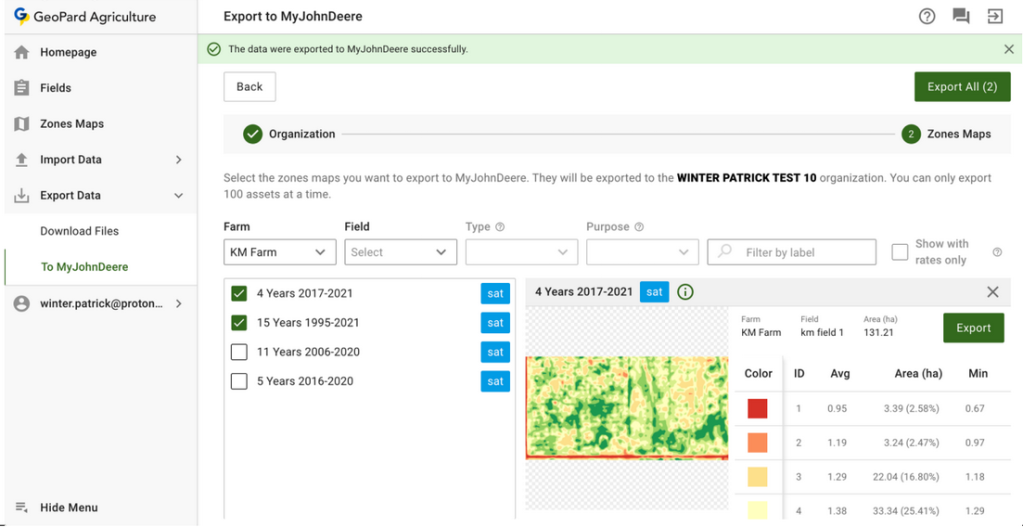
4.1 GeoPard-kunder har mulighed for at eksportere data (VRA-tildelingskort eller andre datalag) fra GeoPard til John Deere Operations Center. Første trin er at [logge ind](https://app.geopard.tech/auth/sign-in) og gå til fanen **Eksportér til MyJohnDeere** .
4.2 Brugeren skal vælge en destinationsorganisation, som GeoPard skal bruge til at uploade filer. Brugeren kan søge efter tekst. Hvis John Deere-organisationen er deaktiveret ( **navnet vises med gråt**), skal brugeren give adgang til John Deere Operations Center. Se [Sådan forbinder du GeoPard-profilen med John Deere-organisationen](https://docs.geopard.tech/geopard-tutorials/dnk/produktguide-webapp/john-deere-operations-center-integration/3.-connect-to-john-deere-organizations.md).
4.3 Derefter vælger brugeren de aktiver, som GeoPard skal uploade til John Deere Operations Center.
4.4 Brugeren kan filtrere aktiver.
4.5 Når alle aktiver er valgt, kan brugeren uploade dem alle ved at klikke på knappen **Eksportér alle** eller uploade enkelte aktiver ved at klikke på knappen **Eksportér** .
4.6 Efter klikket får brugeren vist en meddelelse om resultatet af handlingen.
4.7 Derefter kan brugeren se resultatet i John Deere Operations Center ([https://files.deere.com](https://files.deere.com/)). *Vær opmærksom på, hvilke organisationer brugeren vælger i GeoPard Agriculture og John Deere Operations Center.*
4.8 GeoPard-kunder kan eksportere zonekort (VRA-tildelingskort) og ligningskort til John Deere Operations Center fra fanen Mark.
4.8.1 Når zonekortet er valgt, skal brugeren klikke på **Eksportér til MyJohnDeere** i den tilhørende menu.
4.8.2 Når ligningskortet er valgt, skal brugeren klikke på **Eksportér til MyJohnDeere** i den tilhørende menu.
4.8.3 Derefter vælger brugeren en John Deere-destinationsorganisation, som GeoPard skal bruge til at uploade en fil. Brugeren kan søge efter tekst. Hvis John Deere-organisationen er deaktiveret ( **navnet vises med gråt**), skal brugeren give adgang til John Deere Operations Center og se [Sådan forbinder du GeoPard-profilen med John Deere-organisationen](https://docs.geopard.tech/geopard-tutorials/dnk/produktguide-webapp/john-deere-operations-center-integration/3.-connect-to-john-deere-organizations.md).
4.8.4 Når brugeren klikker på knappen **Færdig** , får vedkommende vist en meddelelse om resultatet af handlingen.
4.8.5 Derefter kan brugeren se resultatet i John Deere Operations Center ([https://files.deere.com](https://files.deere.com/)).\
\&#xNAN;*Vær opmærksom på, hvilke organisationer brugeren vælger i GeoPard Agriculture og John Deere Operations Center.*
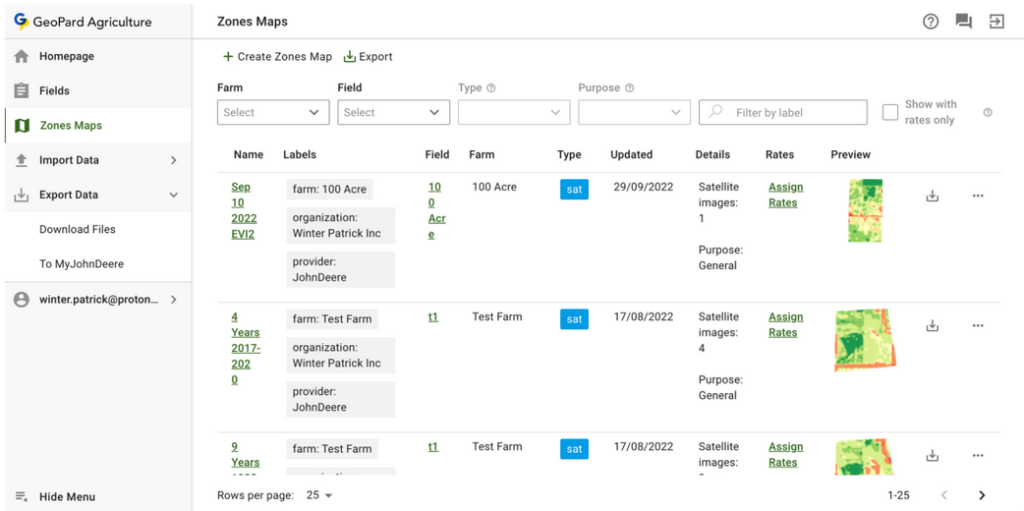
4.9 GeoPard-kunder kan eksportere zonekort (VRA-tildelingskort) til John Deere Operations Center fra fanen **Zonekort** .
4.9.1 Brugeren kan eksportere et enkelt zonekort ved at klikke på den tilhørende eksportknap.
4.9.2 Brugeren kan eksportere flere zonekort ved at klikke på den tilhørende eksportknap og vælge kort.
4.9.3 Når brugeren klikker på knappen **Eksportér** , får brugeren vist **Eksportér markkortene** pop op-vinduet, hvorefter brugeren skal vælge **Eksportér markzoner til MyJohnDeere Ops Center** og klikke på knappen **Eksportér** .
4.9.4 Derefter vælger brugeren en John Deere-organisation som destination. GeoPard bruger den til at uploade en fil. Brugeren kan søge efter organisationer ved hjælp af tekst. Hvis John Deere-organisationen er deaktiveret ( **navnet vises med grå skrift**), skal brugeren give adgang til John Deere Operations Center. Se [Forbindelse af GeoPard-profilen med John Deere-organisationen](https://docs.geopard.tech/geopard-tutorials/dnk/produktguide-webapp/john-deere-operations-center-integration/3.-connect-to-john-deere-organizations.md).
4.9.5 Når brugeren har klikket på knappen **Færdig** får brugeren vist en besked om resultatet af handlingen.
4.9.6 Derefter kan brugeren se resultatet i John Deere Operations Center ([https://files.deere.com](https://files.deere.com/)). Vær omhyggelig med at vælge de samme organisationer i GeoPard Agriculture og John Deere Operations Center.
{% hint style="success" %}
Send dit første tildelingskort til Operations Center: [Start gratis](https://app.geopard.tech/auth/sign-up?utm_source=docs\&utm_medium=cta\&utm_campaign=6.-export-rx-maps-to-john-deere-operations-center-as-files)
{% endhint %}
---
# Agent Instructions
This documentation is published with GitBook. GitBook is the documentation platform designed so that both humans and AI agents can read, navigate, and reason over technical content effectively. Learn more at gitbook.com.
## Querying This Documentation
If you need additional information that is not directly available in this page, you can query the documentation by asking a question.
Perform an HTTP GET request on the following URL with the `ask` and `goal` query parameters:
```
GET https://docs.geopard.tech/geopard-tutorials/dnk/produktguide-webapp/john-deere-operations-center-integration/6.-export-rx-maps-to-john-deere-operations-center-as-files.md?ask=&goal=
```
`ask` is the immediate question: it should be specific, self-contained, and written in natural language.
`goal` is what the user is ultimately trying to achieve, the reason they need the answer. Sharing it helps GitBook give you a better, more relevant answer. A goal is most helpful when it describes the outcome the user wants rather than restating the question. For example, with `ask=how do I create an API token`, a goal like `automate deployments from our CI pipeline` lets GitBook tailor the answer to that use case.
The response will contain a direct answer to the question and relevant excerpts and sources from the documentation.
Use this mechanism when the answer is not explicitly present in the current page, you need clarification or additional context, or you want to retrieve related documentation sections.