> For the complete documentation index, see [llms.txt](https://docs.geopard.tech/geopard-tutorials/llms.txt). Markdown versions of documentation pages are available by appending `.md` to page URLs; this page is available as [Markdown](https://docs.geopard.tech/geopard-tutorials/dnk/produktguide-mobilapp/working-offline.md).
# Arbejde offline
Brug GeoPard-mobilappen offline og hold markarbejdet i gang uden signal.
Arbejd offline
Før du går i gang med at bruge GeoPard-mobilappen, anbefaler vi, at du gemmer dine loginoplysninger, så du ikke får problemer med at få adgang til appen, når du ikke har netværksforbindelse.
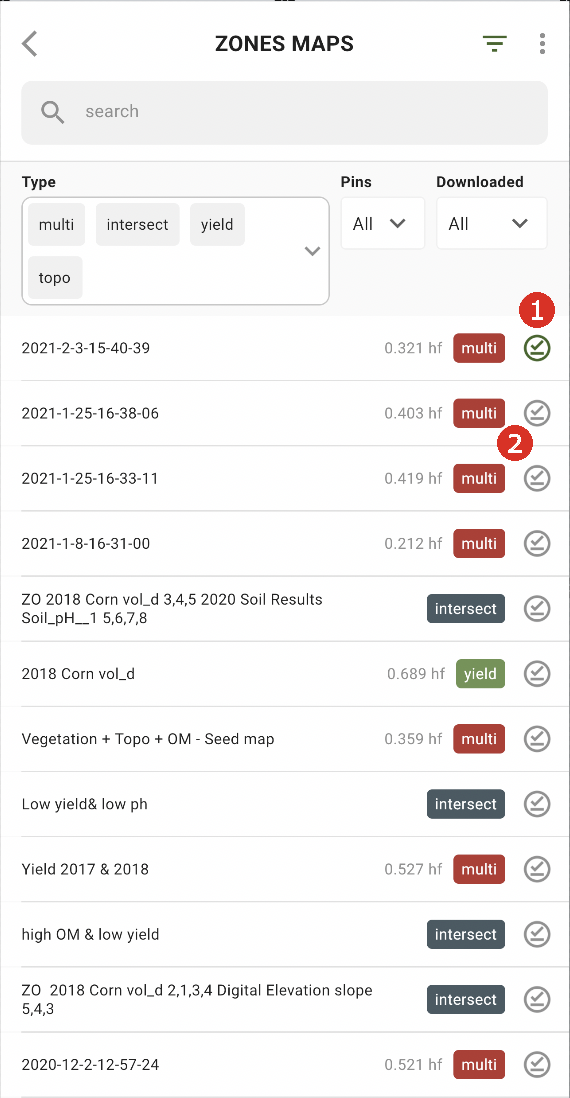
Hvis du vil kunne arbejde offline, skal du downloade Zones Map til din smartphone. Tryk på downloadknappen ved siden af det Zones Map, du vil downloade (2).
Når kortet er downloadet til din enhed, vises et grønt flueben ved siden af det (1).
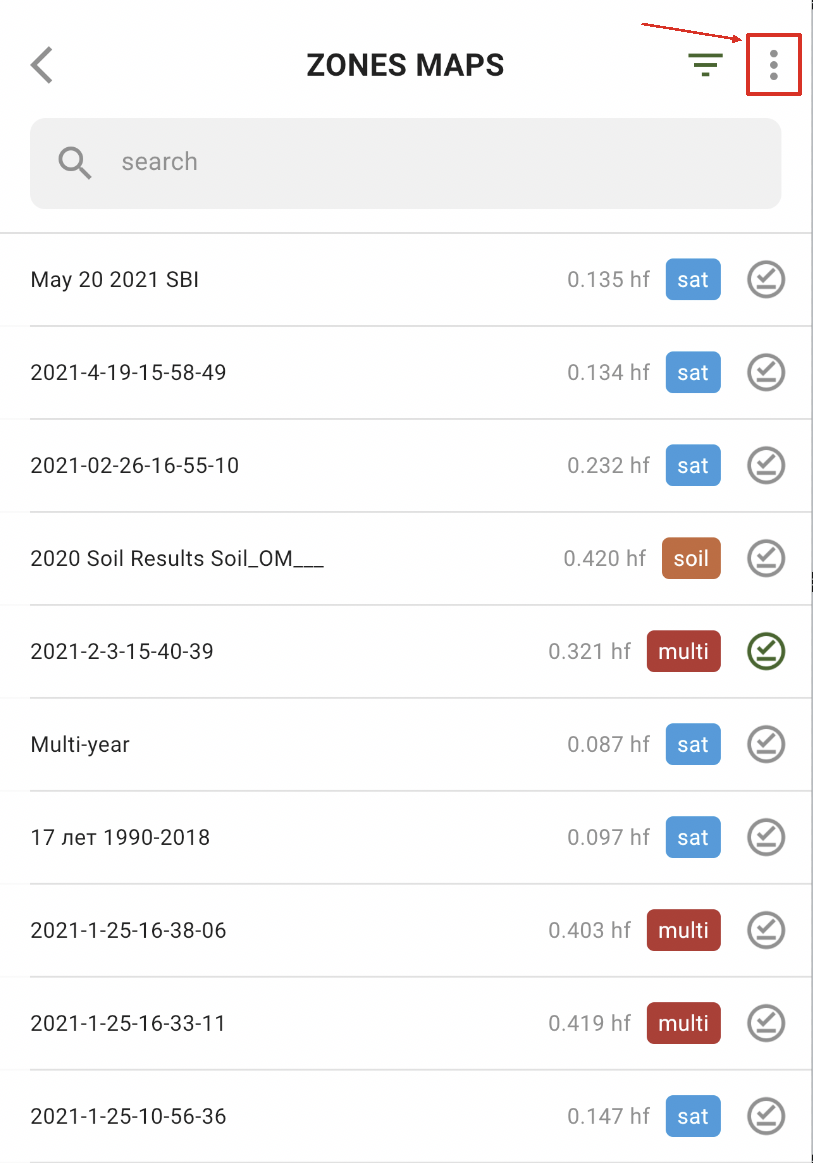
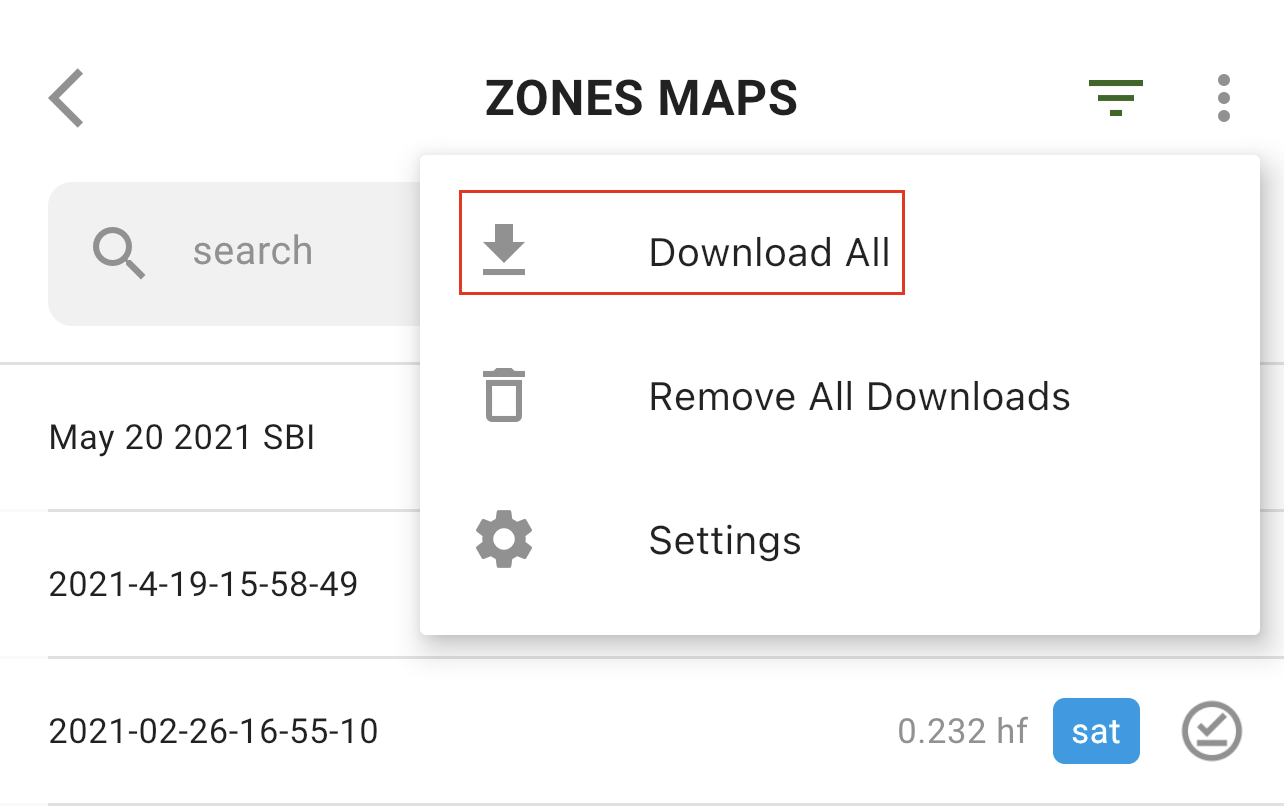
Hvis du vil downloade alle Zones Maps på én gang, skal du trykke på Mere:
og vælge Download alle:
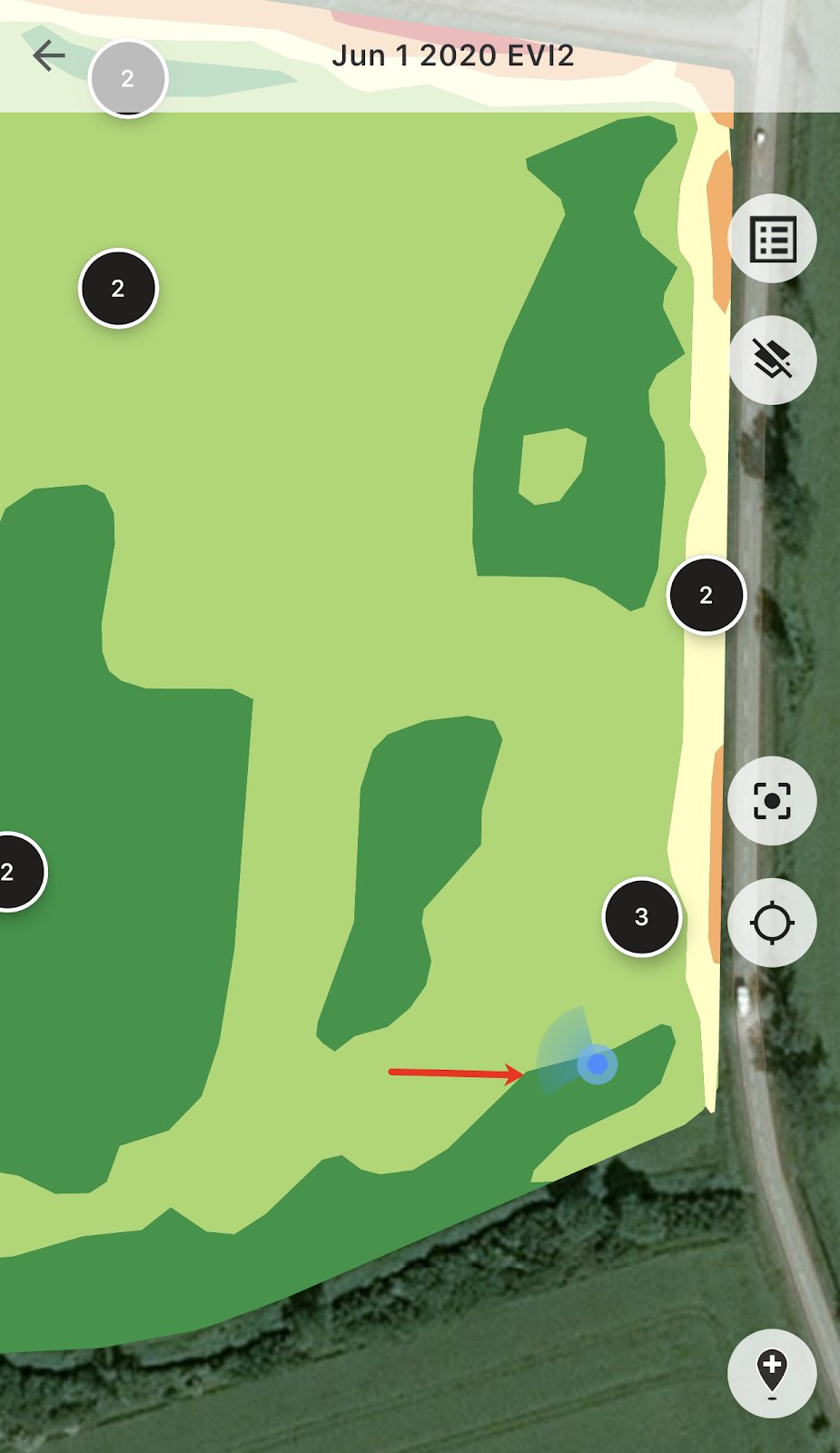
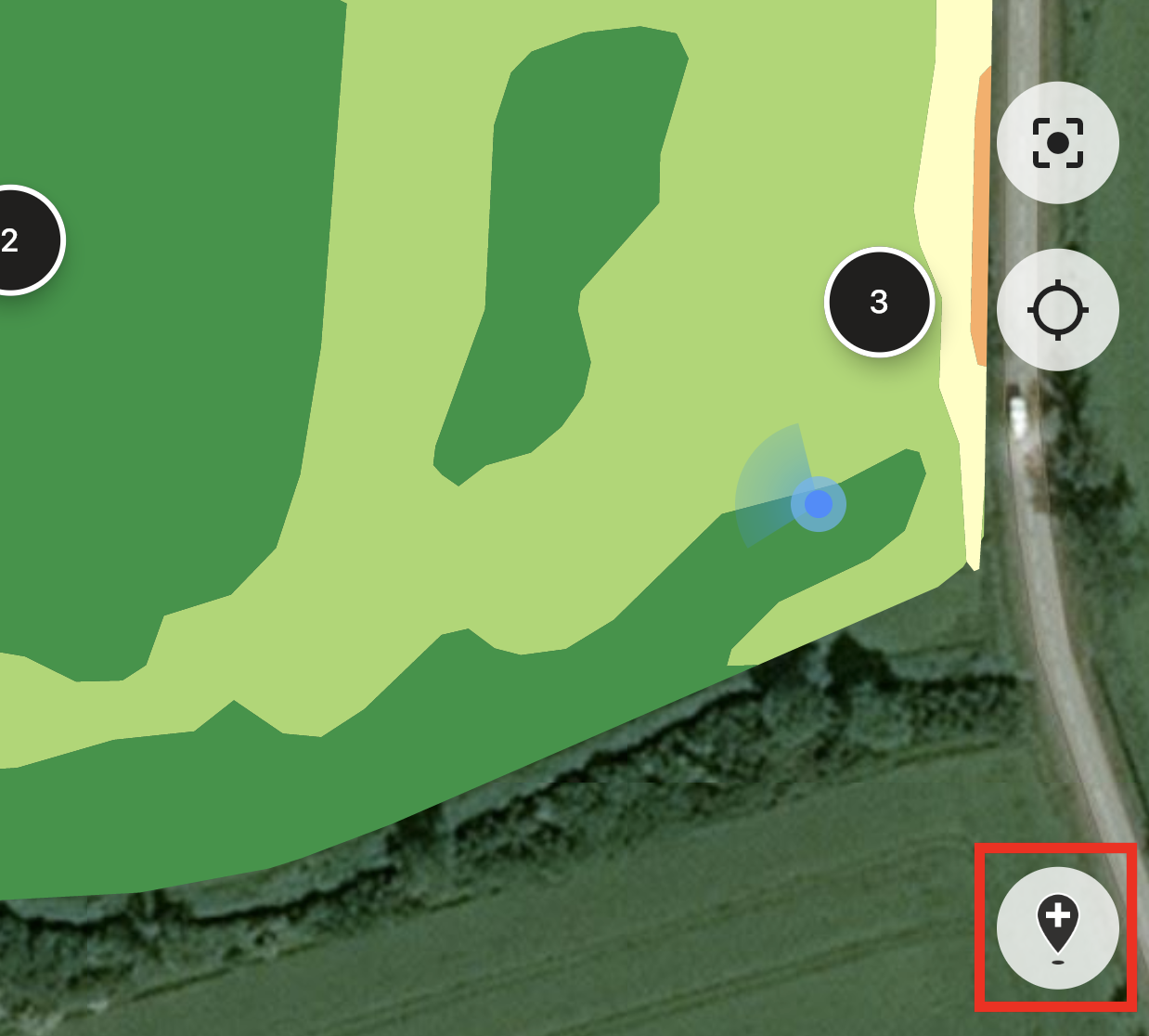
Når du er ude på marken, kan du følge din position og se, hvilken retning du bevæger dig i.
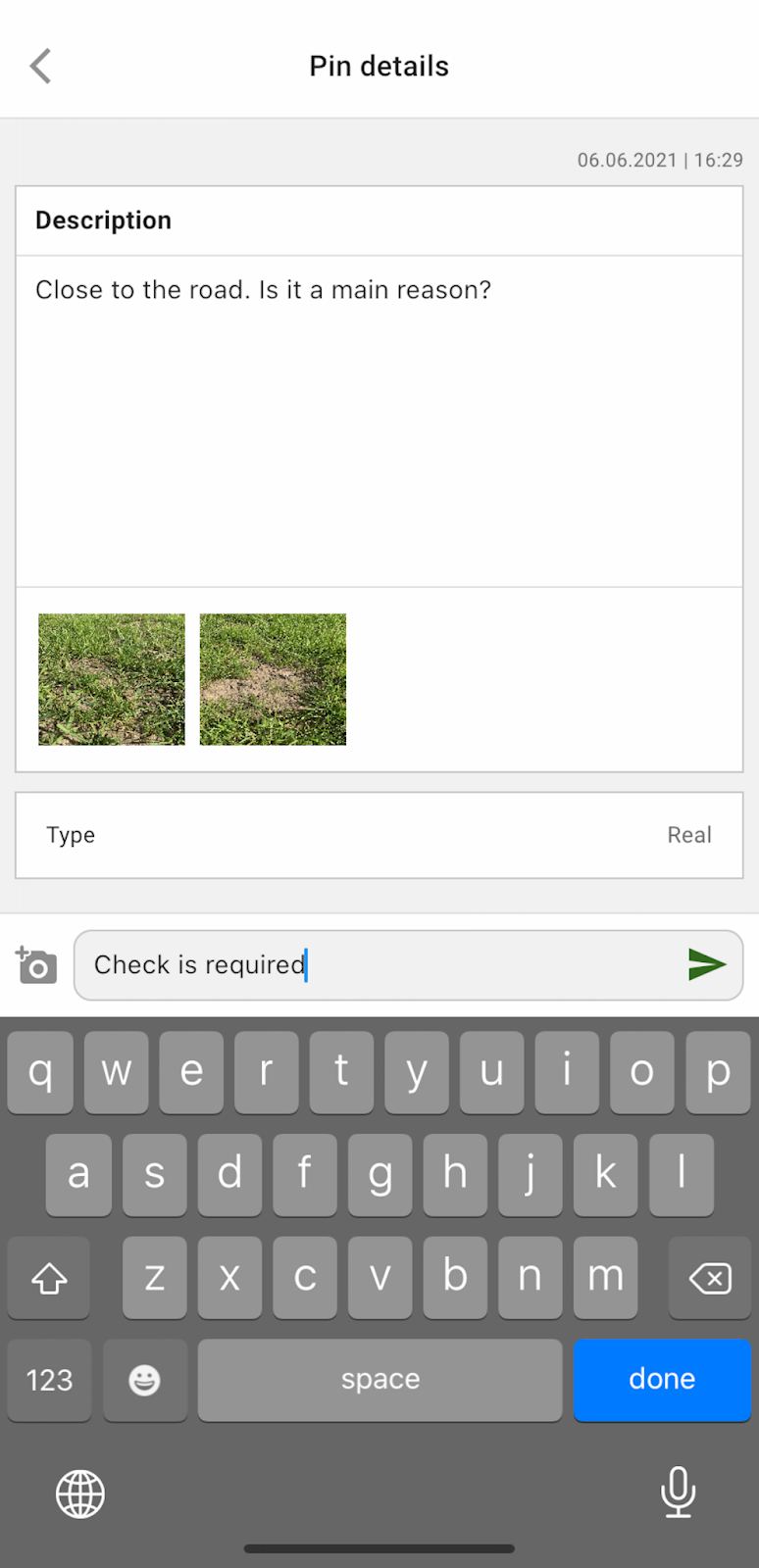
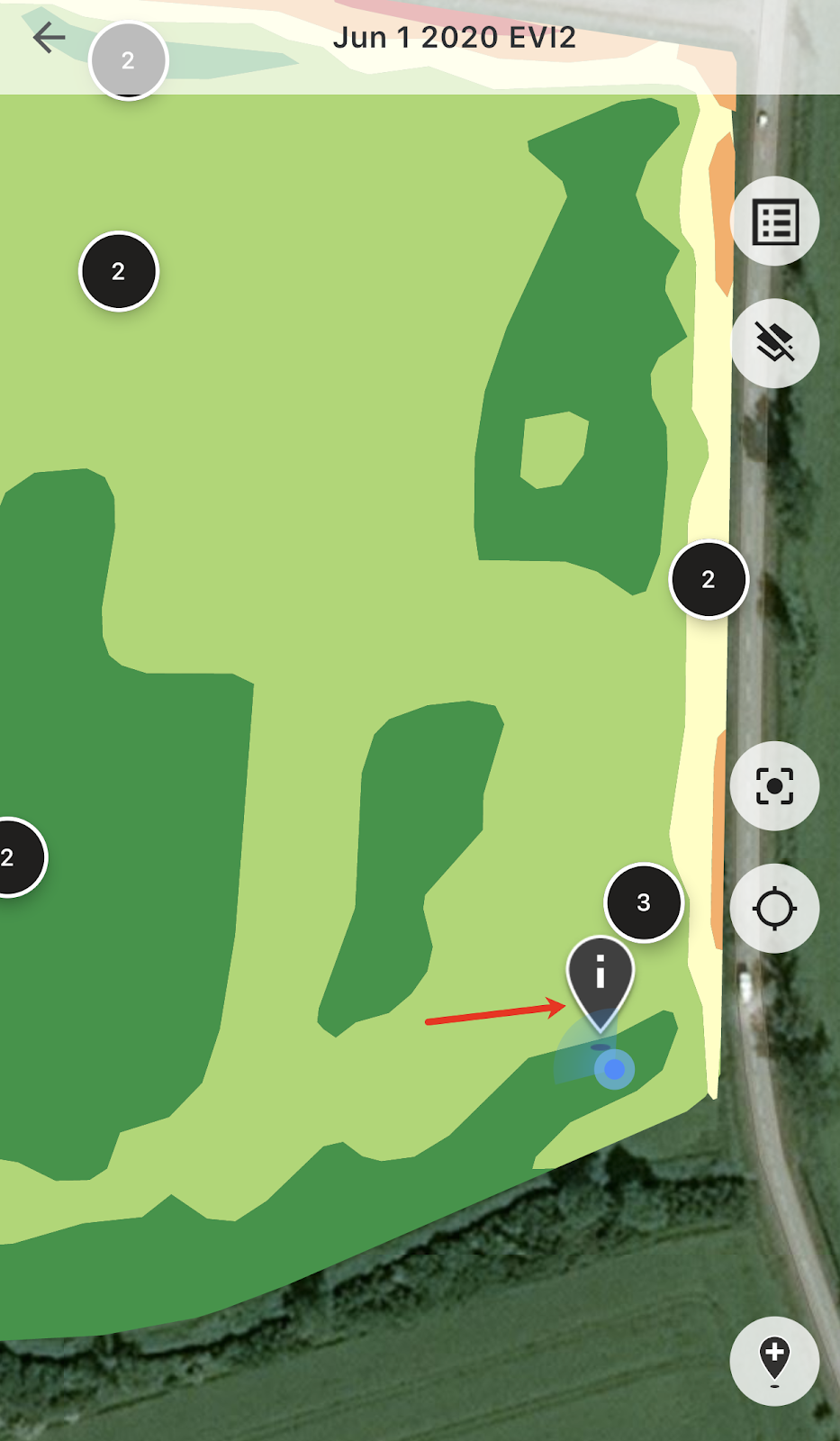
Du kan trykke på en hvilken som helst planlagt markør og tilføje eller redigere kommentarer.
Hvis du får øje på noget, der kræver opmærksomhed (en anomali eller en forkert markgrænse), skal du trykke på knappen Tilføj ny markør.
Skriv dine kommentarer, og tryk på Gem for at føje en ny markør til Zones Map.
Markører, du tilføjer fra din mobilenhed, har et andet ikon end de planlagte markører, du tilføjer via webappen.
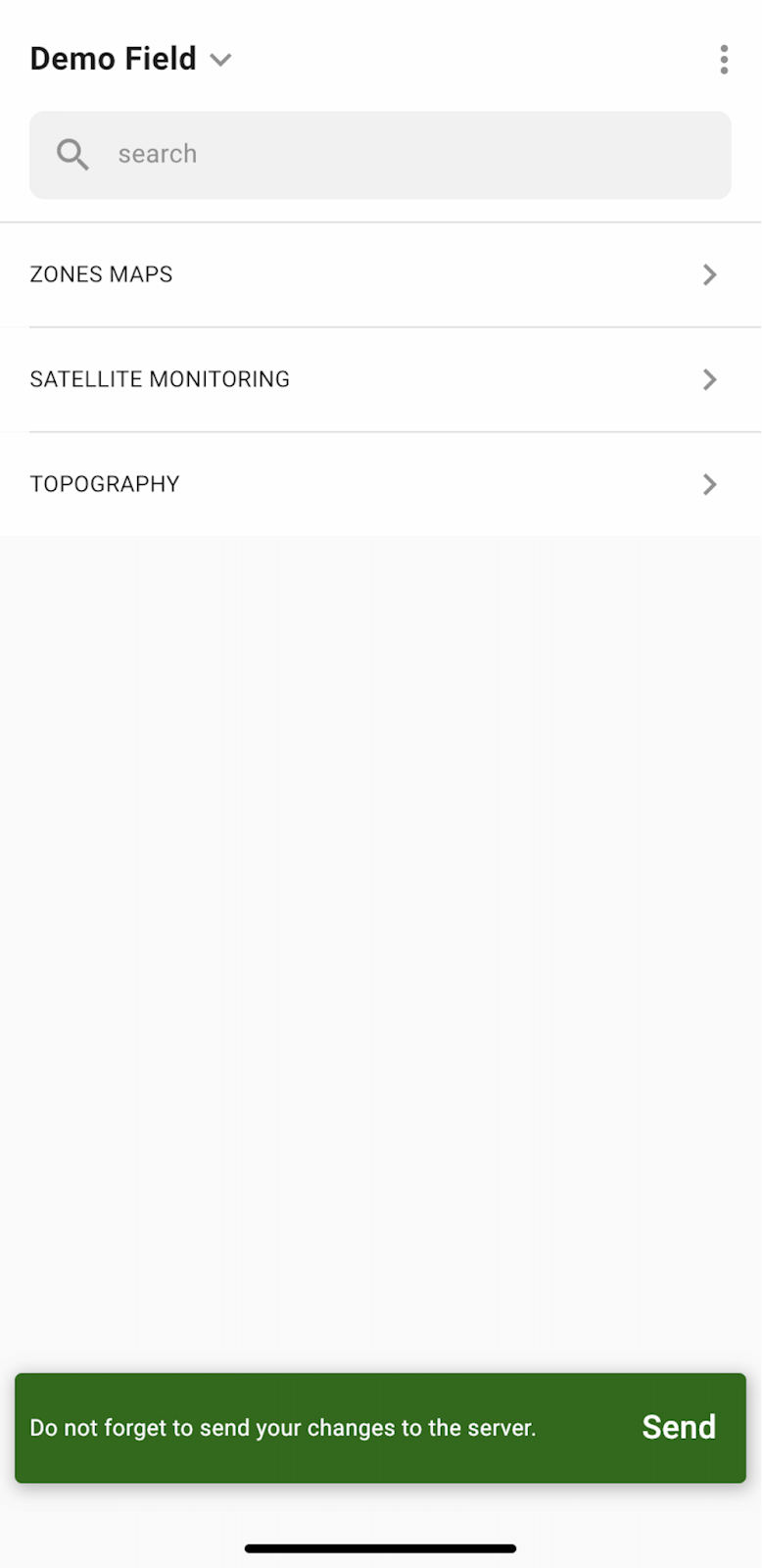
Når du er færdig med arbejdet på marken og har tilføjet eller redigeret markører, får du en meddelelse, hvor du bliver bedt om at overføre dine ændringer til serveren. Hvis du arbejder offline, bliver du bedt om at overføre ændringerne, når du igen har netværksforbindelse.
Tryk på Send for at synkronisere dine ændringer med serveren.
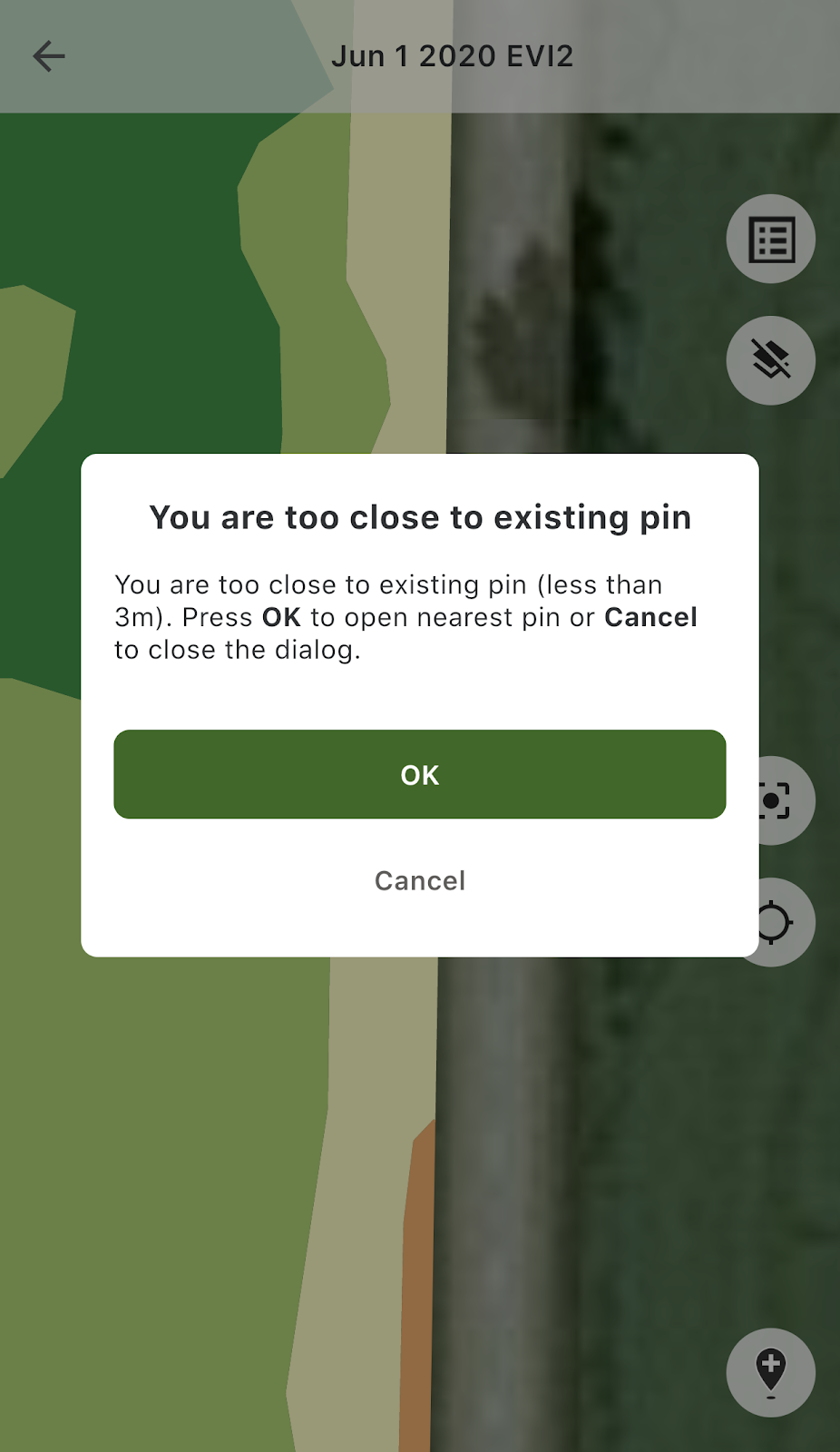
Hvis du er tæt på en eksisterende markør og forsøger at tilføje en ny, vises følgende meddelelse:
I så fald kan du trykke på OK for at åbne den nærmeste markør eller på Annuller for at lukke pop op-meddelelsen.
---
# Agent Instructions
This documentation is published with GitBook. GitBook is the documentation platform designed so that both humans and AI agents can read, navigate, and reason over technical content effectively. Learn more at gitbook.com.
## Querying This Documentation
If you need additional information that is not directly available in this page, you can query the documentation by asking a question.
Perform an HTTP GET request on the following URL with the `ask` and `goal` query parameters:
```
GET https://docs.geopard.tech/geopard-tutorials/dnk/produktguide-mobilapp/working-offline.md?ask=&goal=
```
`ask` is the immediate question: it should be specific, self-contained, and written in natural language.
`goal` is what the user is ultimately trying to achieve, the reason they need the answer. Sharing it helps GitBook give you a better, more relevant answer. A goal is most helpful when it describes the outcome the user wants rather than restating the question. For example, with `ask=how do I create an API token`, a goal like `automate deployments from our CI pipeline` lets GitBook tailor the answer to that use case.
The response will contain a direct answer to the question and relevant excerpts and sources from the documentation.
Use this mechanism when the answer is not explicitly present in the current page, you need clarification or additional context, or you want to retrieve related documentation sections.