> For the complete documentation index, see [llms.txt](https://docs.geopard.tech/geopard-tutorials/llms.txt). Markdown versions of documentation pages are available by appending `.md` to page URLs; this page is available as [Markdown](https://docs.geopard.tech/geopard-tutorials/dnk/korte-gis-tips/qgis-udbyttedatamanipulation.md).
# QGIS: Udbyttedatamanipulation
Forbered og rens udbyttedata i QGIS, før du importerer eller analyserer dem i GeoPard.
OVERSIGT
Manual med trin-for-trin-beskrivelse til at løse følgende problemer med data fra udbyttemonitoren:
1. Manglende projektionfil (.prj) i shapefilen
2. Anvend konverteringsregler for hver attribut i shapefilen (baseret på kb/ha til bu/ac-eksempel)
Programmet, der skal bruges, er QGIS ([LINK](https://qgis.org/en/site/forusers/download.html)).
Download og installation er obligatorisk.
### MANGLENDE PROJEKTIONSFIL
1. Åbn shapefilen med udbyttedata. Flyt filen ind i QGIS-vinduet.
2. Shapefilen bliver tilgængelig til videre bearbejdning i Lag-panelet.
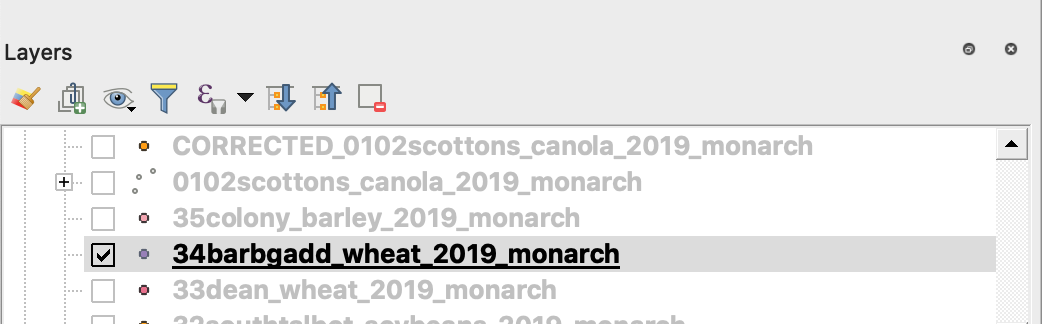
3. Start gemmeprocessen
4. 1. Højreklik på shapefilen
2. Vælg Eksporter -> Gem objekter som ...
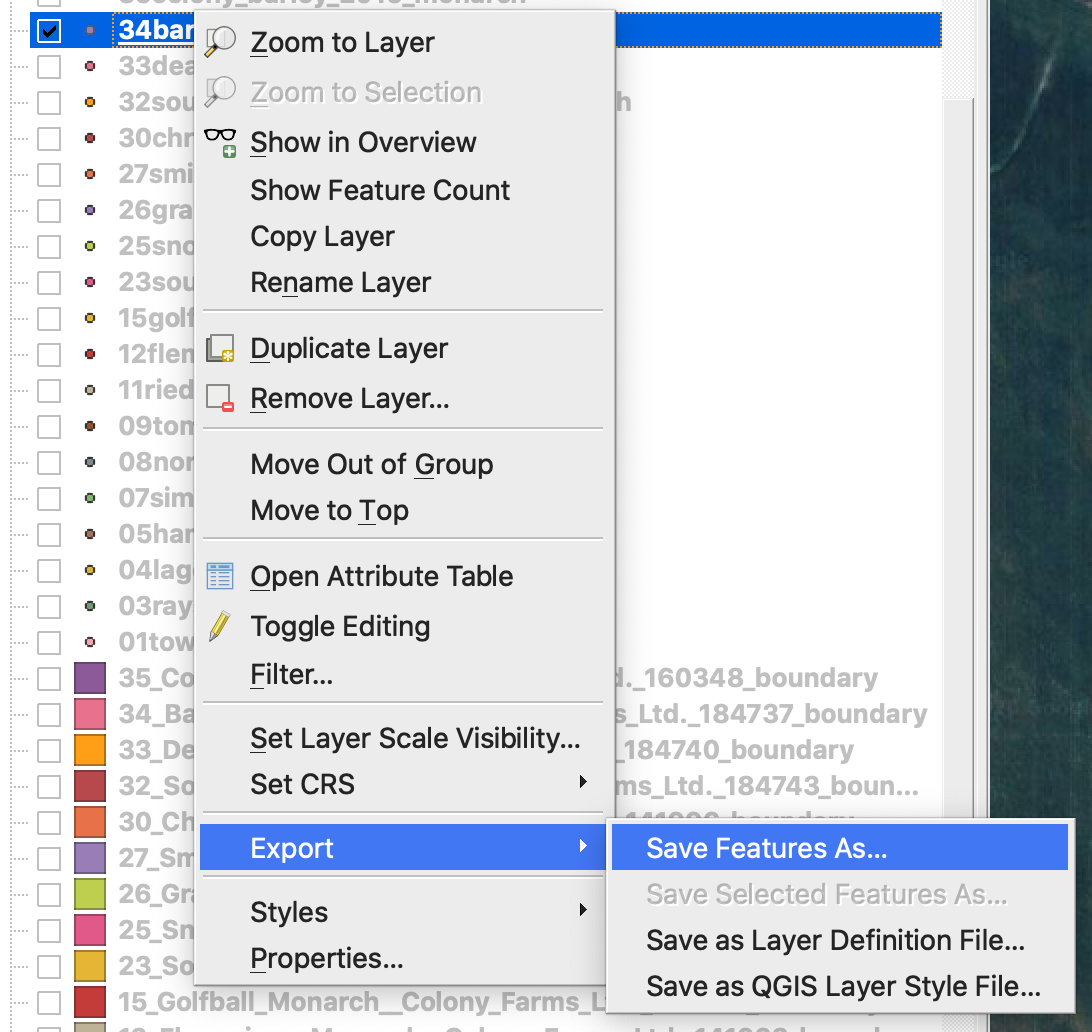
4. Vælg
5. 1. Format -> ESRI Shapefile,
2. Filnavn -> klik … og vælg den ønskede mappe og filnavn,
3. CRS -> EPSG:4326
4. Kodning -> UTF8
5. Tilføj gemt fil til kort (valgfrit hvis du vil se den direkte i QGIS)
6. Geometritype -> Punkt
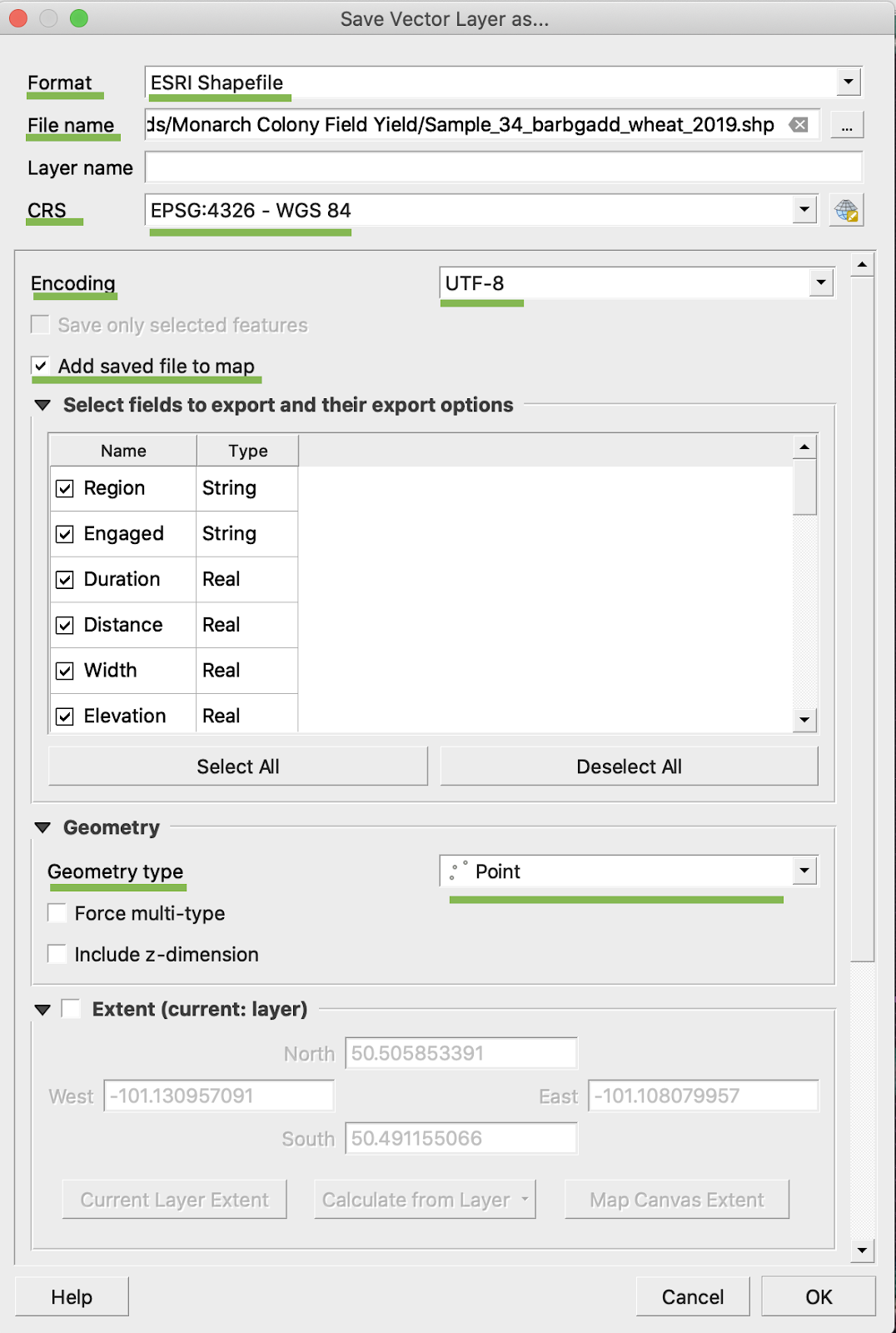
5. Klik Ok
6. En ekstra shapefile med de samme udbyttedata oprettes. Projektionsfilen (.prj) blev tilføjet.
\
### BU/AC-KONVERTERING
1. Højreklik på shapefilen og vælg Åbn attributtabel
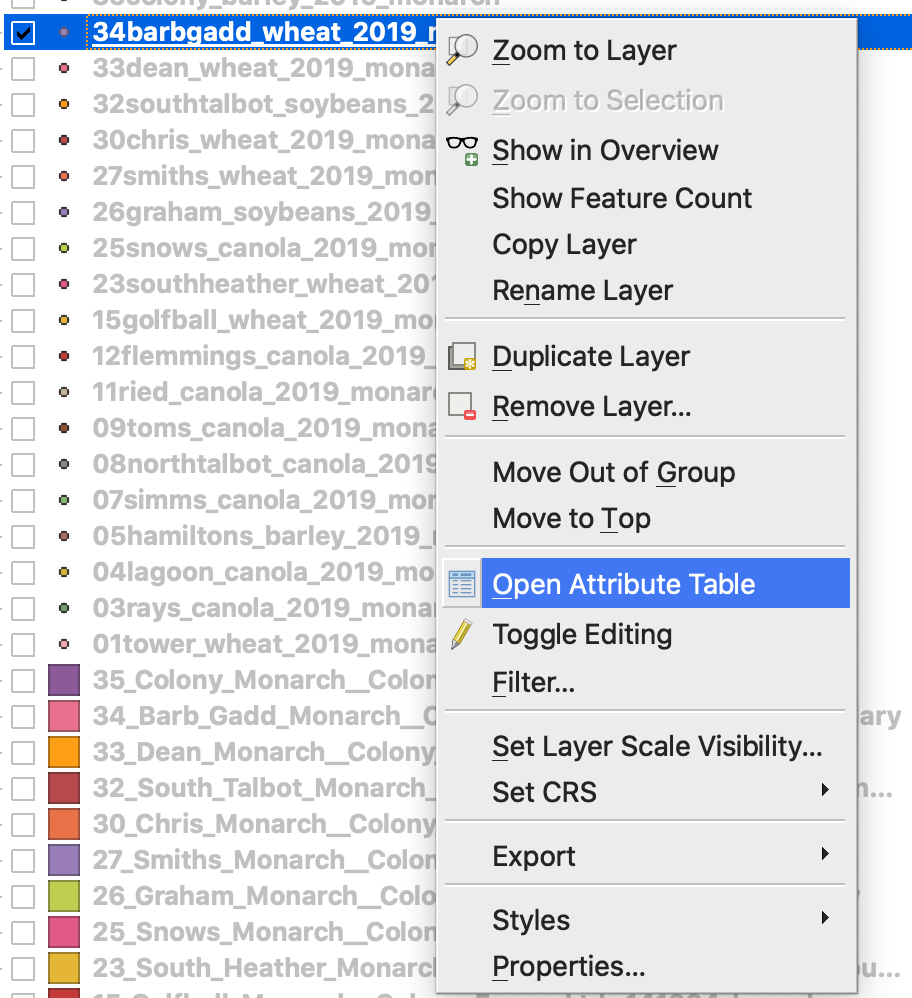
2. Klik Åbn feltberegner
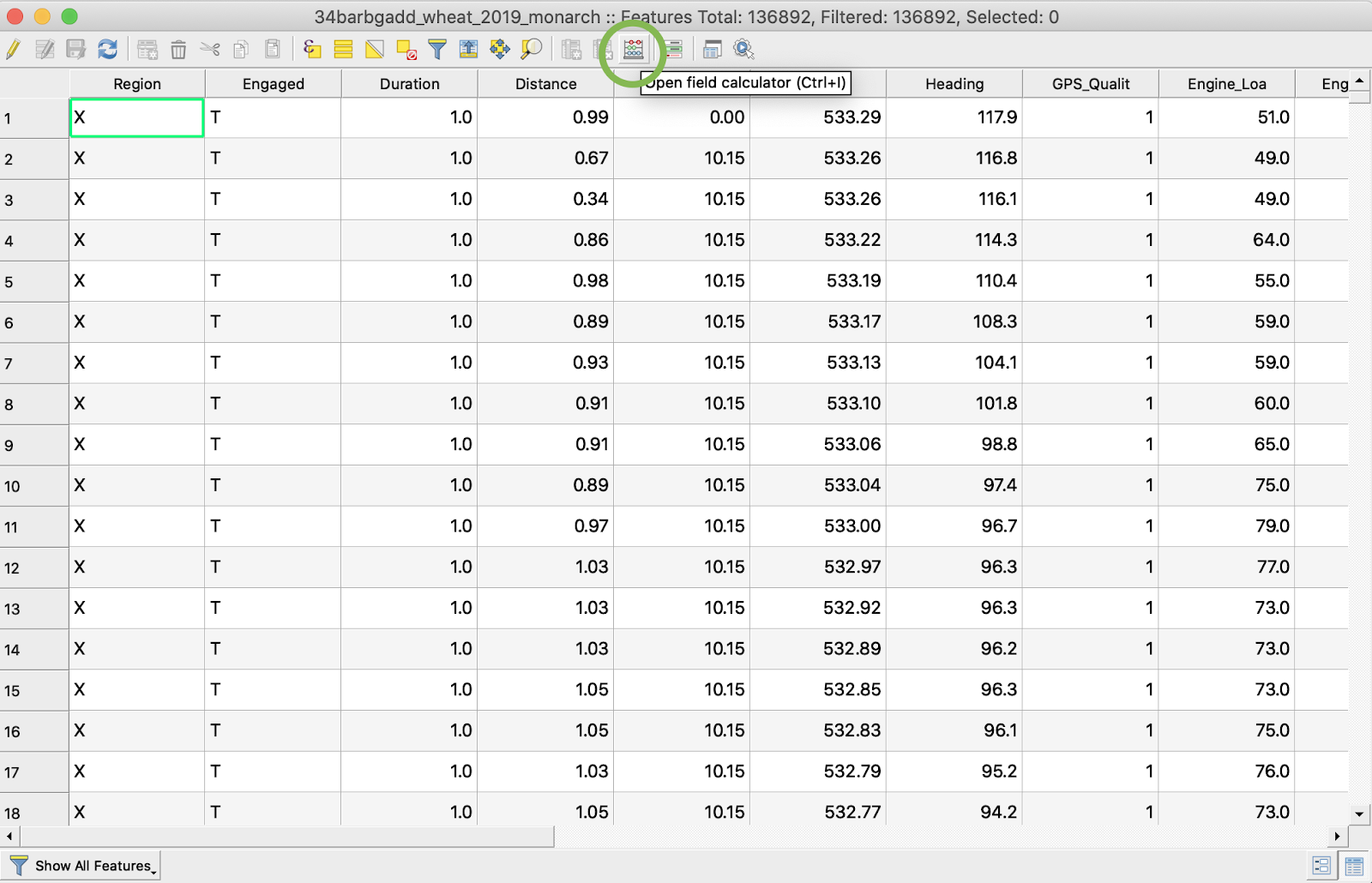
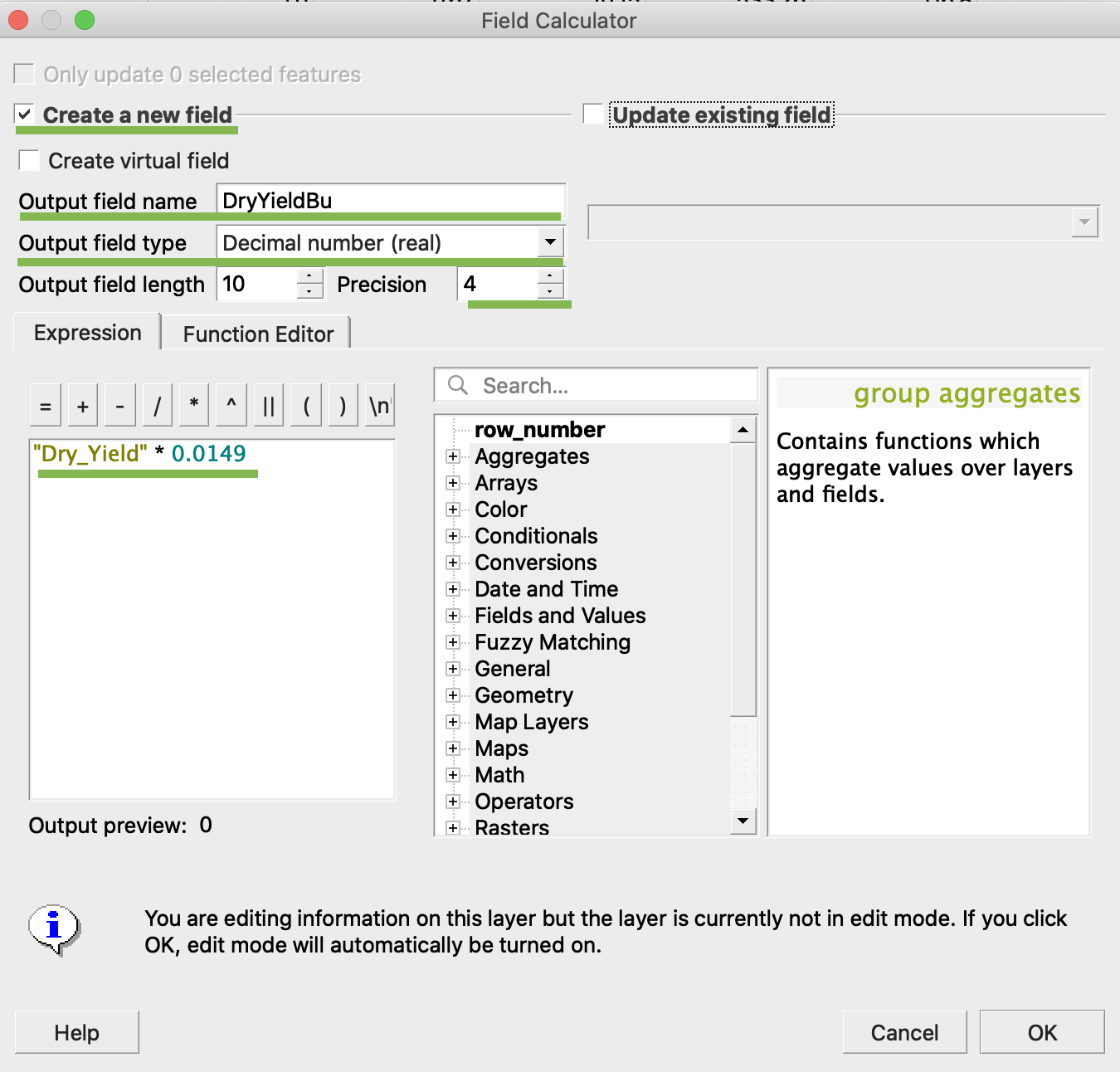
3. Opret et nyt felt
4. 1. Markér Opret et nyt felt
2. Angiv Output field name -> DryYieldBu
3. Vælg Output field type -> Decimaltal (real)
4. Skift Precision -> 4
5. Indsæt regel for at konvertere kg/ha til bu/ac -> "Dry\_Yield" \* 0.0149
4. Klik Ok
5. Det ekstra attribut DryYieldBu er dukket op i tabellen
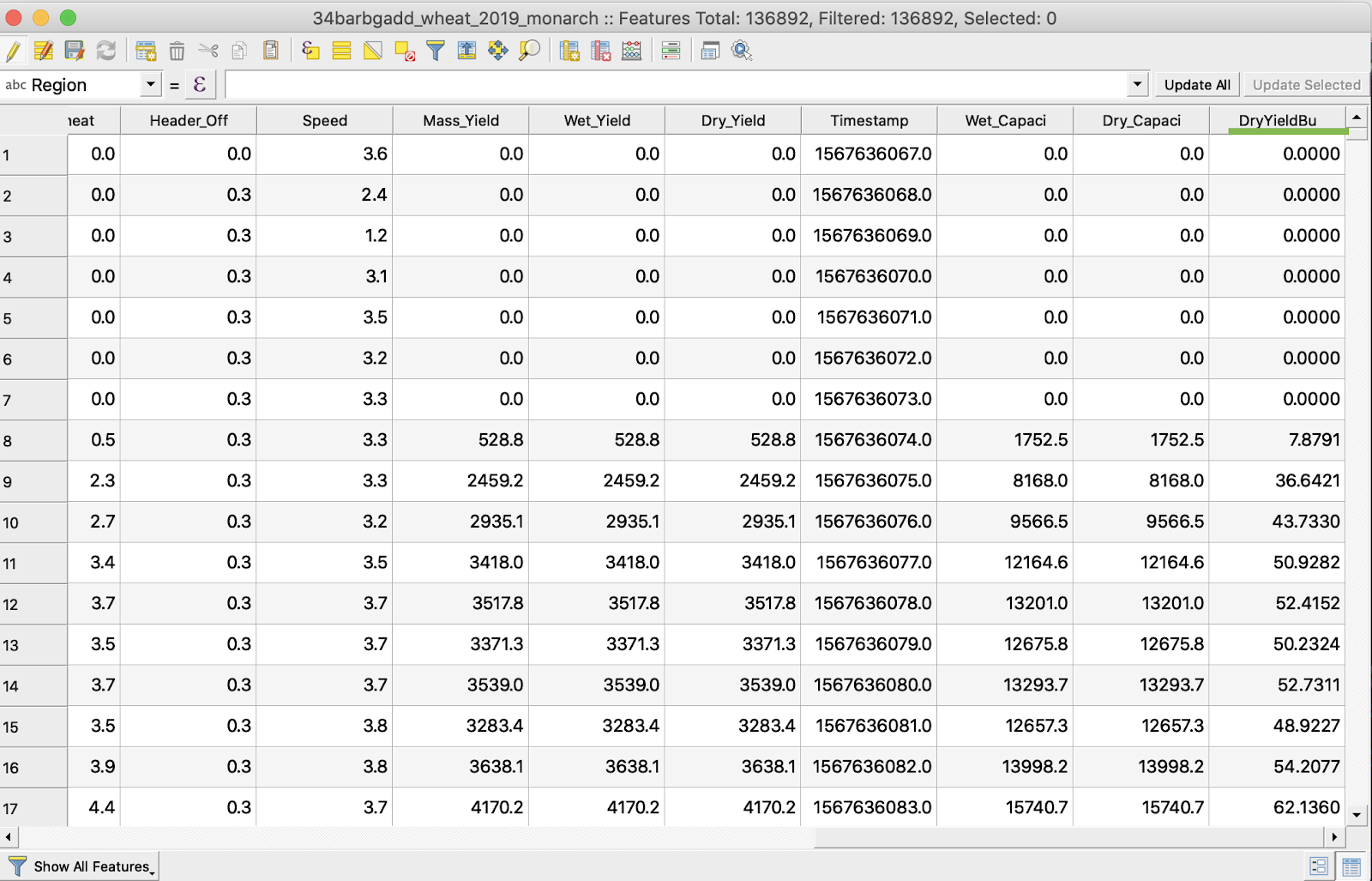
6. Gem ændringerne
7. 1. Højreklik på den relevante shapefile
2. Vælg Slå redigering til/fra
\
\
\
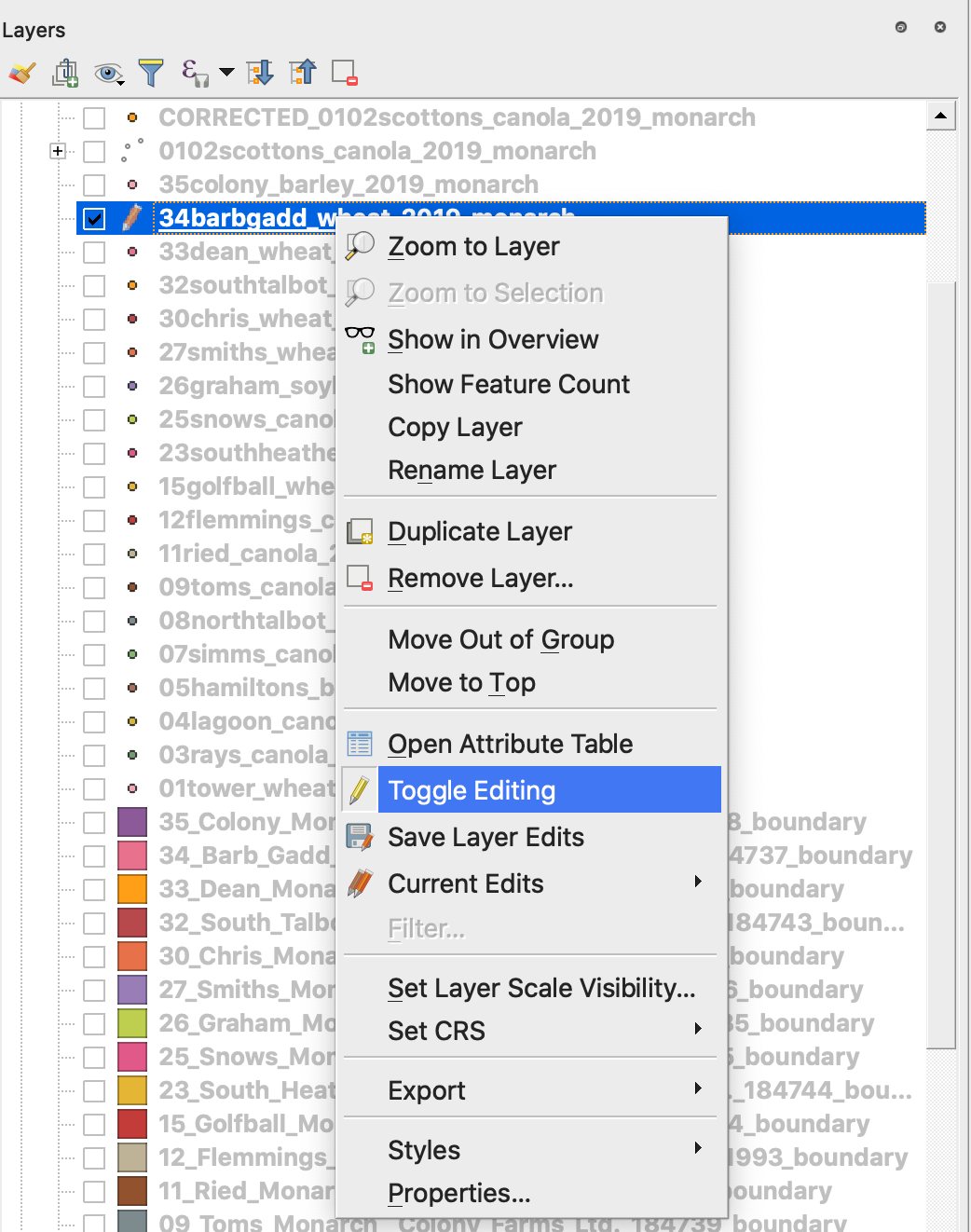
7. Bekræft, at ændringerne skal gemmes
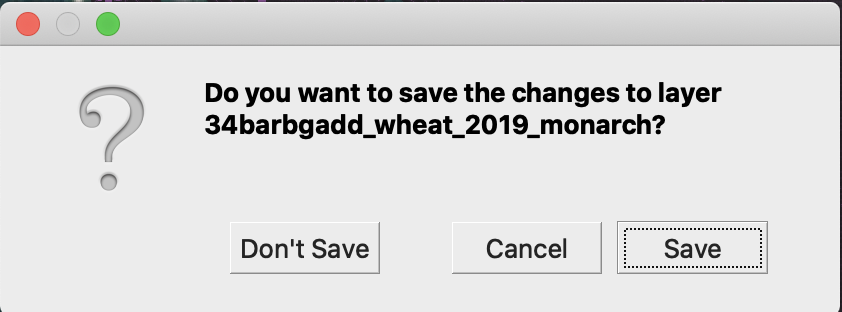
Den relevante shapefile er ikke længere markeret med en blyant. Dataene i shapefilen blev opdateret.
---
# Agent Instructions
This documentation is published with GitBook. GitBook is the documentation platform designed so that both humans and AI agents can read, navigate, and reason over technical content effectively. Learn more at gitbook.com.
## Querying This Documentation
If you need additional information that is not directly available in this page, you can query the documentation by asking a question.
Perform an HTTP GET request on the following URL with the `ask` and `goal` query parameters:
```
GET https://docs.geopard.tech/geopard-tutorials/dnk/korte-gis-tips/qgis-udbyttedatamanipulation.md?ask=&goal=
```
`ask` is the immediate question: it should be specific, self-contained, and written in natural language.
`goal` is what the user is ultimately trying to achieve, the reason they need the answer. Sharing it helps GitBook give you a better, more relevant answer. A goal is most helpful when it describes the outcome the user wants rather than restating the question. For example, with `ask=how do I create an API token`, a goal like `automate deployments from our CI pipeline` lets GitBook tailor the answer to that use case.
The response will contain a direct answer to the question and relevant excerpts and sources from the documentation.
Use this mechanism when the answer is not explicitly present in the current page, you need clarification or additional context, or you want to retrieve related documentation sections.