> For the complete documentation index, see [llms.txt](https://docs.geopard.tech/geopard-tutorials/llms.txt). Markdown versions of documentation pages are available by appending `.md` to page URLs; this page is available as [Markdown](https://docs.geopard.tech/geopard-tutorials/dnk/korte-gis-tips/qgis-opdel-shapefiler-med-flere-marker.md).
# QGIS: Opdel shapefiler med flere marker
Opdel en shapefile med flere marker i separate shapefiler med markgrænser i QGIS til GeoPard-import.
Hvis én shapefile indeholder flere markpolygoner, så split den før import. GeoPard importerer én markgrænse pr. shapefile. Denne QGIS-workflow hjælper dig med at forberede rene filer hurtigere og undgå importproblemer.
### Før du går i gang
* Sørg for, at laget har et unikt marknavn eller ID.
* Opret en tom output-mappe på forhånd.
* Fjern `/`, `\`, og lignende specialtegn fra marknavne.
### Split en shapefile med flere marker i QGIS
#### 1. Åbn shapefilen i QGIS
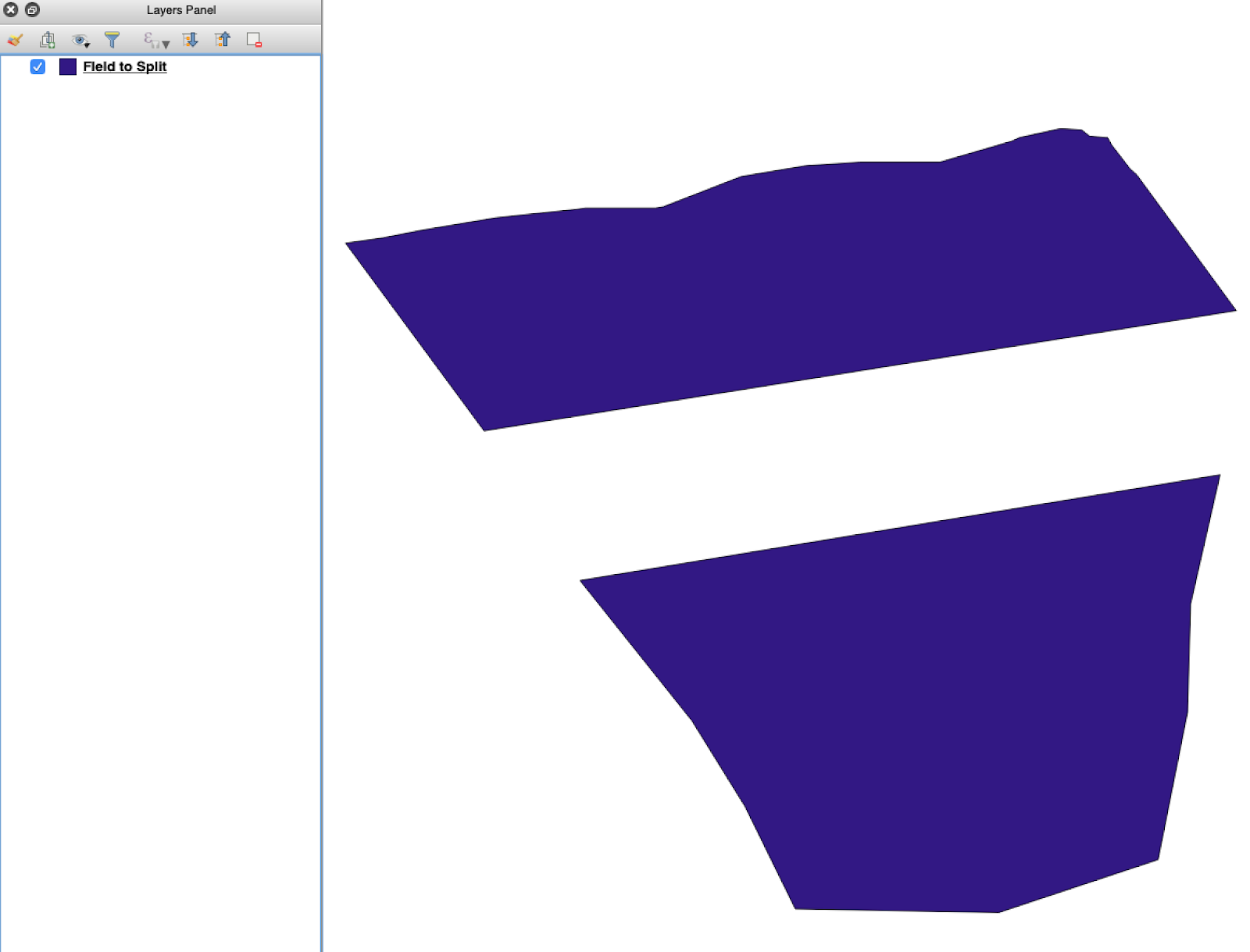
Åbn kildeshapefilen i QGIS. Bekræft, at den indeholder flere markpolygoner.
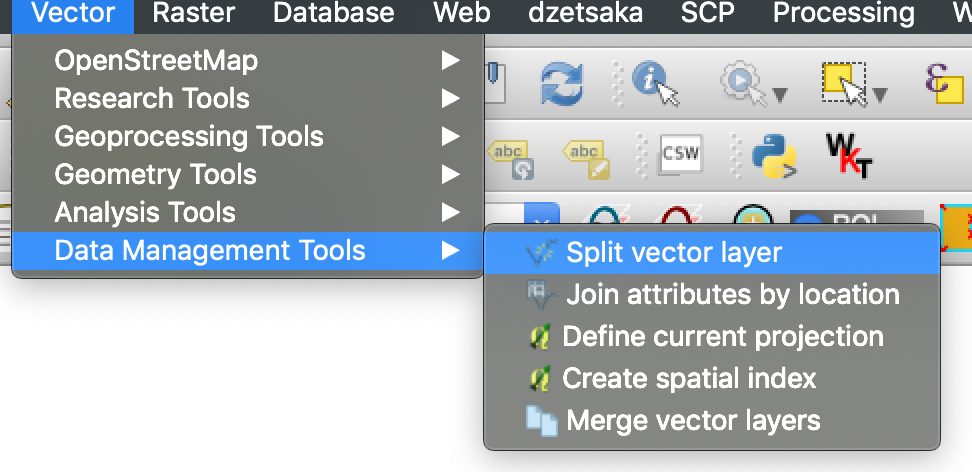
#### 3. Vælg laget, attributten og output-mappen
Angiv:
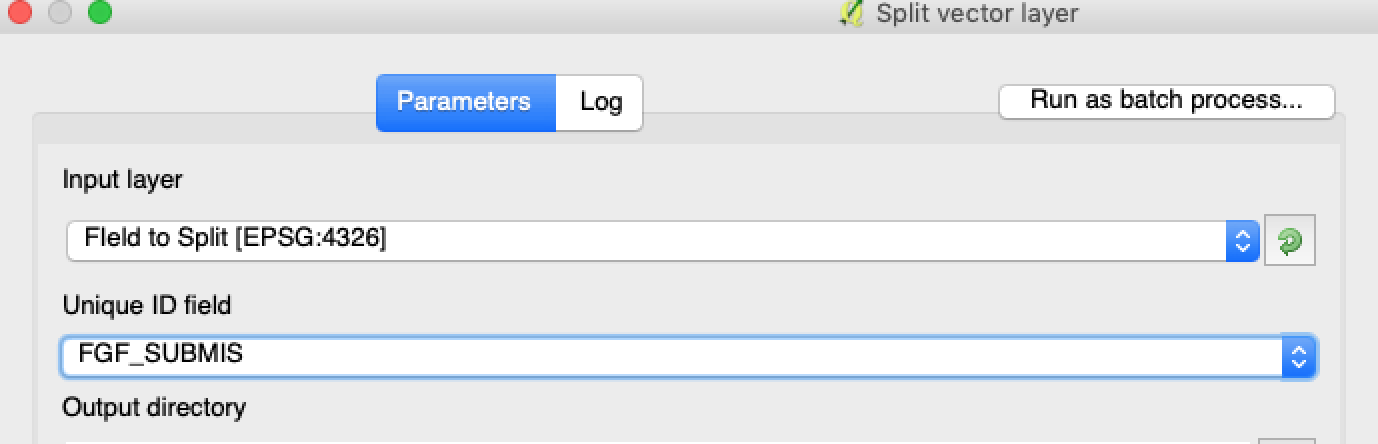
1. Laget, der skal splittes.
2. En unik attribut for hvert markfelt.
3. Outputmappen.
Vælg kildelaget og split-attributten.
#### 4. Angiv outputformatet
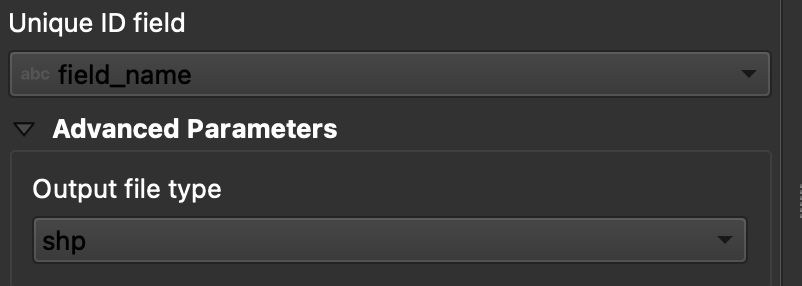
Vælg **ESRI Shapefile** som outputformat.
Angiv outputmappen og shapefile-formatet.
#### 5. Kør split
Klik på **Kør**. QGIS opretter én fil pr. polygon. Hvert polygon bliver til en separat shapefile med markgrænse.
#### 6. Konvertér `.gpkg` filer til `.shp` hvis nødvendigt
Nogle QGIS-opsætninger opretter `.gpkg` filer først. Hvis det sker, så åbn hver fil og gem den igen som **ESRI Shapefile**.
1. Højreklik på laget.
2. Vælg **Eksport** → **Gem objekter som**.
3. Vælg **ESRI Shapefile**.
4. Angiv filnavn og placering.
5. Fjern unødvendige attributter, hvis det er nødvendigt.
### Resultat
Du har nu én shapefile pr. mark. Hver fil er klar til upload af markgrænser i GeoPard. Det sparer opsætningstid og reducerer unødigt importarbejde.
### Relaterede QGIS-guides
* [QGIS: Konvertér CSV til SHP](/geopard-tutorials/dnk/korte-gis-tips/qgis-konverter-csv-til-shp.md)
* [QGIS: Reprojicer shapefile](/geopard-tutorials/dnk/korte-gis-tips/qgis-reprojicer-shapefile.md)
---
# Agent Instructions
This documentation is published with GitBook. GitBook is the documentation platform designed so that both humans and AI agents can read, navigate, and reason over technical content effectively. Learn more at gitbook.com.
## Querying This Documentation
If you need additional information that is not directly available in this page, you can query the documentation by asking a question.
Perform an HTTP GET request on the following URL with the `ask` and `goal` query parameters:
```
GET https://docs.geopard.tech/geopard-tutorials/dnk/korte-gis-tips/qgis-opdel-shapefiler-med-flere-marker.md?ask=&goal=
```
`ask` is the immediate question: it should be specific, self-contained, and written in natural language.
`goal` is what the user is ultimately trying to achieve, the reason they need the answer. Sharing it helps GitBook give you a better, more relevant answer. A goal is most helpful when it describes the outcome the user wants rather than restating the question. For example, with `ask=how do I create an API token`, a goal like `automate deployments from our CI pipeline` lets GitBook tailor the answer to that use case.
The response will contain a direct answer to the question and relevant excerpts and sources from the documentation.
Use this mechanism when the answer is not explicitly present in the current page, you need clarification or additional context, or you want to retrieve related documentation sections.