> For the complete documentation index, see [llms.txt](https://docs.geopard.tech/geopard-tutorials/llms.txt). Markdown versions of documentation pages are available by appending `.md` to page URLs; this page is available as [Markdown](https://docs.geopard.tech/geopard-tutorials/de/produkt-tour-web-app/zonenkarten-und-analysen/eine-zonenkarte-anhand-einer-vorlage-erstellen.md).
# Eine Zonenkarte anhand einer Vorlage erstellen
Eine gespeicherte Zonenvorlage wiederverwenden, um die Erstellung von Managementzonen über mehrere Schläge hinweg zu standardisieren.
Die Verwendung einer Zonenkarten-Vorlage ist sinnvoll, wenn Sie aus den Daten und Einstellungen einer vorhandenen Zonenkarte eine neue Karte erstellen und anschließend neue Daten hinzufügen möchten. Beispielsweise verfügen Sie möglicherweise über eine dreijährige satellitengestützte Zonenkarte und möchten ein neues Bild aus dem aktuellen Jahr hinzufügen, während die gleiche Anzahl an Zonen und derselbe Vegetationsindex beibehalten werden.
Der Ablauf ist derselbe wie beim Erstellen einer neuen Zonenkarte, nur dass Sie nun eine bereits vorhandene Zonenkarte als Ausgangspunkt verwenden.
1. Wählen Sie das Feld im Baum aus, klicken Sie auf die **Zonenkarte erstellen** Schaltfläche, wählen Sie **Eine vorhandene Zonenkarte klonen**und klicken Sie dann auf **Weiter**.
2. Wählen Sie im nächsten Schritt die Zonenkarte aus, die Sie als Vorlage verwenden möchten. Klicken Sie **Weiter**.
3. Es werden dieselben Kriterien mit demselben Index angewendet. Sie sehen vorausgewählte Bilder, die in der Vorlagenanalyse verwendet werden. Hier können Sie ein Bild bzw. Bilder auswählen, die Sie hinzufügen oder ersetzen möchten.
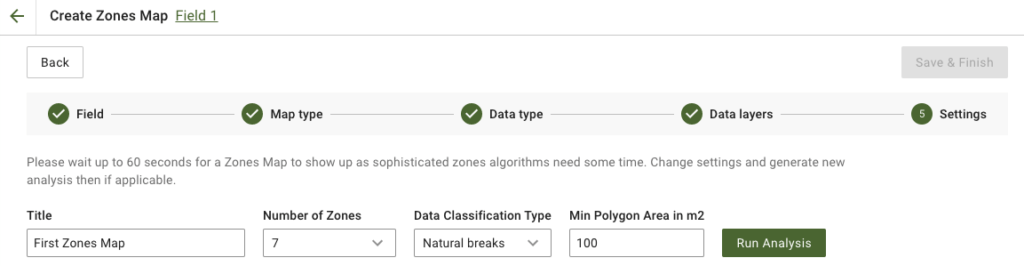
4. Im nächsten Schritt können Sie den Titel bearbeiten, die Anzahl der Zonen ändern, [einen Datenklassifizierungstyp auswählen](/geopard-tutorials/de/produkt-tour-web-app/zonenkarten-und-analysen/datenklassifizierung-verwenden.md)und die minimale Polygonfläche in Quadratmetern festlegen. Klicken Sie auf **Analyse ausführen** um fortzufahren.
Die Analyse kann je nach den von Ihnen angegebenen Parametern bis zu 60 Sekunden dauern.
5. Sobald sie abgeschlossen ist, klicken Sie auf **Speichern & Abschließen**.
Nachdem sie gespeichert wurde, wird die folgende Meldung angezeigt:
Sie können eine weitere Zonenkarte erstellen, Applikationsraten zuweisen oder die soeben erstellte Zonenkarte öffnen.
---
# Agent Instructions
This documentation is published with GitBook. GitBook is the documentation platform designed so that both humans and AI agents can read, navigate, and reason over technical content effectively. Learn more at gitbook.com.
## Querying This Documentation
If you need additional information that is not directly available in this page, you can query the documentation by asking a question.
Perform an HTTP GET request on the following URL with the `ask` and `goal` query parameters:
```
GET https://docs.geopard.tech/geopard-tutorials/de/produkt-tour-web-app/zonenkarten-und-analysen/eine-zonenkarte-anhand-einer-vorlage-erstellen.md?ask=&goal=
```
`ask` is the immediate question: it should be specific, self-contained, and written in natural language.
`goal` is what the user is ultimately trying to achieve, the reason they need the answer. Sharing it helps GitBook give you a better, more relevant answer. A goal is most helpful when it describes the outcome the user wants rather than restating the question. For example, with `ask=how do I create an API token`, a goal like `automate deployments from our CI pipeline` lets GitBook tailor the answer to that use case.
The response will contain a direct answer to the question and relevant excerpts and sources from the documentation.
Use this mechanism when the answer is not explicitly present in the current page, you need clarification or additional context, or you want to retrieve related documentation sections.