> For the complete documentation index, see [llms.txt](https://docs.geopard.tech/geopard-tutorials/llms.txt). Markdown versions of documentation pages are available by appending `.md` to page URLs; this page is available as [Markdown](https://docs.geopard.tech/geopard-tutorials/de/produkt-tour-web-app/daten-der-prazisionslandwirtschaft-importieren/herstellerspezifische-maschinenformate.md).
# Herstellerspezifische Maschinenformate
Unterstützte Maschinen-Dateiformate für den Import von Feldarbeiten und agronomischen Datensätzen ansehen.
Um Dateien in proprietären Maschinenformaten hochzuladen, wählen Sie die **Daten importieren** Menü und den **Dateien hochladen** Eintrag. Wählen Sie dann **Maschinenformate**.
Beachten Sie, dass es einige Einschränkungen gibt:
* GeoPard unterstützt proprietäre Maschinenformate von John Deere, CNH, Climate, Precision Planting und IsoXML.
* Zu den unterstützten Formaten gehören: \*.adm, \*.jdl, \*.fdd, \*.fld, \*.fmd, \*.dat, \*.2020, \*.cn1, \*.xml, \*.bin usw.
[Lesen Sie mehr über die Datenkompatibilität von GeoPard Import & Export.](https://geopard.tech/data-compatibility/)
* Maximale Größe - 100 MB.
* GeoPard parst das Archiv automatisch in die dedizierten Operation-Datensätze und verknüpft sie mit den zugehörigen Feldgrenzen.
Proprietäre Maschinendateien hochladen
1. Wählen Sie den Betrieb aus, in den Sie Daten hochladen möchten. Klicken Sie auf **Ausgebracht/Ausgesät** Tab.
2. Sie können einzelne oder mehrere Applikationsdatensätze per Drag-and-drop in das Panel ziehen oder auf **Durchsuchen** Schaltfläche klicken und einen Datensatz von Ihrem Computer auswählen.
3. Klicken Sie auf **Hochladen** die Schaltfläche klicken. Anschließend prüft die Anwendung, ob die Datei die Anforderungen erfüllt, und speichert die Daten.
Warten Sie auf den Bestätigungsdialog, um zu sehen, dass der Datensatz erfolgreich hochgeladen wurde:
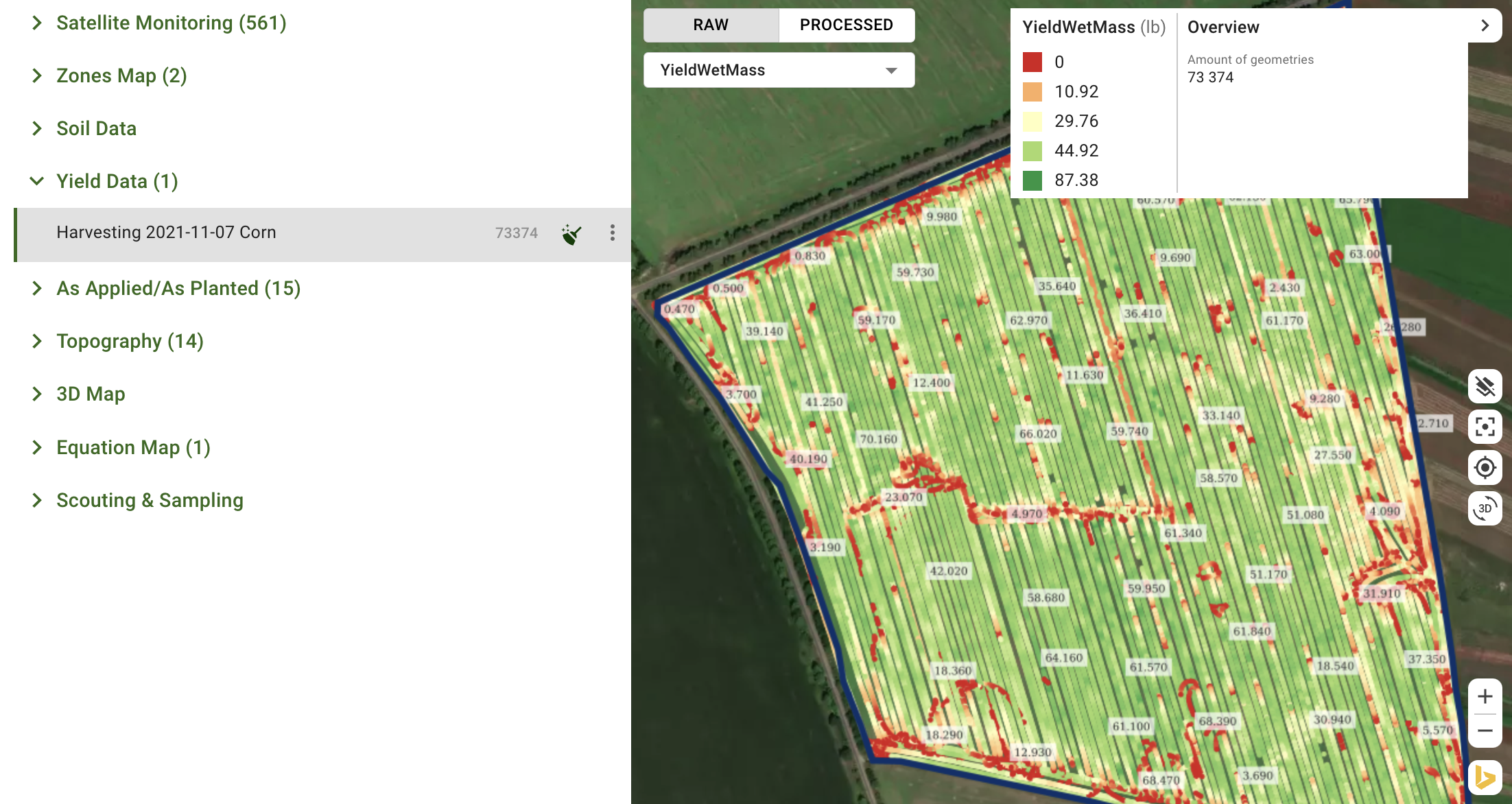
Die geparsten Datensätze sind im Baum in den zugehörigen Bereichen für weitere Interaktionen verfügbar.
Ertragsdatensatz, geparst aus dem DAT-Format
---
# Agent Instructions
This documentation is published with GitBook. GitBook is the documentation platform designed so that both humans and AI agents can read, navigate, and reason over technical content effectively. Learn more at gitbook.com.
## Querying This Documentation
If you need additional information that is not directly available in this page, you can query the documentation by asking a question.
Perform an HTTP GET request on the following URL with the `ask` and `goal` query parameters:
```
GET https://docs.geopard.tech/geopard-tutorials/de/produkt-tour-web-app/daten-der-prazisionslandwirtschaft-importieren/herstellerspezifische-maschinenformate.md?ask=&goal=
```
`ask` is the immediate question: it should be specific, self-contained, and written in natural language.
`goal` is what the user is ultimately trying to achieve, the reason they need the answer. Sharing it helps GitBook give you a better, more relevant answer. A goal is most helpful when it describes the outcome the user wants rather than restating the question. For example, with `ask=how do I create an API token`, a goal like `automate deployments from our CI pipeline` lets GitBook tailor the answer to that use case.
The response will contain a direct answer to the question and relevant excerpts and sources from the documentation.
Use this mechanism when the answer is not explicitly present in the current page, you need clarification or additional context, or you want to retrieve related documentation sections.