> For the complete documentation index, see [llms.txt](https://docs.geopard.tech/geopard-tutorials/llms.txt). Markdown versions of documentation pages are available by appending `.md` to page URLs; this page is available as [Markdown](https://docs.geopard.tech/geopard-tutorials/de/gis-kurzhinweise/qgis-ertragsdaten-manipulationen.md).
# QGIS: Ertragsdaten-Manipulationen
Ertragsdaten in QGIS vorbereiten und bereinigen, bevor Sie sie in GeoPard importieren oder analysieren.
ÜBERBLICK
Handbuch mit Schritt-für-Schritt-Beschreibung zur Behebung der folgenden Probleme mit Daten aus dem Ertragsmonitor:
1. Fehlende Projektionsdatei (.prj) im Shapefile
2. Umrechnungsregeln für jedes Attribut im Shapefile anwenden (basierend auf dem Beispiel von kg/ha zu bu/ac)
Die zu verwendende Software ist QGIS ([LINK](https://qgis.org/en/site/forusers/download.html)).
Download und Installation sind erforderlich.
### FEHLENDE PROJEKTIONSDATEI
1. Shapefile mit Ertragsdaten öffnen. Die Datei in das QGIS-Fenster ziehen.
2. Das Shapefile steht im Layer-Bereich für weitere Bearbeitungen zur Verfügung.
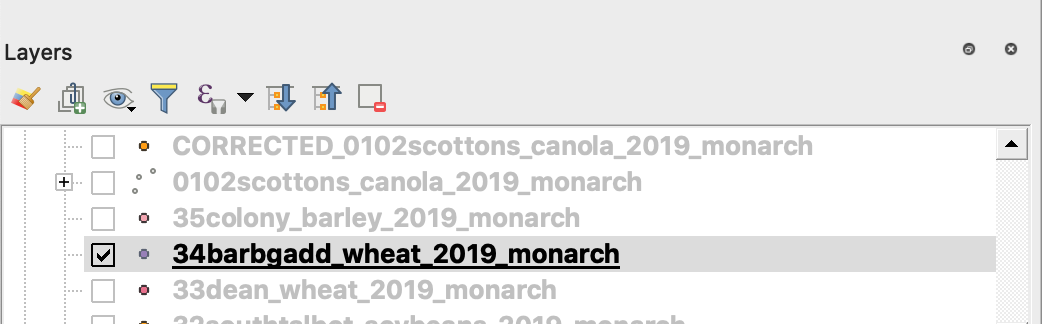
3. Speichervorgang starten
4. 1. Mit der rechten Maustaste auf das Shapefile klicken
2. Exportieren -> Objekt speichern als ... auswählen
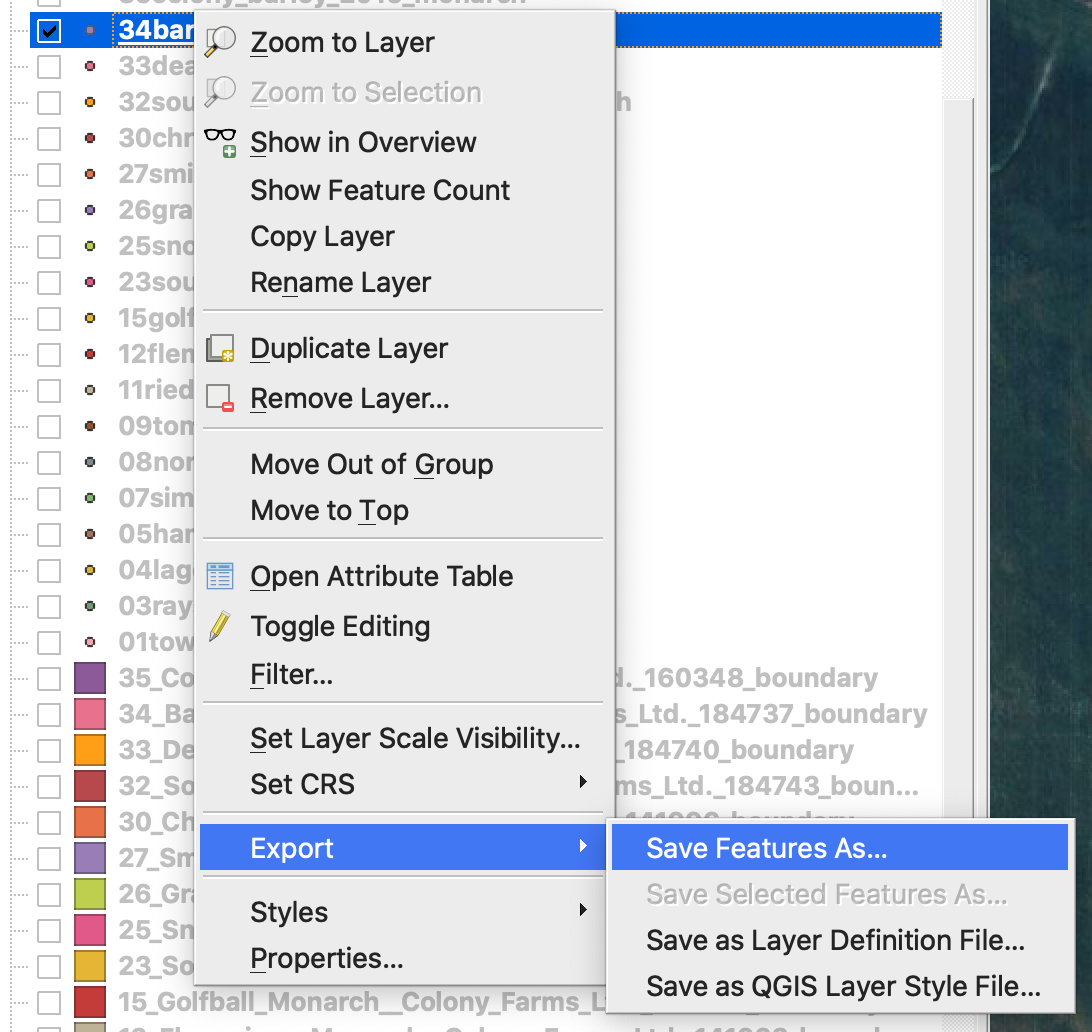
4. Auswählen
5. 1. Format -> ESRI Shapefile,
2. Dateiname -> auf … klicken und das gewünschte Verzeichnis sowie den Dateinamen auswählen,
3. KBS -> EPSG:4326
4. Kodierung -> UTF8
5. Gespeicherte Datei zur Karte hinzufügen (optional, wenn sie direkt in QGIS angezeigt werden soll)
6. Geometrietyp -> Punkt
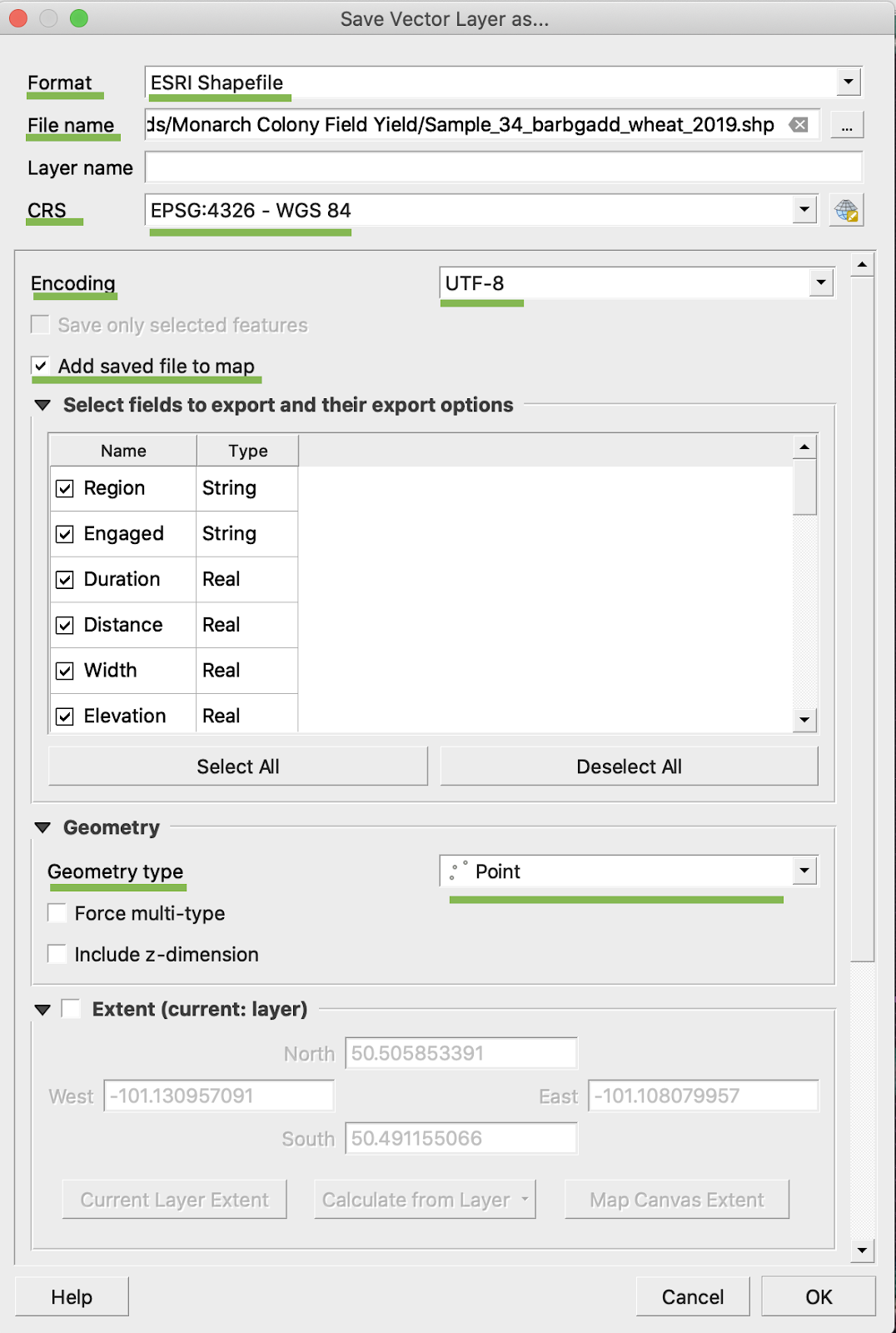
5. OK klicken
6. Ein zusätzliches Shapefile mit denselben Ertragsdaten wird erstellt. Die Projektionsdatei (.prj) wurde hinzugefügt.
\
### BU/AC-UMRECHNUNG
1. Mit der rechten Maustaste auf das Shapefile klicken und Attributtabelle öffnen auswählen
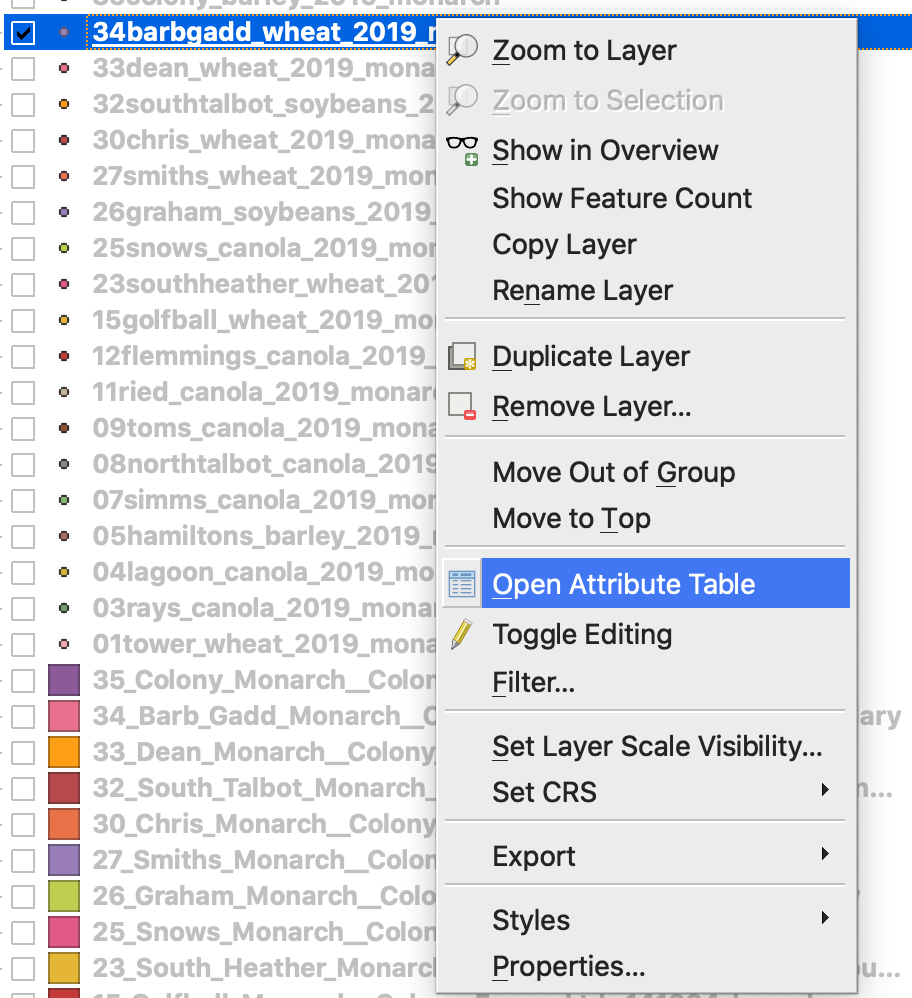
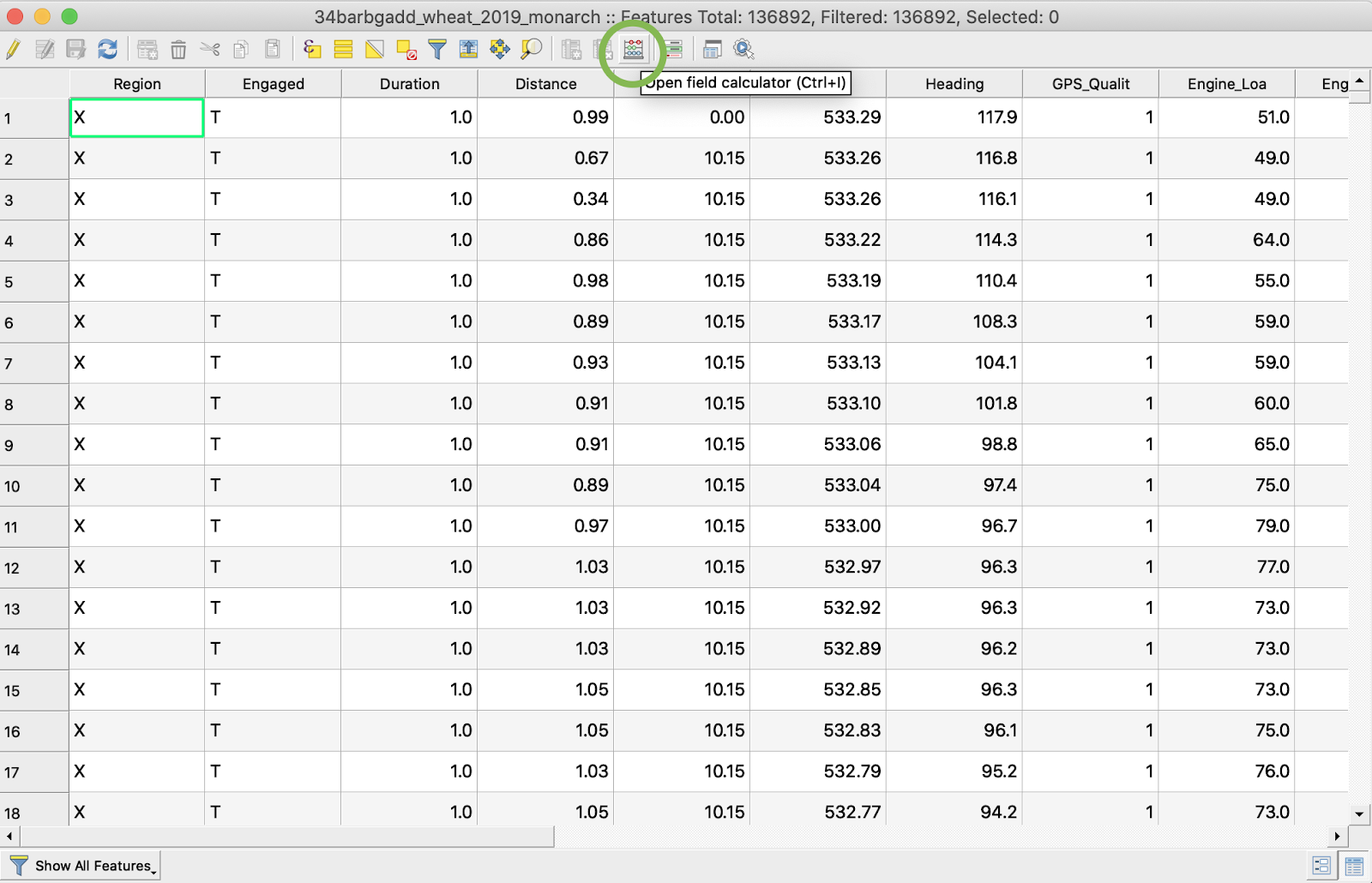
2. Auf Feldrechner öffnen klicken
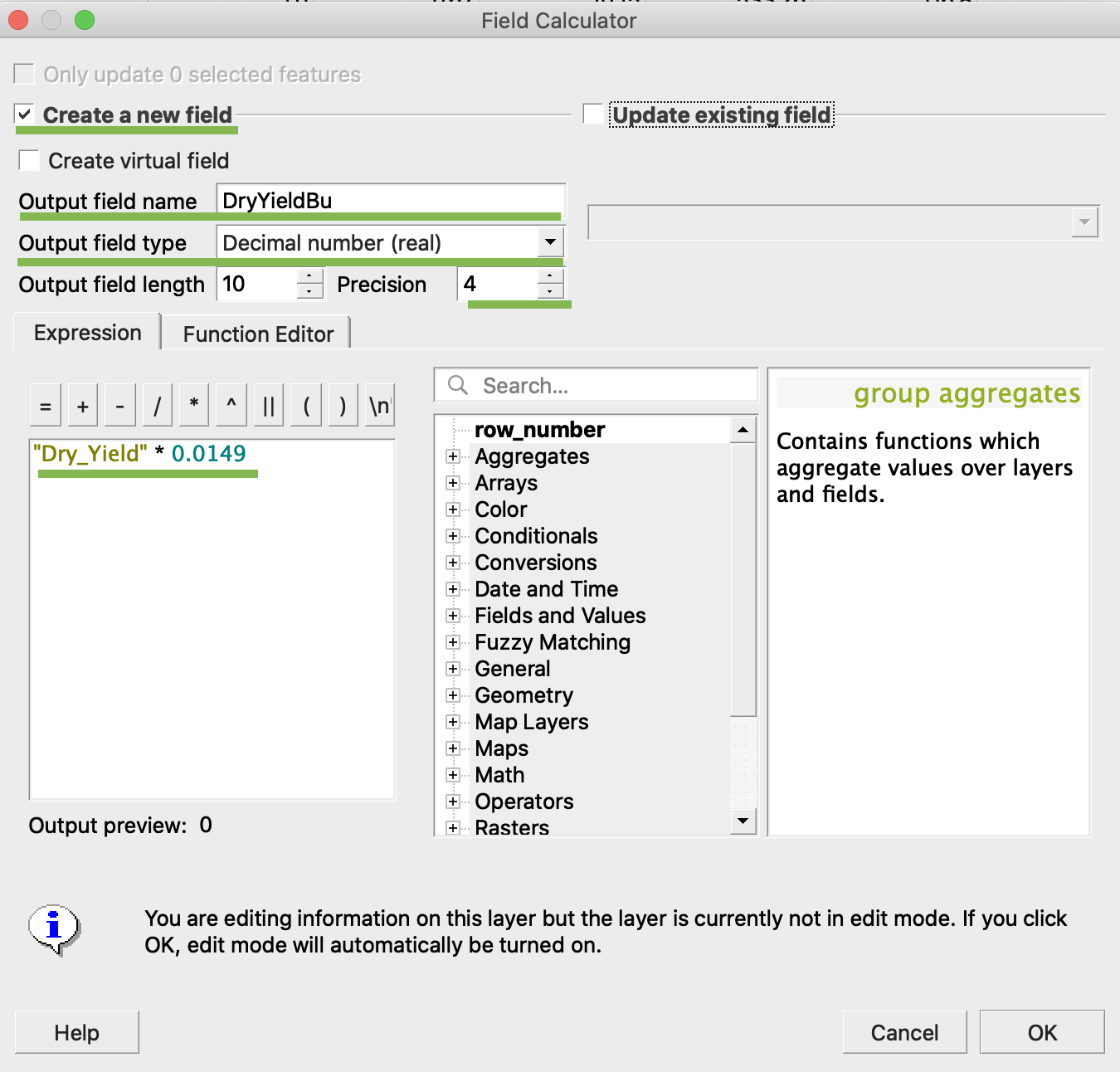
3. Neues Feld erstellen
4. 1. Neues Feld erstellen markieren
2. Ausgabefeldname eingeben -> DryYieldBu
3. Ausgabefeldtyp auswählen -> Dezimalzahl (reell)
4. Genauigkeit ändern -> 4
5. Regel zur Umrechnung von kg/ha in bu/ac eingeben -> "Dry\_Yield" \* 0.0149
4. OK klicken
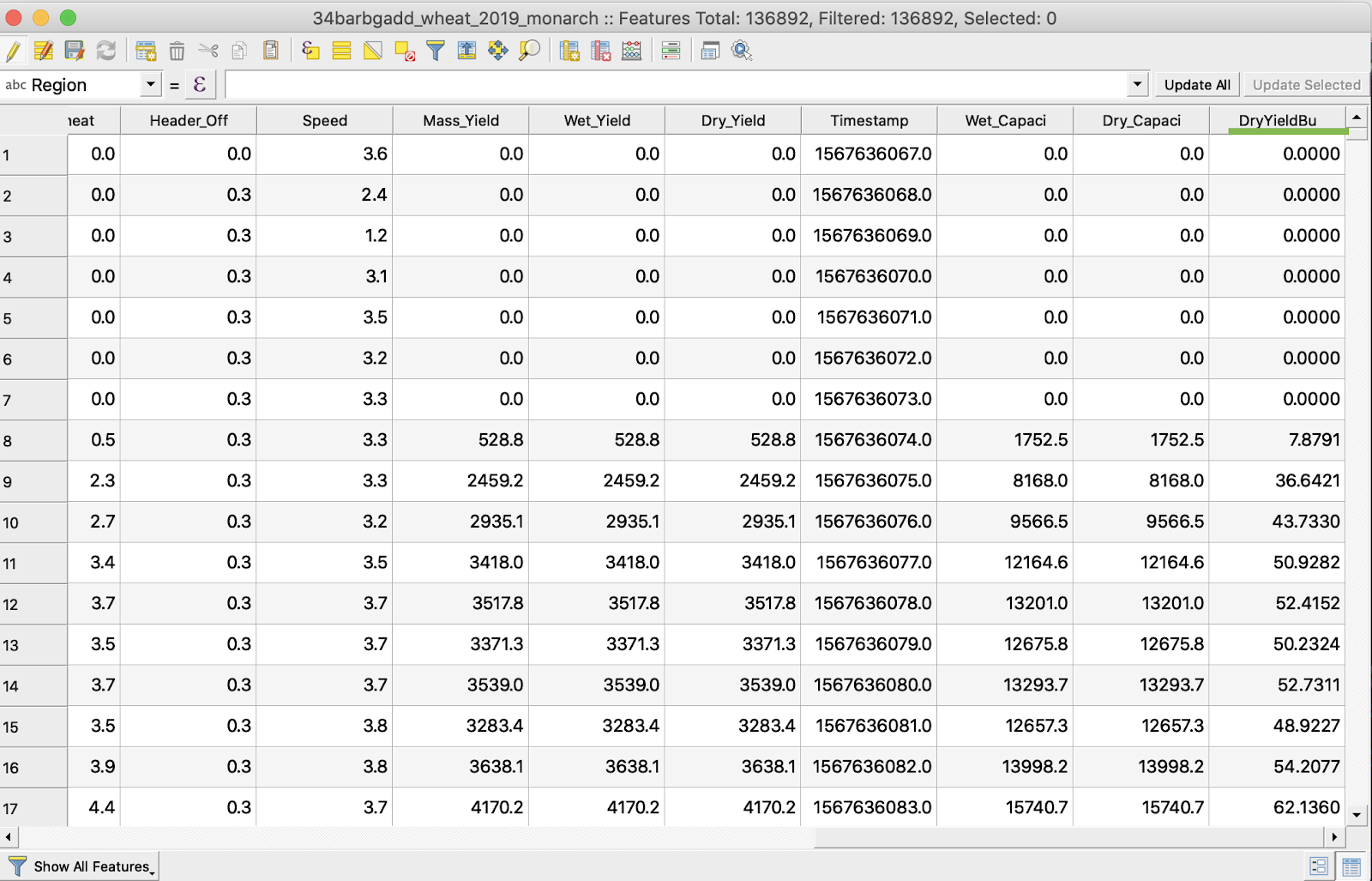
5. Das zusätzliche Attribut DryYieldBu ist in der Tabelle erschienen
6. Änderungen speichern
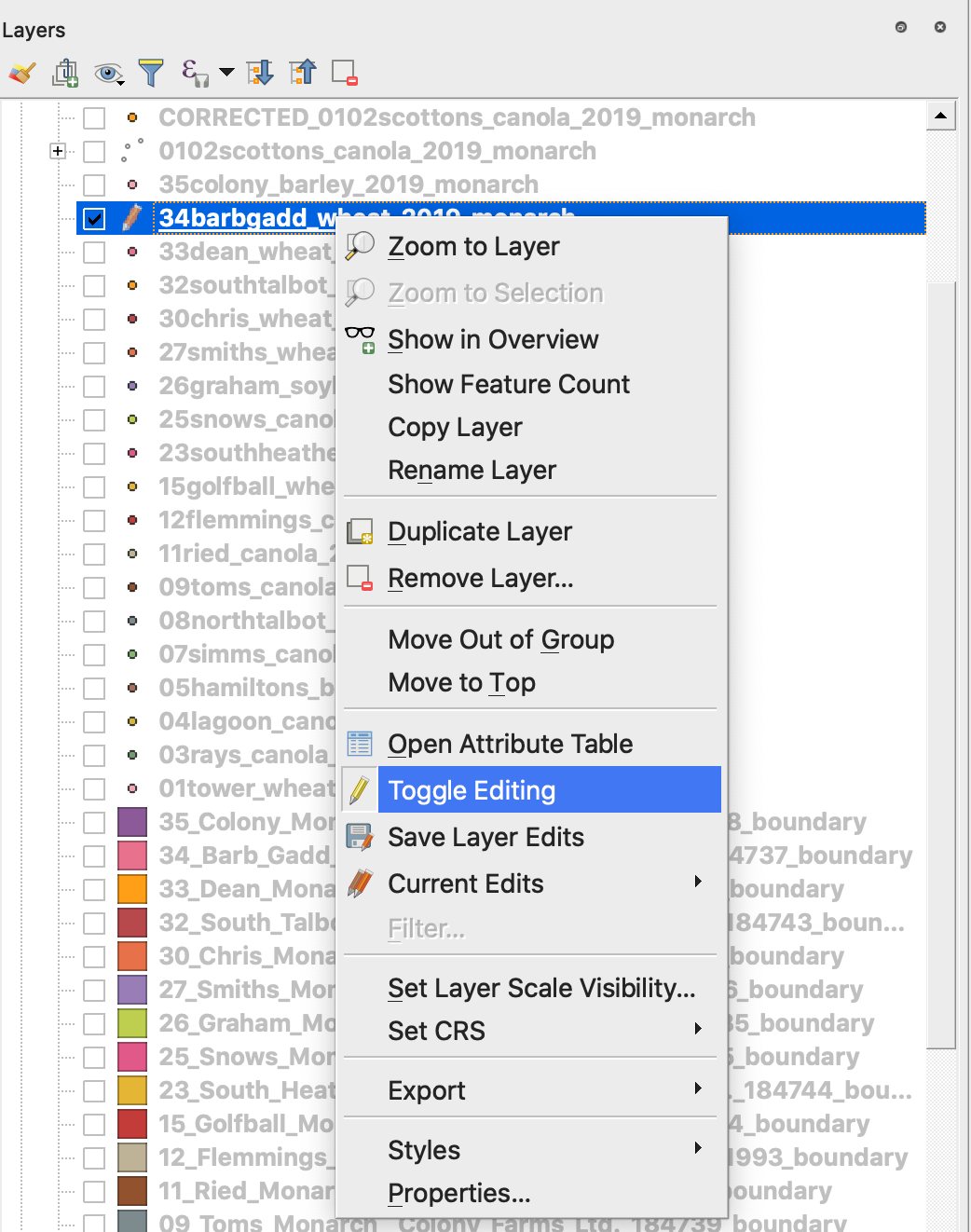
7. 1. Mit der rechten Maustaste auf das betreffende Shapefile klicken
2. Bearbeitung umschalten auswählen
\
\
\
7. Speichern der Änderungen bestätigen
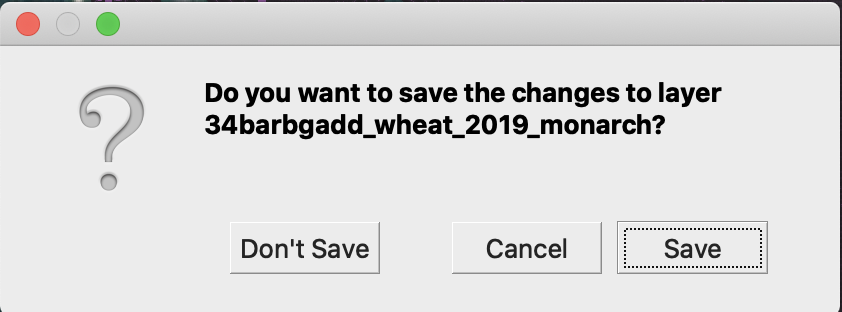
Das betreffende Shapefile ist nicht mehr mit einem Bleistift markiert. Die Daten im Shapefile wurden aktualisiert.
---
# Agent Instructions
This documentation is published with GitBook. GitBook is the documentation platform designed so that both humans and AI agents can read, navigate, and reason over technical content effectively. Learn more at gitbook.com.
## Querying This Documentation
If you need additional information that is not directly available in this page, you can query the documentation by asking a question.
Perform an HTTP GET request on the following URL with the `ask` and `goal` query parameters:
```
GET https://docs.geopard.tech/geopard-tutorials/de/gis-kurzhinweise/qgis-ertragsdaten-manipulationen.md?ask=&goal=
```
`ask` is the immediate question: it should be specific, self-contained, and written in natural language.
`goal` is what the user is ultimately trying to achieve, the reason they need the answer. Sharing it helps GitBook give you a better, more relevant answer. A goal is most helpful when it describes the outcome the user wants rather than restating the question. For example, with `ask=how do I create an API token`, a goal like `automate deployments from our CI pipeline` lets GitBook tailor the answer to that use case.
The response will contain a direct answer to the question and relevant excerpts and sources from the documentation.
Use this mechanism when the answer is not explicitly present in the current page, you need clarification or additional context, or you want to retrieve related documentation sections.