> For the complete documentation index, see [llms.txt](https://docs.geopard.tech/geopard-tutorials/llms.txt). Markdown versions of documentation pages are available by appending `.md` to page URLs; this page is available as [Markdown](https://docs.geopard.tech/geopard-tutorials/cze/rychle-gis-tipy/qgis-vypocet-ndvi-pro-dronovy-geotiff-soubor.md).
# QGIS: Výpočet NDVI pro dronový GeoTIFF soubor
Někdy je potřeba spočítat průměrné NDVI pro nějaký polygon uvnitř pole. V programu QGIS můžete postupovat takto.
#### 1 - Zobrazte vstupní geotiff s NDVI z dronu
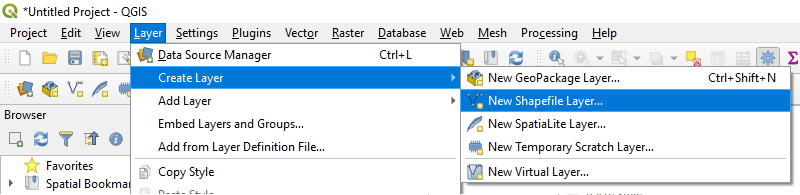
#### 2 - Vytvořte novou vrstvu
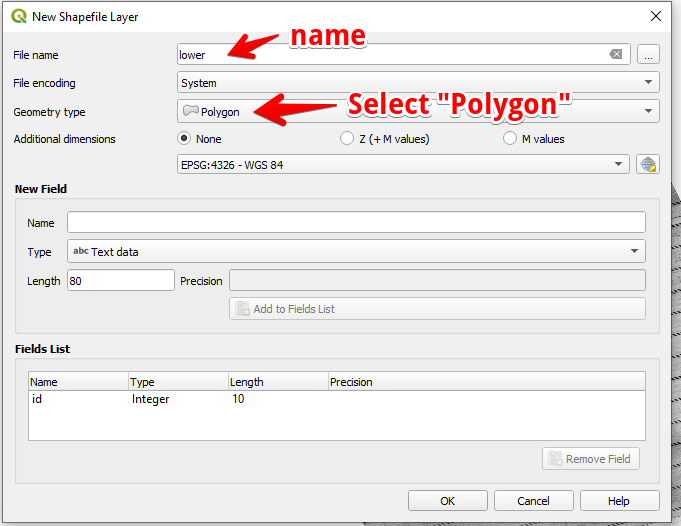
#### 3 - Nastavte název vrstvy a typ geometrie a stiskněte OK
#### 4 - Vyberte vrstvu v panelu Vrstvy
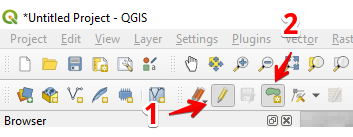
1. Vyberte „Přepnout úpravy“ (1)
2. Vyberte „Přidat polygonový prvek“ (2)
#### 5 - Nakreslete polygon. K dokončení kreslení stiskněte pravé tlačítko myši a v okně nastavte „id“.
Dokončete vrstvu opětovným stisknutím „Přepnout úpravy“ a potom stiskněte „Uložit“.
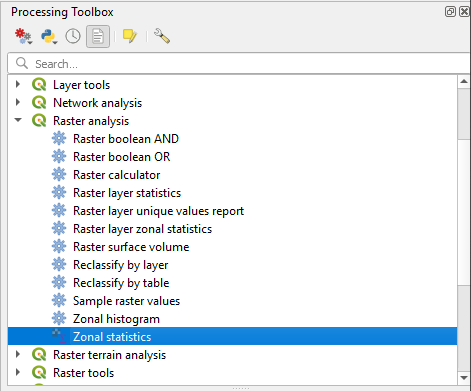
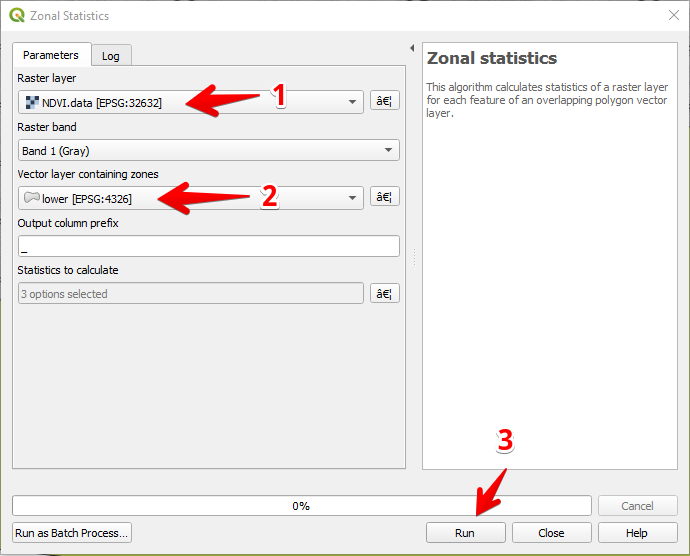
#### 6 - V panelu „Nástrojová sada zpracování“ vyberte Zónovou statistiku.
#### 7 - Vyberte rastrovou vrstvu (1),
Vyberte polygonovou vrstvu (2),
Stiskněte „Spustit“ (3).
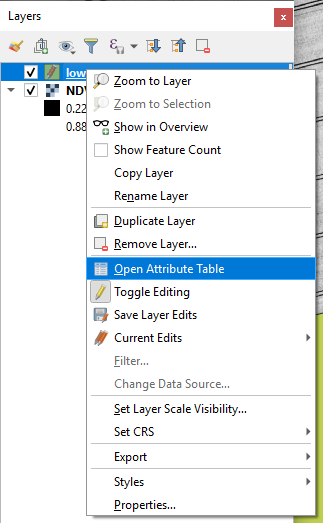
#### 8 - Vyberte vrstvu v panelu Vrstvy a stiskněte pravé tlačítko myši, v kontextové nabídce vyberte Otevřít atributovou tabulku.
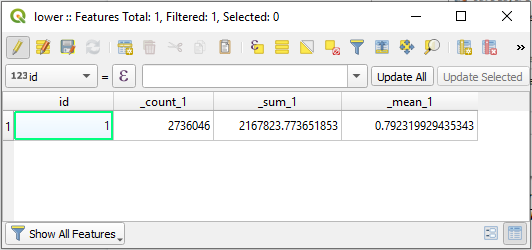
#### 9 - Vypočítané statistiky se zobrazí v tabulce.
---
# Agent Instructions
This documentation is published with GitBook. GitBook is the documentation platform designed so that both humans and AI agents can read, navigate, and reason over technical content effectively. Learn more at gitbook.com.
## Querying This Documentation
If you need additional information that is not directly available in this page, you can query the documentation by asking a question.
Perform an HTTP GET request on the following URL with the `ask` and `goal` query parameters:
```
GET https://docs.geopard.tech/geopard-tutorials/cze/rychle-gis-tipy/qgis-vypocet-ndvi-pro-dronovy-geotiff-soubor.md?ask=&goal=
```
`ask` is the immediate question: it should be specific, self-contained, and written in natural language.
`goal` is what the user is ultimately trying to achieve, the reason they need the answer. Sharing it helps GitBook give you a better, more relevant answer. A goal is most helpful when it describes the outcome the user wants rather than restating the question. For example, with `ask=how do I create an API token`, a goal like `automate deployments from our CI pipeline` lets GitBook tailor the answer to that use case.
The response will contain a direct answer to the question and relevant excerpts and sources from the documentation.
Use this mechanism when the answer is not explicitly present in the current page, you need clarification or additional context, or you want to retrieve related documentation sections.