> For the complete documentation index, see [llms.txt](https://docs.geopard.tech/geopard-tutorials/llms.txt). Markdown versions of documentation pages are available by appending `.md` to page URLs; this page is available as [Markdown](https://docs.geopard.tech/geopard-tutorials/cze/prohlidka-produktu-webova-aplikace/john-deere-operations-center-integration/4.-import-into-geopard-from-john-deere-operations-center.md).
# 4. Import do GeoPard z John Deere Operations Center
Importujte do GeoPard hranice, pole a agronomické datové sady z John Deere.
3\. Import do GeoPardu
3.1 Zákazníci GeoPardu mohou importovat data (hranice polí, výnosy, data o výsadbě a aplikaci) z John Deere Operations Center do GeoPardu. Nejprve se musí [přihlásit](https://app.geopard.tech/auth/sign-in) a přejít na kartu **Import from MyJohnDeere** . Po importu se pole v GeoPardu propojí s polem v John Deere a nově vytvořené prvky pole v GeoPardu (mapy zón, mapy topografie a mapy rovnic) se automaticky odešlou do John Deere Operations Center. Viz část 4.14, kde zjistíte, jak ověřit synchronizaci dat z pole v GeoPardu do pole v John Deere.
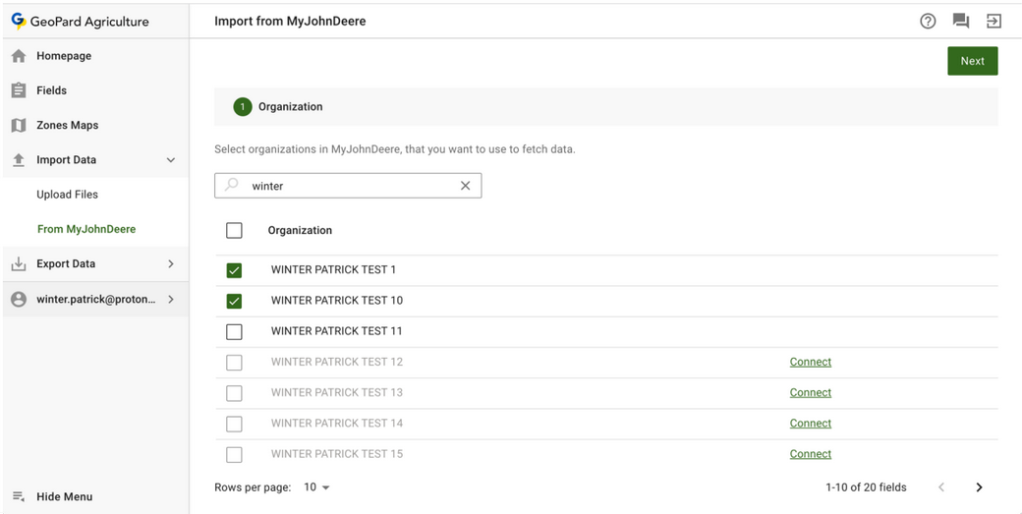
3.2 Uživatel vybere organizaci John Deere, ze které má GeoPard načíst data, a klikne na tlačítko **Další** . Uživatel může organizace vyhledávat podle textu. Pokud je organizace John Deere neaktivní (její **název je zobrazen šedě**), uživatel musí povolit přístup v John Deere Operations Center. Viz část [**2. Propojení profilu GeoPard s organizací John Deere**](https://docs.geopard.tech/geopard-tutorials/cze/prohlidka-produktu-webova-aplikace/john-deere-operations-center-integration/3.-connect-to-john-deere-organizations.md).
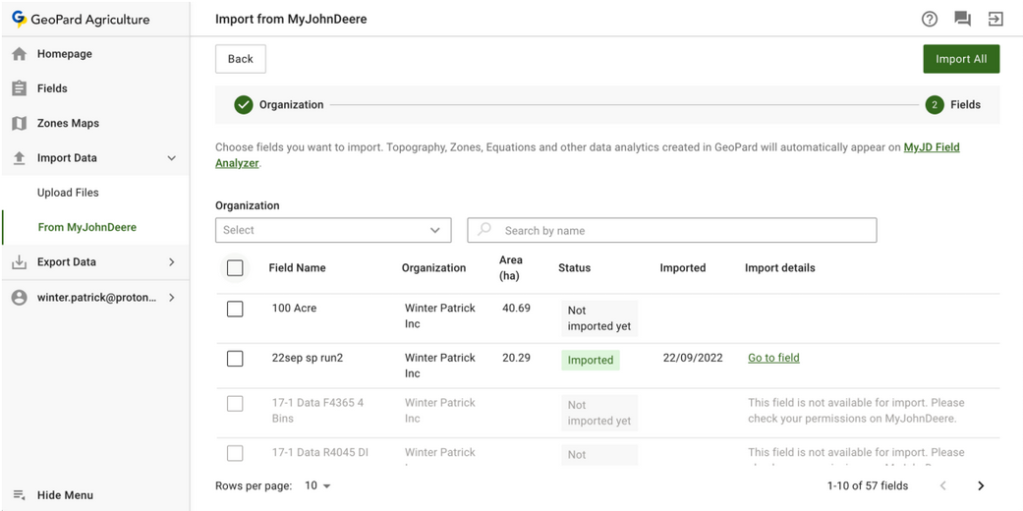
3.3 Chcete-li importovat všechna dostupná data, klikněte na tlačítko **Importovat vše** nebo použijte funkci výběru (část 4.4).
3.4 Chcete-li importovat konkrétní data, nejprve vyberte datové sady. Můžete také filtrovat prvky.
3.5 Po výběru klikněte na tlačítko **Importovat vybrané** .
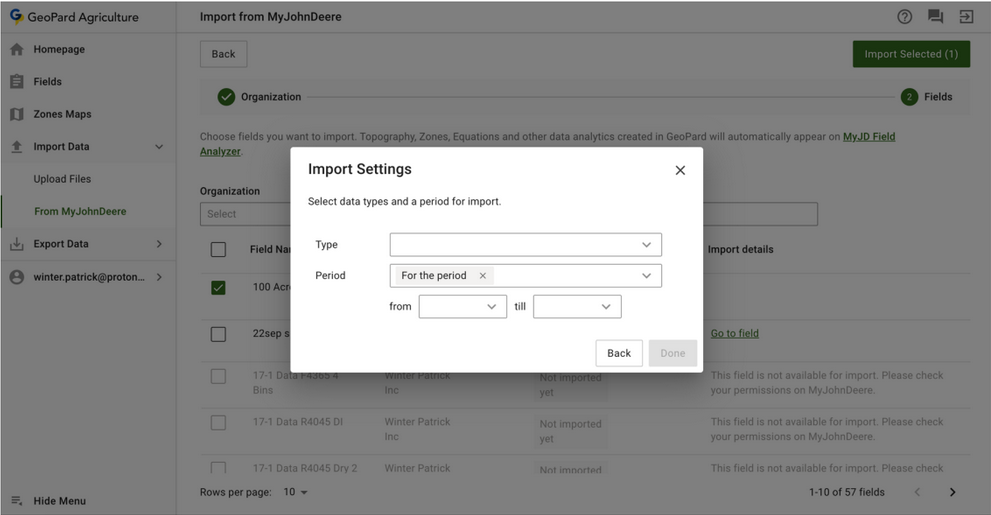
3.6 Vyberte typ importu a klikněte na tlačítko **Další**.
3.7 V rozevíracím seznamu vyberte **období** pro prvky.
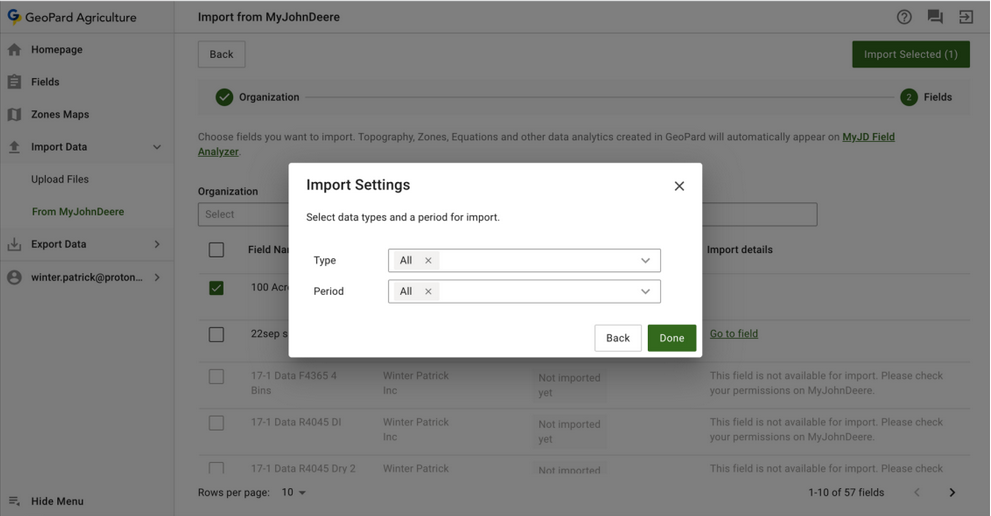
3.8 **V rozevíracím seznamu období** můžete vybrat rozsah období.
3.9 Po výběru **typu** a **období**, kliknutím na tlačítko **Hotovo** spustíte import.
3.10 Import může nějakou dobu trvat v závislosti na množství dat. V aktuální kartě se zobrazí indikátor načítání, případně se v jiné kartě zobrazí **průběh** .
3.11 Po dokončení se zobrazí zpráva s výsledkem operace.
3.12 Po migraci dat přejděte do modulu **Pole** a zobrazte si data, nebo klikněte na odkaz **Přejít na pole** .
3.13 Migrovaná data najdete v modulu **Pole** .
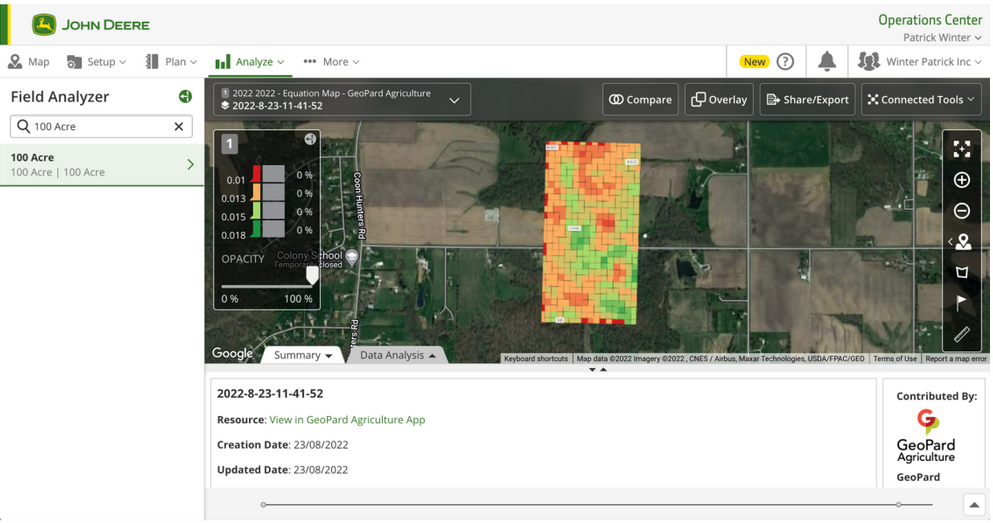
3.14 Zkontrolujte, zda jsou data synchronizována z pole v GeoPardu do pole v John Deere. Propojení s polem v John Deere má pouze importované pole v GeoPardu. Nově vytvořené prvky pole v GeoPardu (mapy zón, mapy topografie a mapy rovnic) se automaticky odešlou do John Deere Operations Center. Chcete-li je zobrazit, přejděte do nástroje Field Analyzer v John Deere Operations Center ([https://field-analyzer.deere.com](https://field-analyzer.deere.com/)).
---
# Agent Instructions
This documentation is published with GitBook. GitBook is the documentation platform designed so that both humans and AI agents can read, navigate, and reason over technical content effectively. Learn more at gitbook.com.
## Querying This Documentation
If you need additional information that is not directly available in this page, you can query the documentation by asking a question.
Perform an HTTP GET request on the following URL with the `ask` and `goal` query parameters:
```
GET https://docs.geopard.tech/geopard-tutorials/cze/prohlidka-produktu-webova-aplikace/john-deere-operations-center-integration/4.-import-into-geopard-from-john-deere-operations-center.md?ask=&goal=
```
`ask` is the immediate question: it should be specific, self-contained, and written in natural language.
`goal` is what the user is ultimately trying to achieve, the reason they need the answer. Sharing it helps GitBook give you a better, more relevant answer. A goal is most helpful when it describes the outcome the user wants rather than restating the question. For example, with `ask=how do I create an API token`, a goal like `automate deployments from our CI pipeline` lets GitBook tailor the answer to that use case.
The response will contain a direct answer to the question and relevant excerpts and sources from the documentation.
Use this mechanism when the answer is not explicitly present in the current page, you need clarification or additional context, or you want to retrieve related documentation sections.