> For the complete documentation index, see [llms.txt](https://docs.geopard.tech/geopard-tutorials/llms.txt). Markdown versions of documentation pages are available by appending `.md` to page URLs; this page is available as [Markdown](https://docs.geopard.tech/geopard-tutorials/cze/prohlidka-produktu-webova-aplikace/integrace-s-john-deere-operations-center/11.-synchronizovat-pole-s-john-deere-operations-center.md).
# 11. Synchronizovat pole s John Deere Operations Center
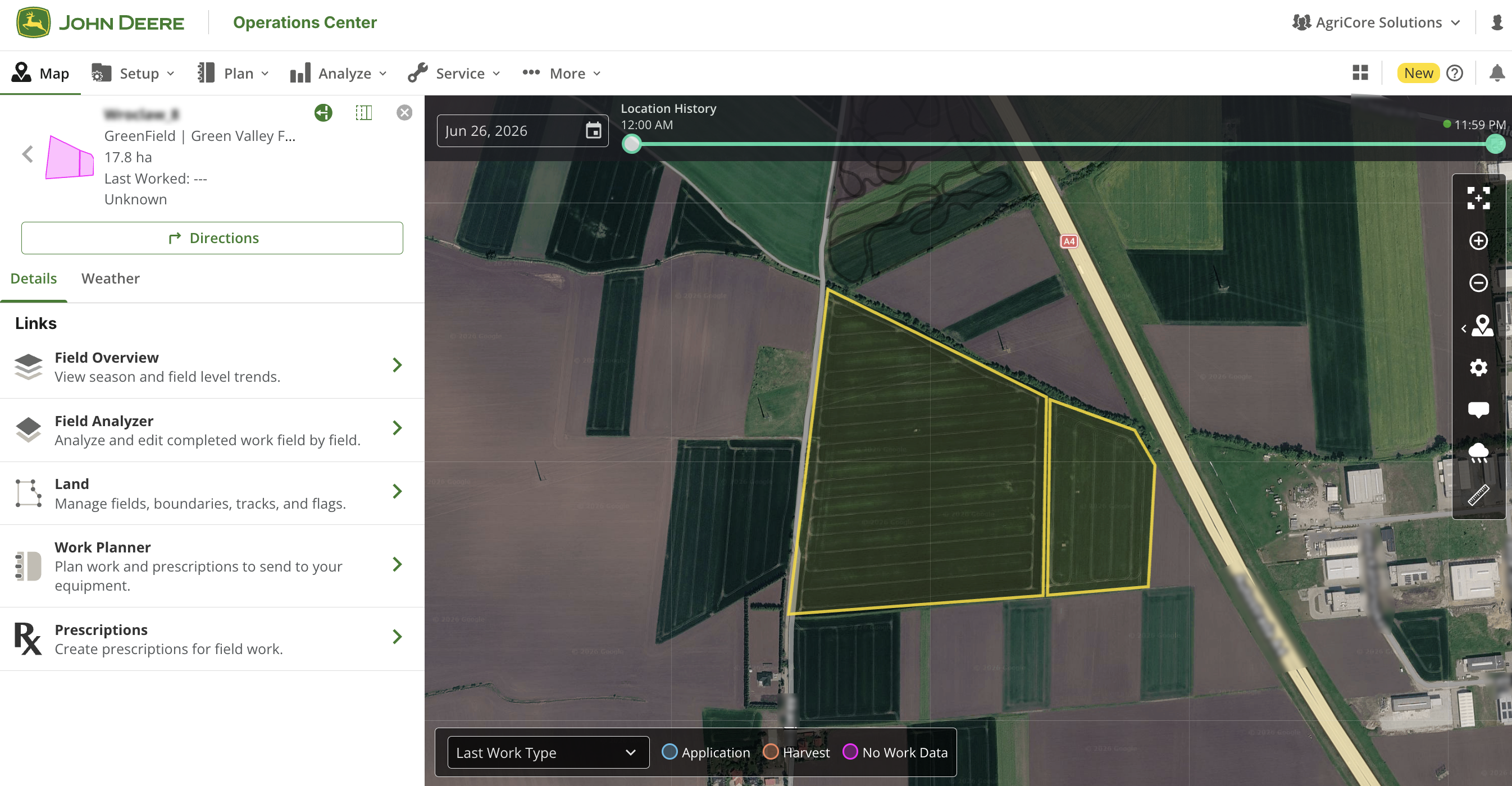
Na vyžádání odešlete jedno pole do John Deere Operations Center a mějte jeho hranici i hierarchii stále aktuální.
GeoPard umožňuje synchronizovat jedno pole s John Deere Operations Center na vyžádání.
Použijte to hned po přidání pole. Použijte to znovu po změně hranice nebo po aktualizaci hierarchie klienta a farmy.
GeoPard automaticky rozhodne, jestli pole v John Deere Operations Center vytvoří, nebo znovu synchronizuje už existující. Nemusíte nejdřív kontrolovat jeho aktuální stav.
{% hint style="info" %}
Tato **Synchronizovat pole s John Deere Operations Center** akce je viditelná pouze tehdy, když je váš účet GeoPard propojen s John Deere. Pokud ji nevidíte, dokončete [Připojit se k John Deere Operations Center](https://docs.geopard.tech/geopard-tutorials/product-tour-web-app/john-deere-operations-center-integration/2.-connect-to-john-deere-operations-center).
{% endhint %}
### Než začnete
Synchronizace závisí na dvou nastaveních. Pokud některé chybí, synchronizace selže.
#### 1. Namapujte štítky GeoPard na hierarchii John Deere
GeoPard organizuje pole pomocí štítků. John Deere používá **Organizace → Klient → Farma** hierarchii.
Na stránce integrace John Deere namapujte své štítky GeoPard na tyto úrovně John Deere:
* `organizace` → Organizace
* `klient` → Klient
* `farma` → Farma
Pokud zatím neexistuje odpovídající štítek, nejdřív ho vytvořte. Viz [Přidat štítek](https://docs.geopard.tech/geopard-tutorials/product-tour-web-app/farm-and-field-setup/add-a-label).
#### 2. Přidejte k poli odpovídající štítky
Otevřete pole a zkontrolujte **Detaily pole** → **Štítky**.
Pole musí obsahovat hodnoty, které odpovídají vašemu mapování. Například:
* `organizace: AgriCore Solutions`
* `klient: GreenField`
* `farma: Green Valley Farm`
Tyto hodnoty zařadí pole do správné **Organizace → Klient → Farma** cesty v John Deere Operations Center.
### Synchronizovat pole
1. Otevřete pole, které chcete odeslat do John Deere Operations Center.
2. Klikněte na **Exportovat** → **Synchronizovat pole s John Deere Operations Center**.
3. Počkejte na oznámení s výsledkem.
### Co se stane, když kliknete na
GeoPard zkontroluje, zda je pole už propojené s John Deere Operations Center.
* Pokud pole v John Deere Operations Center ještě neexistuje, GeoPard ho automaticky vytvoří podle štítků farmy a klienta u pole.
* Pokud pole v John Deere Operations Center už existuje, GeoPard během synchronizace automaticky aktualizuje jeho hranici, farmu a informace o klientovi.
### Výsledky, které uvidíte
Po spuštění akce zobrazí GeoPard jedno z těchto oznámení:
* **Pole vytvořeno v John Deere Operations Center** — pole nemělo vazbu na John Deere a bylo úspěšně vytvořeno.
* **Pole znovu synchronizováno s John Deere Operations Center** — pole už bylo propojené a jeho hranice a hierarchie byly aktualizovány.
* **Synchronizace selhala** — pole se nepodařilo synchronizovat.
### Řešení problémů
Pokud synchronizace selže, nejdřív zkontrolujte tyto položky:
* Váš účet GeoPard je propojen s John Deere. Viz [2. Připojte se k John Deere Operations Center](https://docs.geopard.tech/geopard-tutorials/product-tour-web-app/john-deere-operations-center-integration/2.-connect-to-john-deere-operations-center).
* Vaše organizace John Deere je v GeoPard povolená. Viz [3. Připojte organizace John Deere](https://docs.geopard.tech/geopard-tutorials/product-tour-web-app/john-deere-operations-center-integration/3.-connect-to-john-deere-organizations).
* Pole má všechny namapované štítky se správnými hodnotami.
* Mapování štítků odpovídá zamýšlené **Organizace → Klient → Farma** cestě.
Nejčastější příčinou selhání jsou chybějící nebo neodpovídající štítky pole.
---
# Agent Instructions
This documentation is published with GitBook. GitBook is the documentation platform designed so that both humans and AI agents can read, navigate, and reason over technical content effectively. Learn more at gitbook.com.
## Querying This Documentation
If you need additional information that is not directly available in this page, you can query the documentation by asking a question.
Perform an HTTP GET request on the following URL with the `ask` and `goal` query parameters:
```
GET https://docs.geopard.tech/geopard-tutorials/cze/prohlidka-produktu-webova-aplikace/integrace-s-john-deere-operations-center/11.-synchronizovat-pole-s-john-deere-operations-center.md?ask=&goal=
```
`ask` is the immediate question: it should be specific, self-contained, and written in natural language.
`goal` is what the user is ultimately trying to achieve, the reason they need the answer. Sharing it helps GitBook give you a better, more relevant answer. A goal is most helpful when it describes the outcome the user wants rather than restating the question. For example, with `ask=how do I create an API token`, a goal like `automate deployments from our CI pipeline` lets GitBook tailor the answer to that use case.
The response will contain a direct answer to the question and relevant excerpts and sources from the documentation.
Use this mechanism when the answer is not explicitly present in the current page, you need clarification or additional context, or you want to retrieve related documentation sections.