> For the complete documentation index, see [llms.txt](https://docs.geopard.tech/geopard-tutorials/llms.txt). Markdown versions of documentation pages are available by appending `.md` to page URLs; this page is available as [Markdown](https://docs.geopard.tech/geopard-tutorials/cze/prohlidka-produktu-webova-aplikace/import-dat-pro-presne-zemedelstvi/import-hranic-pole.md).
# Import hranic pole
Podporované formáty souborů a postupy pro import hranic pole do GeoPard.
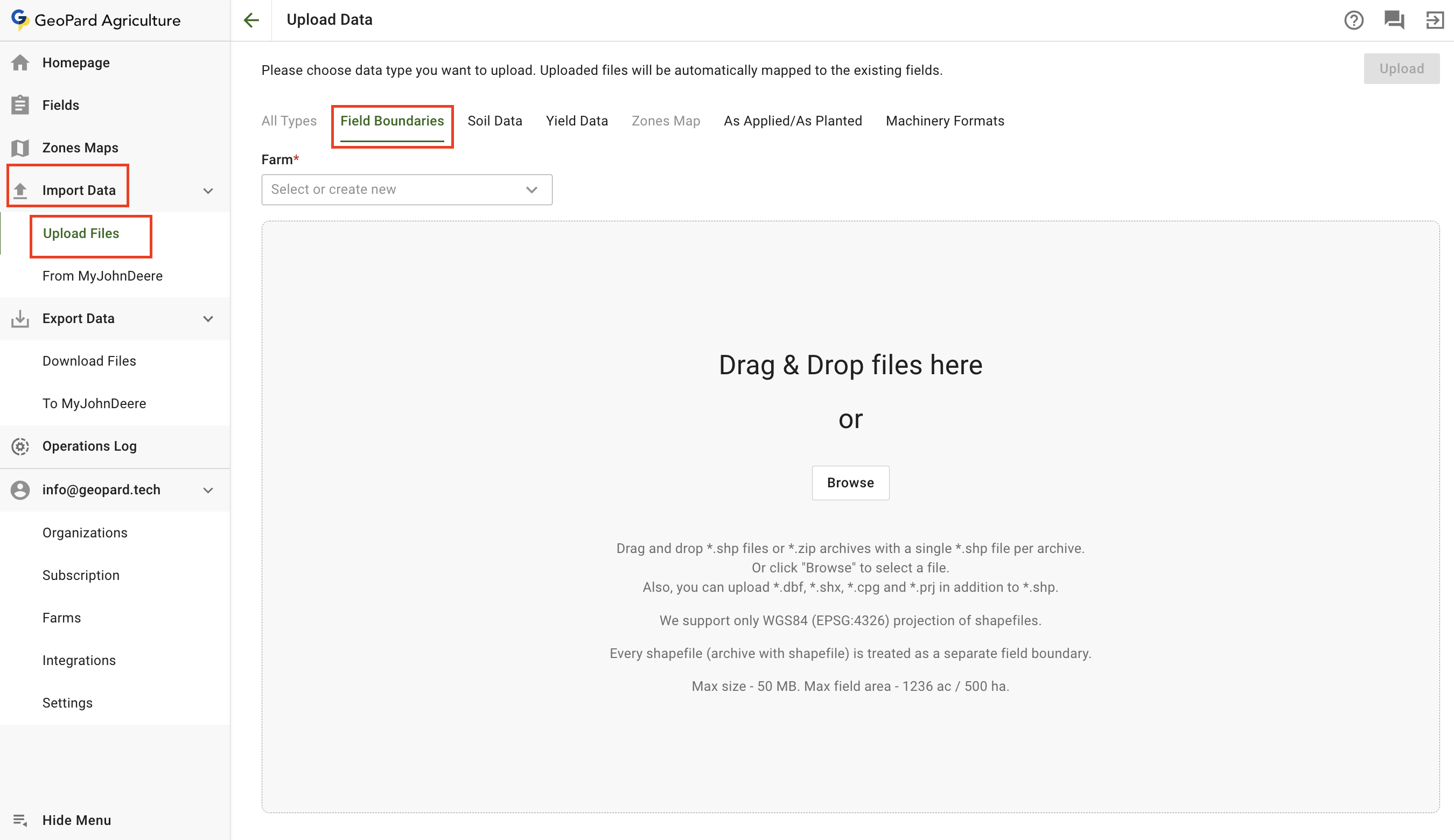
Pokud máte shapefile svých polí, můžete je nahrát pomocí **Import dat** v nabídce. Přejděte na **Nahrát soubory** kartu.
Mějte na paměti, že platí některá omezení:
* Podporovány jsou pouze shapefily WGS84 (EPSG:4326)
* Maximální velikost souboru je 5 MB
* Maximální výměra pole je 1236 ac / 500 ha
* Každý shapefile je brán jako jedno pole
* Popisky budou vytvořeny ze souboru .dbf
Nahrát hranici pole jako shapefile
1. Vyberte farmu, do které chcete nahrát
2. Klikněte na **Procházet** tlačítko a vyberte soubor z počítače.
3. Klikněte na **Nahrát** tlačítko. Potom aplikace ověří, že soubor splňuje požadavky, a pole uloží.
\
Počkejte na potvrzovací dialog, kde uvidíte, že hranice byla úspěšně nahrána:
---
# Agent Instructions
This documentation is published with GitBook. GitBook is the documentation platform designed so that both humans and AI agents can read, navigate, and reason over technical content effectively. Learn more at gitbook.com.
## Querying This Documentation
If you need additional information that is not directly available in this page, you can query the documentation by asking a question.
Perform an HTTP GET request on the following URL with the `ask` and `goal` query parameters:
```
GET https://docs.geopard.tech/geopard-tutorials/cze/prohlidka-produktu-webova-aplikace/import-dat-pro-presne-zemedelstvi/import-hranic-pole.md?ask=&goal=
```
`ask` is the immediate question: it should be specific, self-contained, and written in natural language.
`goal` is what the user is ultimately trying to achieve, the reason they need the answer. Sharing it helps GitBook give you a better, more relevant answer. A goal is most helpful when it describes the outcome the user wants rather than restating the question. For example, with `ask=how do I create an API token`, a goal like `automate deployments from our CI pipeline` lets GitBook tailor the answer to that use case.
The response will contain a direct answer to the question and relevant excerpts and sources from the documentation.
Use this mechanism when the answer is not explicitly present in the current page, you need clarification or additional context, or you want to retrieve related documentation sections.