> For the complete documentation index, see [llms.txt](https://docs.geopard.tech/geopard-tutorials/llms.txt). Markdown versions of documentation pages are available by appending `.md` to page URLs; this page is available as [Markdown](https://docs.geopard.tech/geopard-tutorials/changelog-and-product-releases/release-web-and-mobile-october-2026.md).
# Release Web & Mobile October 2026
Rate assignment respects Min and Max limits, the Yield Report gains zone control and shareable links, and the John Deere page shows clearly what syncs.
## Redesigned John Deere Integration Page
The John Deere integration page has been rebuilt. You can see **what moves between GeoPard and John Deere Operations Center**, its direction, and the fields it covers.\
\
**Quick start.** A new *What's next* panel at the top leads straight to the most common tasks: reviewing Data Sync settings, importing from John Deere, syncing a field, and exporting zones maps
**Data Sync overview.** All sync settings now sit in one table. Each row shows the **data type, direction, sync timing, covered fields, and current status**. Open a row to change settings in place. **Changes save automatically.**
* **Field boundaries and structure:** When you edit a synced field in GeoPard, its boundary and Organization, Client, and Farm structure update in John Deere.
* **Map layers:** Choose which new GeoPard data is sent to John Deere as Map Layers: **Satellite Imagery, Zones Maps, Soil, Yield and Topography Datasets, and Equation Maps**. The status shows how many are on, such as *On · 2 of 6*. Only newly created data is sent automatically.
* **Field operations:** check whether seeding, harvest and application files are being imported, and **pause or stop** the import at any time. You can send data to **all fields or only synced fields** in the selected organizations, and the included organizations and operation types are listed right below.
**Synced fields explained.** A new section explains synced fields and three ways to create one:
* Import it from John Deere.
* Export its boundary as Files.
* Click **Synchronize field** on the field page.
**Field Hierarchy Mapping** now appears in the same section. It shows which GeoPard label holds each John Deere level. It also includes a checklist for **Synchronize field**. This helps identify why a field is not syncing.
## Smarter Rate Assignment with Min and Max Limits
Building a prescription map is now more flexible and predictable. In a zones map, enter an **Average Rate** or **Total Amount** with optional **Min** and **Max** limits. GeoPard then spreads rates **smoothly across zones** instead of piling them at the extremes, while the field average stays on target.
* **Average with Min or Max:** The change between zones narrows automatically. No zone falls below Min or goes above Max.
* **Average with both Min and Max:** Rates fill as much of the range as the average allows.
* **Min and Max only:** Rates step evenly from one limit to the other.
A line below the settings explains what GeoPard applied. For example: *“Average stays 32,000 seeds/ha. Zone rates spread as wide as Min and Max allow.”* If values conflict, such as Min above Max, GeoPard flags the input and keeps your last valid rates.
You can still **edit any zone by hand**. The table footer always shows the actual field average and total.
## Yield Report: Split into Zones, Shareable Links and Smarter Defaults
The Yield Report gets four upgrades that make post-harvest analysis faster and easier to share.
* **Split into zones:** When you compare yield against an **As Applied** dataset, a new **Split into zones** control lets you choose **2 to 10 zones**. Use three zones for a quick verdict, or a finer split when planning variable rates. The zones table, charts, economics, map, and insights update together. The **PDF export** uses the same number of zones.
* **Bookmarkable report URL:** Your season, crop, yield dataset, attribute, zones map, and rate-column selections are saved in the page link. **Bookmark it or send it to a colleague**. The same report opens without extra clicks.
* **Smarter yield map selection:** When a field has several yield datasets, GeoPard now selects the dataset that can produce a meaningful report. It uses coverage inside the field boundary. You can still switch datasets manually.
* **Better crop detection:** Crops are recognized more reliably. If no crop name is available, the report still shows the data cleanly.
## John Deere Export: Client, Farm and Field Filled In Automatically
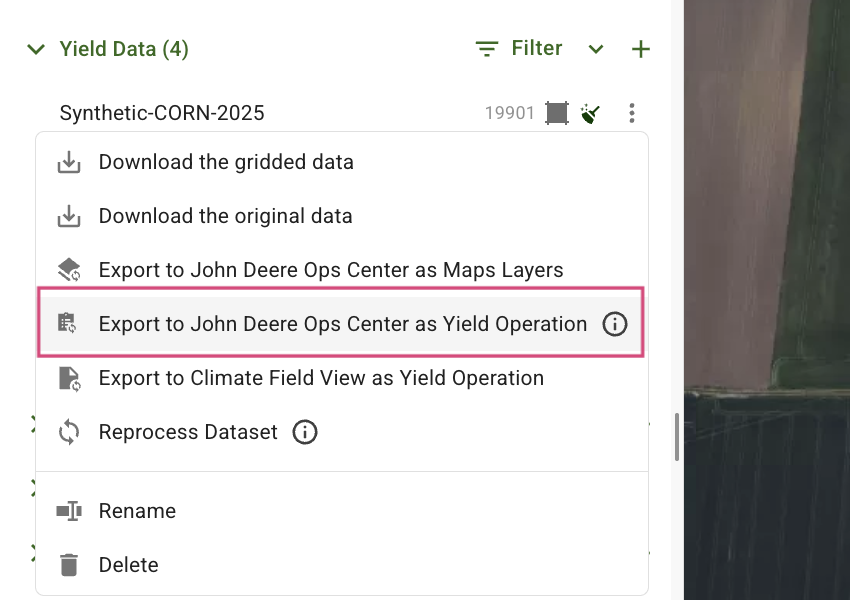
Exporting to **John Deere Operations Center** no longer depends on selecting names manually. For fields synced with John Deere, GeoPard fills the **Client, Farm, and Field** from the linked John Deere field. Your data lands in the right place.
* **Yield and Application Operations:** When all details are known, the export runs **straight away without a popup**.
1. In the dataset menu, click **Export to John Deere Ops Center as Yield Operation**.
2. Wait for the confirmation that the data was exported to John Deere Operations Center.
* **Missing details:** If anything is missing, the popup opens with known values selected.
* **Boundary exports as Files:** Client, Farm, and Field names are preselected after you choose the organization.
## Export Activity Log to CSV
You can now export operations from the Activity Log page to a CSV file. Use the new **Export to CSV** button next to the filters. The file includes every operation matching your current filters for period, operations, organizations, and accounts. It does not only include rows loaded on screen.
The export uses the same columns and values as the table. This includes consumed area in your selected area unit and estimated costs for pay-as-you-go plans. Farm and field UUIDs replace the **Go to field** link. Column headers use your interface language. The file name includes the exported period, for example `activity-log_2026-08-01_2026-08-31.csv`.
Use the export to reconcile platform usage and costs in a spreadsheet. You can split costs by organization or team member, or check usage against your invoice.
## Bug fixes
* **Better Satellite Image Selection:** Automatic image selection better skips images affected by shadows or color distortion.
* **Instant Map Focus in Zones Workflows:** Zones map workflows open directly on the field. They no longer zoom from a world view at every step.
* **Persistent Farm Filter:** The farm filter on the Fields list stays applied when you open a field and return.
* **Reliable Imagery for New Fields:** Newly added fields receive Sentinel-2 imagery as expected.
* **Reliable As-Applied Uploads:** Large as-applied files upload without timing out.
* **Robust Yield and As-Applied Cleaning:** Cleaning completes on very uniform datasets, very small datasets, and as-applied files containing machine status text.
* **Dependable Vector Analysis Maps:** Vector analysis maps generate reliably.
* **Accurate Dataset Values with Text Attributes:** Datasets with text attributes load and download correctly.
* **More Dependable AI Assistant:** The assistant no longer ends a turn without an answer. It finds the correct soil dataset and clearly reports when a named zones map does not exist.
## Improvements
* **Cleaner Machinery Guidance Lines:** Headland passes cover narrow field sections. Turns between passes are smoother. AB-based equation maps no longer have missing cells or corner slivers.
* **Pay-as-you-go for Drawn Zones and 3D Maps:** Manually drawn zones maps and 3D map creation are now available on a pay-as-you-go basis.
* **API:** Stability fixes for the trial price and recommendation endpoints.
* **Platform Stability:** Improvements to map data delivery, background processing, and frontend structure keep GeoPard fast and reliable.
---
# Agent Instructions
This documentation is published with GitBook. GitBook is the documentation platform designed so that both humans and AI agents can read, navigate, and reason over technical content effectively. Learn more at gitbook.com.
## Querying This Documentation
If you need additional information that is not directly available in this page, you can query the documentation by asking a question.
Perform an HTTP GET request on the following URL with the `ask` and `goal` query parameters:
```
GET https://docs.geopard.tech/geopard-tutorials/changelog-and-product-releases/release-web-and-mobile-october-2026.md?ask=&goal=
```
`ask` is the immediate question: it should be specific, self-contained, and written in natural language.
`goal` is what the user is ultimately trying to achieve, the reason they need the answer. Sharing it helps GitBook give you a better, more relevant answer. A goal is most helpful when it describes the outcome the user wants rather than restating the question. For example, with `ask=how do I create an API token`, a goal like `automate deployments from our CI pipeline` lets GitBook tailor the answer to that use case.
The response will contain a direct answer to the question and relevant excerpts and sources from the documentation.
Use this mechanism when the answer is not explicitly present in the current page, you need clarification or additional context, or you want to retrieve related documentation sections.