> For the complete documentation index, see [llms.txt](https://docs.geopard.tech/geopard-tutorials/llms.txt). Markdown versions of documentation pages are available by appending `.md` to page URLs; this page is available as [Markdown](https://docs.geopard.tech/geopard-tutorials/bg/produktova-obikolka-ueb-prilozhenie/john-deere-operations-center-integration/6.-export-rx-maps-to-john-deere-operations-center-as-files.md).
# Изпращане на файлове с предписания към John Deere Operations Center
Качете зоните и предписанията по уравнения от GeoPard във Files в правилната организация в Operations Center, след което ги изпратете към дисплея или ги копирайте на USB носител.
GeoPard качва карта на зони или карта с уравнение в секцията Files на избраната от вас организация в John Deere. От Files можете да изпратите предписанието към дисплея чрез безжичен трансфер на данни или да го копирате на USB флашка, ако машината няма връзка. Използвайте файловете, когато операторът настройва задачата в кабината, а Work Plan — когато тя се настройва от офиса. Име на организация, показано в сиво, означава, че GeoPard все още няма достъп до нея.
{% hint style="success" %}
Изпратете първото си предписание до Operations Center: [Започнете безплатно](https://app.geopard.tech/auth/sign-up?utm_source=docs\&utm_medium=cta\&utm_campaign=6.-export-rx-maps-to-john-deere-operations-center-as-files)
{% endhint %}
4\. Експортиране към John Deere Operations Center
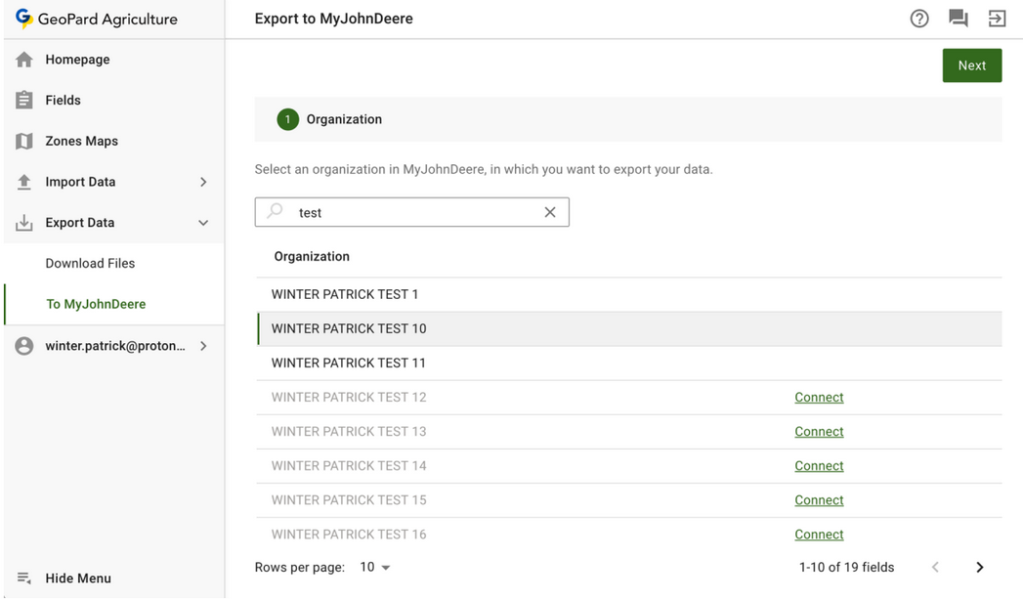
4.1 Клиентите на GeoPard могат да експортират данни (предписания Rx VRA или други слоеве с данни) от GeoPard към John Deere Operations Center. Първата стъпка е да [влезете](https://app.geopard.tech/auth/sign-in) и да отворите раздела **Export to MyJohnDeere** .
4.2 Потребителят трябва да избере организацията, в която GeoPard ще качва файловете. Може да търси по текст. Ако организацията в John Deere е деактивирана ( **името е показано в сиво**), потребителят трябва да предостави достъп до John Deere Operations Center. Вижте [Свързване на профила в GeoPard с организацията в John Deere](https://docs.geopard.tech/geopard-tutorials/bg/produktova-obikolka-ueb-prilozhenie/john-deere-operations-center-integration/3.-connect-to-john-deere-organizations.md).
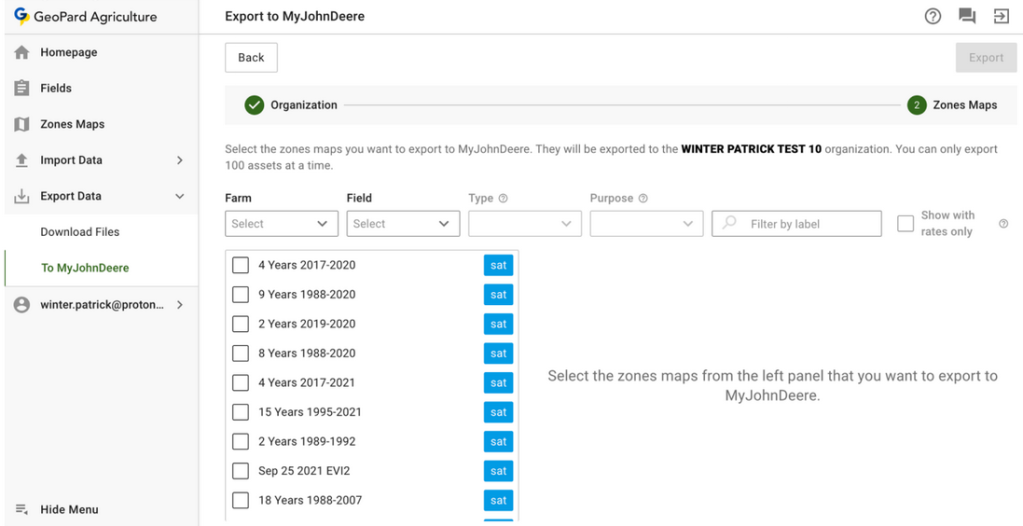
4.3 След това потребителят избира активите, които GeoPard ще качи в John Deere Operations Center.
4.4 Потребителят може да филтрира активите.
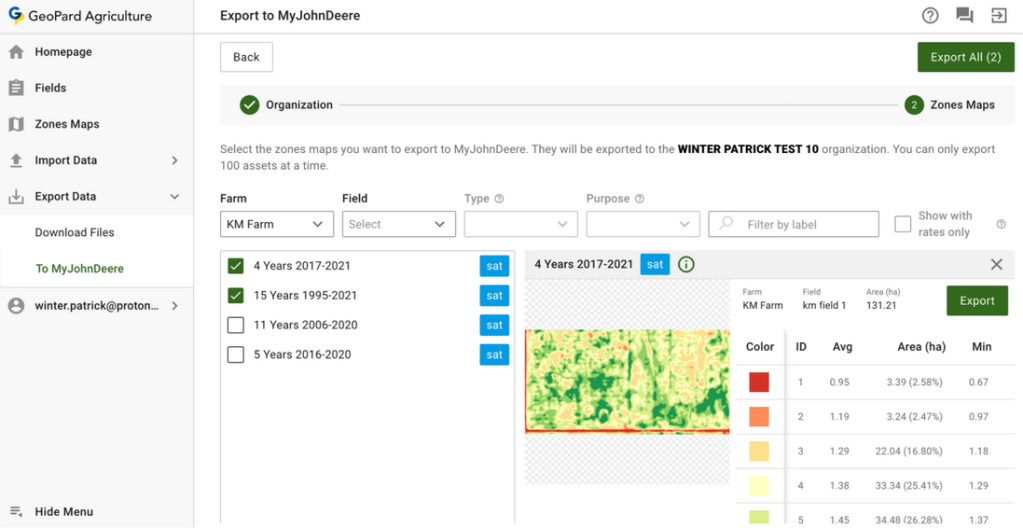
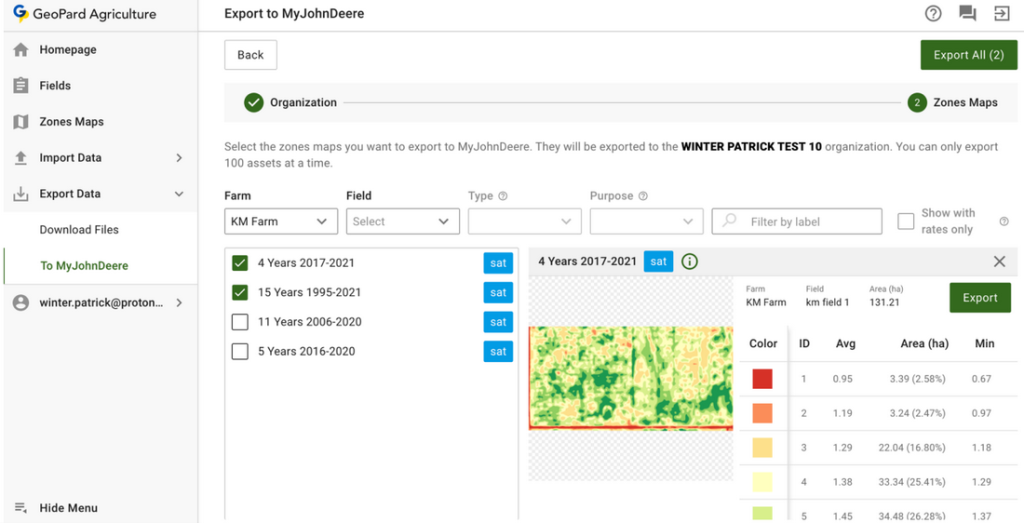
4.5 След като избере всички активи, потребителят може да качи всички наведнъж, като щракне върху бутона **Експортиране на всички** , или да качи отделни активи, като щракне върху бутона **Експортиране** .
4.6 След щракването потребителят ще види съобщение с резултата от операцията.
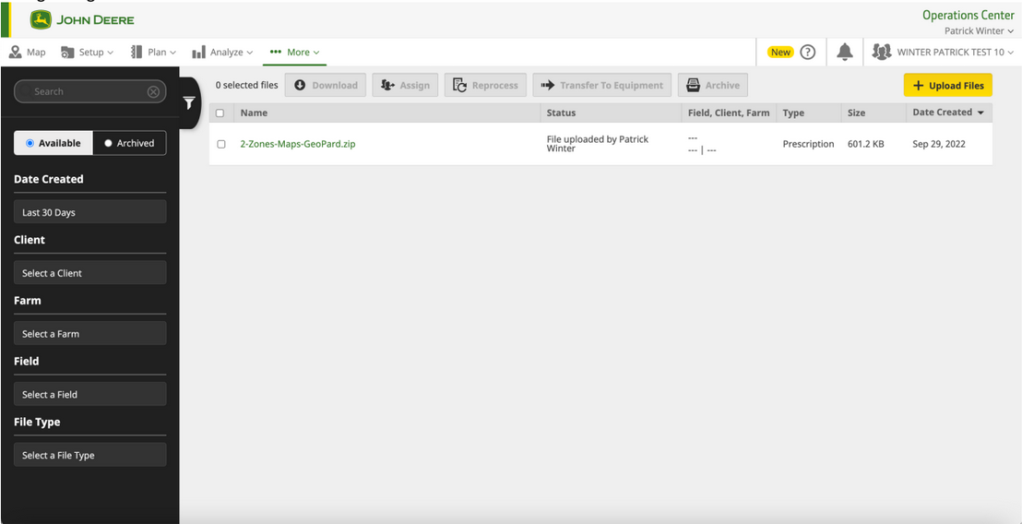
4.7 След това потребителят трябва да види резултата в John Deere Operations Center ([https://files.deere.com](https://files.deere.com/)). *Внимавайте да изберете една и съща организация в GeoPard Agriculture и John Deere Operations Center.*
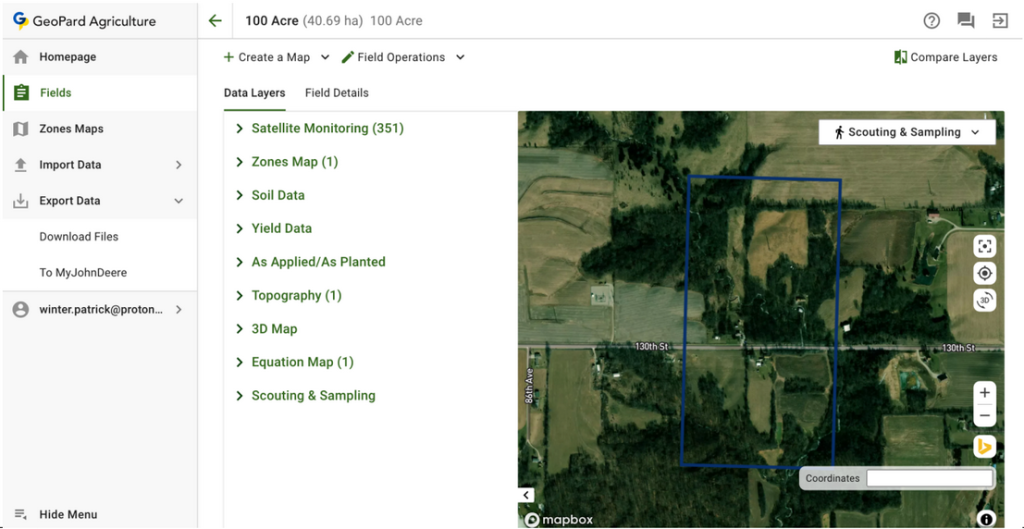
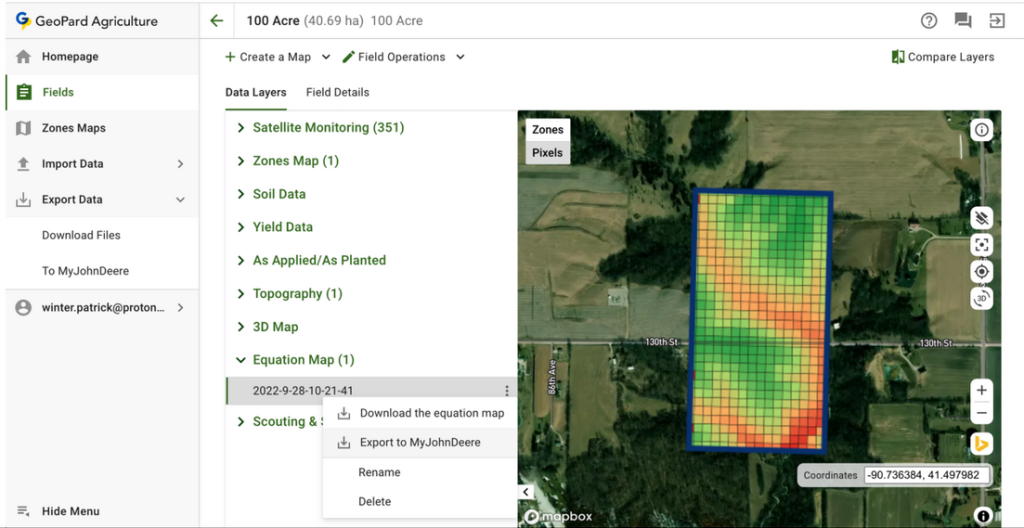
4.8 Клиентите на GeoPard могат да експортират карти на зони (предписания Rx VRA) и карти с уравнения към John Deere Operations Center от раздела Field.
4.8.1 След като избере карта на зони, потребителят трябва да щракне върху **Export to MyJohnDeere** в съответното меню.
4.8.2 След като избере карта с уравнение, потребителят трябва да щракне върху **Export to MyJohnDeere** в съответното меню.
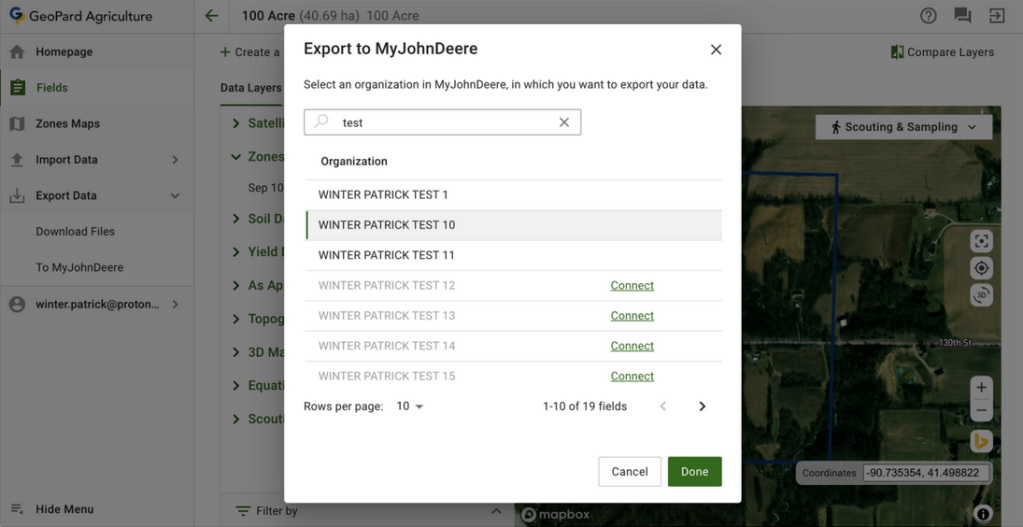
4.8.3 След това потребителят избира целевата организация в John Deere, в която GeoPard ще качи файла. Може да търси по текст. Ако организацията в John Deere е деактивирана ( **името е показано в сиво**), потребителят трябва да предостави достъп до John Deere Operations Center и да разгледа [Свързване на профила в GeoPard с организацията в John Deere](https://docs.geopard.tech/geopard-tutorials/bg/produktova-obikolka-ueb-prilozhenie/john-deere-operations-center-integration/3.-connect-to-john-deere-organizations.md).
4.8.4 След като щракне върху бутона **Готово** , потребителят ще види съобщение с резултата от операцията.
4.8.5 След това потребителят трябва да види резултата в John Deere Operations Center ([https://files.deere.com](https://files.deere.com/)).\
\&#xNAN;*Внимавайте да изберете една и съща организация в GeoPard Agriculture и John Deere Operations Center.*
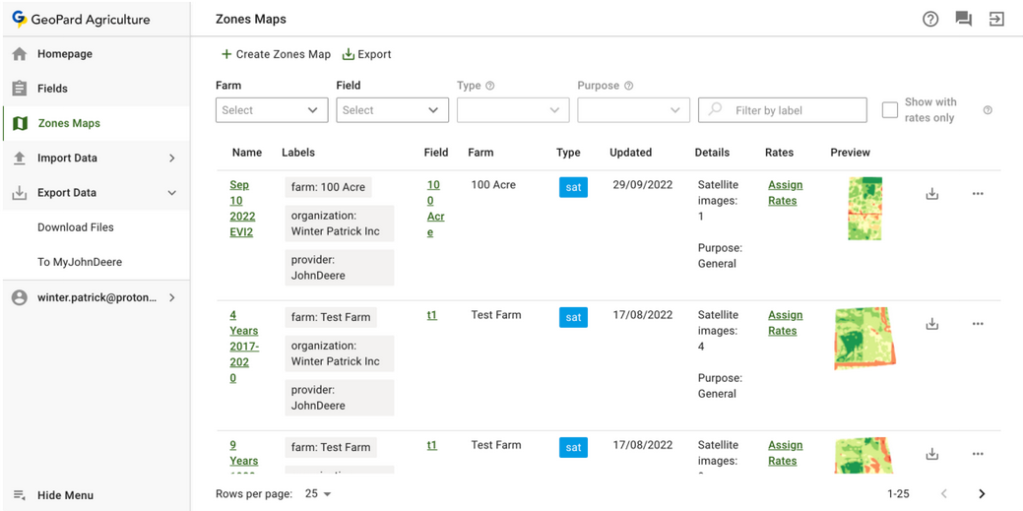
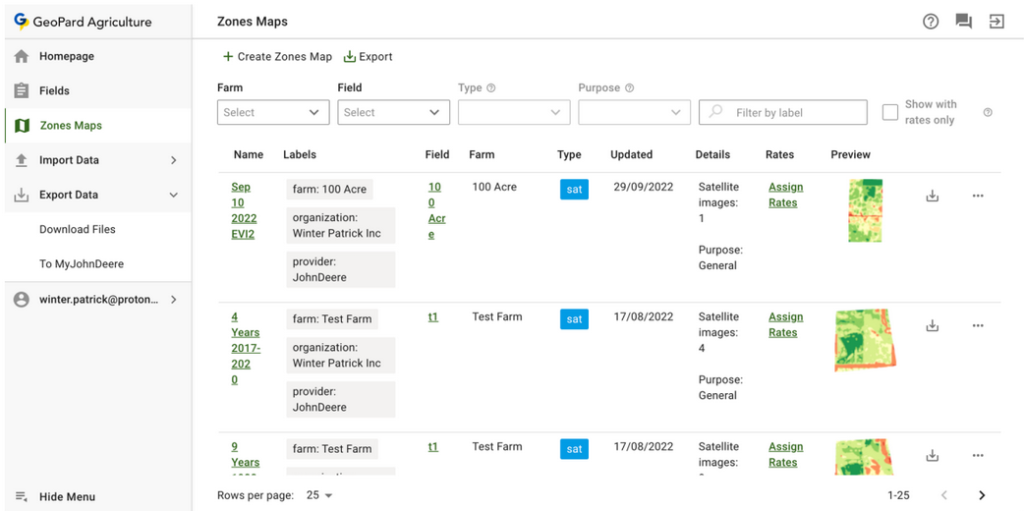
4.9 Клиентите на GeoPard могат да експортират карти на зони (предписания Rx VRA) към John Deere Operations Center от раздела **Карти на зони** .
4.9.1 Потребителят може да експортира отделна карта на зони, като щракне върху съответния бутон за експортиране.
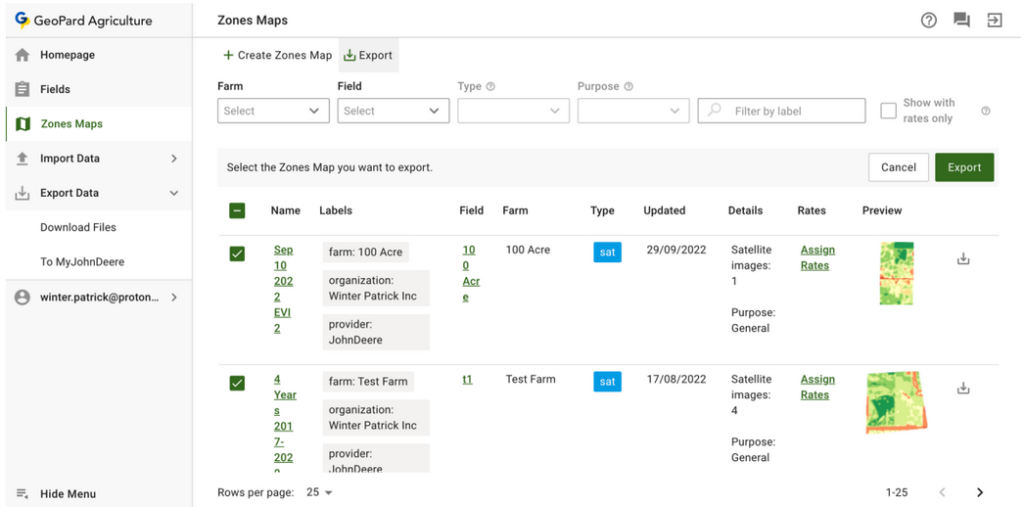
4.9.2 Потребителят може да експортира няколко карти на зони, като щракне върху съответния бутон за експортиране и избере елементите.
4.9.3 След като щракне върху бутона **Експортиране** , потребителят ще види **Експортирайте картите на зоните** изскачащ прозорец, след което потребителят трябва да избере **Експортиране на зони към MyJohnDeere Ops Center** опцията и да щракне върху бутона **Експортиране** .
4.9.4 След това потребителят избира организация от John Deere, до която GeoPard ще качи файл. Потребителят може да търси по текст. Ако организацията в John Deere е деактивирана ( **името е изписано в сиво**), потребителят трябва да предостави достъп до John Deere Operations Center. Вижте [Свързване на профила в GeoPard с организацията в John Deere](https://docs.geopard.tech/geopard-tutorials/bg/produktova-obikolka-ueb-prilozhenie/john-deere-operations-center-integration/3.-connect-to-john-deere-organizations.md).
4.9.5 След като щракне върху бутона **Готово** потребителят ще види съобщение за резултата от операцията.
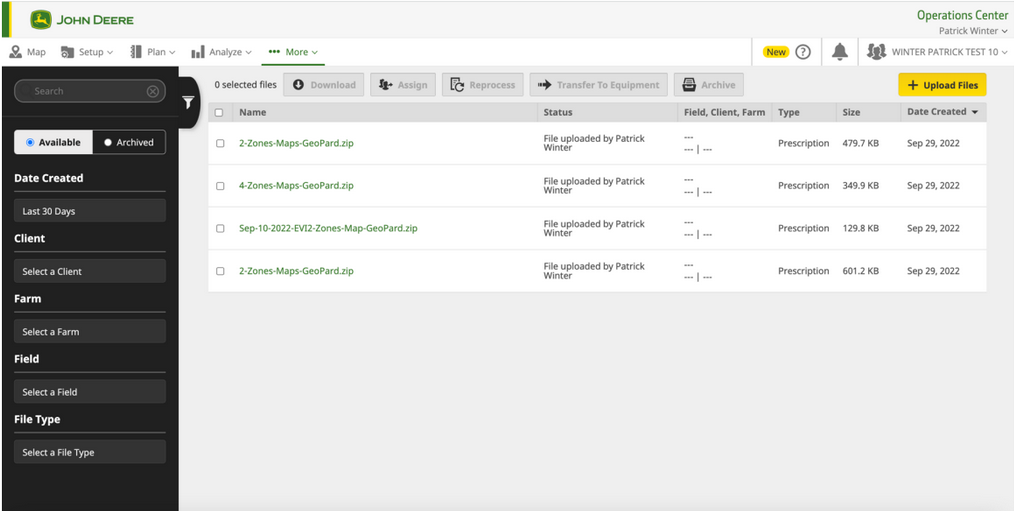
4.9.6 След това потребителят трябва да види резултата в John Deere Operations Center ([https://files.deere.com](https://files.deere.com/)). Обърнете внимание коя организация избира потребителят в GeoPard Agriculture и в John Deere Operations Center.
{% hint style="success" %}
Изпратете първото си предписание до Operations Center: [Започнете безплатно](https://app.geopard.tech/auth/sign-up?utm_source=docs\&utm_medium=cta\&utm_campaign=6.-export-rx-maps-to-john-deere-operations-center-as-files)
{% endhint %}
---
# Agent Instructions
This documentation is published with GitBook. GitBook is the documentation platform designed so that both humans and AI agents can read, navigate, and reason over technical content effectively. Learn more at gitbook.com.
## Querying This Documentation
If you need additional information that is not directly available in this page, you can query the documentation by asking a question.
Perform an HTTP GET request on the following URL with the `ask` and `goal` query parameters:
```
GET https://docs.geopard.tech/geopard-tutorials/bg/produktova-obikolka-ueb-prilozhenie/john-deere-operations-center-integration/6.-export-rx-maps-to-john-deere-operations-center-as-files.md?ask=&goal=
```
`ask` is the immediate question: it should be specific, self-contained, and written in natural language.
`goal` is what the user is ultimately trying to achieve, the reason they need the answer. Sharing it helps GitBook give you a better, more relevant answer. A goal is most helpful when it describes the outcome the user wants rather than restating the question. For example, with `ask=how do I create an API token`, a goal like `automate deployments from our CI pipeline` lets GitBook tailor the answer to that use case.
The response will contain a direct answer to the question and relevant excerpts and sources from the documentation.
Use this mechanism when the answer is not explicitly present in the current page, you need clarification or additional context, or you want to retrieve related documentation sections.