> For the complete documentation index, see [llms.txt](https://docs.geopard.tech/geopard-tutorials/llms.txt). Markdown versions of documentation pages are available by appending `.md` to page URLs; this page is available as [Markdown](https://docs.geopard.tech/geopard-tutorials/bg/produktova-obikolka-ueb-prilozhenie/john-deere-operations-center-integration/9.-export-soil-topography-satellite-or-analytics-as-map-layers.md).

# 9. Експорт на почва, топография, сателитни или аналитични данни като картни слоеве

В GeoPard можете да експортирате всеки геопространствен слой към John Deere Ops Center като картен слой.

#### Какво можете да експортирате

* Агрономически дейности **Зони** (напр. сеитба, торене, растителна защита)
* **Сателитни изображения** (и всички вегетационни индекси)
* **Топография** и производни слоеве (надморска височина, наклон, изложение)
* **NUE** карти на ефективността на използване на азота
* **Печалба** карти
* Променлива норма **Rx** предписания (за всеки продукт)
* Всеки друг растерен или векторен слой, който създадете в GeoPard

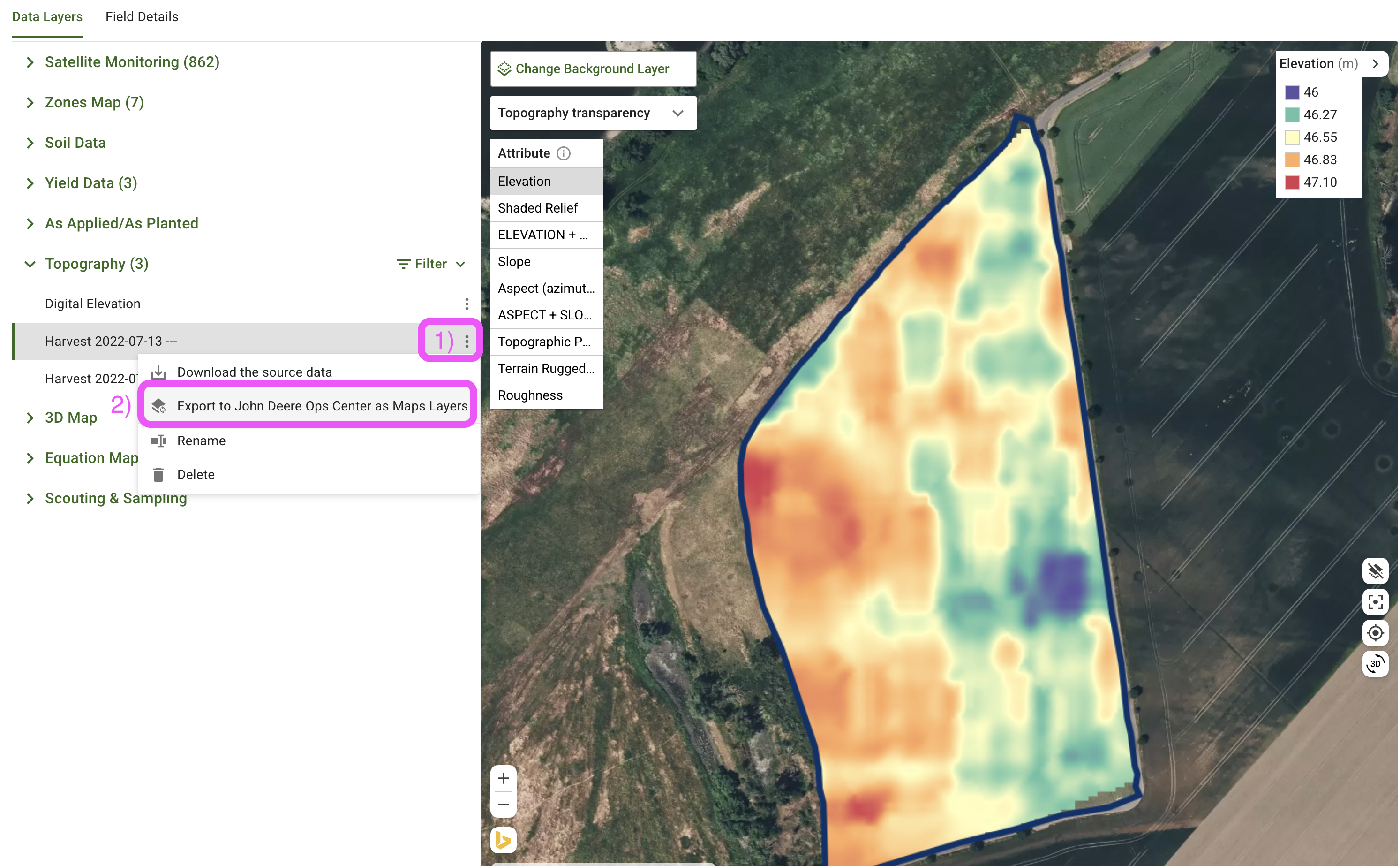
<div data-full-width="true"><figure><img src="https://190376946-files.gitbook.io/~/files/v0/b/gitbook-x-prod.appspot.com/o/spaces%2FYICBELdyAXXebKAzfLOR%2Fuploads%2F8dKxPmUmV4amrPsHjVS2%2FExport%20GeoPard%20Layer%20to%20John%20Deere%20as%20a%20Map%20Layer.png?alt=media&amp;token=97fa981e-9c01-4755-97ba-c30db4cb27ad" alt=""><figcaption><p>Експортирайте слоя от GeoPard</p></figcaption></figure> <figure><img src="https://190376946-files.gitbook.io/~/files/v0/b/gitbook-x-prod.appspot.com/o/spaces%2FYICBELdyAXXebKAzfLOR%2Fuploads%2FPiR8QPi144uoawnjNMNO%2FJohn%20Deere%20Ops%20center%20-%20Slope%20-%20via%20GeoPard.png?alt=media&amp;token=6ee97a8c-9132-4434-9452-1e61831b995c" alt=""><figcaption><p>Експортираният слой с наклона се показва в Ops Center в уеб и мобилното приложение</p></figcaption></figure> <figure><img src="https://190376946-files.gitbook.io/~/files/v0/b/gitbook-x-prod.appspot.com/o/spaces%2FYICBELdyAXXebKAzfLOR%2Fuploads%2FGI3nSvBbDJmn26JzGPXr%2FJohn%20Deere%20Ops%20center%20-%20Topography%20-%20via%20GeoPard.png?alt=media&amp;token=49c6ca71-be6e-42e1-920e-077c80ce4df0" alt=""><figcaption><p>Експортираният слой с надморската височина се показва в John Deere Ops Center в уеб и мобилното приложение</p></figcaption></figure></div>

#### Бързи стъпки

1. Отворете полето и изберете слоя, който искате да споделите.
2. Щракнете върху **︙** (трите точки) до името на слоя и изберете **Export → John Deere → Map Layer**.
3. Обикновено се показва в Ops Center в рамките на 1–2 минути.

#### Проверете в Ops Center

1. Влезте в John Deere Operations Center.
2. Отидете на **Field Analyzer → Map Layers**.
3. Новият ви слой се показва под **Layers**. Включете го, за да го видите на картата.

Готово — лесен начин да преглеждате информацията от GeoPard на всеки екран на John Deere в стопанството.


---

# Agent Instructions
This documentation is published with GitBook. GitBook is the documentation platform designed so that both humans and AI agents can read, navigate, and reason over technical content effectively. Learn more at gitbook.com.

## Querying This Documentation
If you need additional information that is not directly available in this page, you can query the documentation by asking a question.

Perform an HTTP GET request on the following URL with the `ask` and `goal` query parameters:

```
GET https://docs.geopard.tech/geopard-tutorials/bg/produktova-obikolka-ueb-prilozhenie/john-deere-operations-center-integration/9.-export-soil-topography-satellite-or-analytics-as-map-layers.md?ask=<question>&goal=<user_goal>
```

`ask` is the immediate question: it should be specific, self-contained, and written in natural language.
`goal` is what the user is ultimately trying to achieve, the reason they need the answer. Sharing it helps GitBook give you a better, more relevant answer. A goal is most helpful when it describes the outcome the user wants rather than restating the question. For example, with `ask=how do I create an API token`, a goal like `automate deployments from our CI pipeline` lets GitBook tailor the answer to that use case.

The response will contain a direct answer to the question and relevant excerpts and sources from the documentation.

Use this mechanism when the answer is not explicitly present in the current page, you need clarification or additional context, or you want to retrieve related documentation sections.
