> For the complete documentation index, see [llms.txt](https://docs.geopard.tech/geopard-tutorials/llms.txt). Markdown versions of documentation pages are available by appending `.md` to page URLs; this page is available as [Markdown](https://docs.geopard.tech/geopard-tutorials/bg/brzi-gis-sveti/qgis-razdelyane-na-shapefile-i-s-mnogo-poleta.md).
# QGIS: Разделяне на shapefile-и с много полета
Разделете shapefile с няколко полета на отделни shapefile-и за границите на полетата в QGIS за импорт в GeoPard.
Ако един shapefile съдържа няколко полигонa на полета, разделете го преди импорт. GeoPard импортира една граница на поле на shapefile. Този работен процес в QGIS ви помага по-бързо да подготвяте чисти файлове и да избегнете проблеми при импорта.
### Преди да започнете
* Уверете се, че слойът има уникално име или ID на полето.
* Създайте предварително празна изходна папка.
* Премахнете `/`, `\`, и подобни специални знаци от имената на полетата.
### Разделяне на shapefile с няколко полета в QGIS
#### 1. Отворете shapefile-а в QGIS
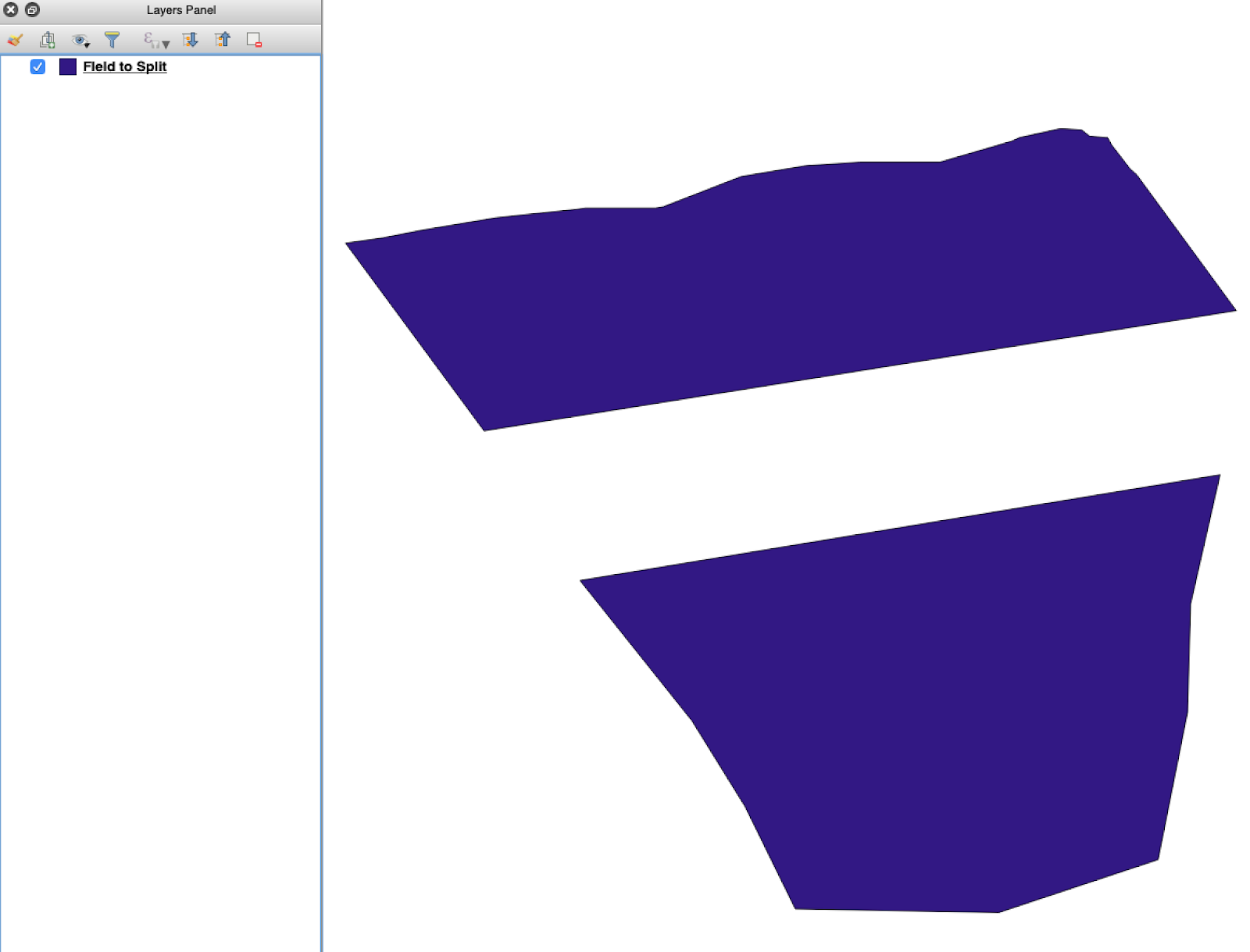
Отворете изходния shapefile в QGIS. Потвърдете, че съдържа няколко полигона на полета.
Първоначален слой с граници на полета с няколко полигона.
#### 2. Отворете инструмента за разделяне
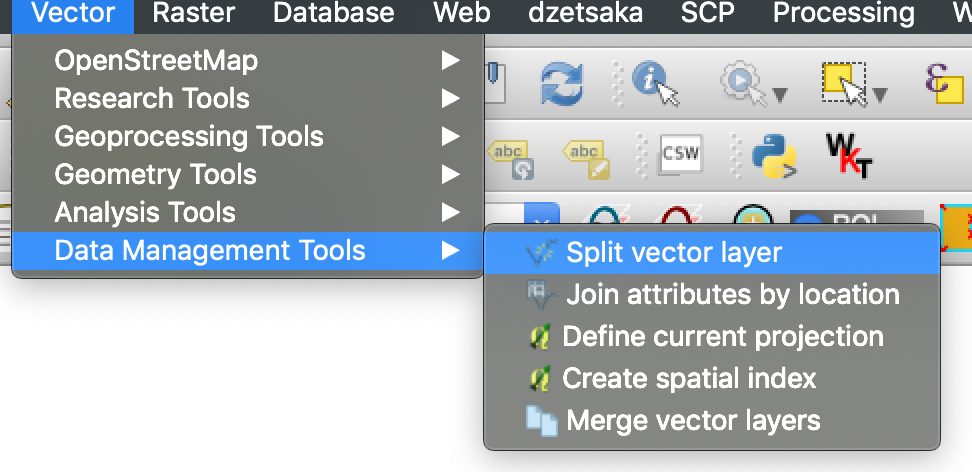
Отворете опциите на слоя и изберете **Split vector layer**.
Отворете работния процес за разделяне.
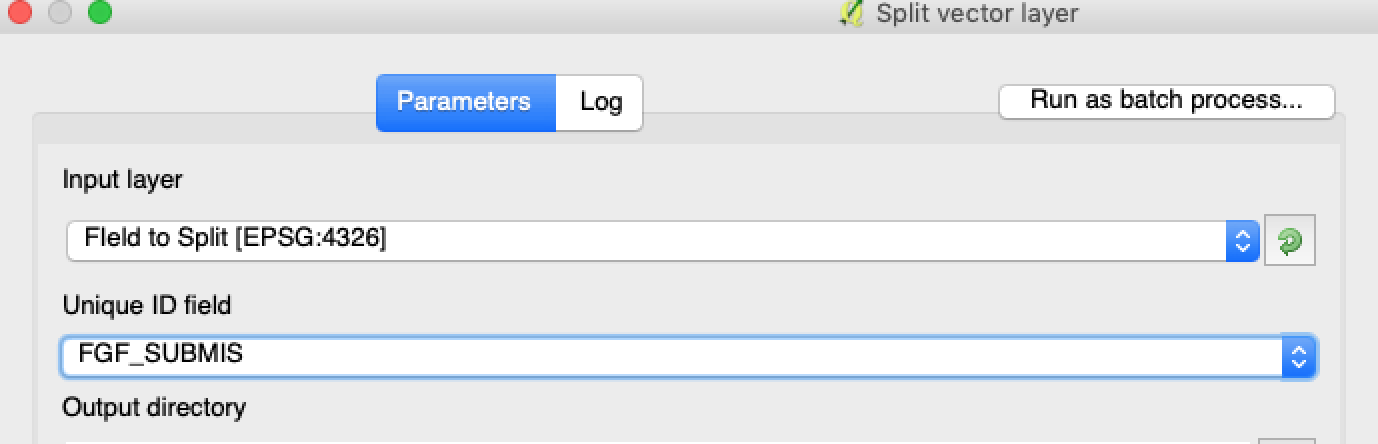
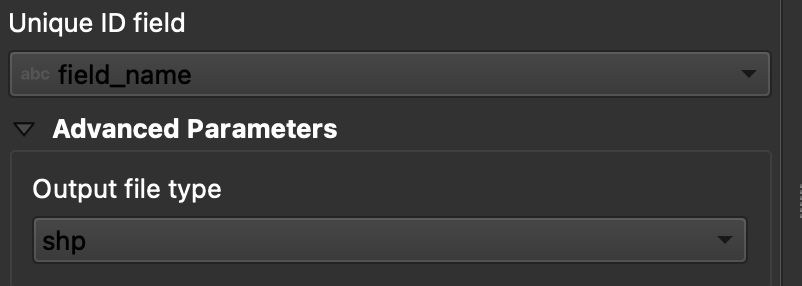
#### 3. Изберете слоя, атрибута и изходната папка
Задайте:
1. Слоят за разделяне.
2. Уникален атрибут за всяко поле.
3. Изходната директория.
#### 5. Стартирайте разделянето
Щракнете върху **Run**. QGIS създава по един файл за всеки полигон. Всеки полигон става отделен shapefile на граница на поле.
#### 6. Конвертирайте `.gpkg` файловете в `.shp` ако е нужно
Някои настройки на QGIS първо създават `.gpkg` файлове. Ако това се случи, отворете всеки файл и го запишете отново като **ESRI Shapefile**.
1. Щракнете с десния бутон върху слоя.
2. Изберете **Export** → **Save Features As**.
3. Изберете **ESRI Shapefile**.
4. Задайте името и местоположението на файла.
5. Премахнете ненужните атрибути, ако е нужно.
### Резултат
Вече имате по един shapefile за всяко поле. Всеки файл е готов за качване на граница на поле в GeoPard. Това спестява време за настройка и намалява ненужното преработване при импорта.
### Свързани ръководства за QGIS
* [QGIS: Конвертиране на CSV в SHP](/geopard-tutorials/bg/brzi-gis-sveti/qgis-preobrazuvane-na-csv-v-shp.md)
* [QGIS: Препроектиране на Shapefile](/geopard-tutorials/bg/brzi-gis-sveti/qgis-reoproektirane-na-shapefile.md)
---
# Agent Instructions
This documentation is published with GitBook. GitBook is the documentation platform designed so that both humans and AI agents can read, navigate, and reason over technical content effectively. Learn more at gitbook.com.
## Querying This Documentation
If you need additional information that is not directly available in this page, you can query the documentation by asking a question.
Perform an HTTP GET request on the following URL with the `ask` and `goal` query parameters:
```
GET https://docs.geopard.tech/geopard-tutorials/bg/brzi-gis-sveti/qgis-razdelyane-na-shapefile-i-s-mnogo-poleta.md?ask=&goal=
```
`ask` is the immediate question: it should be specific, self-contained, and written in natural language.
`goal` is what the user is ultimately trying to achieve, the reason they need the answer. Sharing it helps GitBook give you a better, more relevant answer. A goal is most helpful when it describes the outcome the user wants rather than restating the question. For example, with `ask=how do I create an API token`, a goal like `automate deployments from our CI pipeline` lets GitBook tailor the answer to that use case.
The response will contain a direct answer to the question and relevant excerpts and sources from the documentation.
Use this mechanism when the answer is not explicitly present in the current page, you need clarification or additional context, or you want to retrieve related documentation sections.