> For the complete documentation index, see [llms.txt](https://docs.geopard.tech/geopard-tutorials/llms.txt). Markdown versions of documentation pages are available by appending `.md` to page URLs; this page is available as [Markdown](https://docs.geopard.tech/geopard-tutorials/bg/brzi-gis-sveti/qgis-manipulacii-s-danni-za-dobiv.md).
# QGIS: Манипулации с данни за добив
Подгответе и почистете данните за добив в QGIS, преди да ги импортирате или анализирате в GeoPard.
ПРЕГЛЕД
Ръководство с описание стъпка по стъпка за решаване на следните проблеми с данни от монитор на добива:
1. Липсващ файл с проекция (.prj) в shapefile
2. Прилагане на правила за преобразуване за всеки атрибут в shapefile (на база пример kb/ha към bu/ac)
Софтуерът, който да се използва, е QGIS ([ВРЪЗКА](https://qgis.org/en/site/forusers/download.html)).
Изтеглянето и инсталирането са задължителни.
### ЛИПСВАЩ ФАЙЛ С ПРОЕКЦИЯ
1. Отворете shapefile-а с данните за добива. Преместете файла в прозореца на QGIS.
2. Shapefile-ът става достъпен за по-нататъшни манипулации в блока Layers.
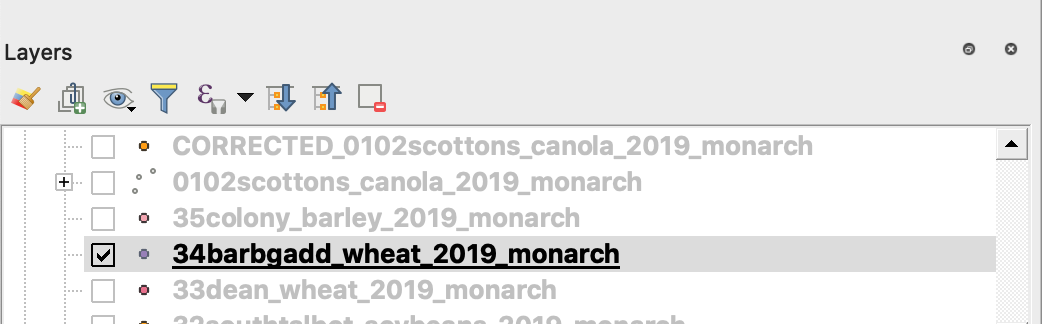
3. Започнете процеса на записване
4. 1. Щракнете с десния бутон на мишката върху shapefile-а
2. Изберете Export -> Save Feature As ...
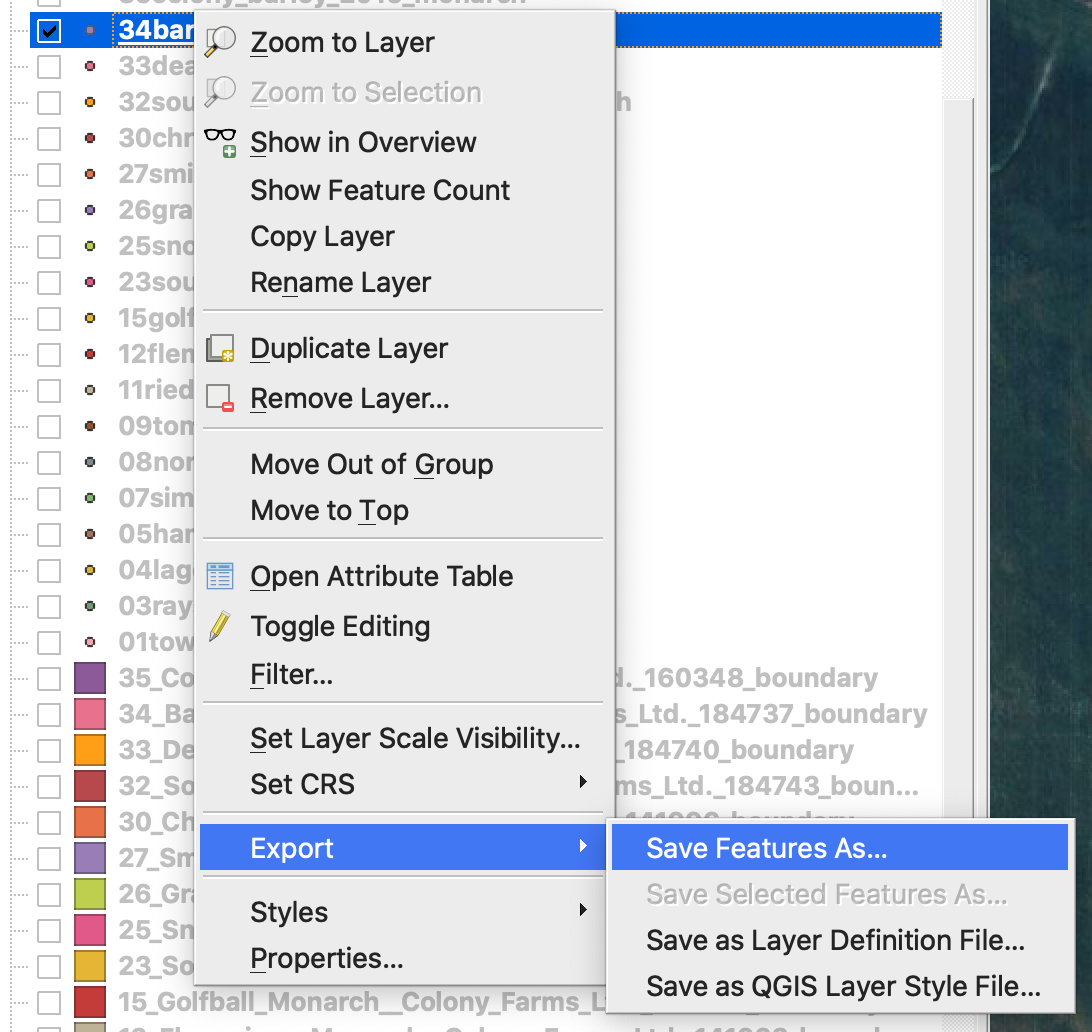
4. Изберете
5. 1. Format -> ESRI Shapefile,
2. Filename -> щракнете … и изберете предпочитаната директория и име на файла,
3. CRS -> EPSG:4326
4. Encoding -> UTF8
5. Добавете запазения файл към картата (по избор, ако искате да го видите директно в QGIS)
6. Geometry type -> Point
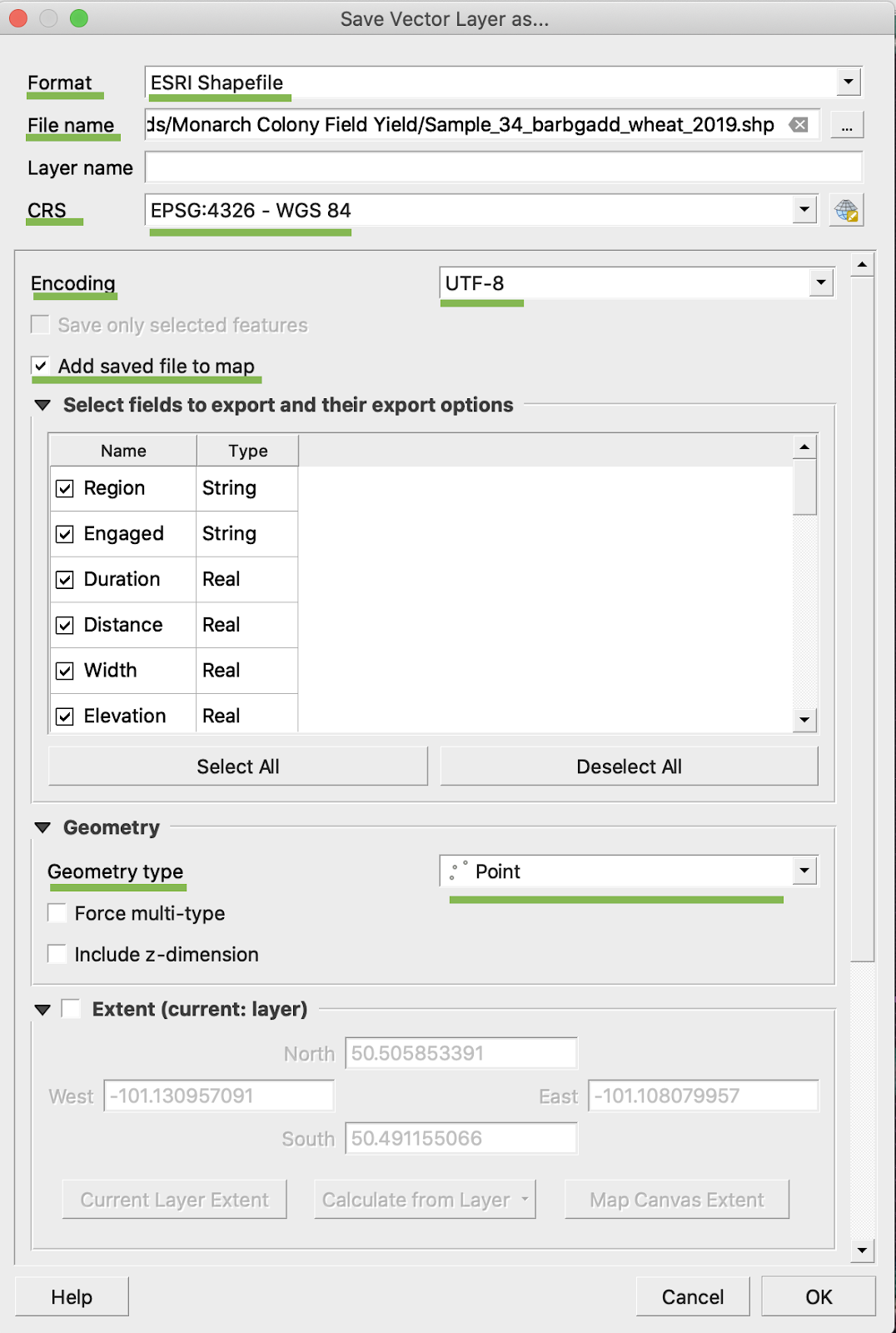
5. Щракнете Ok
6. Създава се допълнителен shapefile със същите данни за добива. Файлът с проекцията (.prj) е добавен.
\
### ПРЕОБРАЗУВАНЕ КЪМ BU/AC
1. Щракнете с десния бутон на мишката върху shapefile-а и изберете Open Attribute Table
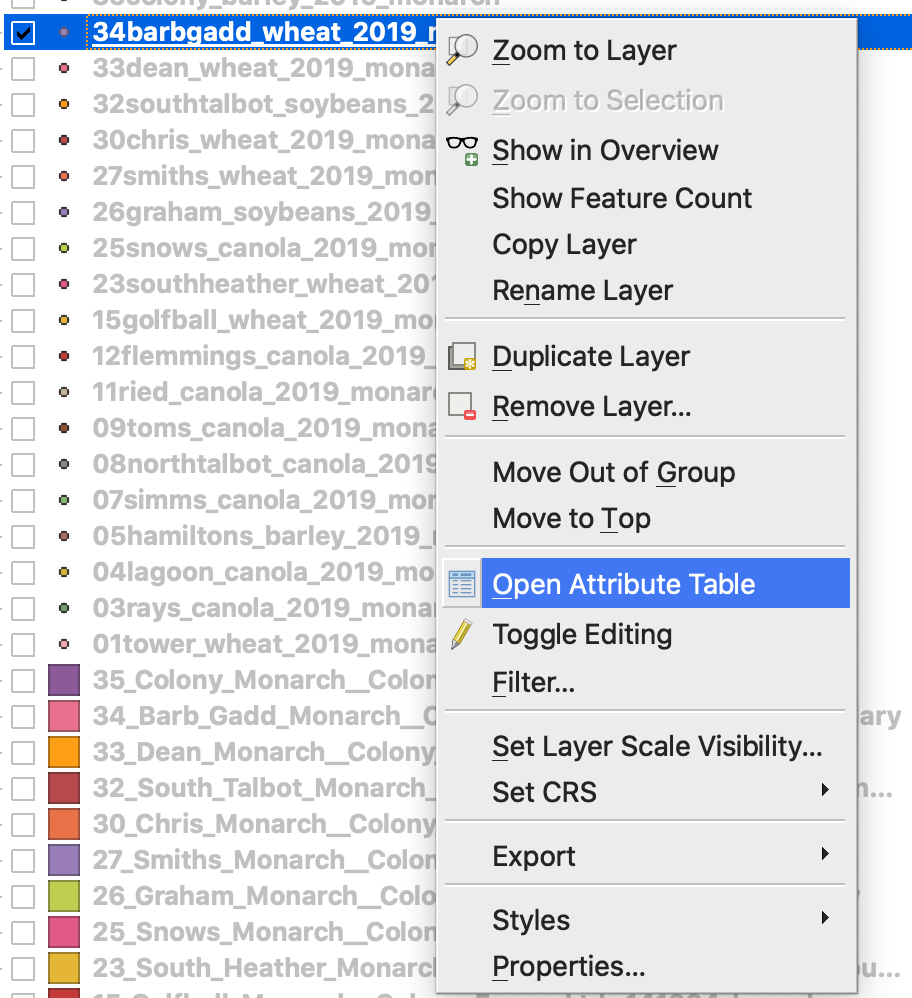
2. Щракнете върху Open field calculator
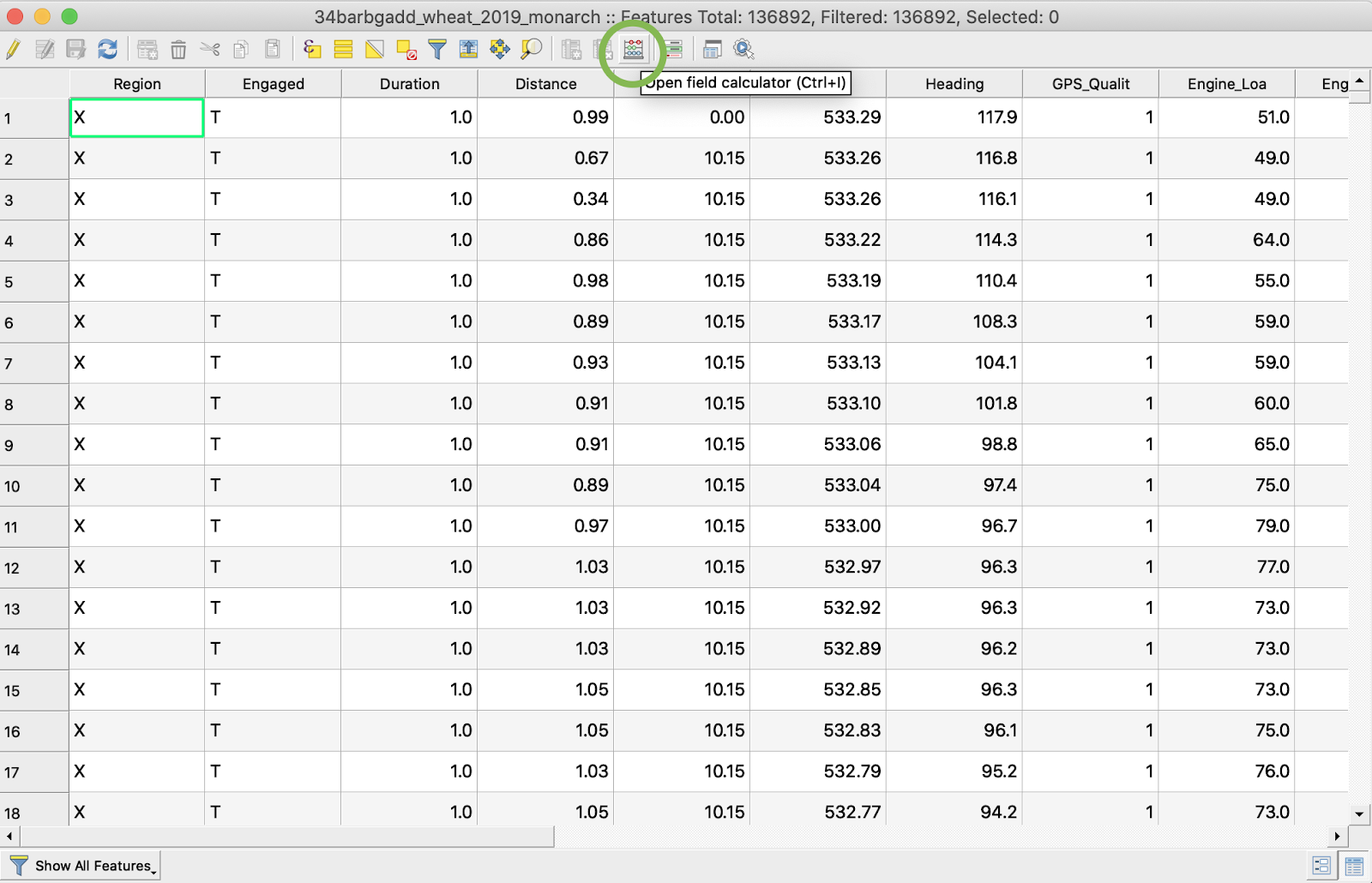
3. Създайте ново поле
4. 1. Отбележете Create a new field
2. Въведете Output field name -> DryYieldBu
3. Изберете Output field type -> Decimal number (real)
4. Променете Precision -> 4
5. Задайте правило за преобразуване от kg/ha към bu/ac -> "Dry\_Yield" \* 0.0149
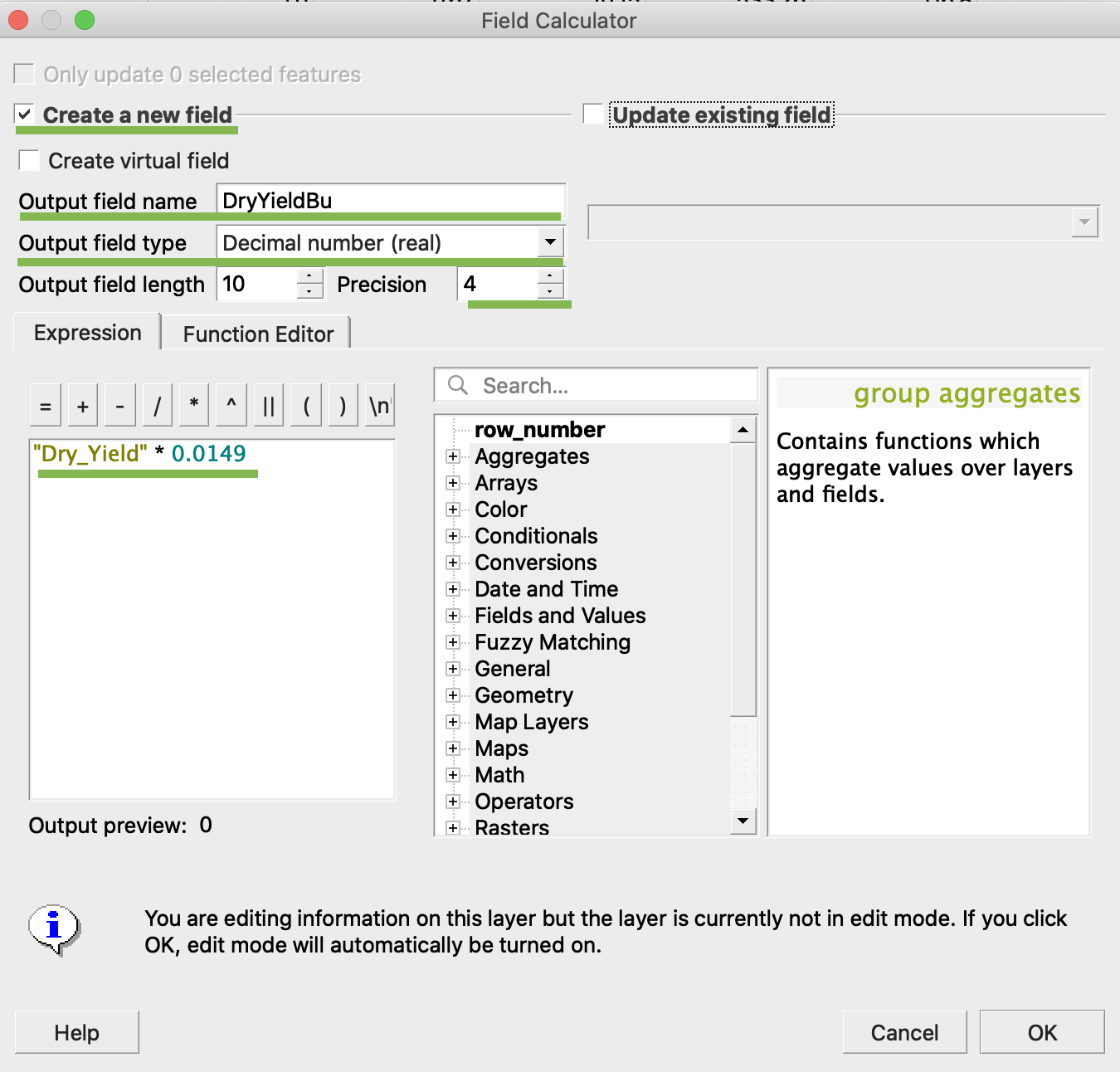
4. Щракнете Ok
5. В таблицата се появява допълнителен атрибут DryYieldBu
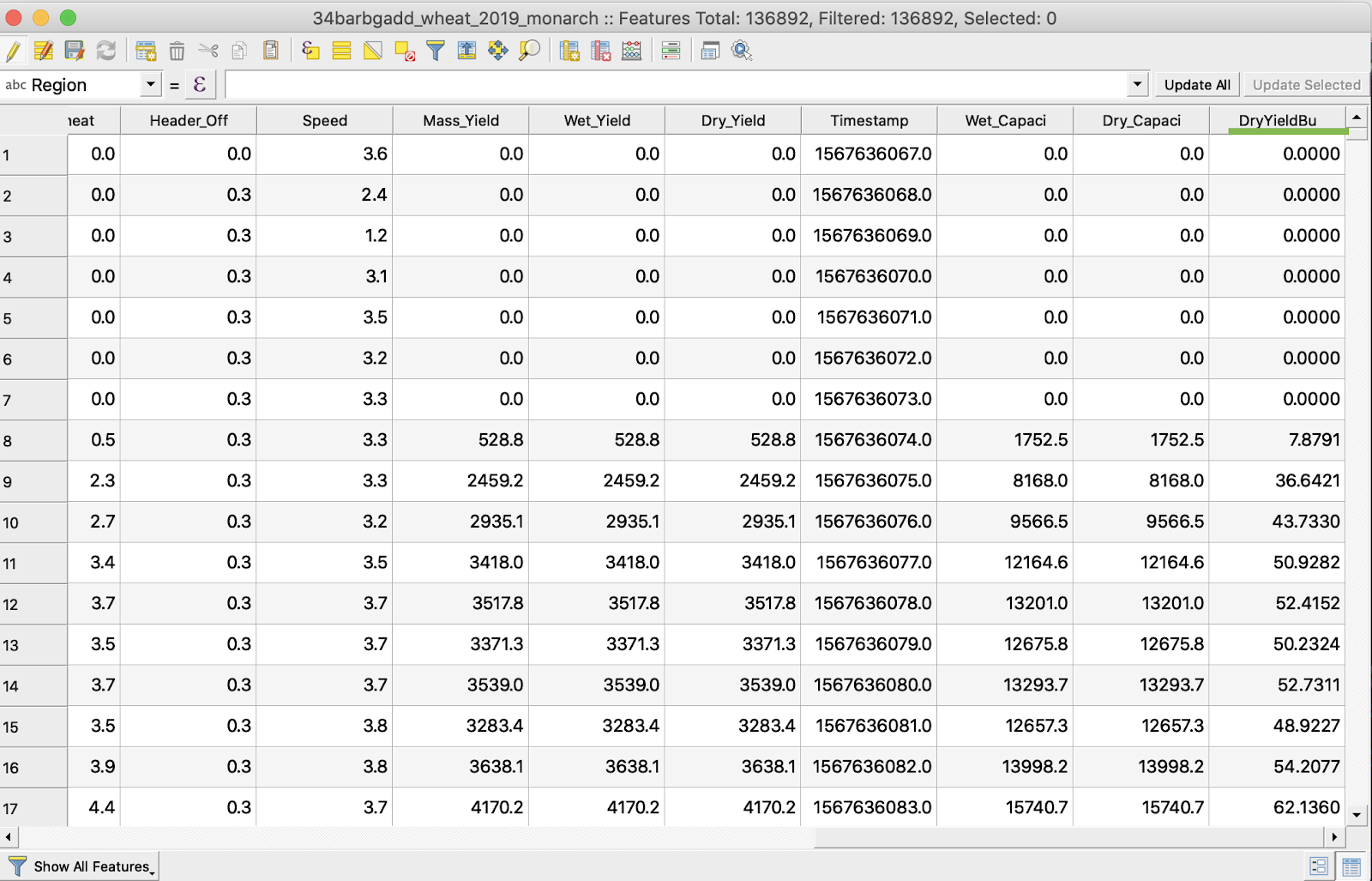
6. Запазете промените
7. 1. Щракнете с десния бутон на мишката върху интересуващия shapefile
2. Изберете Toggle Editing
\
\
\
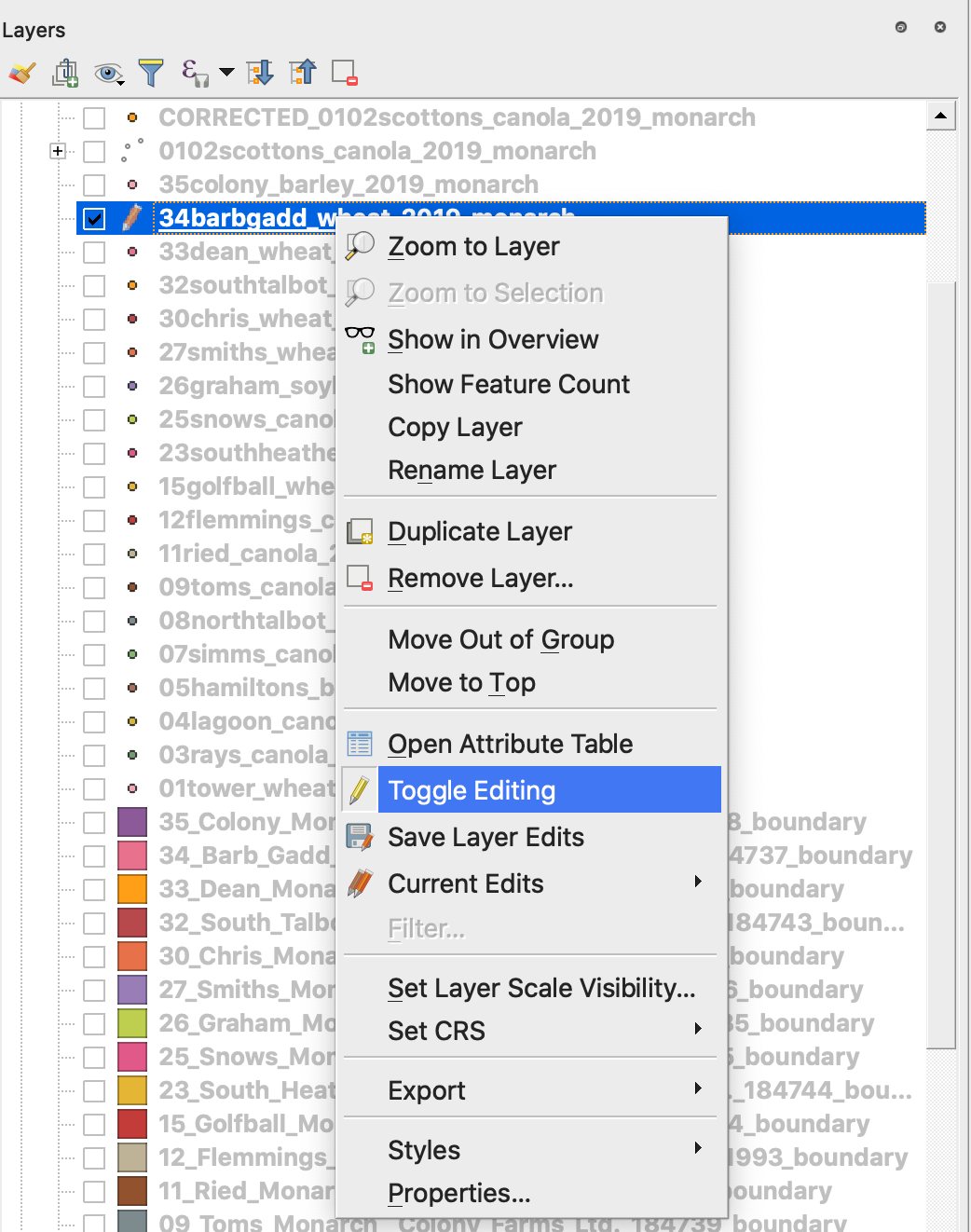
7. Потвърдете запазването на промените
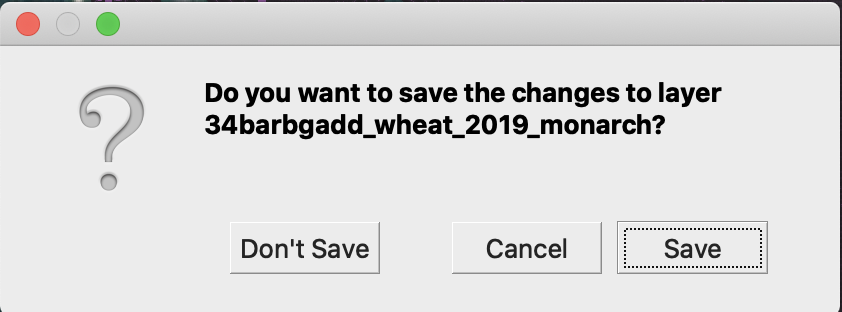
Интересуващият shapefile вече не е маркиран с молив. Данните в shapefile-а бяха обновени.
---
# Agent Instructions
This documentation is published with GitBook. GitBook is the documentation platform designed so that both humans and AI agents can read, navigate, and reason over technical content effectively. Learn more at gitbook.com.
## Querying This Documentation
If you need additional information that is not directly available in this page, you can query the documentation by asking a question.
Perform an HTTP GET request on the following URL with the `ask` and `goal` query parameters:
```
GET https://docs.geopard.tech/geopard-tutorials/bg/brzi-gis-sveti/qgis-manipulacii-s-danni-za-dobiv.md?ask=&goal=
```
`ask` is the immediate question: it should be specific, self-contained, and written in natural language.
`goal` is what the user is ultimately trying to achieve, the reason they need the answer. Sharing it helps GitBook give you a better, more relevant answer. A goal is most helpful when it describes the outcome the user wants rather than restating the question. For example, with `ask=how do I create an API token`, a goal like `automate deployments from our CI pipeline` lets GitBook tailor the answer to that use case.
The response will contain a direct answer to the question and relevant excerpts and sources from the documentation.
Use this mechanism when the answer is not explicitly present in the current page, you need clarification or additional context, or you want to retrieve related documentation sections.