> For the complete documentation index, see [llms.txt](https://docs.geopard.tech/geopard-tutorials/llms.txt). Markdown versions of documentation pages are available by appending `.md` to page URLs; this page is available as [Markdown](https://docs.geopard.tech/geopard-tutorials/ar/nsaeh-sryah-fy-nzm-almalwmat-aljghrafyh/qgis-tqsym-mlfat-shapefile-mtaddh-alhqwl.md).
# QGIS: تقسيم ملفات Shapefile متعددة الحقول
قسّم ملف Shapefile متعدد الحقول إلى ملفات Shapefile منفصلة لحدود الحقول في QGIS لاستيرادها إلى GeoPard.
إذا كان ملف shapefile واحد يحتوي على عدة مضلعات حقول، فقم بتقسيمه قبل الاستيراد. يستورد GeoPard حدًا واحدًا للحقل لكل ملف shapefile. تساعدك هذه العملية في QGIS على تجهيز ملفات نظيفة بسرعة وتجنب مشاكل الاستيراد.
### قبل أن تبدأ
* تأكد من أن الطبقة تحتوي على اسم حقل أو معرّف فريد.
* أنشئ مجلد إخراج فارغًا مسبقًا.
* إزالة `/`, `\`، وأي رموز خاصة مشابهة من أسماء الحقول.
### تقسيم ملف shapefile متعدد الحقول في QGIS
#### 1. افتح ملف shapefile في QGIS
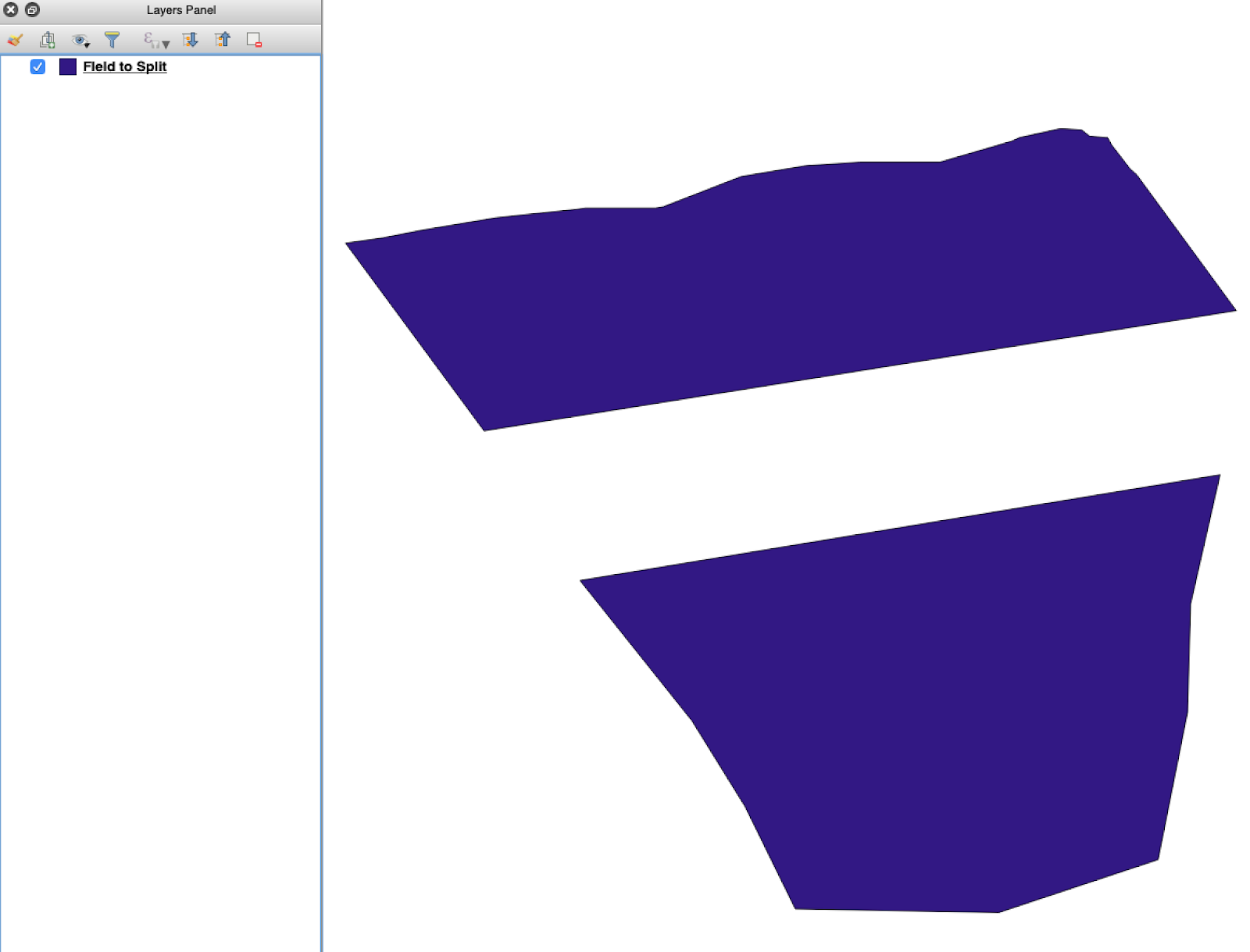
افتح ملف shapefile المصدر في QGIS. تأكد من أنه يحتوي على عدة مضلعات حقول.
طبقة حدود الحقل الأولية مع عدة مضلعات.
#### 2. افتح أداة التقسيم
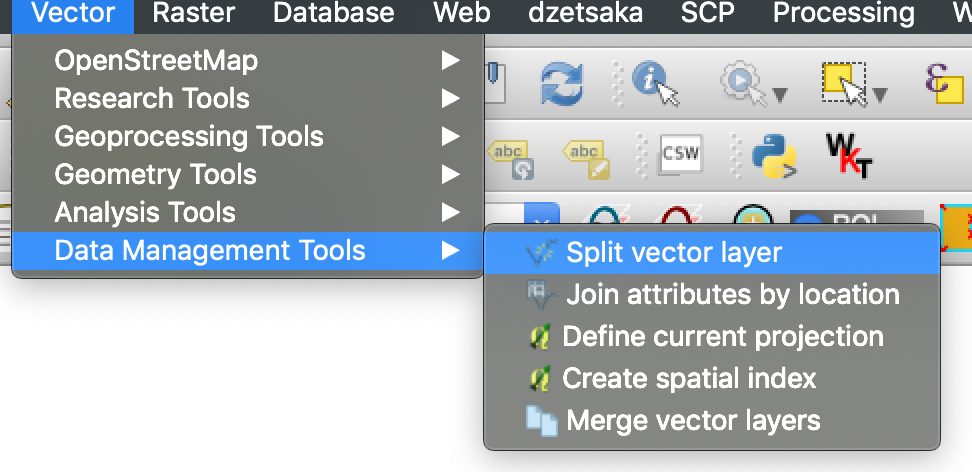
افتح خيارات الطبقة واختر **تقسيم طبقة متجهة**.
افتح عملية التقسيم.
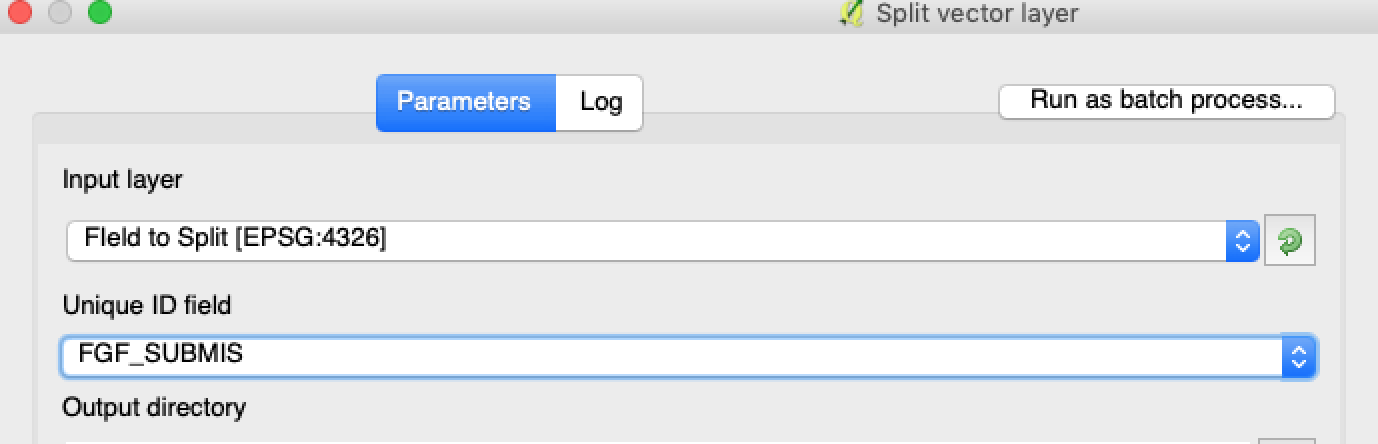
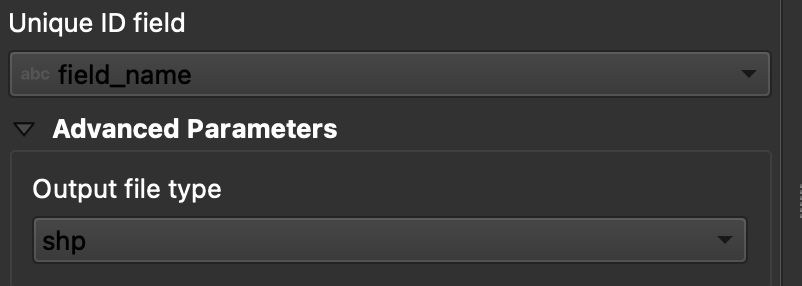
#### 3. اختر الطبقة، والخاصية، ومجلد الإخراج
اضبط:
1. الطبقة المراد تقسيمها.
2. خاصية فريدة لكل حقل.
3. دليل الإخراج.
#### 5. شغّل التقسيم
انقر على **تشغيل**. ينشئ QGIS ملفًا واحدًا لكل مضلع. يصبح كل مضلع ملف shapefile منفصلًا لحدود حقل.
#### 6. حوّل `.gpkg` الملفات إلى `.shp` إذا لزم الأمر
بعض إعدادات QGIS تنشئ ملفات `.gpkg` في البداية. إذا حدث ذلك، افتح كل ملف واحفظه مرة أخرى بصيغة **ESRI Shapefile**.
1. انقر بزر الفأرة الأيمن على الطبقة.
2. اختر **تصدير** → **حفظ المعالم باسم**.
3. اختر **ESRI Shapefile**.
4. اضبط اسم الملف وموقعه.
5. أزل السمات غير المطلوبة إذا لزم الأمر.
### النتيجة
أصبح لديك الآن ملف shapefile واحد لكل حقل. كل ملف جاهز لرفع حدود الحقل إلى GeoPard. هذا يوفر وقت الإعداد ويقلل من إعادة العمل المتجنبة أثناء الاستيراد.
### أدلة QGIS ذات الصلة
* [QGIS: تحويل CSV إلى SHP](/geopard-tutorials/ar/nsaeh-sryah-fy-nzm-almalwmat-aljghrafyh/qgis-thwyl-csv-ila-shp.md)
* [QGIS: إعادة إسقاط ملف Shapefile](/geopard-tutorials/ar/nsaeh-sryah-fy-nzm-almalwmat-aljghrafyh/qgis-iaadh-isqat-mlf-shapefile.md)
---
# Agent Instructions
This documentation is published with GitBook. GitBook is the documentation platform designed so that both humans and AI agents can read, navigate, and reason over technical content effectively. Learn more at gitbook.com.
## Querying This Documentation
If you need additional information that is not directly available in this page, you can query the documentation by asking a question.
Perform an HTTP GET request on the following URL with the `ask` and `goal` query parameters:
```
GET https://docs.geopard.tech/geopard-tutorials/ar/nsaeh-sryah-fy-nzm-almalwmat-aljghrafyh/qgis-tqsym-mlfat-shapefile-mtaddh-alhqwl.md?ask=&goal=
```
`ask` is the immediate question: it should be specific, self-contained, and written in natural language.
`goal` is what the user is ultimately trying to achieve, the reason they need the answer. Sharing it helps GitBook give you a better, more relevant answer. A goal is most helpful when it describes the outcome the user wants rather than restating the question. For example, with `ask=how do I create an API token`, a goal like `automate deployments from our CI pipeline` lets GitBook tailor the answer to that use case.
The response will contain a direct answer to the question and relevant excerpts and sources from the documentation.
Use this mechanism when the answer is not explicitly present in the current page, you need clarification or additional context, or you want to retrieve related documentation sections.