> For the complete documentation index, see [llms.txt](https://docs.geopard.tech/geopard-tutorials/llms.txt). Markdown versions of documentation pages are available by appending `.md` to page URLs; this page is available as [Markdown](https://docs.geopard.tech/geopard-tutorials/ar/jwlh-almntj-ttbyq-alhatf-almhmwl/alaml-dwn-atsal.md).
# العمل دون اتصال
استخدم تطبيق GeoPard للهاتف المحمول دون اتصال واستمر في العمل الحقلي من دون إشارة.
العمل دون اتصال
قبل أن تشرع في العمل باستخدام تطبيق GeoPard للجوال، نوصي بحفظ بيانات اعتمادك حتى لا تواجه أي مشكلات في الوصول إلى التطبيق أثناء عدم توفر اتصال بالشبكة.
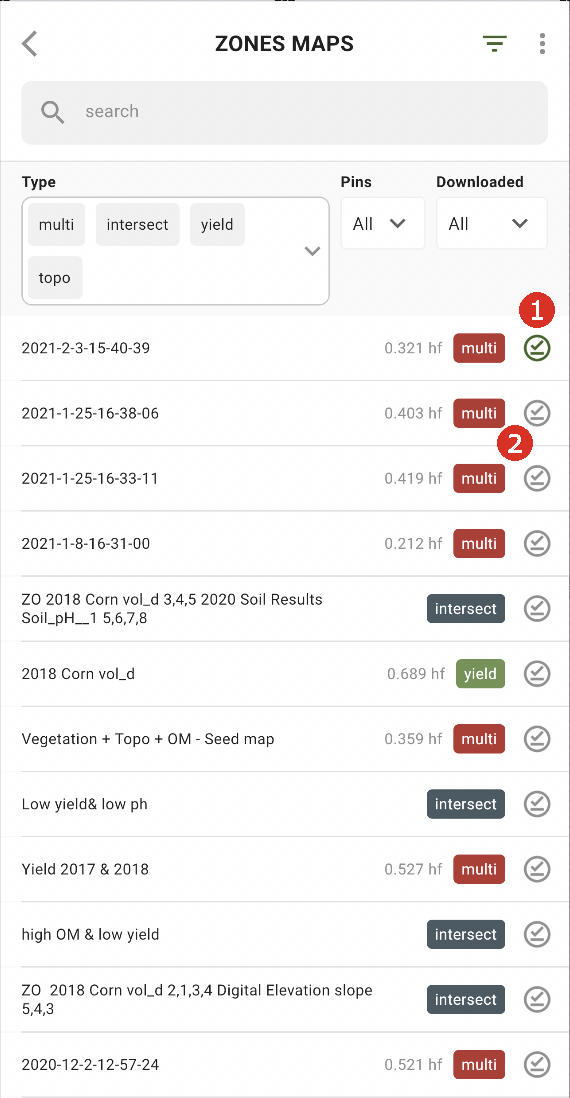
لتمكين العمل دون اتصال، تحتاج إلى تنزيل خريطة المناطق إلى هاتفك الذكي. اضغط على زر التنزيل بجوار خريطة المناطق التي تريد تنزيلها (2).
بمجرد تنزيل الخريطة إلى جهازك، ستظهر بجانبها علامة صح خضراء (1).
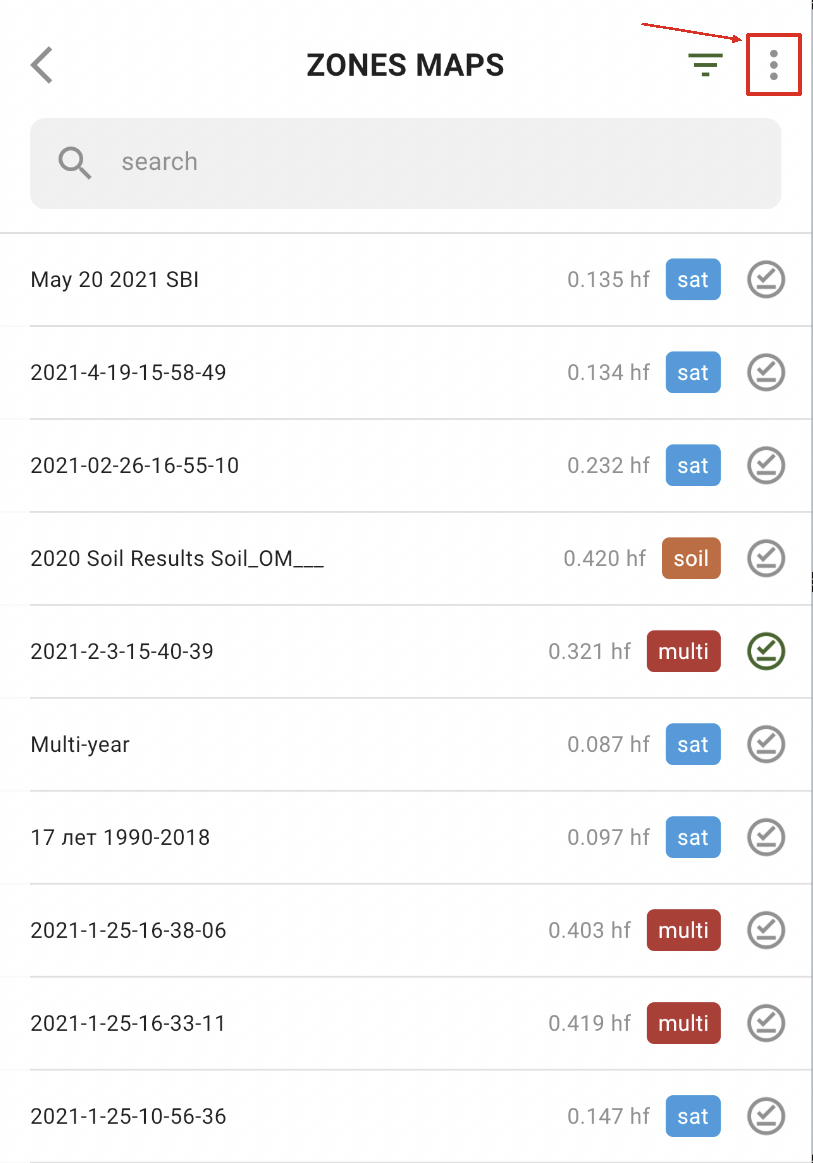
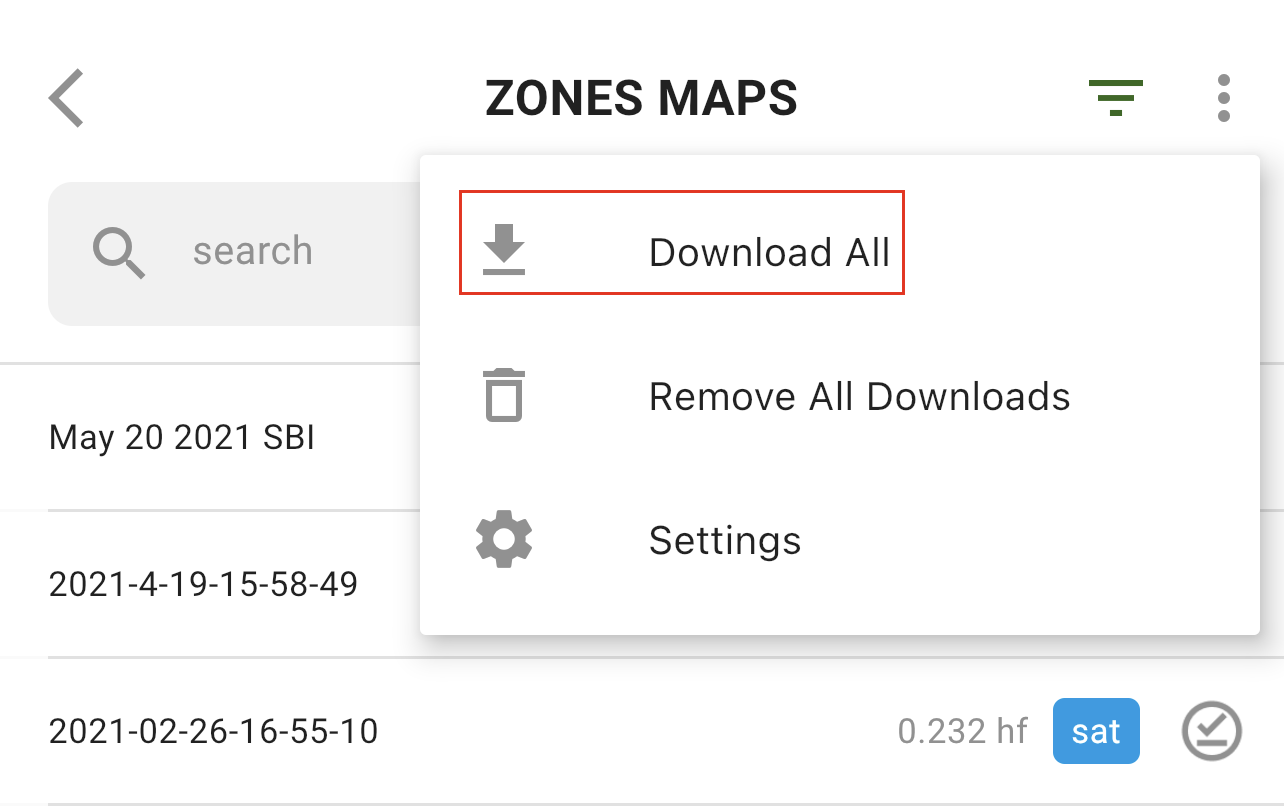
لتنزيل جميع خرائط المناطق دفعة واحدة، اضغط على خيار المزيد:
ثم اختر خيار «تنزيل الكل»:
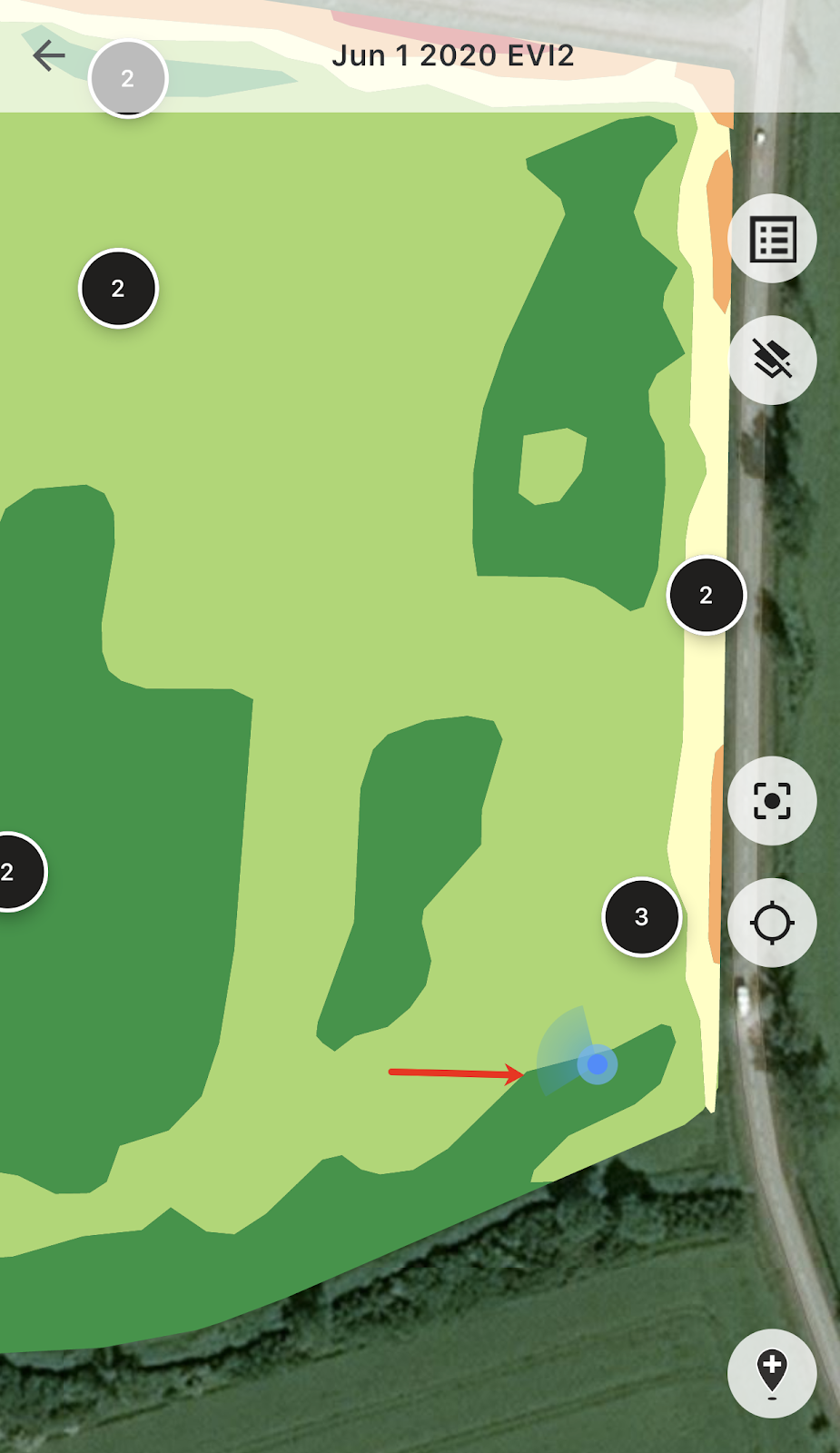
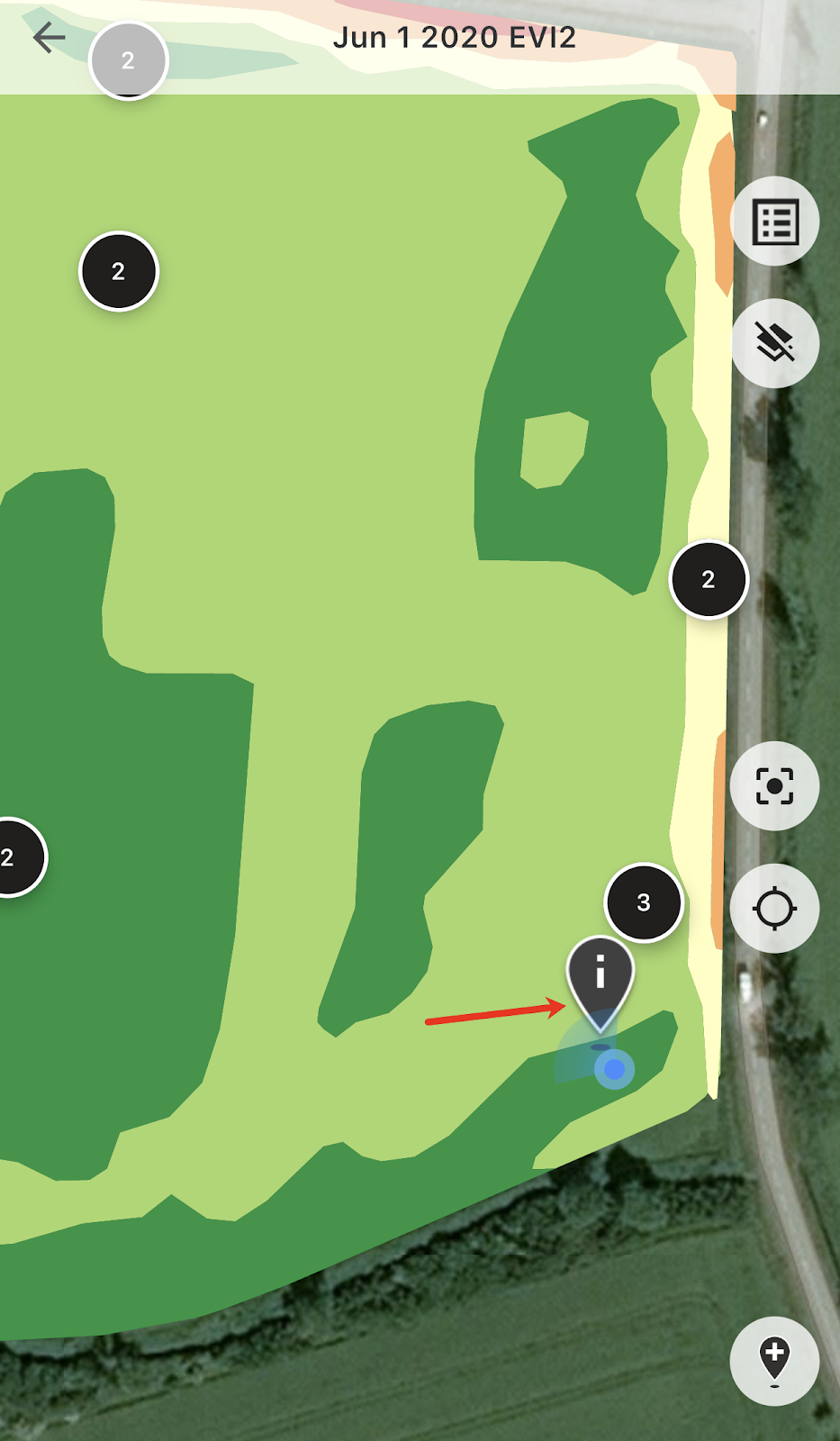
بمجرد تواجدك في الحقل، يمكنك تتبع موقعك ورؤية اتجاه حركتك.
يمكنك الضغط على أي من الدبابيس المخططة وإضافة/تعديل التعليقات.
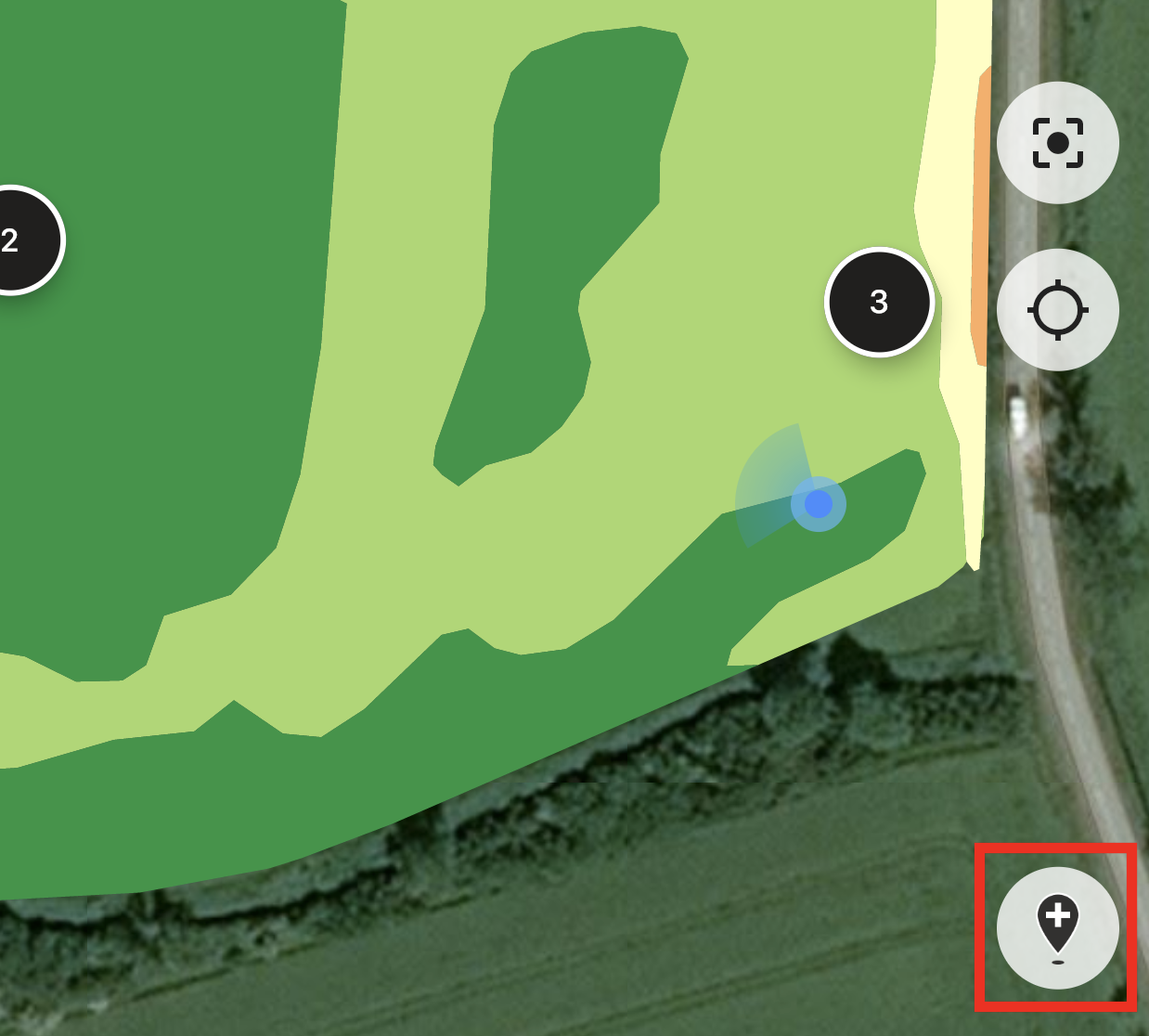
أو إذا لاحظت أي شيء يتطلب الانتباه (شذوذًا أو أن حدود الحقل غير صحيحة)، فاضغط على زر إضافة دبوس جديد.
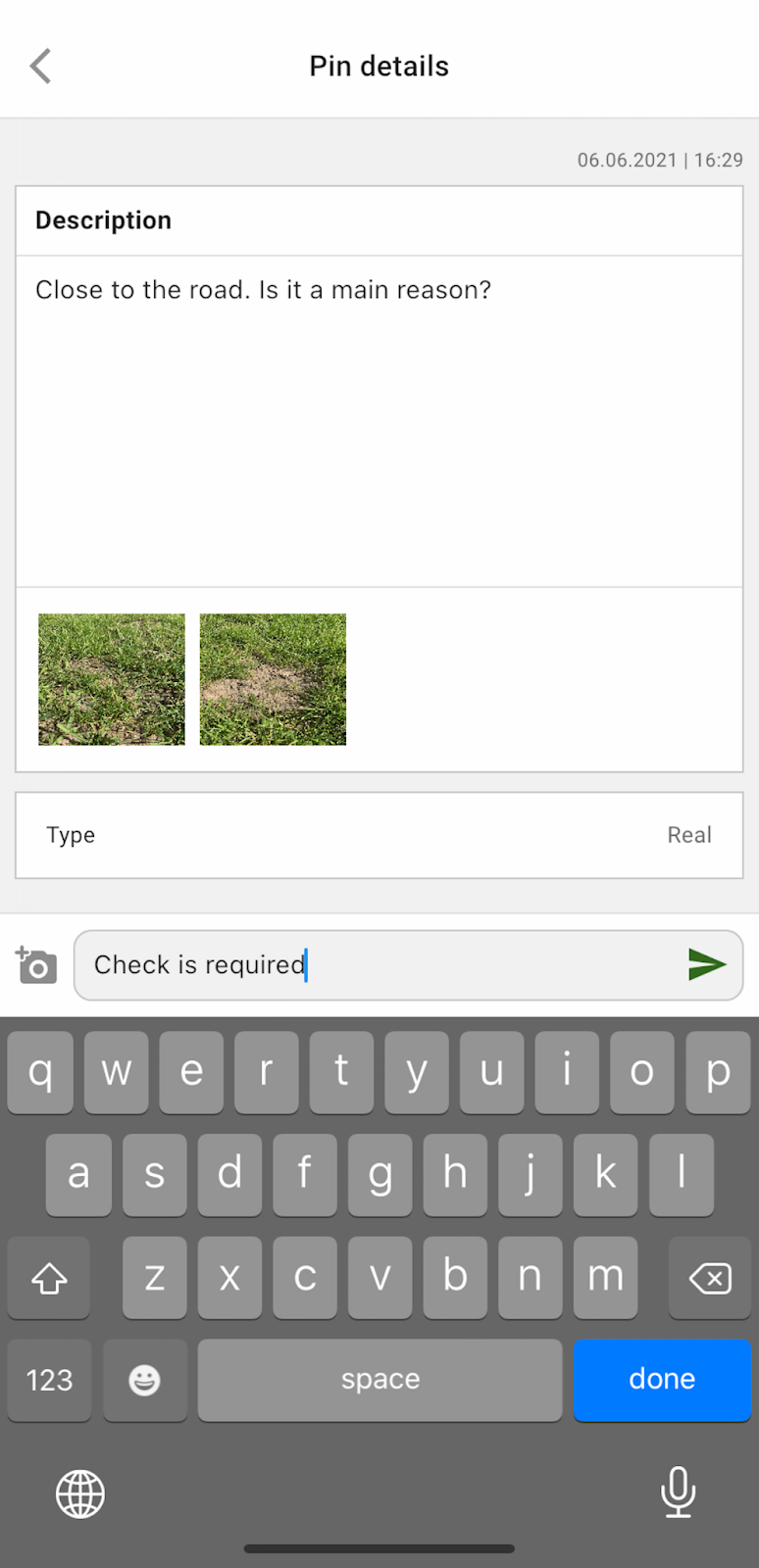
اكتب تعليقاتك واضغط على زر «حفظ» لإضافة دبوس جديد إلى خريطة المناطق.
الدبابيس التي تضيفها باستخدام جهازك الجوال لها أيقونة مختلفة مقارنةً بالدبابيس المخططة التي تضيفها باستخدام تطبيق الويب.
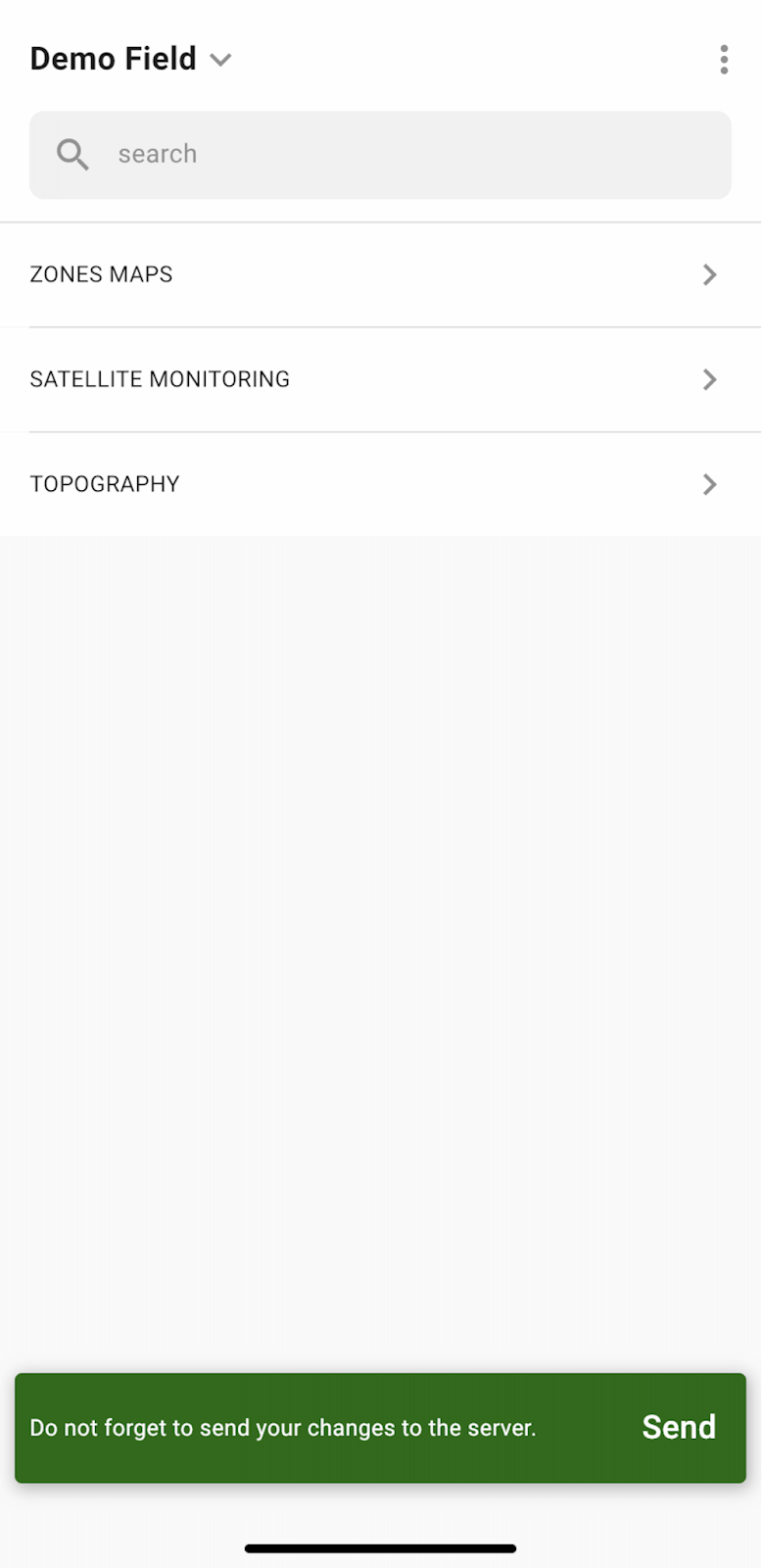
بمجرد أن تنتهي من عملك في الحقل وتكون قد أضفت/عدّلت الدبابيس، ستظهر لك رسالة تطلب منك رفع التغييرات إلى الخادم. أو، في حال كنت تعمل دون اتصال، سيُطلب منك رفع التغييرات بمجرد اتصالك بالشبكة.
اضغط على «إرسال» لمزامنة التغييرات مع الخادم.
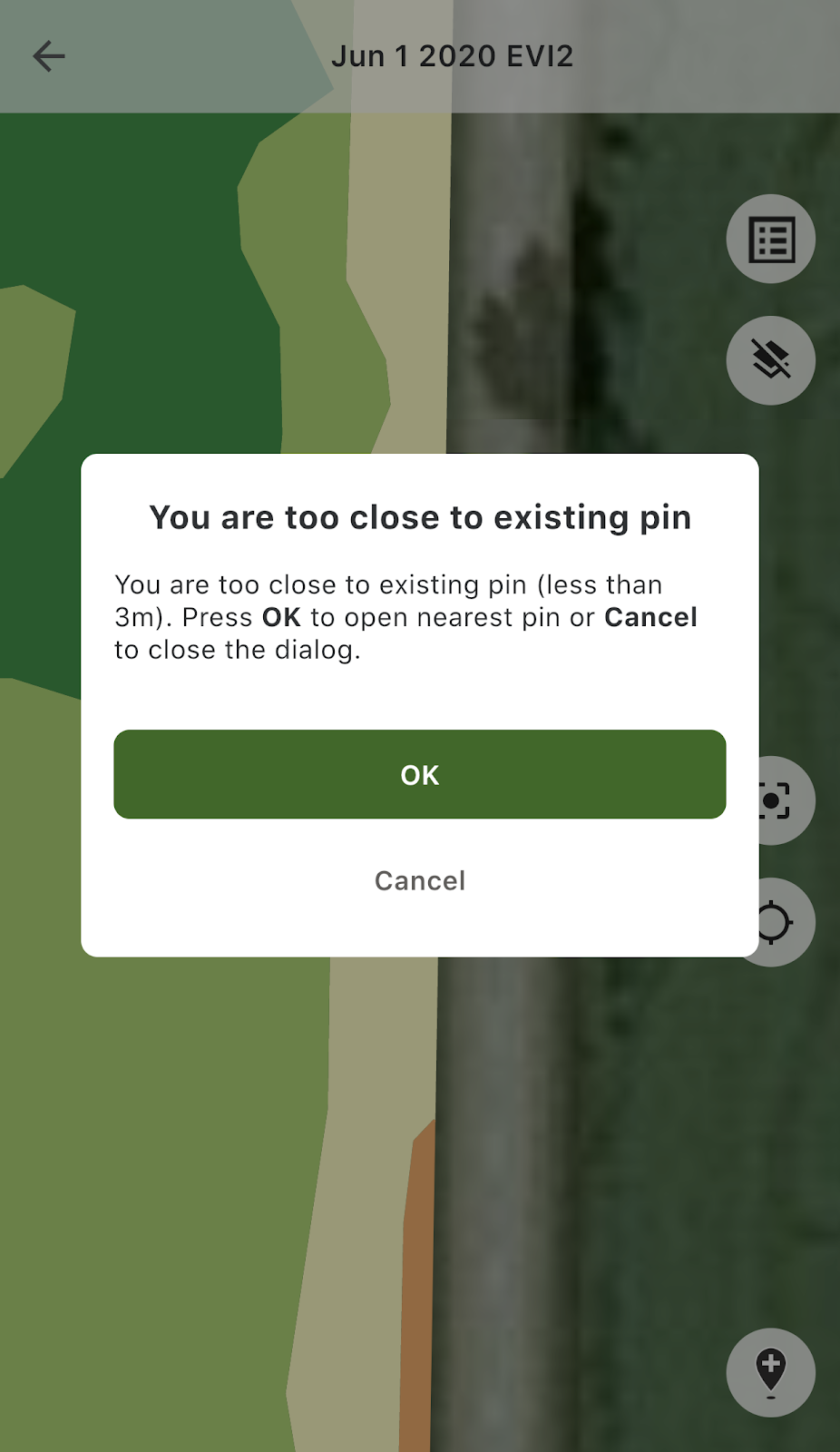
إذا كنت قريبًا من دبوس موجود بالفعل وحاولت إضافة دبوس جديد، فستظهر لك الرسالة التالية:
في هذه الحالة، يمكنك الضغط على «موافق» لفتح أقرب دبوس، أو «إلغاء» لإغلاق الرسالة المنبثقة.
---
# Agent Instructions
This documentation is published with GitBook. GitBook is the documentation platform designed so that both humans and AI agents can read, navigate, and reason over technical content effectively. Learn more at gitbook.com.
## Querying This Documentation
If you need additional information that is not directly available in this page, you can query the documentation by asking a question.
Perform an HTTP GET request on the following URL with the `ask` and `goal` query parameters:
```
GET https://docs.geopard.tech/geopard-tutorials/ar/jwlh-almntj-ttbyq-alhatf-almhmwl/alaml-dwn-atsal.md?ask=&goal=
```
`ask` is the immediate question: it should be specific, self-contained, and written in natural language.
`goal` is what the user is ultimately trying to achieve, the reason they need the answer. Sharing it helps GitBook give you a better, more relevant answer. A goal is most helpful when it describes the outcome the user wants rather than restating the question. For example, with `ask=how do I create an API token`, a goal like `automate deployments from our CI pipeline` lets GitBook tailor the answer to that use case.
The response will contain a direct answer to the question and relevant excerpts and sources from the documentation.
Use this mechanism when the answer is not explicitly present in the current page, you need clarification or additional context, or you want to retrieve related documentation sections.