> For the complete documentation index, see [llms.txt](https://docs.geopard.tech/geopard-tutorials/llms.txt). Markdown versions of documentation pages are available by appending `.md` to page URLs; this page is available as [Markdown](https://docs.geopard.tech/geopard-tutorials/api-docs/getting-started-with-the-geopard-api.md).
# Getting Started with the GeoPard API
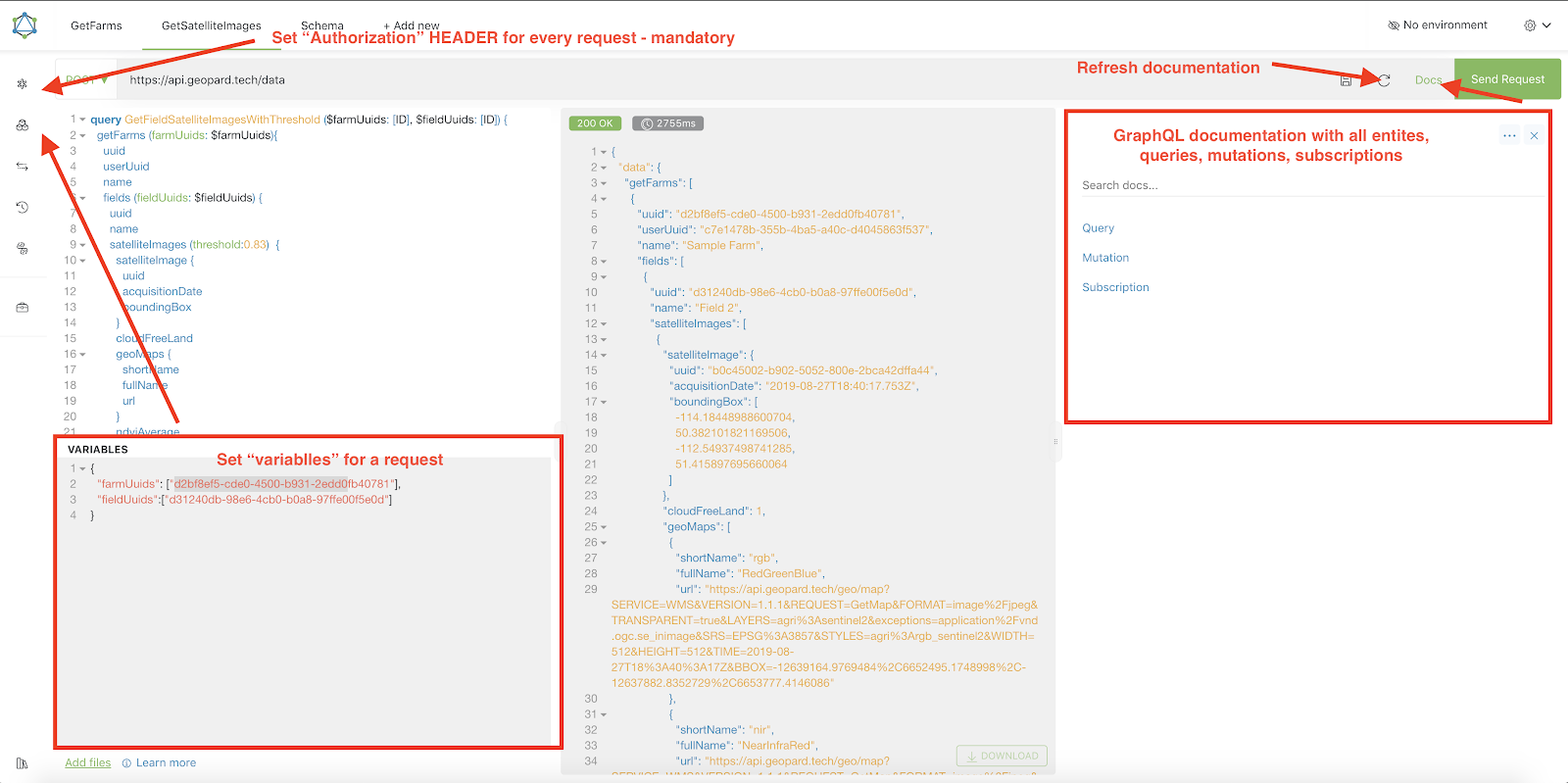
The GeoPard team highly suggests initiating with Altair to thoroughly examine the functionalities of the GeoPard API. It consistently retrieves the most recent version of accessible entities, queries, mutations, and subscriptions. Please refer to the quick-start guide outlined below:
1. Install the Altair GraphQL Chrome extension from this [LINK](https://chrome.google.com/webstore/detail/altair-graphql-client/flnheeellpciglgpaodhkhmapeljopja) or alternatively, use Altair GraphQL Client directly in [your browser](https://altairgraphql.dev/).
2. Each request must be authenticated with an `Authorization` HEADER, where the requisite token should be included. For quick testing, the `Authorization` HEADER value can be obtained from the requests following login into GeoPard Agriculture.\
\&#xNAN;*A short explanation is in the screenshot below.*
3. The Root GraphQL endpoint is located at [`https://api.geopard.tech/data`](https://api.geopard.tech/data).\
\&#xNAN;*A short explanation is in the screenshot below.*
4. Access to the GraphQL Schema can be found under the "Docs" button within the Altair interface. This section allows you to navigate through all available Queries, Mutations, and Subscriptions. Additionally, it offers insight into various entities and their respective structures, providing a comprehensive understanding of the system's GraphQL setup.\
\&#xNAN;*A short explanation is in the screenshot below.*
5. Confirm that outgoing requests are functioning correctly using your browser's development console. You can apply request filters such as `/data`.
6. The schema can be accessed from this [HERE](/geopard-tutorials/api-docs/geopard-api-data-schema.md).
7. For file uploading, we utilize [these endpoints](/geopard-tutorials/api-docs/geopard-api-requests-overview/55.-upload-zip-files-over-6-mb.md).
8. To access raster and vector data, we employ OGC WMS (raster images for swift rendering) and WFS formats (`shp`, `geojson`). For more information, please refer to our [Geo Endpoint](/geopard-tutorials/api-docs/geo-endpoints-for-spatial-data-access.md)s section.
{% hint style="info" %}
A short guide with tips on how to operate Altair is highlighted in the screenshot below.
{% endhint %}
Altrair: Short Gude
---
# Agent Instructions
This documentation is published with GitBook. GitBook is the documentation platform designed so that both humans and AI agents can read, navigate, and reason over technical content effectively. Learn more at gitbook.com.
## Querying This Documentation
If you need additional information that is not directly available in this page, you can query the documentation by asking a question.
Perform an HTTP GET request on the following URL with the `ask` and `goal` query parameters:
```
GET https://docs.geopard.tech/geopard-tutorials/api-docs/getting-started-with-the-geopard-api.md?ask=&goal=
```
`ask` is the immediate question: it should be specific, self-contained, and written in natural language.
`goal` is what the user is ultimately trying to achieve, the reason they need the answer. Sharing it helps GitBook give you a better, more relevant answer. A goal is most helpful when it describes the outcome the user wants rather than restating the question. For example, with `ask=how do I create an API token`, a goal like `automate deployments from our CI pipeline` lets GitBook tailor the answer to that use case.
The response will contain a direct answer to the question and relevant excerpts and sources from the documentation.
Use this mechanism when the answer is not explicitly present in the current page, you need clarification or additional context, or you want to retrieve related documentation sections.